
How to Create an Invoice on Shopify (Fast & Simple Guide)
Learning how to create an invoice on Shopify gives you more control over special orders, custom pricing, and situations that require direct communication before payment. An invoice provides a clear breakdown for customers and supports orders that do not fit the standard online checkout flow.
Key points covered in this guide:
- How Shopify invoices work and when to use them
- How to create an invoice with draft orders
- How to send an invoice for orders with pending payment
- How to use a Shopify invoice app for PDFs and automation
- Common invoicing scenarios for B2B, services, and custom pricing
- Best practices for professional, accurate invoices
Now let’s learn how each invoicing method works inside Shopify.
What Is an Invoice on Shopify and When Do You Need One?
A Shopify invoice is a pre-purchase document that shows the products, prices, taxes, and terms of an order. It includes a secure payment link that allows the customer to complete checkout directly from the email. This type of invoice is helpful when an order needs manual adjustments, special pricing, or direct communication with the buyer before payment happens.
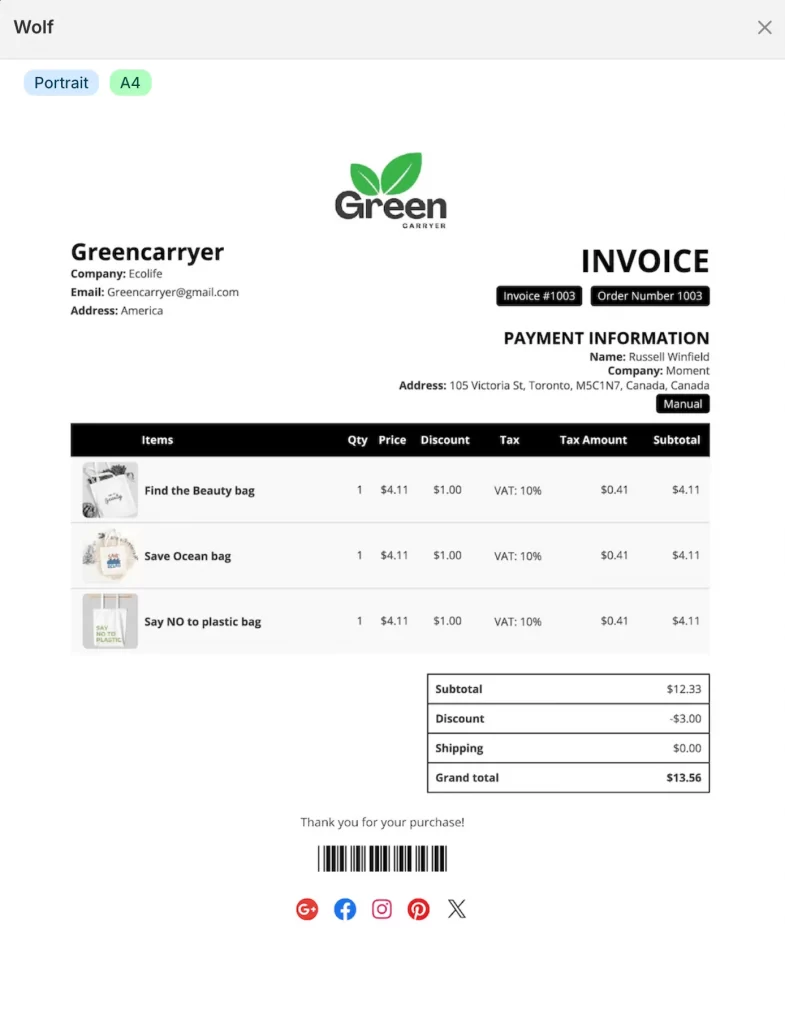
An invoice is different from a receipt. The invoice appears before payment and acts as a formal request for payment. The receipt appears after payment and confirms that the customer has already paid for the order.
Shopify merchants use invoices in many practical situations:
- Orders that require custom pricing or special discounts
- Wholesale or B2B quotes that need approval before payment
- Customers who prefer paying via a secure link instead of navigating the store
- Deposits or partial-payment arrangements
- Follow-ups after payment fails or checkout is abandoned
- Service-based work that needs itemized billing
- International orders that require a formal price breakdown
In each situation, an invoice creates clarity, sets proper expectations, and guides the customer smoothly toward completing the order.
Before You Create an Invoice on Shopify: Quick Checklist
A quick review of key details helps you avoid mistakes and ensures the customer receives a clear, accurate invoice. This simple checklist keeps the process smooth and prevents issues during payment.
- The customer’s email address is correct and active
- All products, custom items, prices, discounts, and taxes are accurate
- Any custom line items are ready to add
- Payment terms, such as due dates, deposits, or partial payments, are decided
- Notes or terms for the customer are prepared
With these points in place, your invoice looks professional, and the customer receives precise information from the start.
How to Create an Invoice on Shopify (2 Built-In Methods)
Shopify includes two simple ways to create and send invoices directly from your admin dashboard. Both methods give the customer a secure payment link and a clear breakdown of the order. The right method depends on whether the order already exists or still needs to be created.
Method 1. Create an invoice using draft orders (most common)
This method works best for custom quotes, wholesale pricing, service-based orders, or situations where the invoice cannot be sent from Shopify automatically, and you need full control over products and pricing.
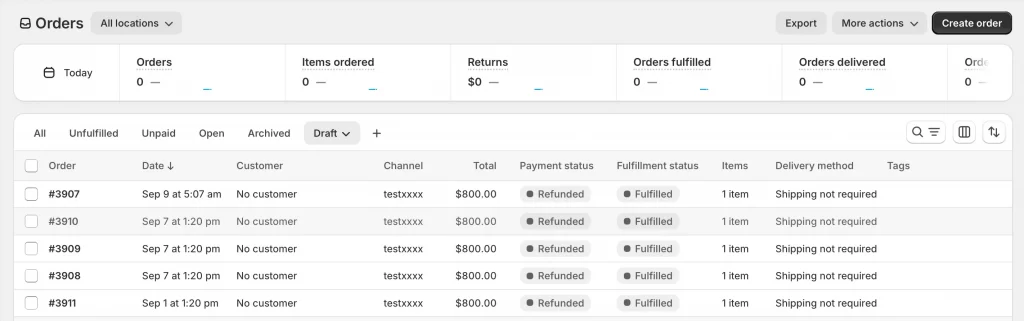
Step 1: Go to Orders > Drafts > Create order
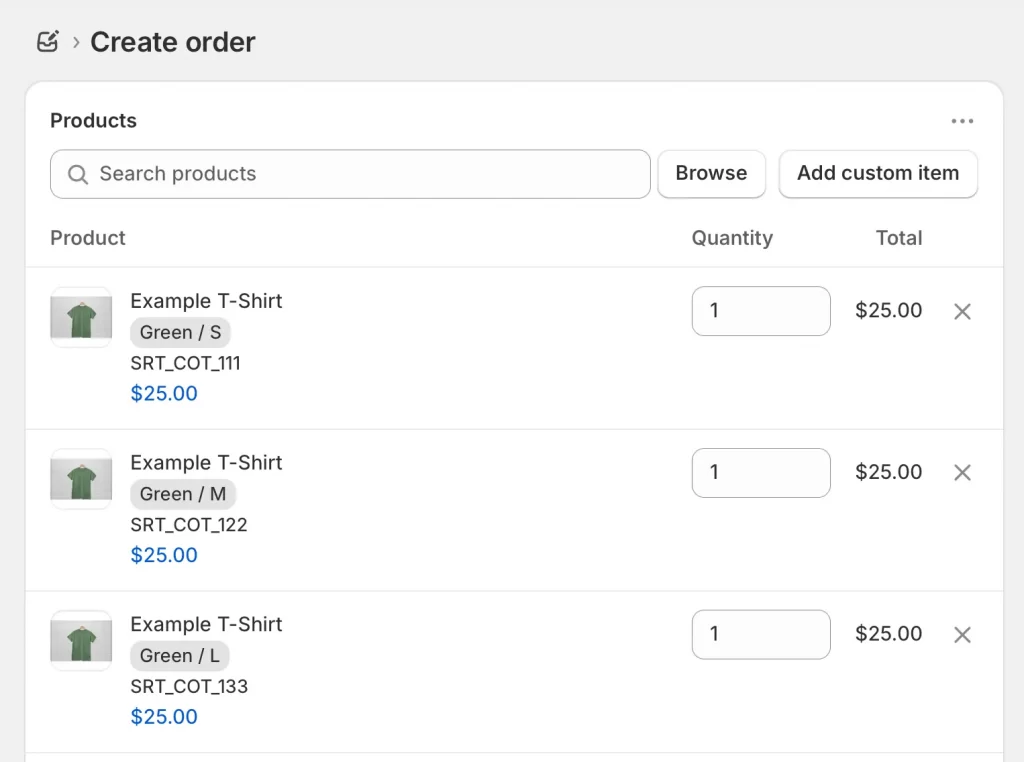
Step 2: Add products or custom items
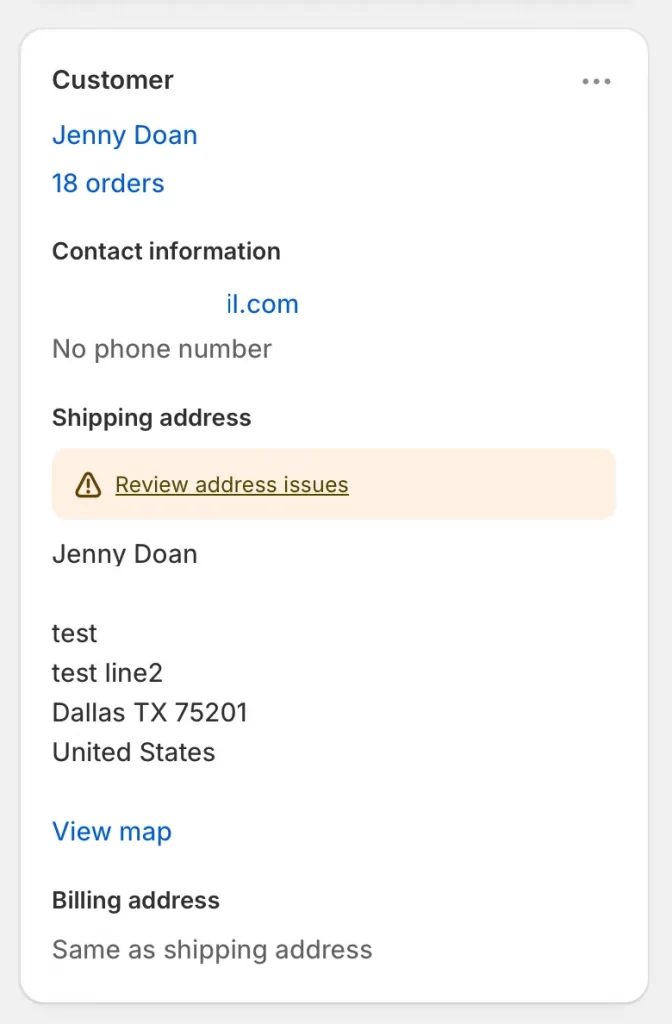
Step 3: Add the customer’s details
Step 4: Adjust pricing, shipping, and reserve inventory. While setting discounts or shipping rates, you should also click Reserve items in the draft timeline.
Step 5: Add notes or a short message for the customer
Step 6: Review the payment section and choose the appropriate payment terms and click Send invoice
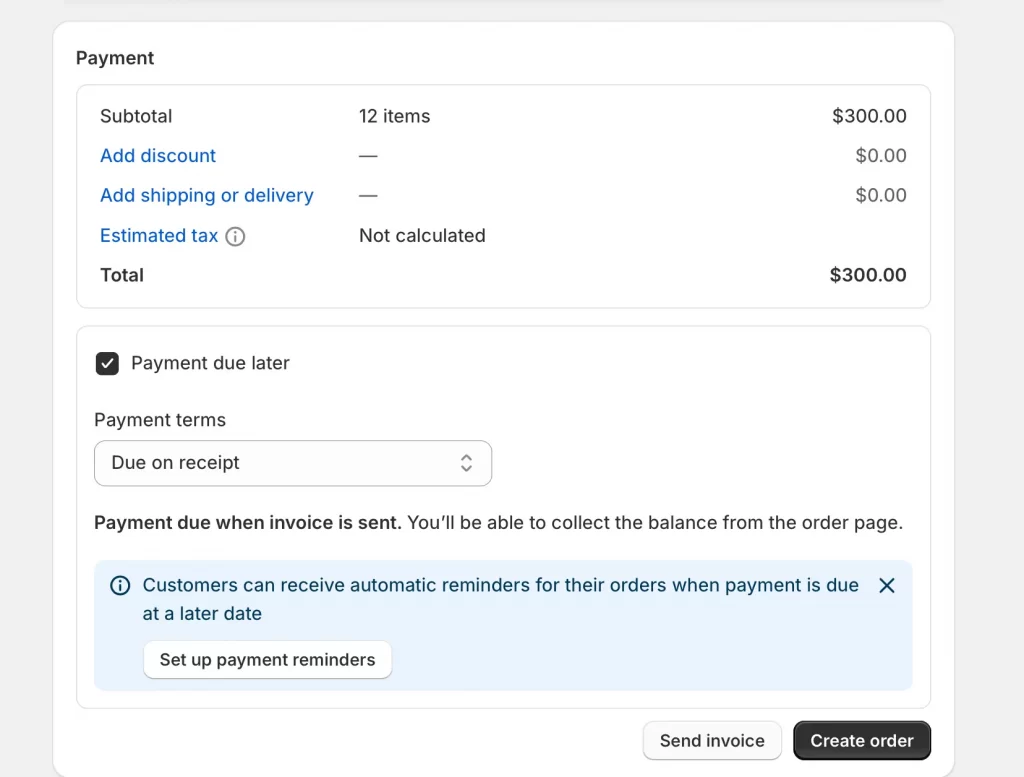
The customer receives an email with a secure payment link that takes them directly to checkout. And that’s how to create invoice on Shopify using draft orders.
Method 2. Send an invoice for an order with pending payment
This method suits abandoned checkouts, failed payments, or situations where the customer started an order but did not finish payment.
Step 1: Go to Orders and open an unpaid order
Step 2: Click Collect payment > Send invoice
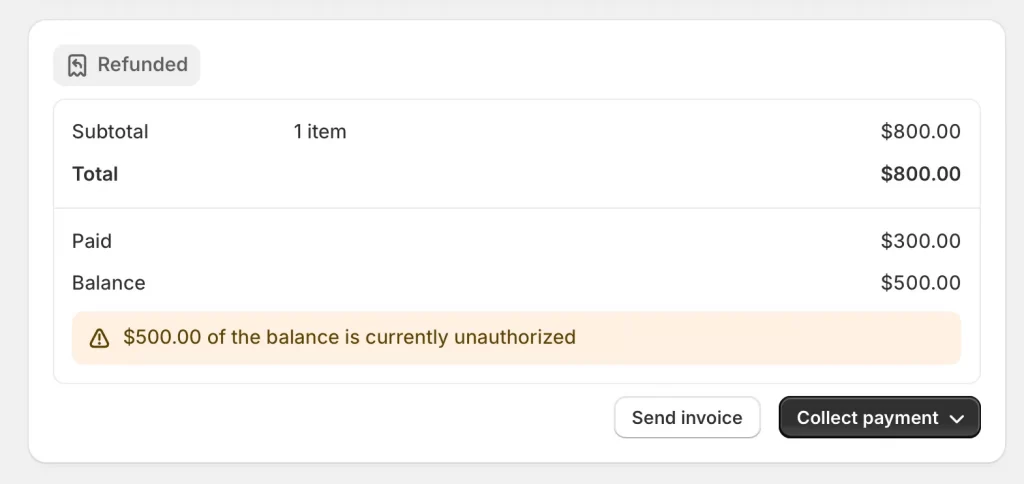
Step 3: Review the information
Step 4: Send the invoice
This option resends a clean payment link without requiring you to rebuild the order.
How to Print or Save a PDF Invoice for Existing Orders (Free Method)
If a customer requests an invoice for an order they have already paid for, you don’t need to create a new draft. You can use Shopify’s free Order Printer app:
- Install the Order Printer app from the Shopify App Store.
- Go to Orders and select the order.
- Click More actions > Print with Order Printer.
- Select the Invoice template.
- Click Print and change your printer destination to “Save as PDF” to generate a digital copy you can email to the customer.
How to Create an Invoice on the Shopify Mobile App
Many merchants need to send invoices while on the floor or at a trade show. The workflow on the Shopify mobile app is slightly different:
- Step 1: Open the Shopify App and go to Orders.
- Step 2: Tap the + icon (top right) to start a Draft Order.
- Step 3: Add products and tap Add Customer to link their profile.
- Step 4: Tap Email invoice to send the formal document, or use Share checkout link to paste the payment URL directly into a text message or social DM.
Note: Custom meta-fields and advanced tax overrides are harder to access on mobile, so use the desktop version for complex B2B invoices.
How to Create an Invoice on Shopify With Apps
Shopify’s native invoicing works well for standard situations, but apps provide stronger customization, automated workflows, and professionally styled PDF invoices. These tools help you create invoices that match your brand and support advanced requirements such as multi-currency, multi-language, or bulk invoice generation.
Option 1. Use a free Shopify invoice generator
Shopify offers a free online invoice generator that helps you create simple, professional invoices without signing in to your Shopify admin. The tool works well for quick billing needs, service-based work, or situations where you want a clean PDF invoice to send manually.
Steps to create an invoice using the free tool:
Step 1: Open the Shopify Invoice Generator page.
Step 2: Enter your company information, including your business name, email address, physical address, and country.

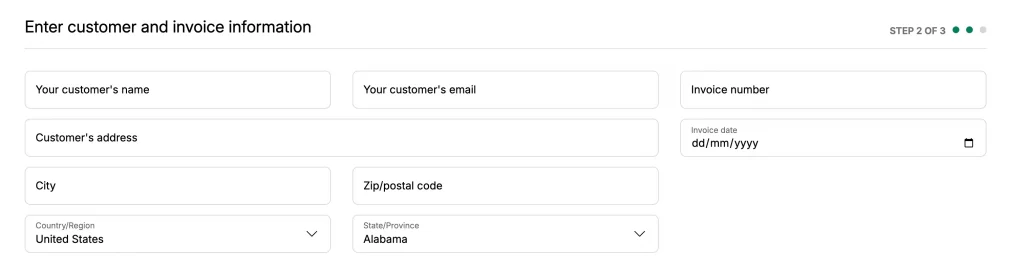
Step 3: Fill in the customer and invoice details, such as the customer’s name, email, invoice number, and billing address.
Step 4: Add the items you want to bill by listing each product or service, along with its description, quantity, and price.
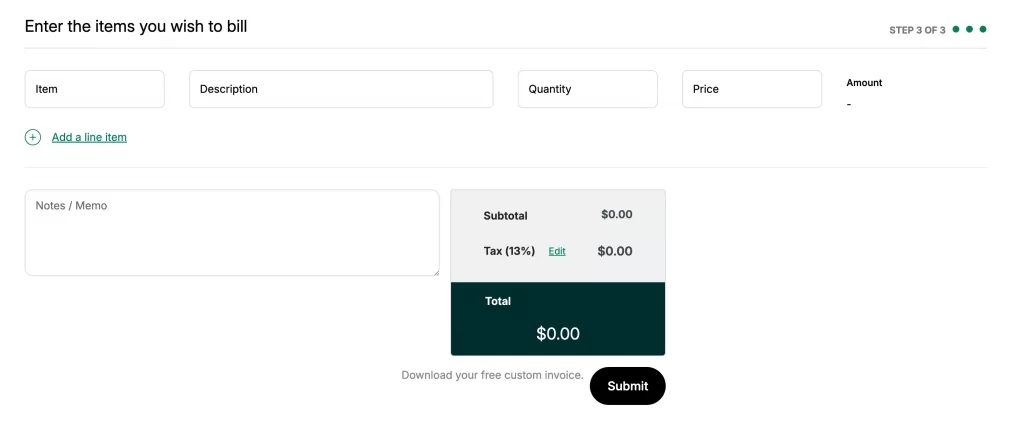
Step 5: Review the subtotal, tax, and final total displayed in the summary box. Then add any notes or terms you want the customer to see.
Step 6: Submit the form to generate your invoice.
Step 7: Download the completed invoice as a Shopify invoice PDF or send it directly to the customer.
This tool produces a clean, professional invoice within minutes and works well for merchants who need a straightforward billing option outside Shopify’s built-in draft order system.
Option 2. Use Shopify invoice apps (for PDF + customization)
Merchants selling B2B or internationally often require invoice apps for legal compliance. Shopify’s native order numbers (e.g., #1001, #1002) are not strictly ‘sequential’ for accounting purposes if you delete an order or leave a draft open. Apps like Sufio or Order Printer Pro ensure you have a gapless, sequential invoice number series (e.g., INV-001, INV-002) and automatically handle VAT/GST breakdowns required by EU or Australian law.
Steps to create an invoice with a Shopify invoice app:
Step 1: Open the Shopify App Store from your admin dashboard.
Step 2: Choose an app that fits your needs. Popular options include Vify Order Printer, Order Printer Pro, and Easy Invoice+.
Step 3: Install the app and allow it to connect to your store.
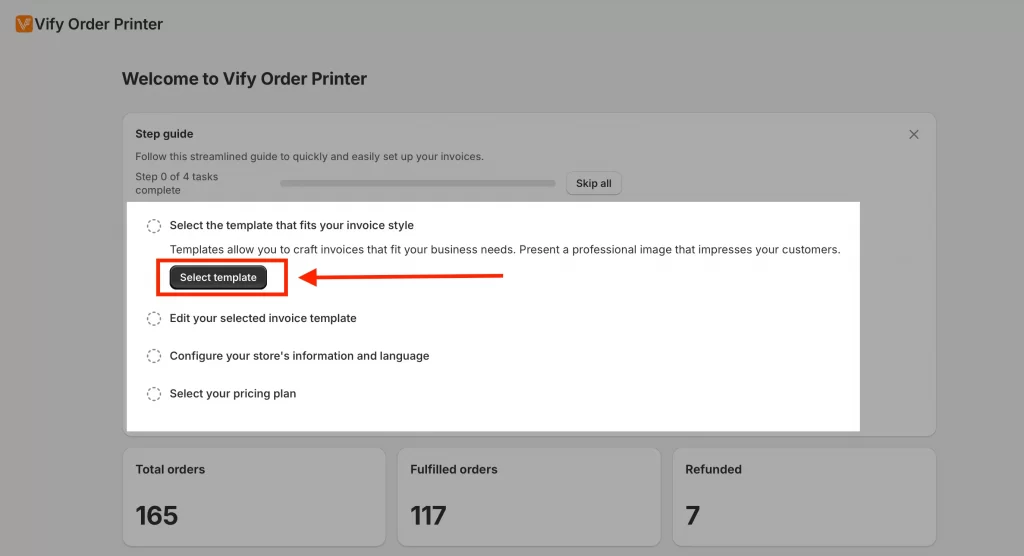
Step 4: Open the app’s dashboard from your Shopify admin and select a Shopify invoice template or create one from scratch.
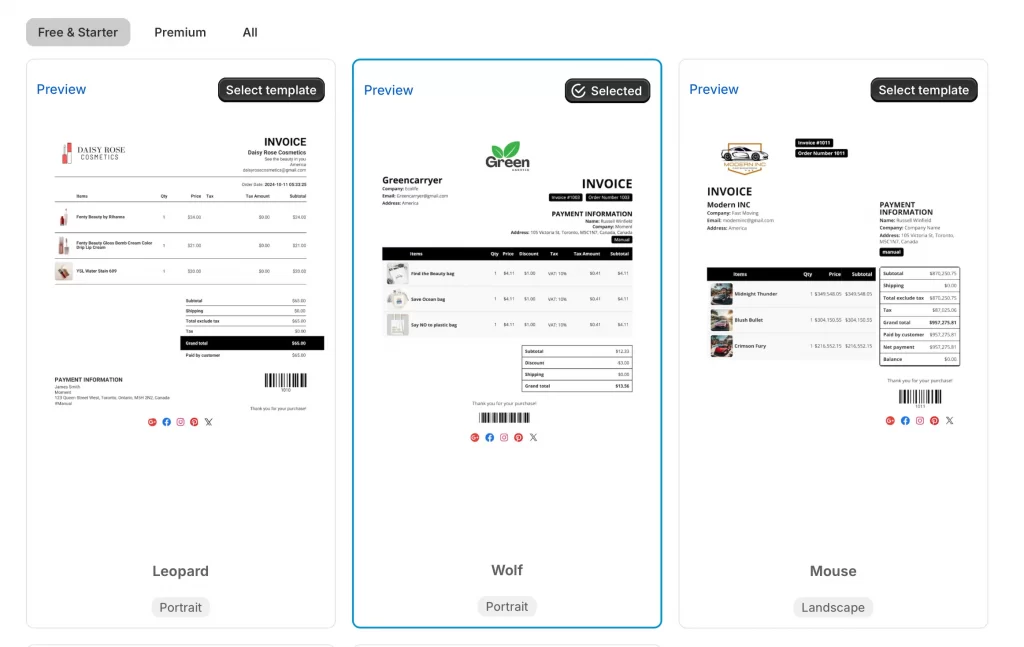
Step 5: Add your branding details, including your logo, brand colors, and custom layout choices.
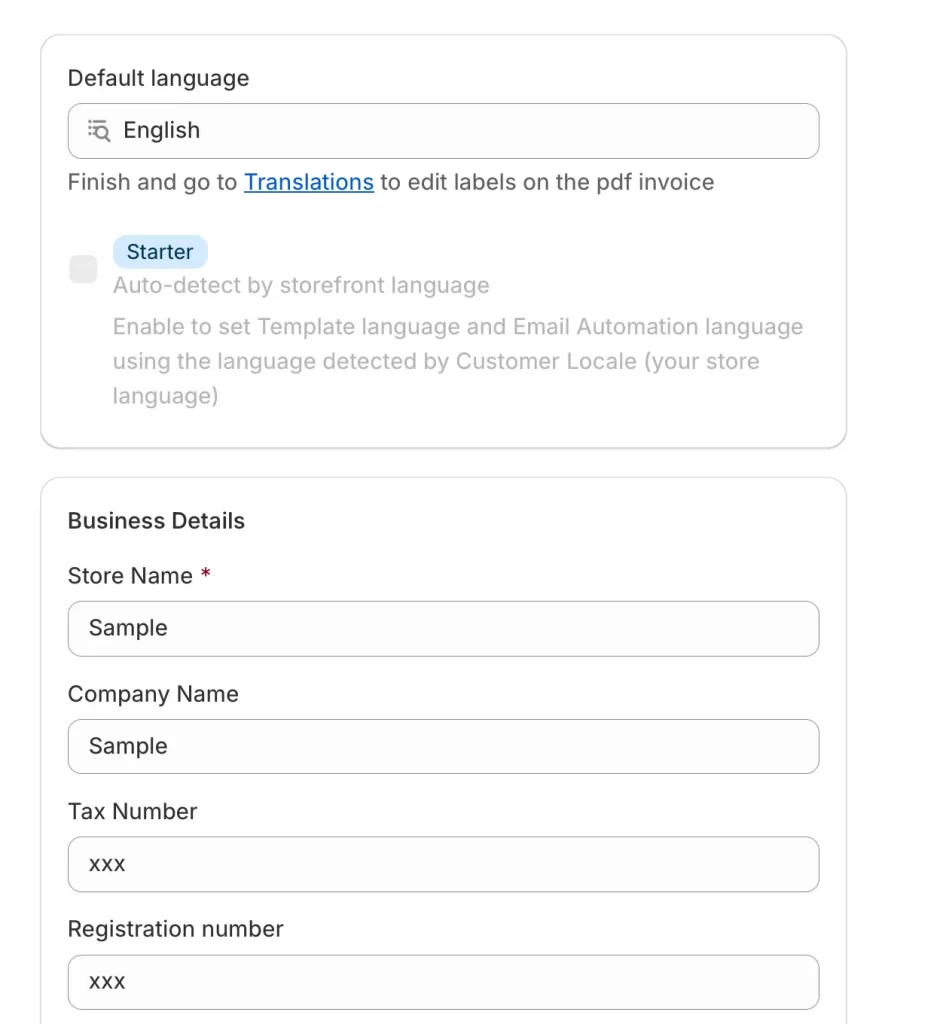
Step 6: Choose an order from your store that you want to convert into a Shopify order invoice for the customer.
Step 7: Preview the invoice to confirm pricing, taxes, and formatting and send the invoice to the customer or download the PDF for manual sharing.
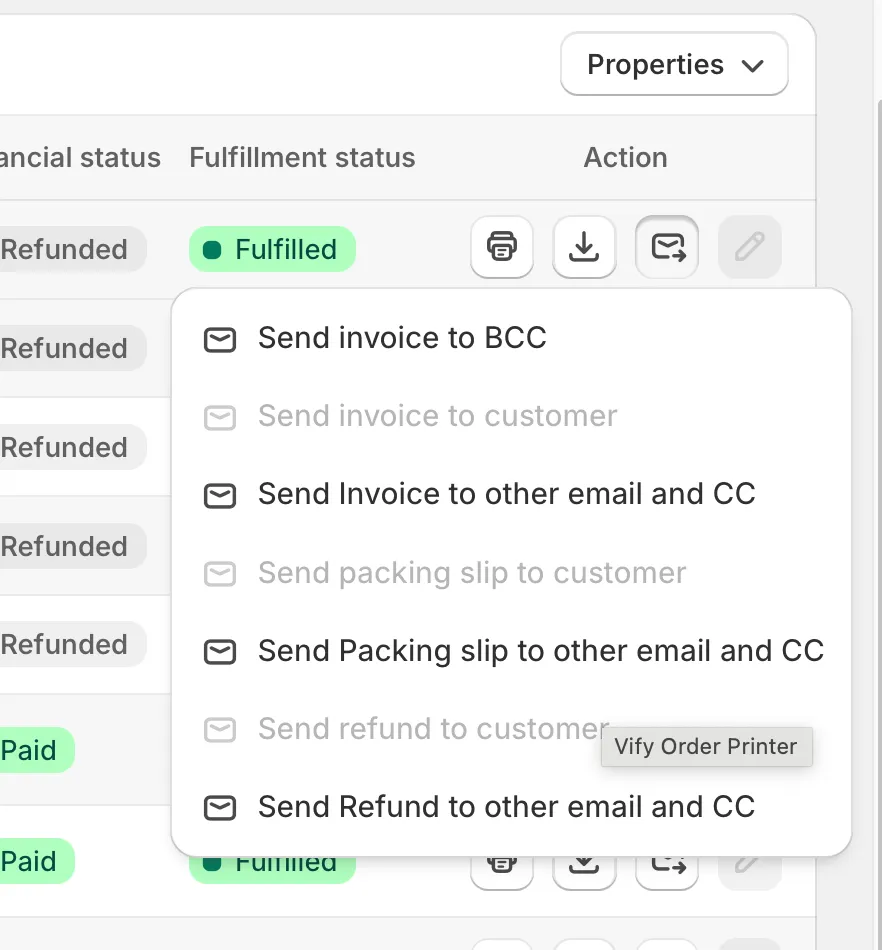
Most invoicing apps can make Shopify send invoices automatically based on triggers such as order creation or updates, which saves time and keeps your invoicing consistent.
Common Invoicing Scenarios for Shopify Merchants
Shopify invoices support many situations that do not fit the standard online checkout flow. These scenarios often require manual adjustments, custom pricing, or direct communication with the customer. In each case, an invoice provides a clear breakdown of costs and a secure payment link.
| Scenario | Why an invoice helps |
| Custom quotes for B2B or wholesale orders | Provides a formal, itemized quote that buyers can review and approve before payment. |
| Phone or email orders | Gives customers a clean payment link after they place the order directly with you. |
| Partial payments or deposits | Lets you charge an initial amount and collect the remaining balance later. |
| Post-service billing | Creates a structured breakdown for installations, consultations, or custom work completed. |
| Payment plans | Helps you schedule and track installment payments clearly. |
| International or multi-currency orders | Offers customers a documented breakdown of price, tax, and currency before they commit. |
| Outstanding or failed payments | Resends a secure payment link without requiring you to rebuild the order. |
| Legal or tax documentation | Supplies customers with a formal pre-purchase document that includes your business details and tax IDs. |
Invoices make these scenarios easier to manage by giving your customers clarity while allowing you to maintain full control over pricing, payment terms, and communication.
Best Practices for Creating Shopify Invoices
Strong invoicing habits give customers clarity, reduce misunderstandings, and create a more professional buying experience. Clear structure and consistent formatting also make your internal workflow easier to manage. The points below outline simple practices that improve every invoice you send.
- Use clear line items: Each product or service appears with a straightforward title, a short description, and accurate pricing. Customers understand the order better when the details are easy to read.
- Add notes or terms when necessary: Policies, delivery timelines, or special conditions help customers know what to expect before they pay.
- Maintain consistent invoice numbers: A stable numbering system improves tracking, supports proper accounting, and gives customers a reference when they contact support.
- Apply branded templates (logo + colors): A polished layout increases trust and reflects your store’s identity. Most invoice apps allow full control over branding elements.
- Send polite reminders for overdue invoices: A short follow-up message often encourages customers to complete payment without friction.
- Provide multiple payment methods: Customers complete more payments when they have familiar options such as credit cards, digital wallets, and region-specific payment methods.
These practices create invoices that look professional, reduce confusion, and help customers move smoothly toward completing their order.
Pro Tip: Turn your Order Confirmation Email into an Invoice If you don’t want to use an app, you can edit your native email template to act as a receipt. Go to Settings > Notifications > Order confirmation. Edit the code to change the subject line to “Invoice & Order Confirmation” and ensure your Tax ID and business address are hardcoded in the footer. This satisfies many standard customers without requiring manual PDF generation.
How to Create an Invoice on Shopify: FAQs
Can I create an invoice on Shopify?
Yes. Shopify allows you to create invoices through draft orders or through any existing order that has not been paid. Each invoice includes a secure payment link that the customer can use to complete checkout.
How do I generate an e-invoice in Shopify?
You can generate an e-invoice from a draft order or an unpaid order. Apps also offer automated e-invoices with PDF formatting, branding, and multi-language support. The customer receives the invoice by email.
How do I customize invoices in Shopify?
Shopify’s native invoices have limited customization options. Apps provide more control, allowing you to adjust layout, colors, branding, and additional fields such as tax IDs, notes, or signatures.
How do I create a PDF invoice in Shopify?
Shopify does not generate PDF invoices by default. Apps such as Order Printer, Order Printer Pro, or Easy Invoice+ allow you to download invoices as PDF files or send them to customers automatically.
Quick Summary
This guide explains how to create an invoice on Shopify using the two built-in methods and optional app tools.
- Draft orders help you build custom orders with flexible pricing, B2B quotes, deposits, or service-based items.
- Unpaid orders allow you to send a fresh payment link without rebuilding anything.
- Apps add more control by offering branded PDF layouts, automated sending, and detailed invoice formats for international or wholesale customers.
A clear invoice improves trust, reduces questions, and keeps the payment process smooth. With the right approach, you can create accurate invoices in seconds and support every type of order from simple purchases to complex custom requests.
Ready to elevate your Shopify store design and setup?
At LitOS, our team builds clean, high-performing Shopify stores that look great and work smoothly from day one. We design layouts that improve conversions, set up essential features like invoicing and order flows, and fine-tune the customer experience across your entire store. With the right structure in place, your brand stands out and your operations run with ease.
Contact Us
