
How to Create Coupon Code in WooCommerce: Step-by-Step Guide for 2026
Discounts are one of the fastest ways to increase sales in an online store. If you are using WooCommerce, you can create coupon codes directly inside your dashboard without installing any extra plugins.
In this guide, you’ll learn exactly how to create coupon code in WooCommerce using the default system. From choosing the right discount type to setting expiry dates and usage limits, everything can be configured in just a few steps.
In this article, you’ll discover:
- How to enable and create coupon codes in WooCommerce
- How to create special coupon types like free shipping and BOGO
- How to fix common coupon issues at checkout
By the end, you’ll be able to create and manage WooCommerce coupon codes confidently and avoid common setup mistakes.
What Are WooCommerce Coupons?
WooCommerce coupons are discount codes that store owners create to reduce the price of an order. Customers enter these codes during checkout to receive a discount.
A coupon code is simply a word or short phrase, such as SUMMER10 or WELCOME20. When a customer types this code into the coupon field, WooCommerce automatically calculates the discount based on the rules you set. These rules can include the discount type (percentage or fixed amount), expiry date, usage limits, and product restrictions.
Customers usually apply coupon codes on:
- The cart page (before proceeding to checkout)
- The checkout page (before placing the order)
Once the code is applied, WooCommerce updates the total price immediately so customers can see how much they save.
WooCommerce already includes a built-in coupon system. However, some stores need more advanced promotion features. Below is a simple comparison:
| Feature | WooCommerce default coupons | Advanced discount plugins |
| Basic discounts | Percentage, fixed cart, fixed product | All basic types plus advanced rule-based discounts |
| Free shipping | Supported | Supported |
| Expiry date | Supported | Supported (often more flexible scheduling) |
| Usage restrictions | Minimum spend, product/category limits | More advanced and detailed conditions |
| Automatic discounts (no code needed) | Not supported | Supported |
| BOGO (Buy one, get one) | Limited or basic workaround | Fully supported |
| Tiered discounts | Not supported | Supported |
| Complexity | Simple and easy to manage | More powerful but more complex |
For most stores, the default WooCommerce coupon system is enough. You only need advanced discount plugins if you want more complex promotions.
How to Create a Coupon Code in WooCommerce with Default System
WooCommerce includes a built-in coupon system. You do not need any extra plugin to create basic discount codes. Follow the steps below to create your first coupon.
Step 1: Enable coupons in WooCommerce
Before creating a coupon, make sure coupon codes are enabled.
- Go to WooCommerce > Settings > General tab
- Check the box Enable the use of coupon codes
- Click Save changes

If this option is not enabled, customers will not see the coupon field on the cart or checkout page.
Step 2: Add a new coupon code
Now you can create your coupon. Go to your WordPress dashboard, then navigate to Marketing > Coupons > Add new coupon.
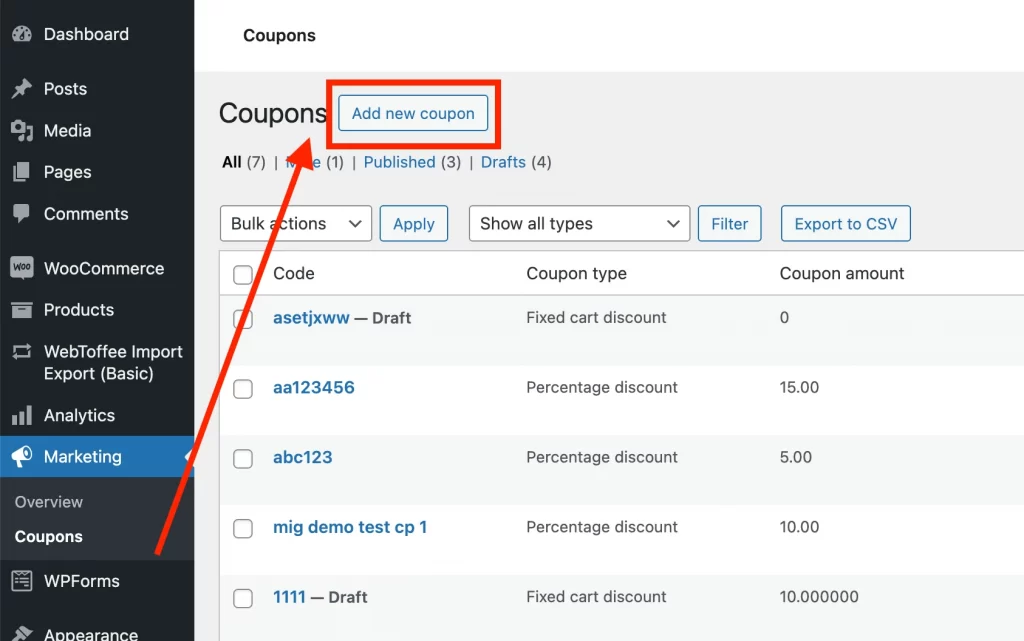
You will see the coupon creation screen. At the top:
- Enter your custom coupon code (for example: SAVE10)
- Or click Generate coupon code to create one automatically
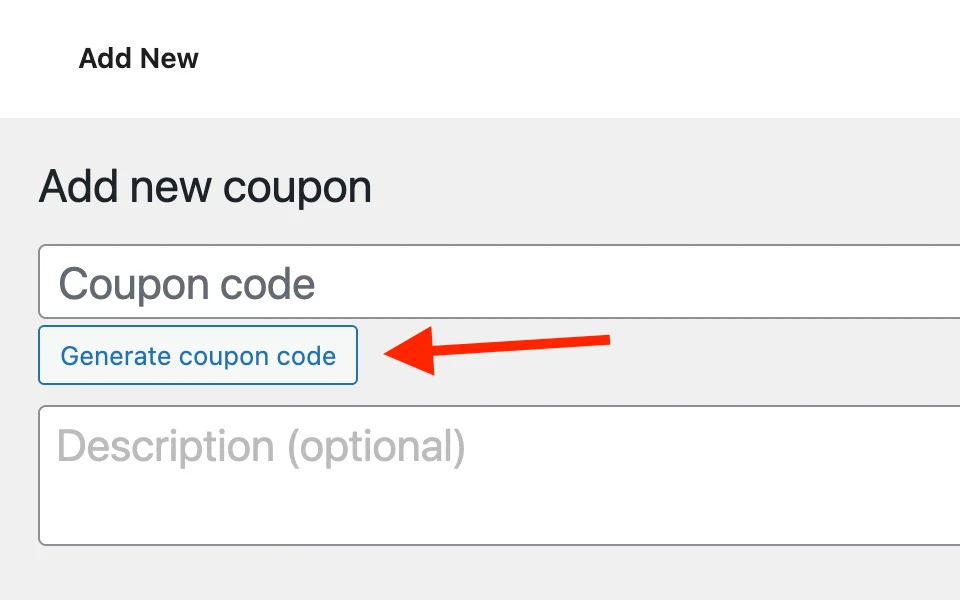
- Add a description (optional). This is for internal use only.
Step 3: Choose the discount type
Scroll down to the Coupon data section and open the General tab.
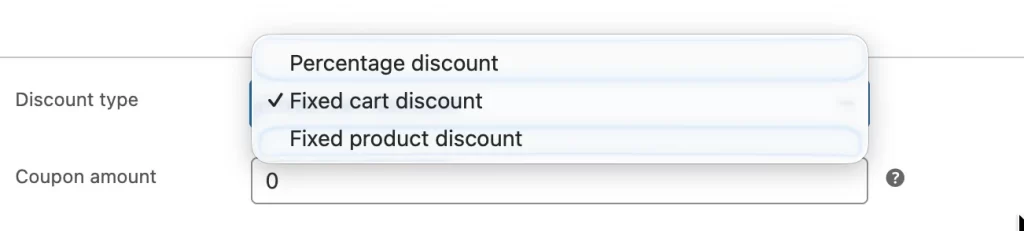
You can choose one of three discount types:
- Percentage discount – A percentage off the total cart value
- Fixed cart discount – A fixed amount off the entire cart
- Fixed product discount – A fixed amount off each selected product
Let’s choose the option that matches your promotion.
Step 4: Set coupon amount and expiry date
In the same General tab:
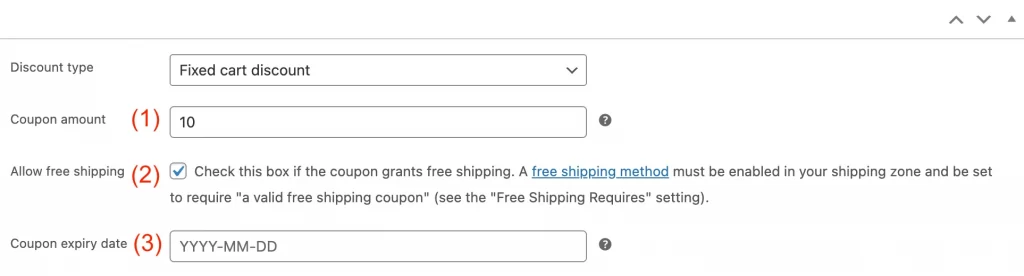
- Enter the Coupon amount (1)
- Type 10 for 10%
- Type 10 for $10 off (Do not enter the % symbol or currency sign.)
- Set an Expiry date (optional). After this date, customers will no longer be able to use the coupon. (3)
You can also check Allow free shipping (2) if the coupon should remove shipping costs. Make sure free shipping is already configured in your shipping settings.
Step 5: Configure usage restrictions
Click the Usage restriction tab.
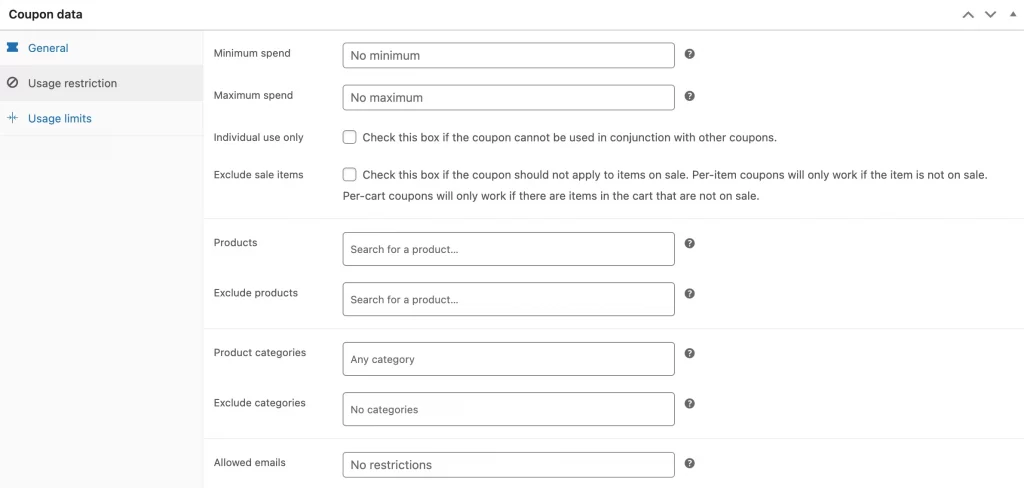
Here you can control when and how the coupon works. Common options may include:
- Minimum spend – Customer must spend at least this amount
- Maximum spend – Coupon works only below this amount
- Individual use only – Cannot combine with other coupons
- Exclude sale items – Coupon does not apply to discounted products
- Products / Product categories – Limit the coupon to specific items
- Allowed emails – Only certain customers can use the coupon
If you leave product fields empty, the coupon applies to all products.
Step 6: Set usage limits
Click the Usage limits tab.

You can limit how many times the coupon can be used:
- Usage limit per coupon – Total number of uses
- Limit usage to X items – Apply coupon to a maximum number of items
- Usage limit per user – Each customer can use it only a certain number of times
These limits are useful for limited-time promotions.
Step 7: Publish and test at checkout
Once everything is configured:
- Click Publish
- Add a product to your cart
- Enter the coupon code
- Click Apply coupon
- Confirm that the discount is calculated correctly
Always test your coupon before sharing it with customers to avoid errors at checkout.
How to Create Special WooCommerce Coupon Types
Once you understand the basic steps, you can create different types of coupons depending on your promotion goals. Below are the most common special coupon types and how to set them up.
1. Create a percentage discount coupon
A percentage discount reduces the total order by a certain percentage. This type of coupon works well for store-wide sales or seasonal promotions.
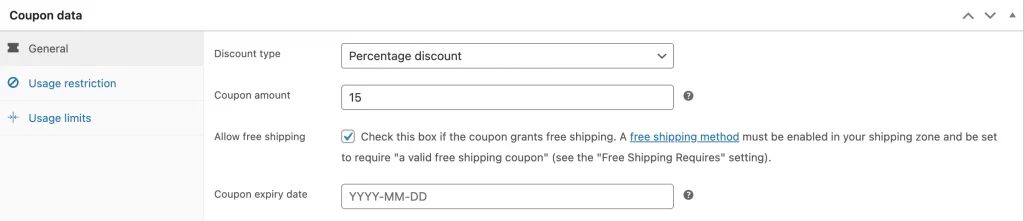
To create it:
- Go to Marketing > Coupons and add a new coupon
- Under Discount type, select Percentage discount
- Enter the amount (for example, enter 15 for 15%)
- Configure restrictions if needed
- Click Publish
Percentage discounts are useful because the savings increase as customers spend more.
2. Create a fixed cart discount
A fixed cart discount subtracts a specific amount from the entire cart total. For example, if the cart total is $80 and the coupon is $10, the customer pays $70.
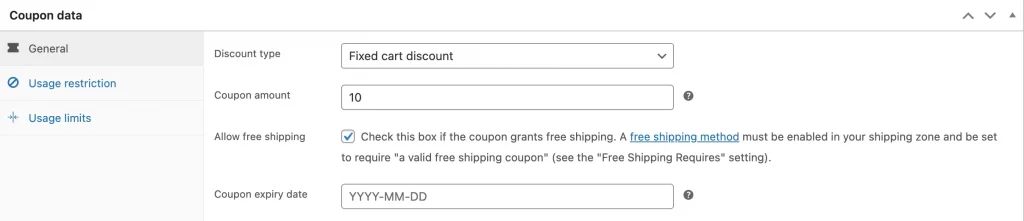
To create it:
- Select Fixed cart discount from the Discount type dropdown
- Enter the discount amount (for example, 10)
- Set expiry date and restrictions if needed
- Publish the coupon
This type of coupon is effective when you want to encourage customers to increase their cart value.
3. Create a product-specific coupon
You can limit a coupon to certain products or categories. This is useful for promoting new products, clearing old stock, and running category-based sales.
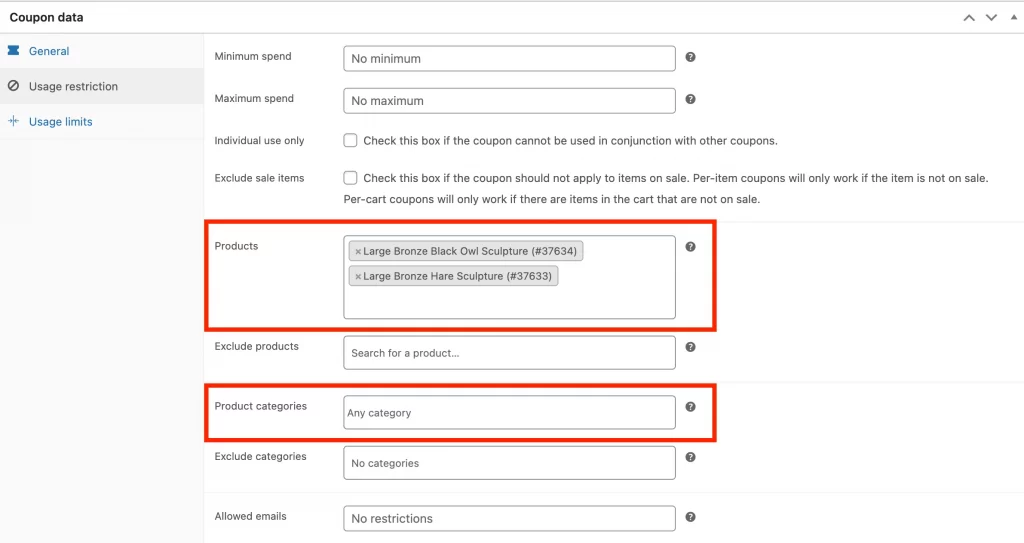
To create it:
- Choose any discount type (percentage or fixed)
- Go to the Usage restriction tab
- Add products under the Products field or add categories under Product categories
- Publish the coupon
If you want to exclude certain items, use the Exclude products or Exclude categories fields.
4. Create a free shipping coupon
Free shipping is a popular promotion that can increase conversions. To create a free shipping coupon:
- Create a new coupon
- In the General tab, check Allow free shipping
- Publish the coupon
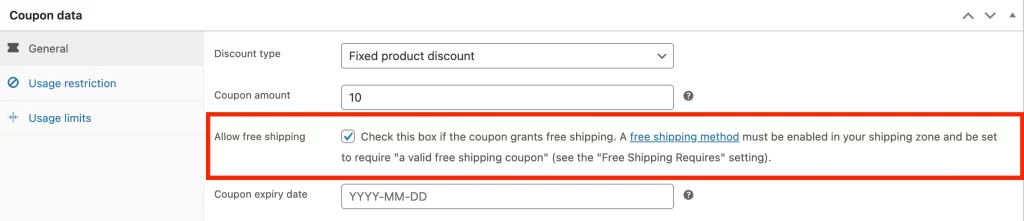
Then make sure free shipping is enabled in: WooCommerce > Settings > Shipping > Shipping Zones. Then, add the Free Shipping method to the correct shipping zone.
Note: A coupon alone will not activate free shipping if the shipping method is not configured.
5. Create a Buy One Get One (BOGO) coupon
WooCommerce does not fully support advanced BOGO rules by default. However, you can create a simple workaround.
Basic method as shown:
- Create a percentage or fixed product discount
- Use Usage restrictions to limit the coupon to specific products
- Set quantity conditions manually (if needed)
For more advanced BOGO rules, such as automatic “Buy 2 Get 1 Free” offers, you may need a dedicated discount plugin.
How to Create WooCommerce Coupons Programmatically
If you run a large store or want to automate promotions, you may prefer creating coupons with code instead of adding them one by one in the WooCommerce dashboard. This is useful for:
- Generating coupons in bulk (hundreds or thousands)
- Creating personalized coupons for specific customers
- Automatically creating coupons from campaigns (email, CRM, loyalty points)
That said, programmatic coupons are best handled by a developer, because one wrong setting can cause incorrect discounts at checkout.
WooCommerce stores coupons as a special post type called shop_coupon. So when you create a coupon using code, you are essentially:
- Creating a new shop_coupon post
- Saving coupon settings as metadata (discount type, amount, expiry date, usage limits, etc.)
Below is a basic example that creates a 10% coupon code.
// Create a WooCommerce coupon programmatically

$coupon_code = 'WELCOME10';

$coupon = array(

  'post_title'   => $coupon_code,

  'post_content' => '10% off for new customers',

  'post_status'  => 'publish',

  'post_author'  => 1,

  'post_type'    => 'shop_coupon'

);

$new_coupon_id = wp_insert_post( $coupon );

if ( $new_coupon_id ) {

  // Discount type: percent, fixed_cart, fixed_product

  update_post_meta( $new_coupon_id, 'discount_type', 'percent' );

  update_post_meta( $new_coupon_id, 'coupon_amount', '10' );

  // Optional settings

  update_post_meta( $new_coupon_id, 'individual_use', 'yes' ); // prevent stacking

  update_post_meta( $new_coupon_id, 'usage_limit', '100' );    // total uses

  update_post_meta( $new_coupon_id, 'usage_limit_per_user', '1' ); // per customer

}
What this coupon does:
- Creates code: WELCOME10
- Gives 10% off
- Limits total uses to 100
- Limits each customer to 1 time
- Prevents stacking with other coupons
If you want to create coupons programmatically in a live store, you should test on a staging site first, avoid running scripts directly on production, and make sure your theme or plugins don’t override coupon logic.
Common WooCommerce Coupon Issues and Fixes
Even if you follow all the steps correctly, a coupon may not work as expected. Below are the most common problems store owners face and how to solve them.
1. WooCommerce coupon not applying
If a customer enters a coupon code and receives an error message, the issue is usually related to the coupon settings.
First, check whether the coupon has expired. If an expiry date is set and that date has passed, WooCommerce will automatically reject the code.
Next, review the minimum spend requirement. If you set a minimum amount, the cart total must reach that value before the coupon becomes valid. In some setups, WooCommerce includes tax in this calculation.
Product restrictions can also cause issues. If the coupon is limited to specific products or categories, it will not apply unless those items are in the cart. Similarly, if you exclude certain products, the coupon will fail when those items are added.
Finally, check the usage limits. If the coupon has reached its total usage limit or a customer has already used it the maximum number of times, it will no longer work.
2. Free shipping is not working
If your free shipping coupon does not remove shipping fees, the problem is usually in the shipping configuration rather than the coupon itself.
Check these points:
- Free Shipping method is added under WooCommerce > Settings > Shipping > Shipping Zones
- The correct shipping zone is configured
- The coupon has Allow free shipping checked
- Minimum spend requirements are satisfied
Remember that a coupon alone cannot activate free shipping unless the shipping method is properly configured.
3. Discount stacking conflicts
Discount stacking happens when customers apply multiple coupons to the same order. In some cases, this may reduce your profit more than expected.
If you want to prevent stacking, enable the “Individual use only” option in the coupon settings. This ensures the coupon cannot be combined with others.
If you are using additional discount plugins, review their settings carefully. Some plugins modify WooCommerce’s default coupon behavior and may allow combinations automatically.
4. Tax calculation confusion
Tax calculation is one of the most misunderstood parts of WooCommerce coupons.
By default, WooCommerce applies the coupon discount before calculating tax. For fixed cart discounts, the system splits the discount across all products to ensure accurate tax calculation. This can sometimes make the numbers look unusual, but it prevents rounding errors.
Coupons do not affect shipping fees unless you specifically create a free shipping coupon. If your calculations seem incorrect, review your tax settings and confirm whether prices are entered inclusive or exclusive of tax.
How to Create Coupon Code in WooCommerce: FAQs
How do I create a coupon in WooCommerce?
To create a coupon in WooCommerce, go to Marketing > Coupons in your WordPress dashboard and click Add new coupon. Enter your coupon code, choose the discount type (percentage, fixed cart, or fixed product), set the coupon amount, configure any restrictions or limits, and click Publish. Make sure coupons are enabled under WooCommerce > Settings > General.
How to create a free shipping coupon in WooCommerce?
Create a new coupon and check the Allow free shipping option under the General tab. Then go to WooCommerce > Settings > Shipping > Shipping Zones and make sure the Free Shipping method is added to the correct zone. The coupon will only remove shipping costs if the free shipping method is properly configured.
How do I set an expiry date for a WooCommerce coupon code?
When creating or editing a coupon, scroll to the General tab in the Coupon data section. Use the Expiry date field to choose the date when the coupon should stop working. After that date, customers will not be able to apply the code at checkout.
Why is my WooCommerce coupon code not applying at checkout?
A coupon may not apply if it has expired, if the minimum spend requirement is not met, or if the cart does not contain eligible products. It may also fail if the usage limit has been reached or if the coupon is restricted to certain customer emails. Review the coupon’s usage restrictions and limits to identify the issue.
Final Thoughts
Now you know how to create coupon code in WooCommerce using the default system. From enabling coupons to setting discount types, expiry dates, and usage restrictions, the process is straightforward once you understand each step.
The most important part is testing. After you create a coupon code in WooCommerce, always apply it on the cart and checkout pages to make sure discounts, tax, and shipping are calculated correctly. Small configuration mistakes can affect your profit or customer experience.
And now, let’s build what’s next!
At LitOS, we help brands grow smarter on WooCommerce with better technology, practical strategy, and hands-on support that delivers real results. From migration to long-term growth, we make the process seamless and scalable.
Contact Us
