
How to Hide Price Range for WooCommerce Variable Products (2026 Guide)
If you want to hide price range for WooCommerce variable products, this guide shows clear and reliable ways to control how prices appear on your store. WooCommerce displays a price range by default when a product has multiple variations, but this layout does not always support your pricing strategy or user experience goals.
In this guide, you’ll learn how to:
- Hide the price range using safe, tested code snippets
- Use plugins to manage price display without writing code
- Apply theme-based solutions for both classic and block themes
- Resolve common conflicts with themes, caching, and WooCommerce updates
This guide is designed for WooCommerce store owners, eCommerce managers, and developers who want a reliable, future-proof way to control variable product pricing without breaking their theme or store.
Why You Might Want to Hide the Price Range for WooCommerce Variable Products
WooCommerce shows a price range for variable products because WooCommerce product variations with different prices must be summarized into a single price display by default. While this is technically accurate, the range can sometimes distract customers or make pricing feel unclear before they choose a specific option. For some stores, the price range becomes a barrier rather than a helpful signal.
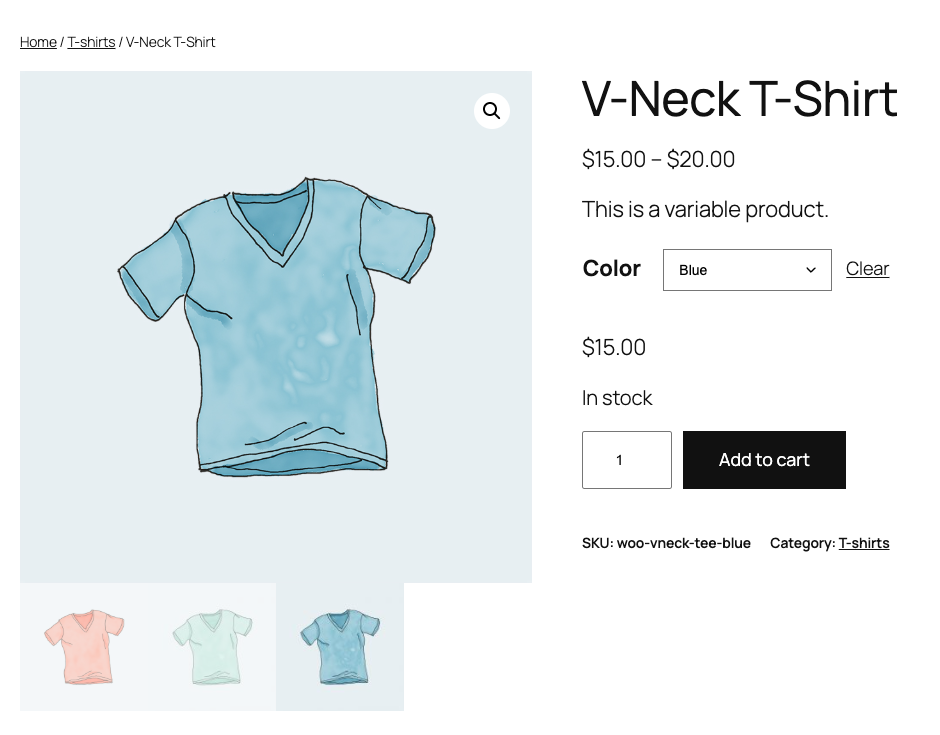
Store owners often choose to hide the price range to:
- Create a cleaner and more focused product page layout
- Encourage customers to select a variation before judging price
- Avoid highlighting large price differences between variations
- Support pricing strategies such as wholesale, custom quotes, or add ons
- Maintain consistent price presentation across shop and product pages
Hiding the price range does not remove pricing information. It simply changes when and how the price appears, giving you more control over the customer journey and overall user experience.
Critical Warning for Google Shopping Advertisers
If you run Google Shopping ads or list products on Google Merchant Center, be extremely careful when hiding prices. Google’s policies require strict consistency between the price in your data feed and the price visible on your landing page.
If you use CSS to hide a price range (e.g., display: none) but your page source still contains the price data, Google’s bots may flag this as a “Mismatched Price” or “Hidden Price” violation. This can lead to product disapprovals or account suspension.
Best Practice: If you hide prices for guests (e.g., for a wholesale store), ensure you also disable the Google Product Feed for those specific user roles to prevent bots from crawling inconsistent data.
Method 1: Hide Price Range for WooCommerce Variable Products Using Code
Using a code snippet is one of the most flexible ways to hide price in WooCommerce programmatically, especially for variable products with complex pricing rules. WooCommerce provides dedicated filters for variable product price output, which makes this approach reliable and future ready when used correctly.
However, price display can be affected by sale pricing, theme overrides, or JavaScript driven layouts, so it is important to understand the scope and limits of these snippets before applying them.
Where you can add the code:
| Option 1: Add the code to a child theme This is the preferred method if you already use a child theme. Steps: 1. Open your child theme functions.php file 2. Paste the code after the opening PHP tag 3. Save the file and clear all caches Never add custom code to a parent theme, since theme updates will overwrite your changes. | Option 2: Use a code snippets plugin If you do not use a child theme, a code snippets plugin is a safe alternative. Steps: 1. Install a code snippets plugin 2. Create a new snippetPaste the code and set it to run on the front end 3. Save and activate the snippet This method makes it easy to disable or edit the code later. |
Important note before you paste any code:
WooCommerce uses more than one filter to render variable product prices, including the logic that controls the variation price display range for WooCommerce variable products. The examples below use woocommerce_variable_price_html, which controls the standard variable price range.
If your variable product or its variations are on sale, WooCommerce may also output a sale price range using a separate filter. In those cases, additional filtering may be required to fully hide or replace the price range.
Option 1: Replace price range with “From $X”
This option removes the full price range and shows only the lowest available variation price. It keeps pricing visible while reducing visual clutter on the product page.
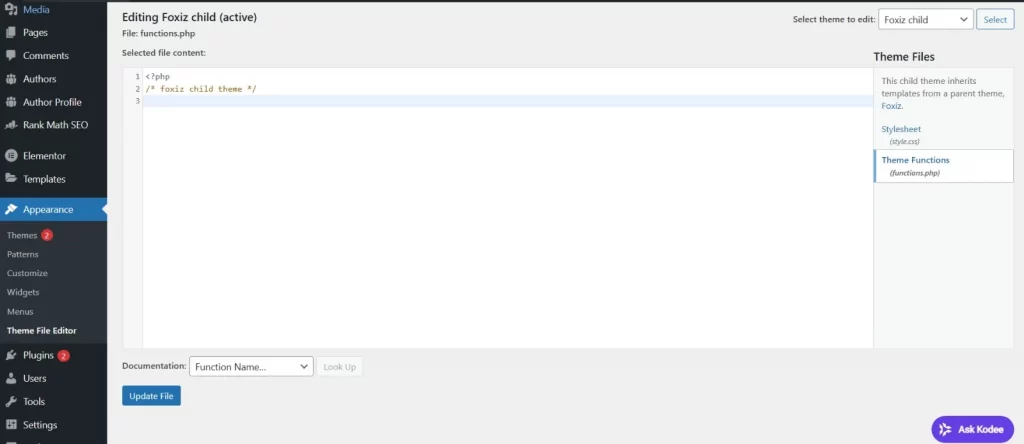
You can add the below code to your WordPress child theme:
add_filter( 'woocommerce_variable_price_html', 'custom_replace_price_range_with_from', 10, 2 );

function custom_replace_price_range_with_from( $price, $product ) {

    $min_price = wc_get_price_to_display(

        $product,

        array(

            'price' => $product->get_variation_price( 'min', true ),

        )

    );

    return 'From ' . wc_price( $min_price );

}
Option 2: Show the lowest price only
This option removes the range entirely and allows WooCommerce to show only the lowest prices in variable products, which can reduce visual clutter and price hesitation.
add_filter( 'woocommerce_variable_price_html', 'custom_show_lowest_variation_price_only', 10, 2 );

function custom_show_lowest_variation_price_only( $price, $product ) {

    return wc_price( $product->get_variation_price( 'min', true ) );

}
Option 3: Hide price until a variation is selected
This option hides the price range until the customer selects a variation, allowing WooCommerce to show variation price in the dropdown or after selection instead of displaying a range upfront.
While returning an empty price value works technically, it can cause confusion or accessibility issues if no message is shown. A safer approach is to replace the price range with a short instruction that tells the customer what to do next.
add_filter( 'woocommerce_variable_price_html', 'custom_hide_variable_price_until_selection', 10, 2 );

function custom_hide_variable_price_until_selection( $price, $product ) {

    return '';

}
Technical Note: Simply returning an empty string works visually, but you must be careful with sale prices. Many WooCommerce themes wrap the original price in a <del aria-hidden="true"> tag. If you customize the output to show only the sale price but accidentally keep the aria-hidden wrapper from the parent container, screen readers will skip the price entirely. Always test your price display with a screen reader or inspect the HTML to ensure the final price output does not have aria-hidden="true" applied to it.
For better usability, consider returning a short message instead of an empty value. Text such as “Select an option to see price” helps guide customers and ensures screen readers do not encounter missing price content.
Option 4: Hide price range on Shop/Category pages only
This option keeps the price range visible on the product page but hides it on shop and category listings.
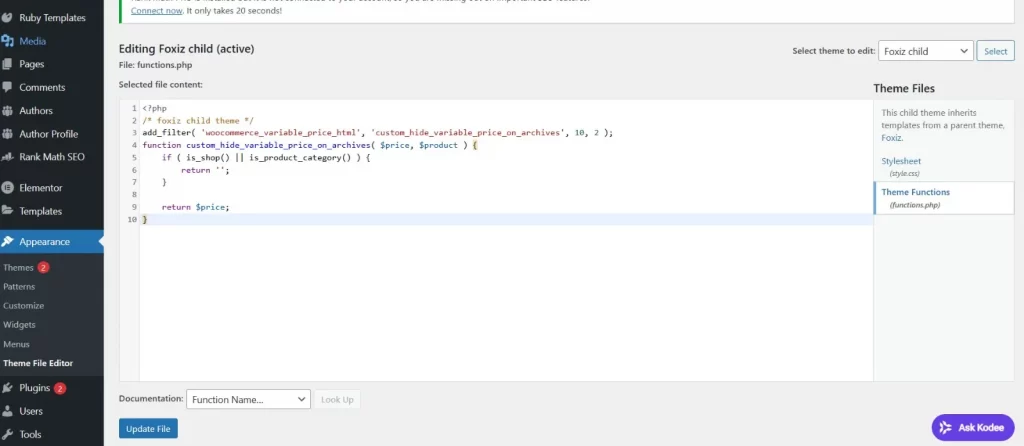
add_filter( 'woocommerce_variable_price_html', 'custom_hide_variable_price_on_archives', 10, 2 );

function custom_hide_variable_price_on_archives( $price, $product ) {

    if ( is_shop() || is_product_category() ) {

        return '';

    }

    return $price;

}
Option 5: Hide price range for specific products or categories
This option limits the price change to selected products or categories instead of applying it site-wide.
add_filter( 'woocommerce_variable_price_html', 'custom_hide_variable_price_for_category', 10, 2 );

function custom_hide_variable_price_for_category( $price, $product ) {

    if ( has_term( 'custom-category', 'product_cat', $product->get_id() ) ) {

        return '';

    }

    return $price;

}
You can add these snippets to your child theme’s functions file or use a code snippets plugin to avoid issues during theme updates.
Option 6: Hide price for guest users (B2B Mode)
If you run a wholesale store, you likely want to hide prices from the public while keeping them visible for logged-in members. This snippet hides the price and the “Add to Cart” button for any user who is not logged in:
add_filter( 'woocommerce_get_price_html', 'custom_hide_price_guests', 9999, 2 );
add_filter( 'woocommerce_loop_add_to_cart_link', 'custom_hide_cart_guests', 9999, 2 );
function custom_hide_price_guests( $price, $product ) { if (! is_user_logged_in() ) { return 'Login to see prices'; } return $price; }
function custom_hide_cart_guests( $html, $product ) { if (! is_user_logged_in() ) { return ''; } return $html; }
This snippet replaces the price with a login link, helping you drive registrations.
Method 2: Hide or Change Price Range Using a Plugin
A plugin is a good choice if you want to hide the price range without touching code. It can also be easier to manage on stores with multiple admins, since settings are visible in the dashboard and can be adjusted later without editing theme files.
Step 1: Install a WooCommerce price display plugin
From your WordPress dashboard, go to Plugins, then Add Plugins, and search for a plugin that supports variable product price display changes.
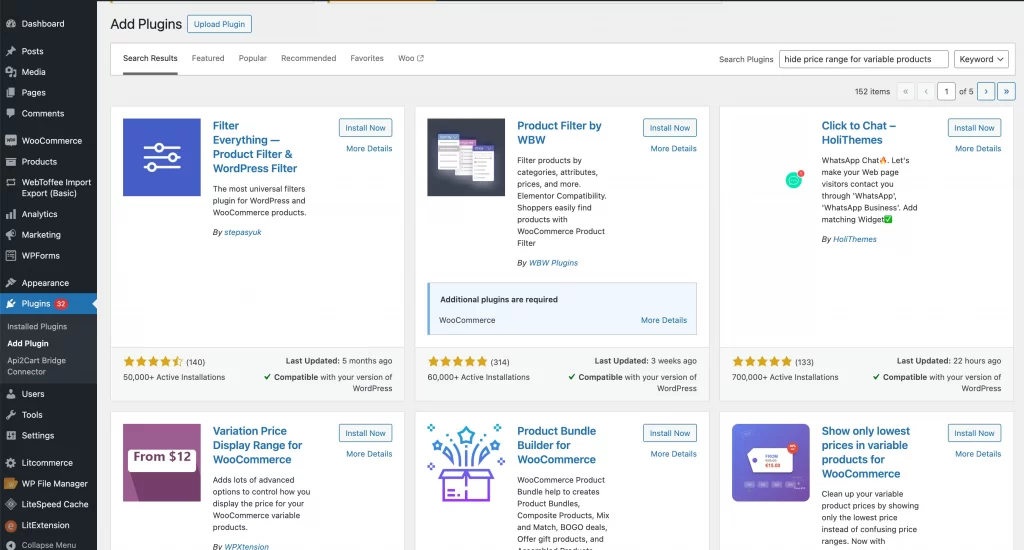
Choose a plugin that matches your goal, such as hiding the range, showing a single price, or replacing the range with custom text.
Step 2: Open the plugin settings
After installation, open the plugin settings page. This is usually found under WooCommerce settings, a dedicated plugin menu, or the general Settings area, depending on the plugin.
Step 3: Choose how you want to hide or format the price
Most plugins offer a few common display options. Look for settings that let you:
- Hide the price range completely
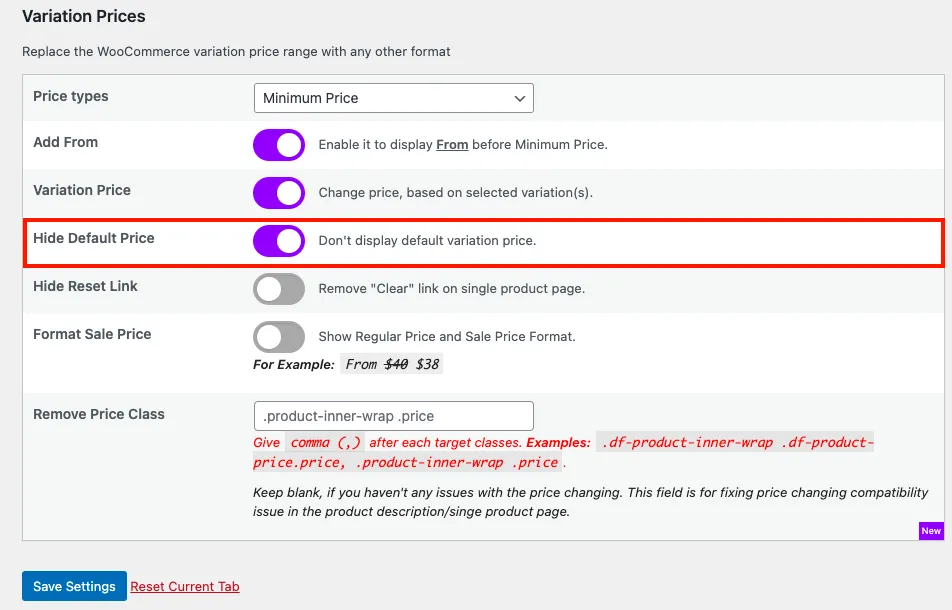
- Replace the range with a single price
- Show From X instead of a full range
- Replace the price with custom text such as Select options to see price
- Hide the price until login or until a variation is selected
Step 4: Apply rules to variable products
Set where the rule applies. Many plugins allow targeting by:
- All variable products site wide
- Specific categories
- Specific products
- User roles such as guest, retail, wholesale
Step 5: Save changes and clear cache
Save your settings, then clear any caching layers that could prevent the new price display from showing. This can include a caching plugin, your theme cache, or a CDN cache.
Step 6: Test pricing on product page and shop page
Test both the product page and your shop or category pages.
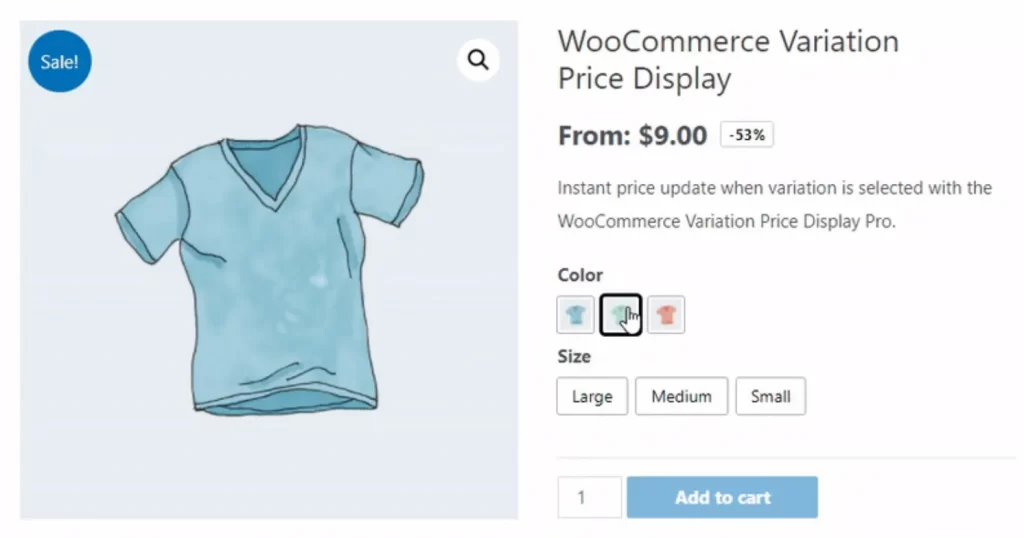
Let’s confirm that:
- The range is hidden or replaced as intended
- Variation selection still updates price correctly
- No layout issues appear on mobile
If the plugin works on the product page but not on shop pages, your theme may be overriding WooCommerce templates. In that case, Method 3 is usually the best fix.
You should avoid combining multiple pricing control methods at the same time. If a plugin manages variable product price display, remove custom code snippets and theme overrides related to pricing.
Method 3: Theme-Based Solutions for Hiding the Price Range
Some WooCommerce themes control price output directly instead of relying on WooCommerce default filters. In these cases, code snippets that modify variable product prices may not apply at all.
Themes may use custom templates, the woocommerce_get_price_html filter, or JavaScript to render prices, which means theme specific adjustments are sometimes required.
1. Solutions for Popular Themes
Start by checking whether your theme overrides WooCommerce price templates. Many themes include their own versions of product and archive templates, which can change how the price range is rendered.
Astra Theme: Astra handles WooCommerce hooks differently. To hide the price on archive pages specifically in Astra, you can often use the Customizer under WooCommerce > Product Catalog. If that fails, use this specific CSS:
.ast-woo-product-category.price { display: none; }Elementor (Hello Theme): Elementor’s “Product Price” widget often overrides standard theme hooks. If standard snippets don’t work, go to the widget’s Advanced tab and add a custom CSS class (e.g., hide-range). Then add this CSS:
.elementor-widget-woocommerce-product-price.price { display: none; }Divi Theme: Divi modules have high CSS specificity, often requiring the !important tag to override defaults. To hide pricing in Divi shop modules:
.et_pb_module_shop.price,.et_pb_wc_price.price { display: none!important; }2. Edit price templates in classic PHP themes
For classic themes, WooCommerce price output is often handled in template files. Copy the relevant template into a child theme before editing to avoid losing changes during updates. The most common file involved is the price template used for variable products.
3. Edit price templates in block themes
Block themes introduced a different structure for price display. Instead of PHP templates, prices may be controlled by blocks or filters tied to WooCommerce blocks. Adjustments are usually made through block settings or theme filters rather than direct file edits.
4. Apply theme settings for supported themes
Some popular WooCommerce themes include built in options to control how variable product prices appear. Check your theme customization panel for settings related to product pricing, variation display, or shop layout before adding custom code.
5. Test price changes across product and shop pages
After making changes, review the shop page, category pages, and individual product pages. Confirm that prices update correctly when variations are selected and that no visual issues appear across different devices.
Troubleshooting Common Issues With Hiding the Price Range
Even when the correct method is used to disable the variable product price range, changes may not appear as expected due to theme or caching conflicts. Most issues are caused by theme overrides, caching, or JavaScript based price updates. The checks below help you identify and fix the most common problems.
1. Snippet works on the product page but not on the shop page
This usually means your theme uses a separate template for shop or category listings. In this case, the price output on archive pages is overridden by the theme, and you may need a theme based solution instead of a global filter.
2. Theme is overriding WooCommerce default price output
Some themes replace WooCommerce pricing functions with their own logic. When this happens, code snippets that rely on WooCommerce filters will not run. Inspect your theme files or documentation to see how prices are generated.
3. Conflicts with caching or minification
Caching plugins and CDNs can store old price output. Clear all caches after applying changes, including page cache, object cache, and browser cache, to ensure the new price display is visible.
4. JavaScript based themes not updating the price
Themes that update prices dynamically with JavaScript may ignore PHP based changes. If the price changes back after page load or variation selection, you may need a JavaScript adjustment or a theme specific fix.
5. HPOS and WooCommerce version compatibility
High Performance Order Storage is now the default for new WooCommerce stores. HPOS does not change how product prices are displayed, but outdated themes or plugins may still cause conflicts when modifying price output. Keeping WooCommerce, themes, and plugins up to date helps avoid unexpected behavior.
6. “Ghost” Schema Data causing SEO warnings
Even if you successfully hide the price from human visitors using PHP or CSS, WooCommerce may still generate “Structured Data” (Schema.org) code in the background that tells Google the price exists.
This creates a conflict called “Ghost Schema,” where Google sees a price in the code that isn’t on the page. To fix this, if you are hiding prices for specific users (like guests), you must also filter woocommerce_structured_data_product to return an empty value for those same users. Always test your product page with Google’s Rich Results Test tool after making changes.
Hide Price Range for WooCommerce Variable Products FAQs
How do I hide prices in WooCommerce?
You can hide prices in WooCommerce by using a plugin that replaces prices with custom text, or by adding a code snippet that removes the price output. Many stores hide prices for guest users, wholesale pricing, or quote based products.
How do I hide product variation in WooCommerce?
If you want to hide variations from customers, you can disable certain attributes, remove variation selection options, or set variations to not be visible. If your goal is only to hide the variation price range, you should use the methods in this guide instead of hiding variations themselves.
Can I set different prices for different variations of a product in WooCommerce?
Yes. WooCommerce variable products are designed for this. Each variation can have its own regular price, sale price, stock status, and SKU. The price range appears because WooCommerce summarizes the lowest and highest variation prices.
How do I add a price to a variable product in WooCommerce?
Open the product in WordPress, set Product type to Variable product, then go to the Variations tab. Create variations and enter a price for each variation. If a variation has no price, WooCommerce may not display pricing as expected.
Final Recommendations
The best way to hide the price range for WooCommerce variable products depends on how your store is built. Code based solutions offer the most control and long term stability, while plugins work well for quick setup and easy management. Theme based solutions are necessary when your theme overrides WooCommerce pricing.
You should always test changes on both product and shop pages and clear all caches before going live. For complex pricing rules or custom themes, professional WooCommerce support helps ensure pricing changes remain safe and consistent over time.
And now, let’s build what’s next!
At LitOS, we help brands grow smarter on WooCommerce with better technology, practical strategy, and hands-on support that delivers real results. From migration to long-term growth, we make the process seamless and scalable.
Contact Us
