
How to Manage Inventory in WooCommerce in 5 Steps 2026
For beginners who are about to launch WooCommerce, inventory management is likely the first thing that feels a bit overwhelming. But no worries; with the right guidance, learning how to manage inventory in WooCommerce is not as complicated as it seems!
And that’s exactly what this article is here to help you solve.
In this guide, we’ll walk you through how to manage inventory in WooCommerce in five clear, practical steps. Let’s begin!
Why Inventory Management Is Important in WooCommerce
At its core, inventory management in WooCommerce influences sales performance, profit margins, operational efficiency, and customer trust:
- Prevents lost sales from stockouts: Accurate inventory management ensures stock quantities update automatically after each purchase and triggers restocking actions before products disappear from your catalog. Otherwise, you risk overselling or displaying inaccurate availability.
- Protect cash flow: If you over-purchase slow-moving products, your cash becomes trapped in storage instead of being reinvested into marketing, product development, or fast-selling items. By analyzing sales data and setting calculated reorder points, WooCommerce merchants can maintain optimal stock levels to avoid both excess inventory and emergency restocking.
- Enhances customer experience and brand trust: Needless to say, clear and accurate stock information improves the shopping experience. On the other hand, frequent backorders, unexpected shipment delays, or canceled orders due to inaccurate stock will damage trust quickly.
As you can see, inventory management in WooCommerce is not just a technical task but actually serves as a strategic pillar that directly affects revenue stability, profitability, operational efficiency, and long-term business sustainability.
How to Manage Inventory in WooCommerce
To manage inventory in WooCommerce, you must first define how stock behaves globally across your store, then fine-tune settings at the individual level (products and variations). After that, you can streamline the updates with bulk editing tools and monitor performance through built-in analytics and stock reports.
Step 1. Configure global WooCommerce inventory settings
First, before managing stock for individual products, you should define how inventory works across your entire store.
Go to your WordPress dashboard and navigate to WooCommerce > Settings > Products > Inventory. Then, tick Enable stock management to activate the system. Once activated, WooCommerce will automatically deduct stock when orders are placed and update product status when items run out.
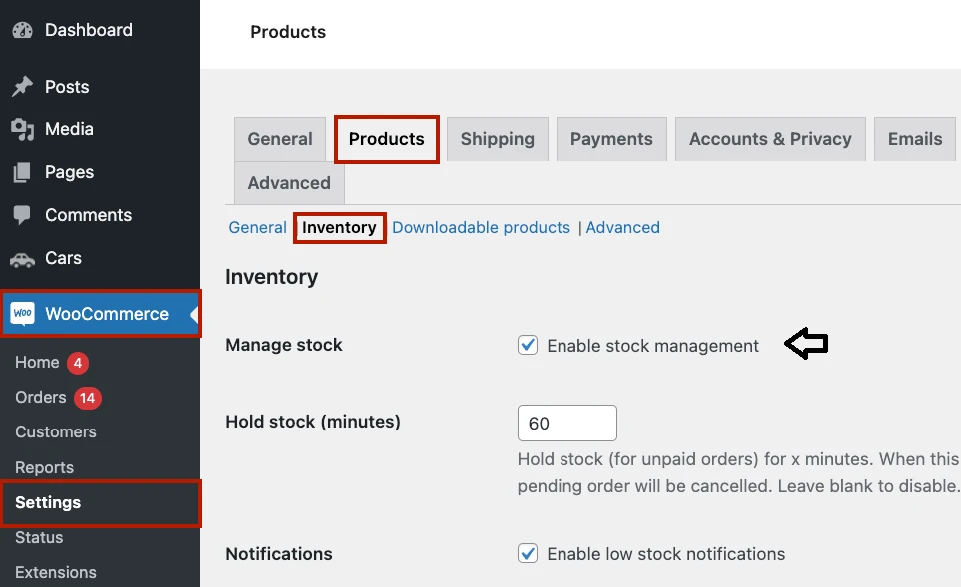
Next, under this section, you can customize several important options:
- Hold stock (minutes): This field allows you to define how long inventory should be reserved for unpaid orders. If left blank, stock remains reserved until you manually cancel the order.
- Low stock notifications and Out-of-stock notifications: These alerts help you restock products before they completely sell out.
- Next, define your Low stock threshold and Out-of-stock threshold: They determine when WooCommerce should trigger alerts or change stock status.
- Out of stock availability: This field is to configure how out-of-stock products appear in your store. You can choose to hide them from the catalog or keep them visible.
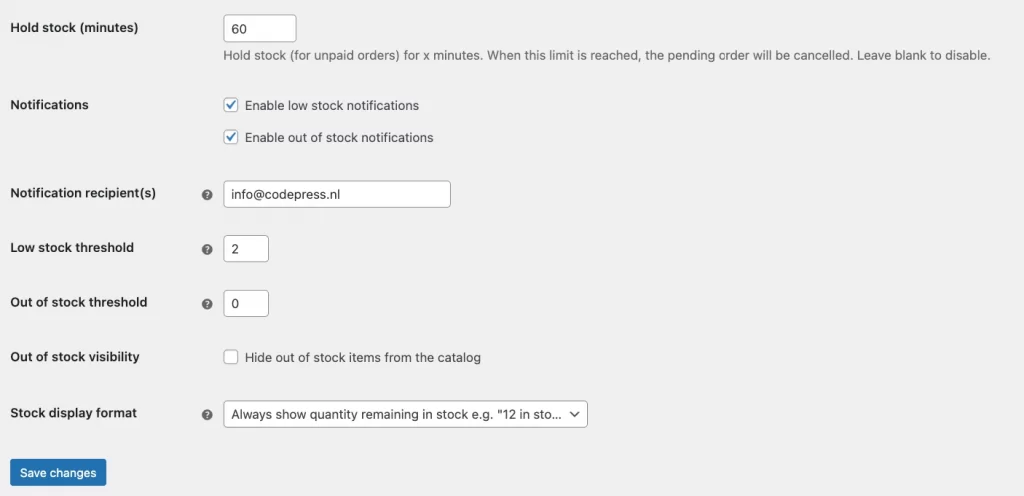
After adjusting these settings, click Save changes to apply them storewide.
Step 2. Set up inventory for individual products
Aside from the global settings that apply to all products, you also need more specific control for certain items. So, go to Products > All Products, then click on the product you want to edit.
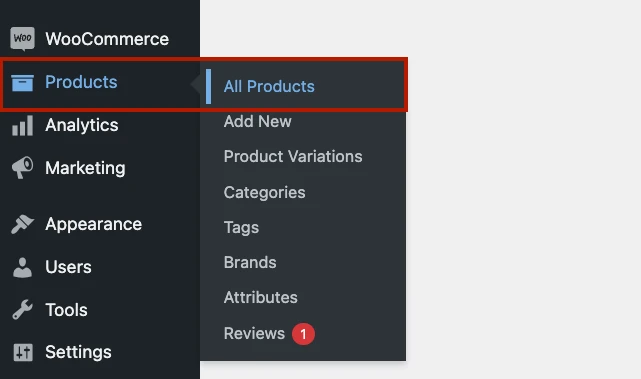
From here, navigate the Product data section and open the Inventory tab, then tick Track stock quantity for this product to activate individual tracking.
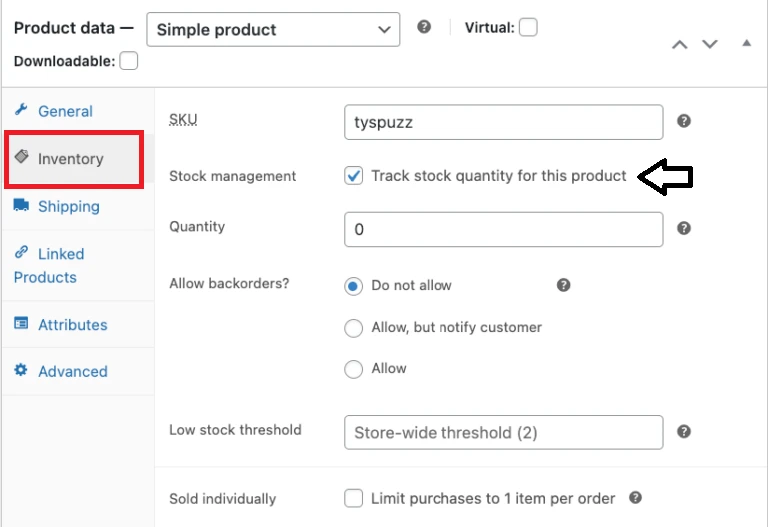
More granular fields will show up after that. From here, you can consider doing the following:
- Enter a unique SKU (Stock Keeping Unit) to help identify the product, especially useful if you manage a large catalog or integrate with external systems.
- In the Stock quantity field, input the number of available units.
- If you want customers to purchase items even when stock reaches zero, configure the Allow backorders option. This can be helpful for pre-orders or made-to-order products.
- You may also set a custom Low stock threshold for this specific product, overriding the global threshold defined earlier.
- If the product should only be purchased once per order, tick Sold individually to limit customers to a single quantity.
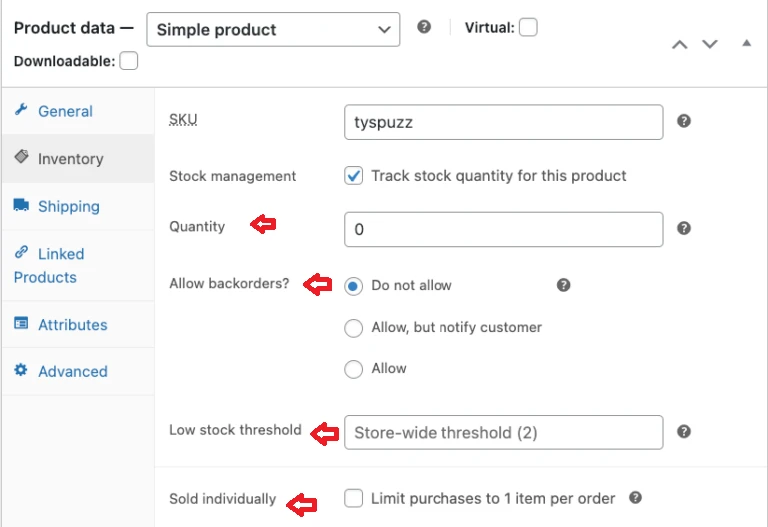
Once finished, click Update to save your changes.
Step 3: Manage inventory for variable products
Keep in mind that variable products require a slightly different approach because each variation can have its own stock level (Learn more about WooCommerce variable products here).
So after creating a variable product, go to the Product data section and select the Variations tab. Here, you have two options:
- You can manage stock at the parent level, meaning all variations share the same inventory pool. In this case, simply enable stock management in the main Inventory tab.
- Alternatively, you can manage stock separately for each variation. Open each variation individually, tick Manage stock, and enter the specific stock quantity for that variation.
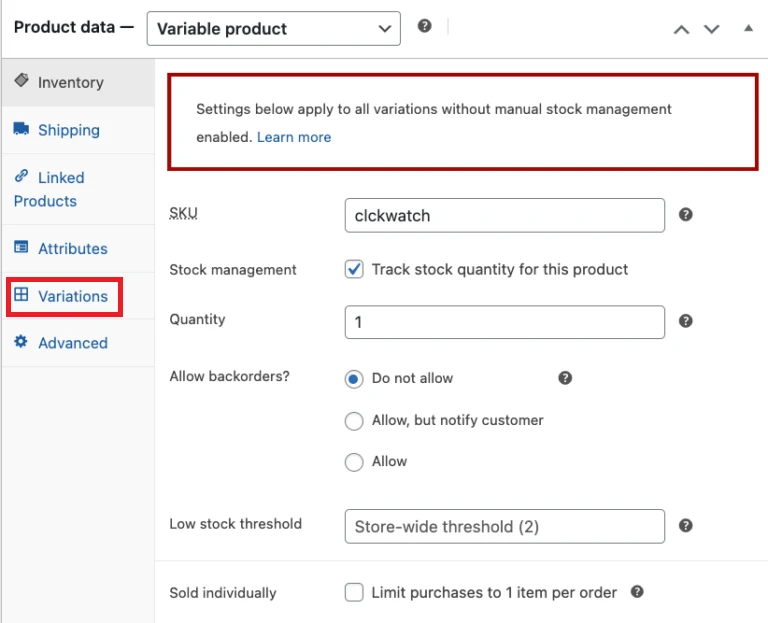
After adjusting the necessary variations, click Save changes, then Update the product.
Step 4. Perform bulk inventory management
If you need to update multiple products at once, the great news is that WooCommerce provides a bulk editing tool.
To use it, navigate to Products > All Products and use the checkboxes to select the items you want to modify.
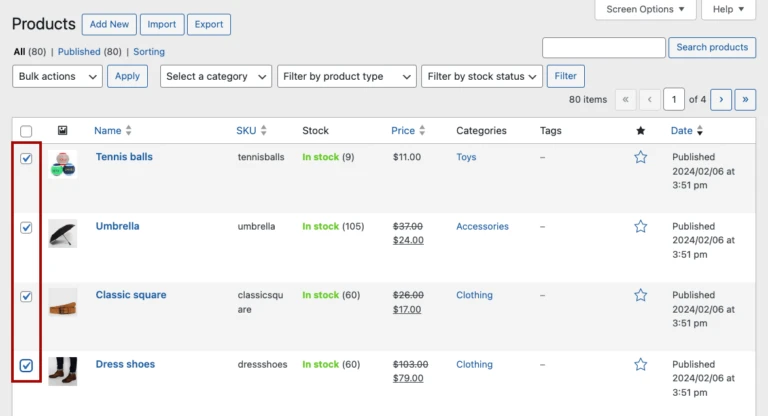
Next, open the Bulk actions dropdown menu, choose Edit, and click Apply.
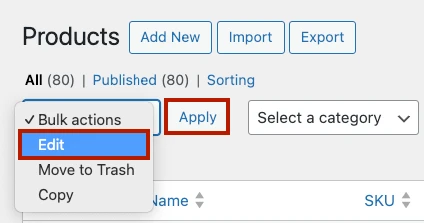
You will be redirected to a bulk editing panel where you can adjust several inventory-related settings simultaneously, which include categories, price, sales, weight, visibility, backorders, marking products as sold individually, or updating stock quantities, etc.
You can either set all selected products to a fixed stock number or increase/decrease stock by a specific amount. After making your changes, click Update.
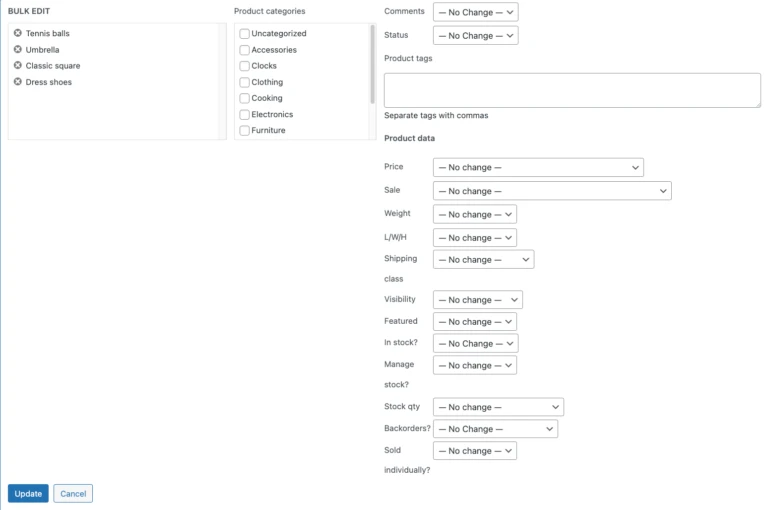
Note: Before applying large-scale edits, always double-check your selections and entries to avoid unintended inventory errors.
Step 5: Monitor inventory with reports & analytics
Last but not least, remember that configuration is just a part of inventory management. Monitoring stock performance is just as important!
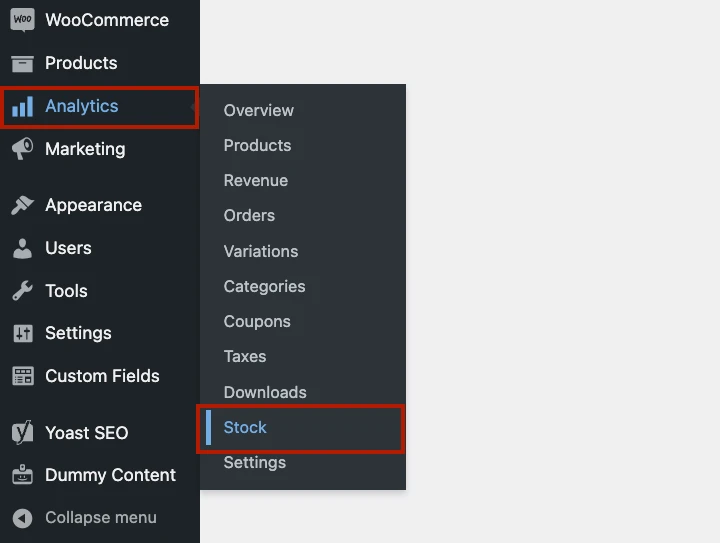
You should navigate to Analytics > Stock in your WordPress dashboard. Here, you’ll find an overview of all products and variations, including stock status and available quantities. You can filter the view using the dropdown options to focus on specific stock levels or product types.
For a more traditional report layout, go to WooCommerce > Reports > Stock. This section provides categorized lists of products that are low in stock, out of stock, or have the highest stock levels. Using these reports, you can identify trends, forecast demand, and refine your restocking strategy.
Recommended Apps for Advanced WooCommerce Inventory Management
If you need more advanced capabilities beyond WooCommerce’s native stock tools, extensions like Inventory Management for WooCommerce, Smart Inventory Management for WooCommerce, Multi-Inventory Management for WooCommerce, and Bulk Stock Management for WooCommerce are worth considering:
1. Inventory Management for WooCommerce
- Pricing: $149 (1-year plan) or $238.40 (2-year plan)
What truly sets Inventory Management for WooCommerce apart from other plugins is its machine-learning-based demand forecasting engine. Using historical sales data, seasonal patterns, and forecasting algorithms similar to those used by enterprise retailers, the plugin will generate live replenishment recommendations for each SKU.
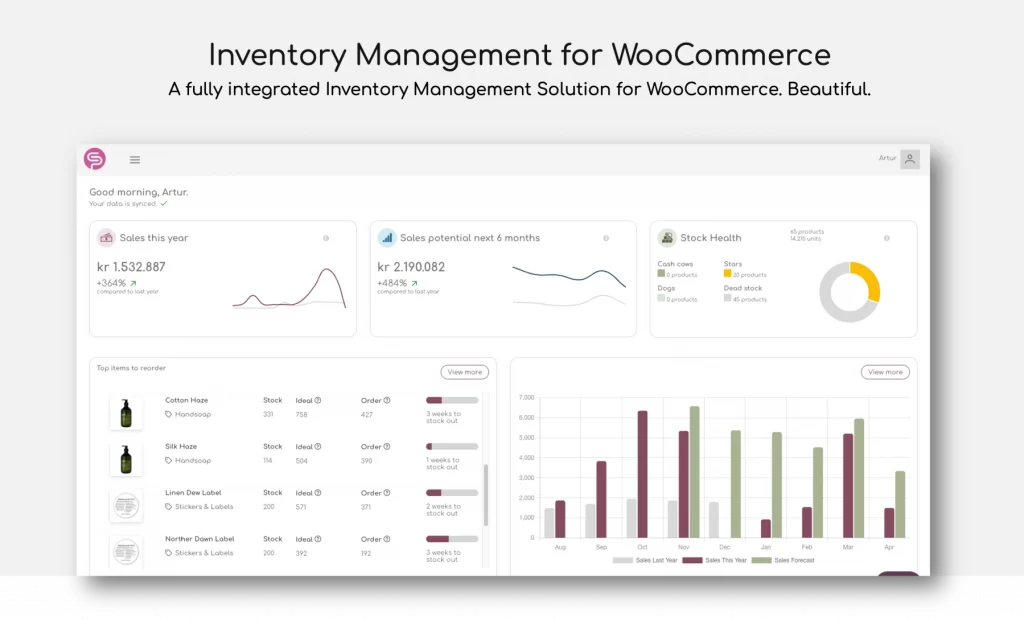
Another standout feature is its Bill of Materials (BOM) functionality. If you sell bundled or manufactured products, the app will link finished goods to their components, track material usage in real time, and calculate dependent demand automatically. The built-in ABC analysis also helps identify the top 20% of products generating 80% of revenue, helping you prioritize high-impact items.
2. Smart Inventory Management for WooCommerce
- Pricing: $79 (1-year plan) or $126.40 (2-year plan)
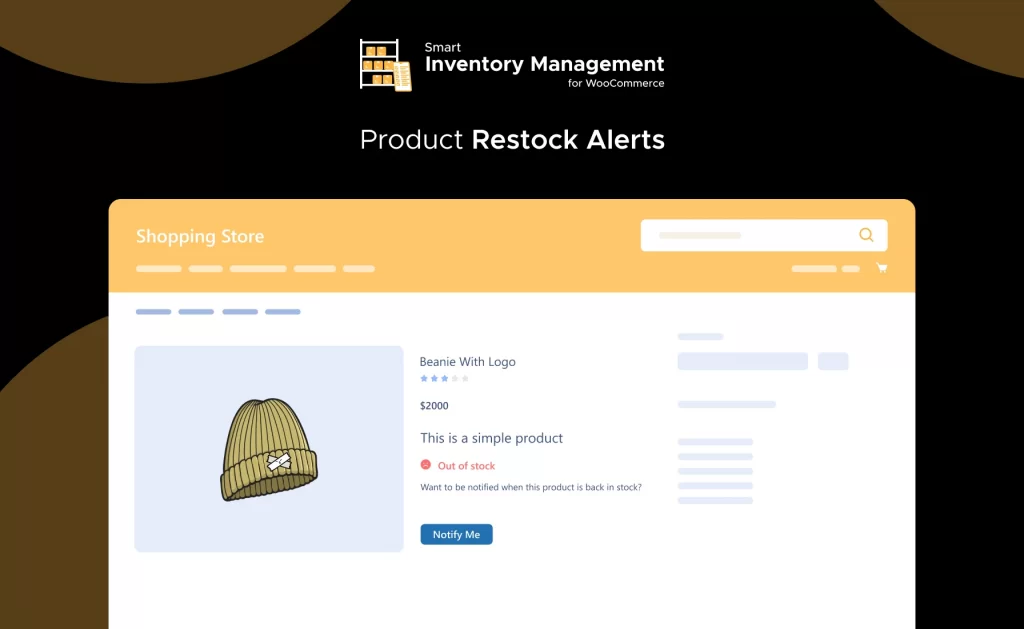
The most distinctive feature of Smart Inventory Management for WooCommerce is its customer-facing restock alert system (with a “Notify Me” button directly on product pages). Specifically, when products go out of stock, customers can subscribe to be alerted the moment inventory is replenished. This design reduces lost sales and helps recover demand automatically, something many stock plugins overlook.
In addition, the plugin also improves supplier coordination. You can configure stock notifications that automatically inform suppliers when inventory drops below defined thresholds. This bridges the gap between store management and procurement, ensuring suppliers are aware of restocking needs without manual emails.
Better yet, there is also a centralized inventory management page where store owners can view and manage stock levels across all products. Supplier management tools allow you to store supplier details and include them in notification workflows.
3. Multi-Inventory Management for WooCommerce
- Pricing: $129 (1-year plan) or $206.40 (2-year plan).
As its name suggests, the defining feature of Multi-Inventory Management is its true multi-location, multi-pricing inventory architecture. You can create inventories based on warehouses, physical stores, suppliers, or custom types, and each inventory can include detailed metadata such as manager details, contact information, latitude/longitude, shipping zones, and payment gateways. We highly recommend this extension for businesses operating across multiple regions.
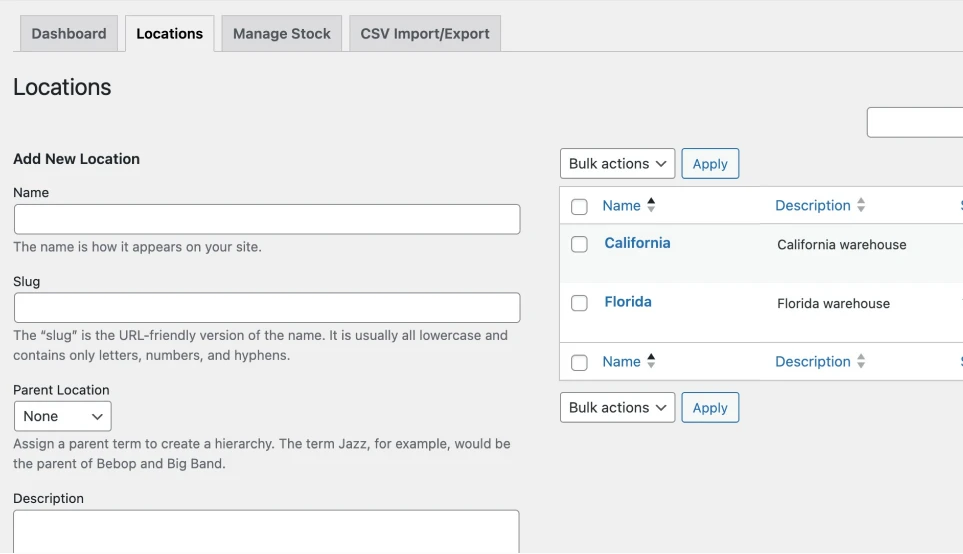
Furthermore, for operational control, the plugin offers a backend mode where only admins can allocate inventory during order processing. It also includes a smart stock management grid that lets you view and edit stock across the entire catalog from one interface, plus import/export functionality via CSV.
4. Bulk Stock Management for WooCommerce
- Pricing: $49 (1-year plan) or $78.40 (2-year plan)
Created by the Woo team, Bulk Stock Management for WooCommerce stands out for its dedicated bulk-editing interface specifically designed for rapid stock adjustments.
Instead of opening individual product pages, this extension creates a centralized stock management screen under Products > Stock Management, where products and variations are displayed in a filterable list. From this interface, you can filter products by type, stock status, or stock management settings, and sort by name, SKU, ID, or quantity, then directly input new stock quantities for multiple products at once or apply bulk actions to change stock status.
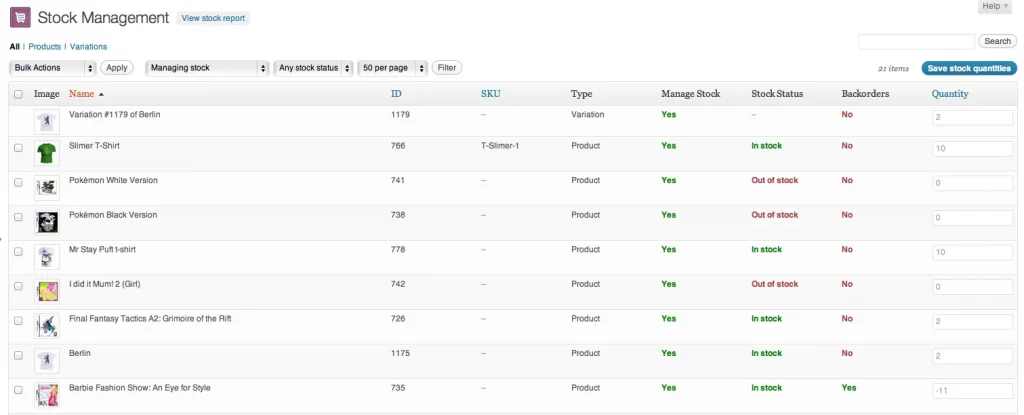
In addition, the plugin also includes a printable stock report that allows you to generate a full stock overview for warehouse or auditing purposes. While it does not include forecasting, supplier tools, or multi-location capabilities, it can still help make your high-volume stock adjustments faster and more efficient.
WooCommerce Inventory Best Practices for 2026
For better inventory management on WooCommerce, make sure you structure your SKUs logically, set safety stock levels, apply the 80/20 rule, and standardize your unit of measurement to eliminate reporting inconsistencies:
1. Implement a logic-based SKU naming convention
Many beginner merchants on WooCommerce use random strings generated on the fly as their SKUs. However, that’s a big mistake, because your inventory will eventually become difficult to manage.
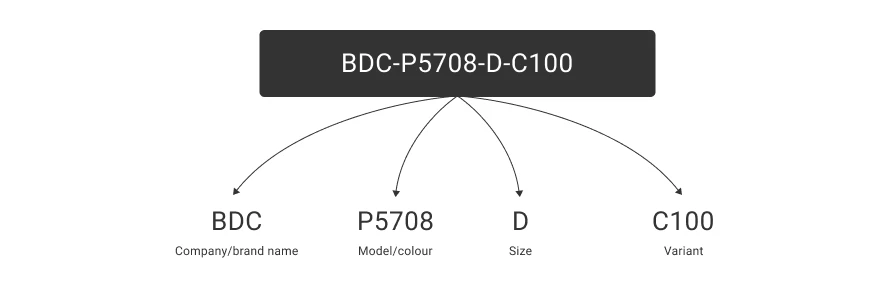
Instead, you should design SKUs that encode meaningful information such as category, product type, attributes, and sequence number. For example, a SKU like TSH-MEN-BLK-M-001 immediately communicates that the product is a men’s black medium T-shirt. That clarity reduces picking errors and simplifies bulk exports, which also makes reporting easier.
2. Set “Safety Stock” thresholds
Another common mistake by many WooCommerce merchants is that they tend to rely only on the default low-stock notification, which often triggers too late. By the time you receive the alert, you may already be close to a stockout!
Fortunately, safety stock introduces a strategic buffer that protects your business from supplier delays or unexpected demand spikes.
To calculate a practical safety stock level, start with your average daily sales and multiply that by the supplier lead time. For example, if you sell 5 units per day and your supplier takes 10 days to restock, you need at least 50 units just to cover baseline demand. From there, add a buffer percentage (typically 10–20%) depending on how volatile demand is.
3. Prioritize with the 80/20 principle
Remember, not every product deserves the same attention. In fact, in many cases, roughly 20% of products often generate around 80% of revenue (the 80/20 principle). You should turn this into a part of your management strategy.
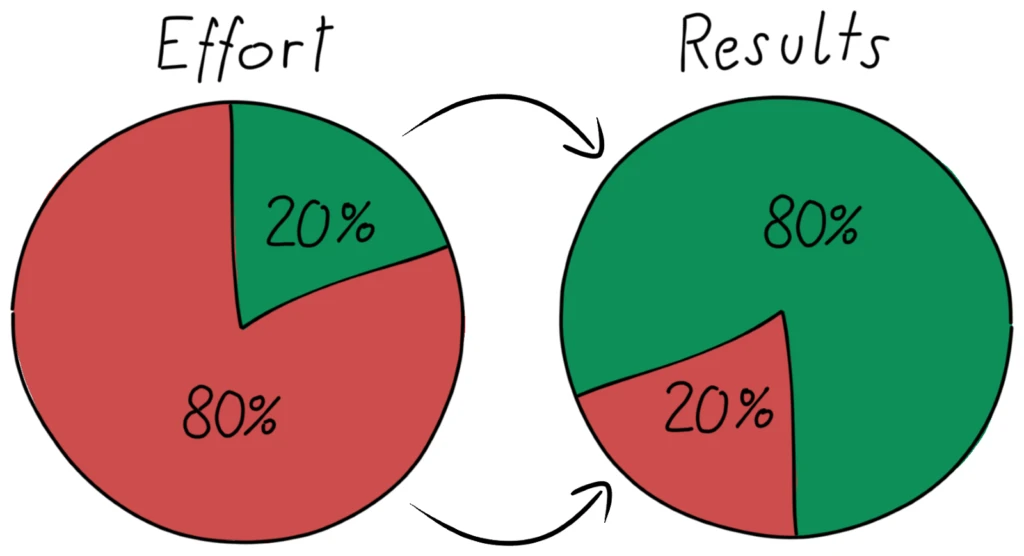
For instance, you can go to Analytics > Products in your WooCommerce dashboard, then sort products by revenue over a defined period (for example, the past 90 days). Next, export the data and categorize the products into three groups:
- A items (high revenue, high impact): For these items, you should conduct weekly stock reviews, maintain higher safety stock levels, and minimize stockout risk.
- B items (moderate performance)
- C items (low revenue, slow-moving): Avoid overstocking and consider reducing reorder quantities.
For better tracking, you can add internal product tags like “A-Level” or maintain classification in an external spreadsheet if needed.
4. Standardize your unit of measurement (UoM)
Last but not least, inconsistent units of measurement should be avoided at all costs. One product tracked per “pack,” another per “piece,” and another per “box of 12” can distort stock counts and cost calculations. Worse, as your WooCommerce store grows, this inconsistency becomes harder to correct.
Instead, you should standardize your unit of measurement by defining a clear base unit for each product type. For example:
- Apparel: per piece
- Supplements: per bottle
- Fabric: per meter
- Bulk goods: per kilogram.
Once defined, make sure that the unit remains consistent across purchasing, stock input, shipping configuration, and reporting.
How to Manage Inventory in WooCommerce: FAQs
Does WooCommerce have inventory management?
Yes, WooCommerce includes built-in, native inventory management suitable for small to medium-sized stores. It allows you to track stock levels, set low-stock/out-of-stock thresholds, manage backorders, and automatically update quantities upon sales.
How do I hide out-of-stock products automatically in WooCommerce?
To automatically hide out-of-stock products in WooCommerce, navigate to WooCommerce > Settings > Products > Inventory and check the box labeled "Hide out-of-stock items from the catalog”.
Can WooCommerce manage inventory across multiple warehouse locations?
Yes, WooCommerce can manage inventory across multiple warehouse locations. However, it requires the use of plugins, as this functionality is not available in the core WooCommerce software.
Does WooCommerce support barcode scanning for inventory counts?
Yes, WooCommerce supports barcode scanning for inventory management. However, it primarily does so through third-party plugins or the official mobile app, rather than out-of-the-box on the desktop dashboard.
Final Words
As you can see, learning how to manage inventory in WooCommerce not only helps update stock numbers but also builds a stable system that supports your revenue and ad strengthens customer trust.
Still, inventory management is likely to become more complex as your business grows, since demands for multi-location stock, forecasting, supplier coordination, and large-scale bulk updates might go beyond WooCommerce’s native capabilities. That’s when having the right technical setup and strategic guidance from an expert team can make a real difference!
Ready to optimize your WooCommerce inventory?
At LitOS, we help WooCommerce stores build scalable, well-structured inventory systems. Whether you’re just starting out or handling complex operations, our team ensures your inventory supports growth instead of slowing it down.
Talk to Our WooCommerce Experts
