
How to Set Up Pre Order on Shopify: 2 Methods in 2026
As your Shopify store grows, you will soon realize product launches rarely follow a perfectly linear path. In fact, there are many situations where customer demand comes before stock, and waiting until the inventory is ready is not always an option. That’s why learning how to set up pre order on Shopify is important!
In this article, we are going to address:
- Why pre-orders can benefit your store
- Considerations to keep in mind
- How to set up pre-orders on Shopify with apps
- How to do pre order on Shopify without apps
- Ways to manage them effectively
- The best pre-order apps and plugins
By the end, you’ll have a clear, practical framework to launch pre-orders with confidence. Let’s get started!
Why Do You Need to Set Up Pre-Orders on Shopify?
Setting up pre-orders on Shopify is often a necessary step as they help you forecast demand before a full launch, secure sales from high-intent shoppers, build anticipation around new releases, and maintain customer satisfaction:
Demand forecasting
For starters, pre-orders give you early, concrete signals about how the market will respond to a product before you commit fully to inventory.
Let’s say you’re launching a new product with multiple variants. In that case, pre-orders can quickly reveal which options customers actually want the most. You might discover that a certain size, color, or configuration accounts for the majority of early orders, allowing you to shift production and purchasing decisions accordingly. That way, your team can reduce the risk of overstocking slow-moving variants while underproducing popular ones.
Secure sales
When shoppers can’t place an order right away, many will look for substitutes elsewhere, especially in competitive niches.
That’s why pre-orders are a must to help capture that intent at its peak, instead of letting it slip away. By allowing customers to pre-order, you effectively reserve their purchase even if fulfillment happens later. This advantage is particularly important for trending products, seasonal items, or limited runs, where demand spikes quickly and alternatives are easy to find.
Build hype
Needless to say, pe-orders are a powerful tool for turning product launches into events. Instead of quietly publishing a new product once it’s in stock, pre-orders allow you to build anticipation over time and engage customers before the official release.
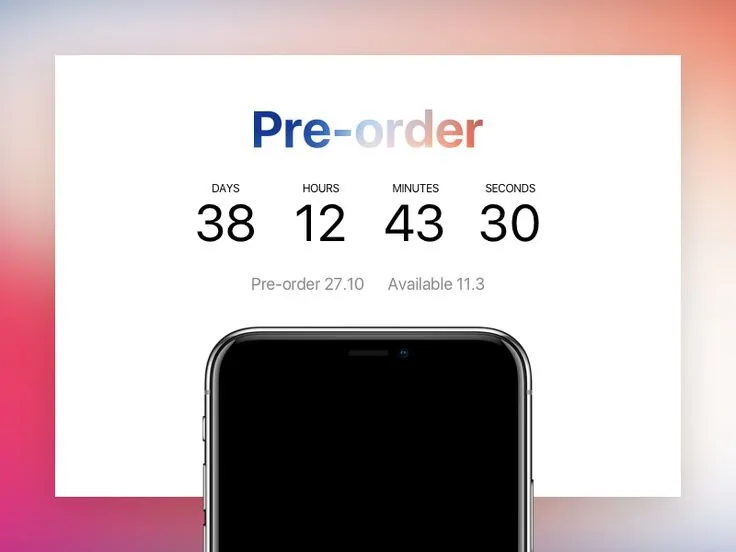
For instance, brands often combine pre-orders with countdown timers, early-access messaging, or limited pre-order quantities to create urgency. A “Pre-order now, ships in 30 days” message paired with behind-the-scenes content or launch teasers can make customers feel like they’re part of something exclusive. As a result, by the time the product actually ships, much of the marketing momentum has already been built – and in many cases, a significant portion of inventory is already sold.
Maintain customer satisfaction
Ultimately, all of the previously mentioned benefits come together to support what matters most: delivering a better and more satisfying experience for your customers.
In many cases, customers may place an order assuming quick delivery, only to receive follow-up emails explaining delays. Pre-orders, on the other hand, allow you to clearly communicate that a product is not immediately available, along with expected shipping dates or fulfillment windows.
Such upfront clarity prevents the disappointment that often comes from unexpected issues. With pre-orders, customers opt into the waiting period knowingly, which dramatically changes how delays are perceived.
On top of that, being able to secure a limited or high-demand item early gives customers a sense of certainty and achievement, which makes the purchase feel even more rewarding. Over time, these positive experiences strengthen emotional attachment to your brand and naturally translate into higher brand loyalty.
Considerations Before Setting Up Pre-Order on Shopify
Though the benefits of pre-order setups are clear, you should keep the following considerations in mind before enabling them on your store:
- You must only offer pre-orders if you have a realistic and defensible shipping timeline, even when an exact delivery date isn’t specified.
- If fulfillment is delayed beyond what was originally communicated, you’re required to inform customers promptly and clearly state their right to cancel or request a refund.
- Pre-orders aren’t compatible with customized checkout setups or accelerated payment methods like express wallets and local payment providers.
- Pre-order products are supported only on the Online Store and Custom Storefront sales channels, not across all Shopify sales channels.
- Products with pre-order options can’t be combined with other incompatible purchase options, such as subscriptions or try-before-you-buy, in the same checkout.
- Certain promotions and guarantees, including Buy X Get Y discounts and Shop Promise, don’t apply to pre-order items.
Now that these considerations are clear, let’s move on to the actual process of setting up pre-orders on Shopify.
How to Set Up Pre Order on Shopify with Apps
To set up pre-orders with this method, you’ll need to install a third-party pre-order app, configure how pre-orders appear on your product pages, and then define how and when customers are charged inside your Shopify admin.
The guide below will break down this workflow for you:
Step 1. Install a pre-order app from the Shopify App Store
Before using any product settings in your Shopify admin, the first step to take is set up a pre-order app since pre-orders aren’t a built-in Shopify feature.
Specifically, you need to log into the Shopify App Store from your admin dashboard, then use the search bar to look for a pre-order app. To help you make a more informed decision, we’ve included a bonus section later in this article that highlights some highly recommended apps and plugins!
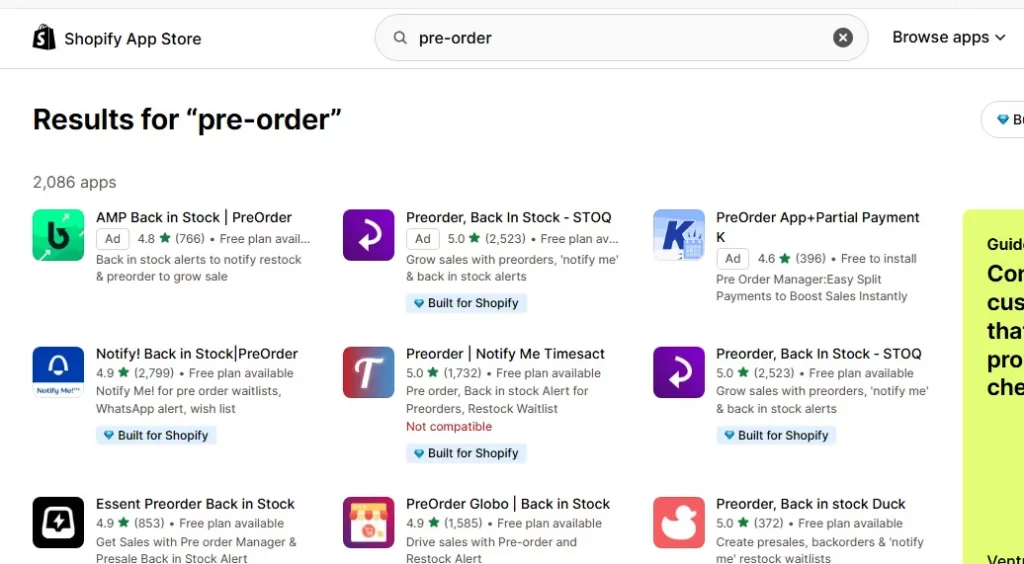
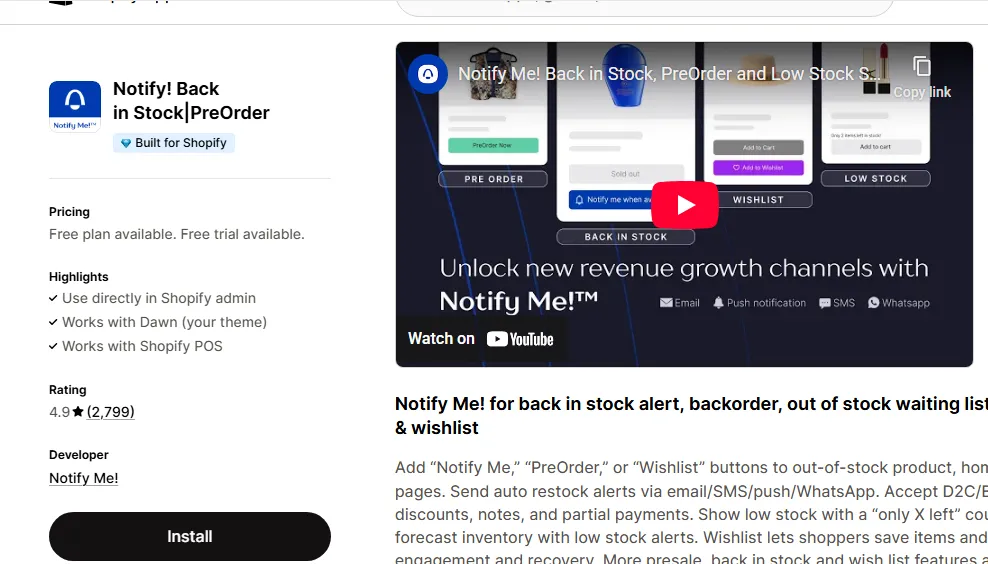
Once you’ve picked an app, click the Install button and follow the setup instructions provided by the app. Most apps will guide you through initial configuration, such as setting default pre-order labels or defining general rules for how pre-orders work across your store.
Step 2. Enable pre-order options on your products in the Shopify admin
After your pre-order app is fully configured, navigate to Products in the Shopify admin dashboard and open the product you want to manage.
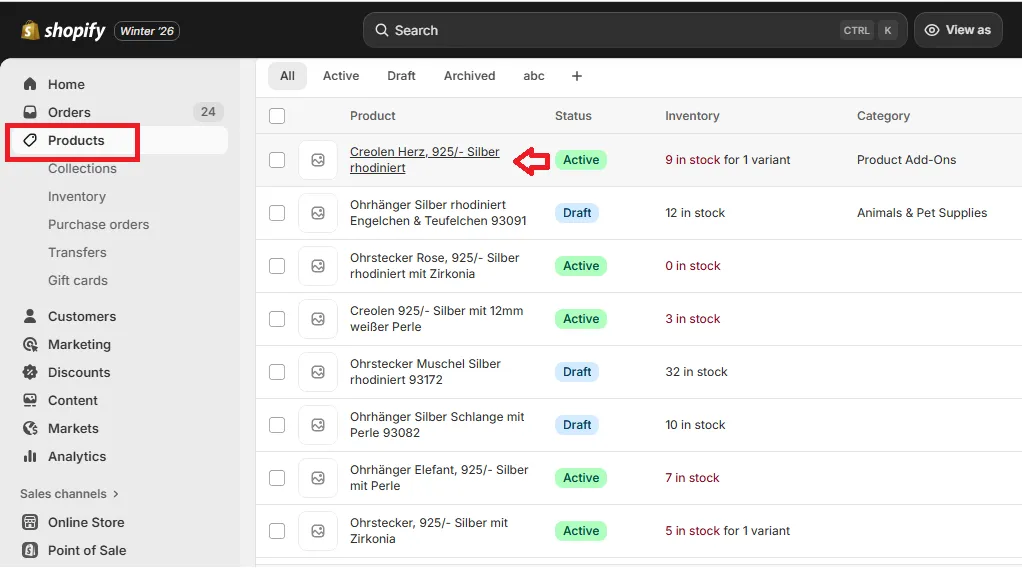
Then, scroll down to the Purchase options section, where you’ll see settings related to how the product can be bought. Here, you can either select or deselect the “Only show this product with these purchase options“, depending on your needs:
- If you want the item to be sold strictly as a pre-order (for example, for an upcoming product launch), enable the option to limit the product to those purchase options only.
- If you’d rather give customers flexibility, leave that option unchecked so both regular purchases and pre-orders are available.
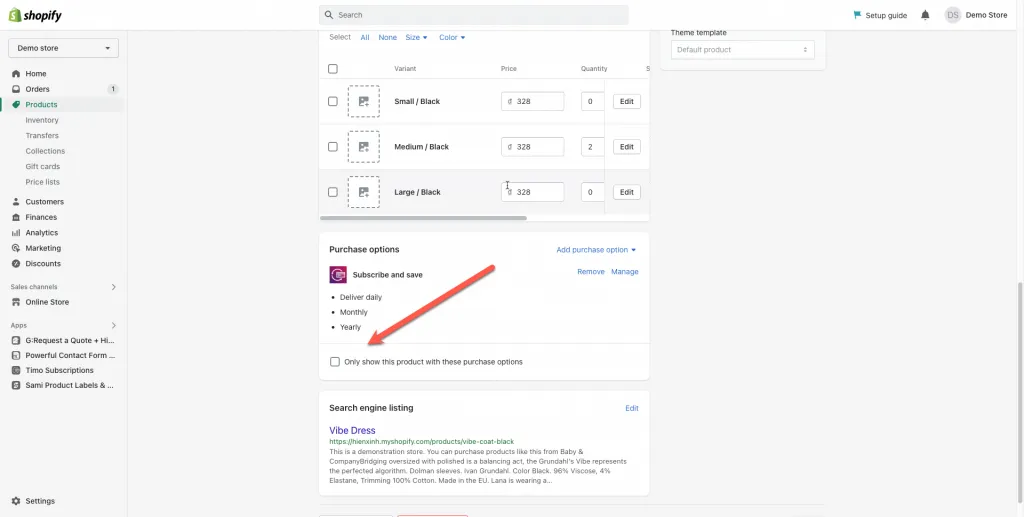
Once saved, the pre-order app will automatically display relevant details, such as “Pre-order now” messaging or expected shipping dates, directly within the product description or near the add-to-cart button.
Step 3. Configure payment terms and customer confirmation
Last but not least, you need to define how payments work and make sure customers clearly understand what they’re agreeing to.
At checkout, most pre-order apps will present customers with specific information tied to their purchase, typically including:
- The amount they’re being charged immediately (such as a full payment or a partial deposit)
- When the remaining balance will be collected, often closer to the shipping date.
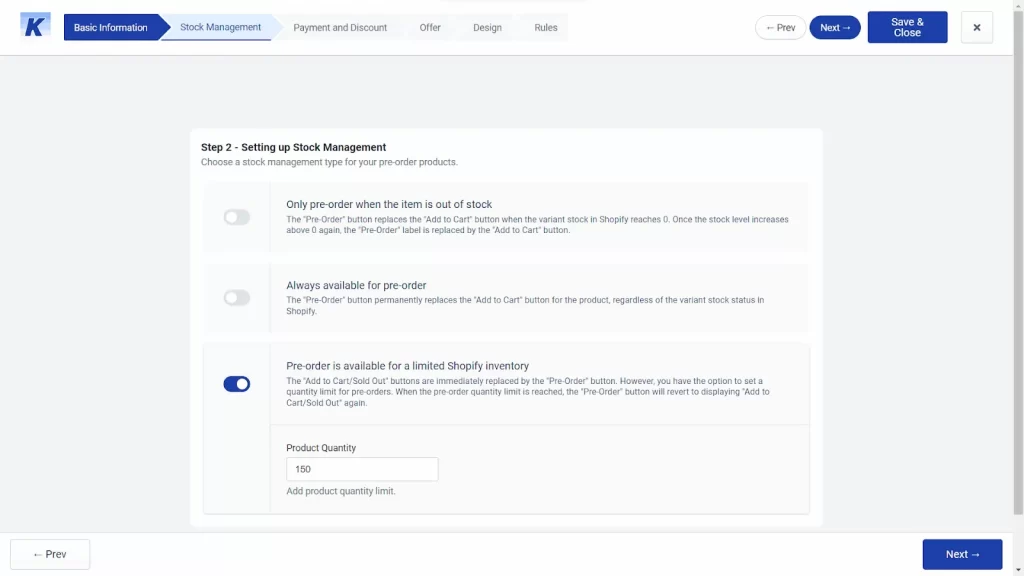
Shopify also requires customers to explicitly acknowledge that they are purchasing a pre-order item. This confirmation step is mandatory and helps prevent misunderstandings about delivery timelines or payment expectations. And that’s it!
____
All in all, using pre-order apps is the most convenient way to set up pre-orders on Shopify, since these tools are purpose-built for this use case and come with the full range of options and features you need.
That said, if you’d rather avoid configuring additional plugins, there are still ways to enable pre-orders without them – though keep in mind that this method is understandably less optimized and offers fewer controls.
How to Set Up Pre Order on Shopify Without Apps
To set up pre-orders on Shopify using a manual workaround, you need to enable sales for out-of-stock products and adjust inventory quantities, then (optionally) create a dedicated product page template to tie everything together.
Let’s discuss the steps in more detail:
Step 1. Allow out-of-stock products to remain purchasable
The basis of pre-orders is that your store can keep selling products even when inventory reaches zero. Simply put, you need to let customers place orders for items that aren’t available yet.
So, from your Shopify admin, go to Products > Inventory and open the product you want to sell as a pre-order.
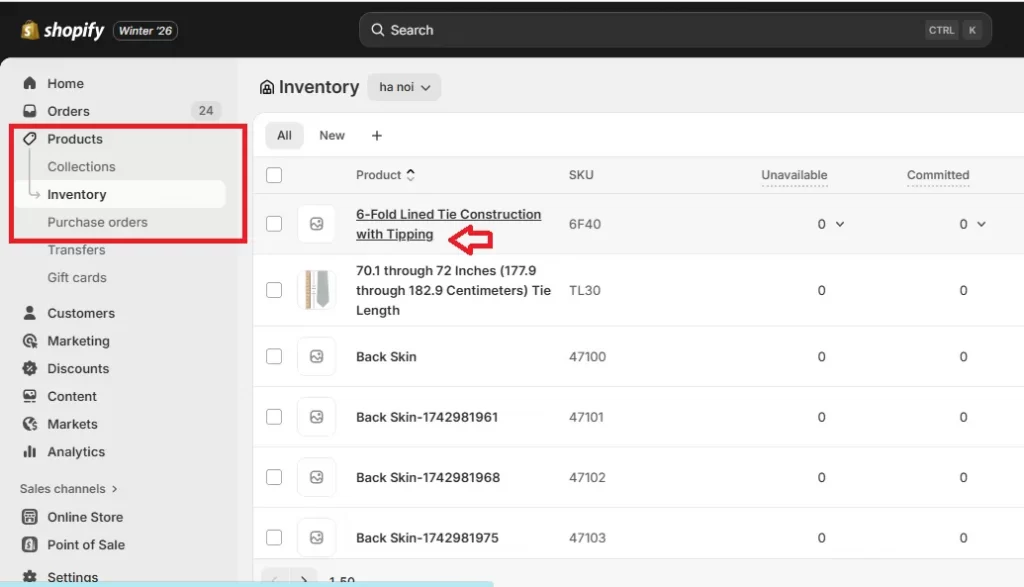
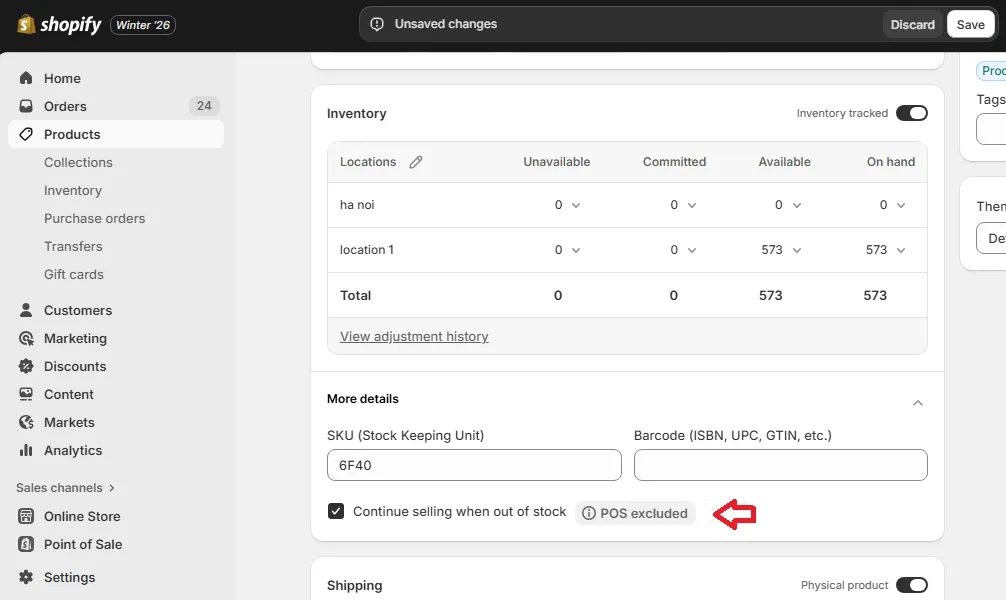
Next, scroll to the Inventory section and click “Sell when out of stock.”
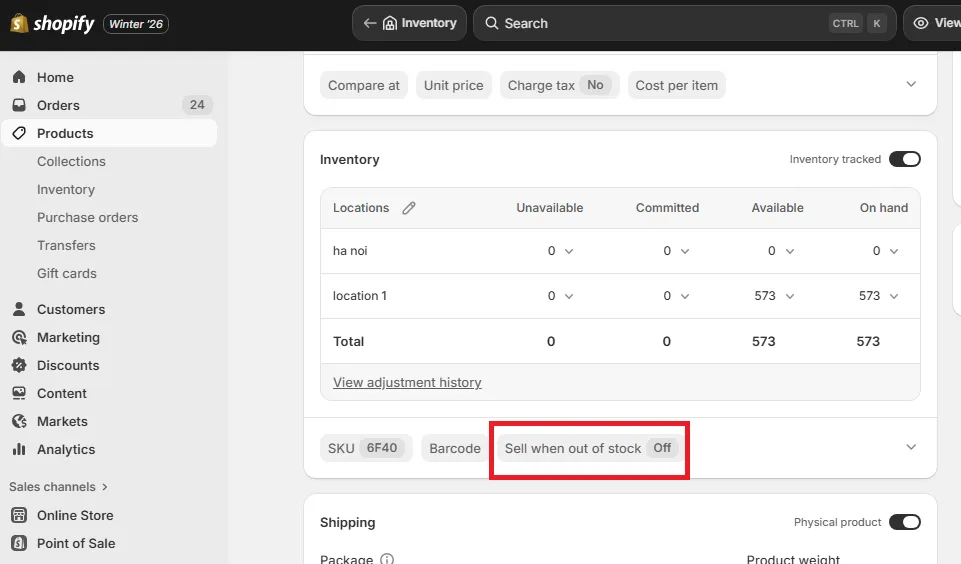
After that, enable “Continue selling when out of stock.”
Step 2: Adjust inventory levels to trigger pre-order behavior
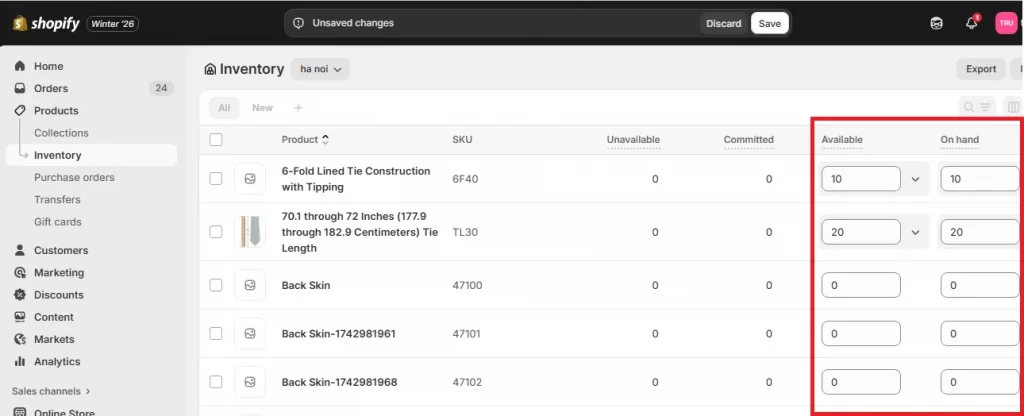
Next, you need to adjust the product’s inventory quantity.
In most cases, merchants set the quantity to zero, which visually signals that the product is unavailable while still allowing checkout. Keep in mind that inventory can still be updated later when stock arrives, allowing you to transition from pre-orders to normal sales smoothly.
Step 3. Optional: Modify the purchase button and checkout flow
By default, Shopify will still display the standard “Add to cart” button, even for out-of-stock items that can be purchased. Hence, to avoid confusion, you’ll need to adjust your theme so the button clearly reflects a pre-order action.
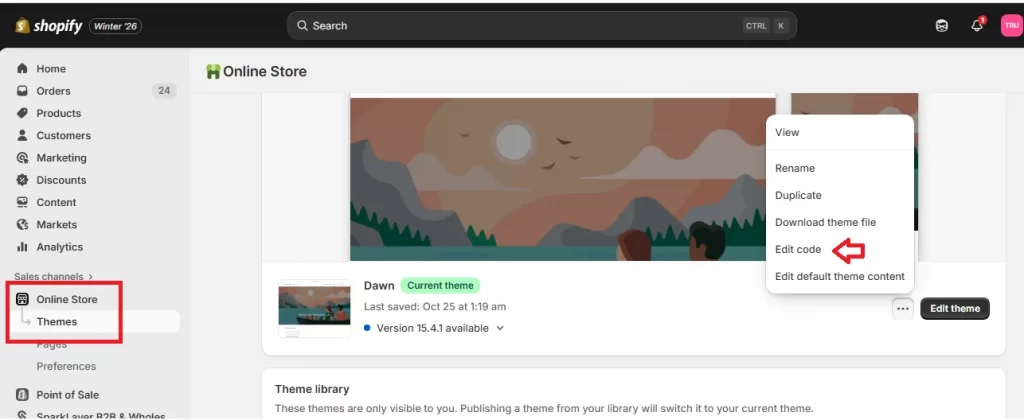
To do so, go to Online Store > Themes to locate your active theme. From here, click the three-dot menu next to the Edit theme button and select Edit code.
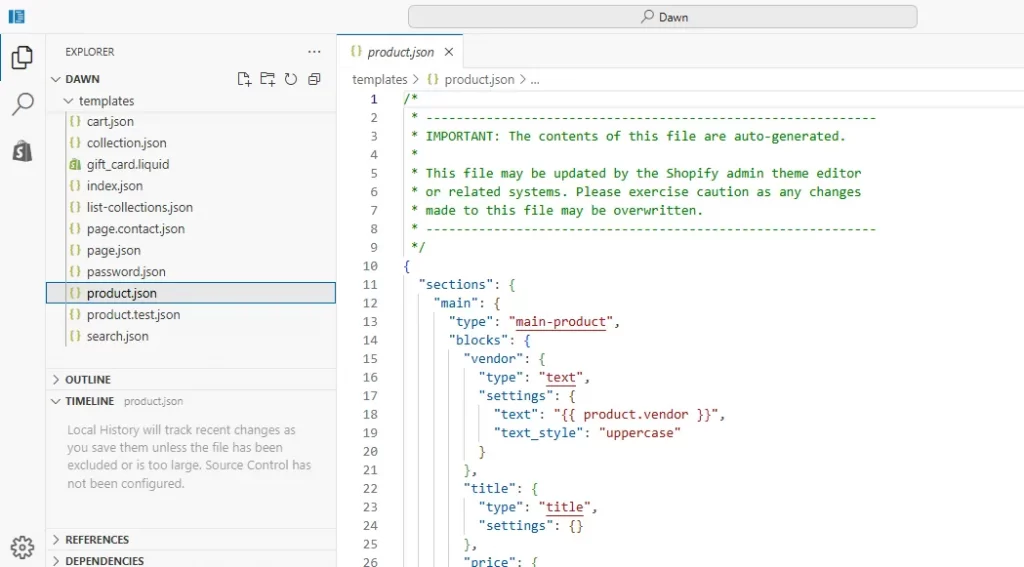
Now, inside Shopify’s theme code editor, you’ll need to find the file that controls the product purchase form. In most Shopify themes, this is handled in files such as main-product.liquid, product-form.liquid, or a product section referenced by a product JSON template.
Once you locate it, you can adjust the logic so that when a product’s inventory is set to zero but the “continue selling when out of stock” option is enabled, the button text changes to something like “Pre-order now” instead of “Add to cart.” If desired, you can even create a custom product page template specifically for pre-orders!
Needless to say, since the entire process requires code editing, some technical familiarity is necessary. Still, we highly recommend it so that you can make the pre-order intent 100% clear to customers.
_____
And now, your pre-order setup is complete!
That said, launching pre-orders is only half the equation. Keeping them organized and properly managed is just as critical, which we will discuss further in the next section.
How to Manage Your Pre-Orders on Shopify
Once pre-orders start coming in, you can use Shopify’s admin to delay fulfillment, organize unpaid or unfulfilled orders, and adjust payments, inventory, and refunds:
1. Extend fulfillment for pre-order items
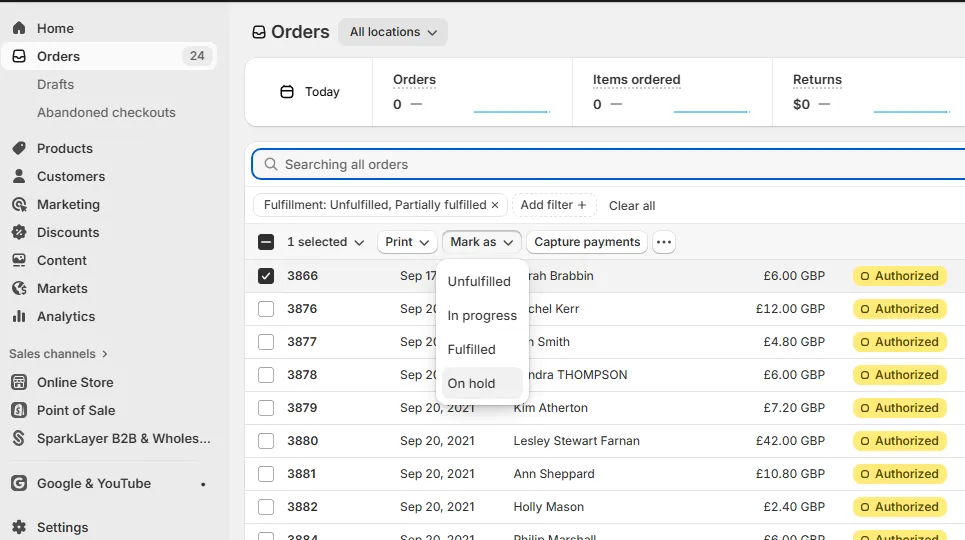
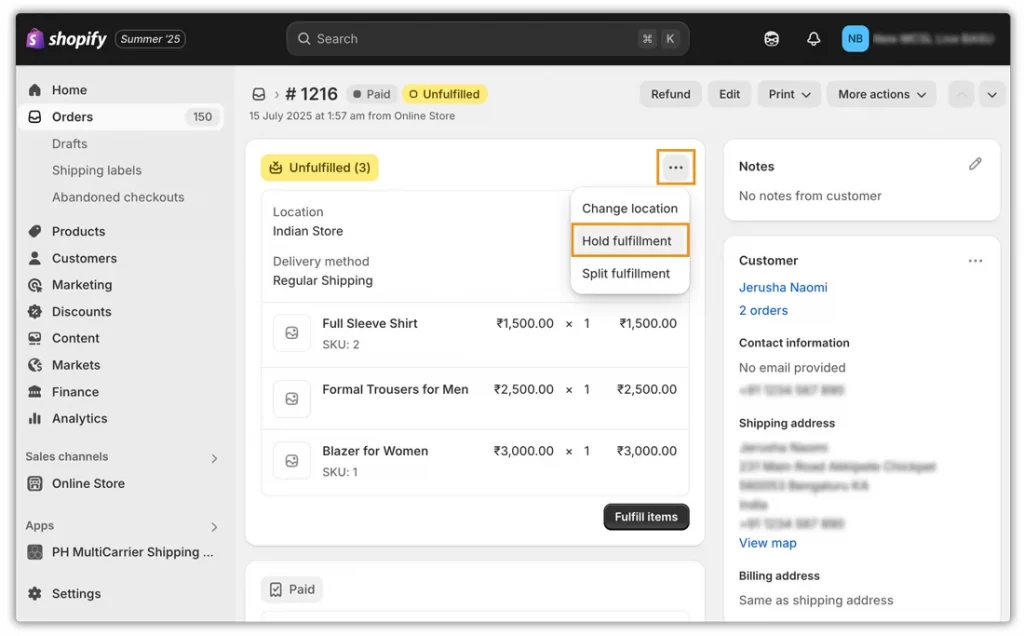
Since pre-orders are often placed weeks or even months before a product is ready to ship, delaying fulfillment is a common and necessary step. That’s why, in Shopify, you can put an unfulfilled order on hold to prevent it from being processed prematurely!
Simply open your Shopify admin and navigate to Orders, then select the pre-order that hasn’t been fulfilled yet. Then, in the Unfulfilled section of the order, open the three-dot menu and choose “On hold.”
2. Filter and sort unpaid or unfulfilled pre-orders
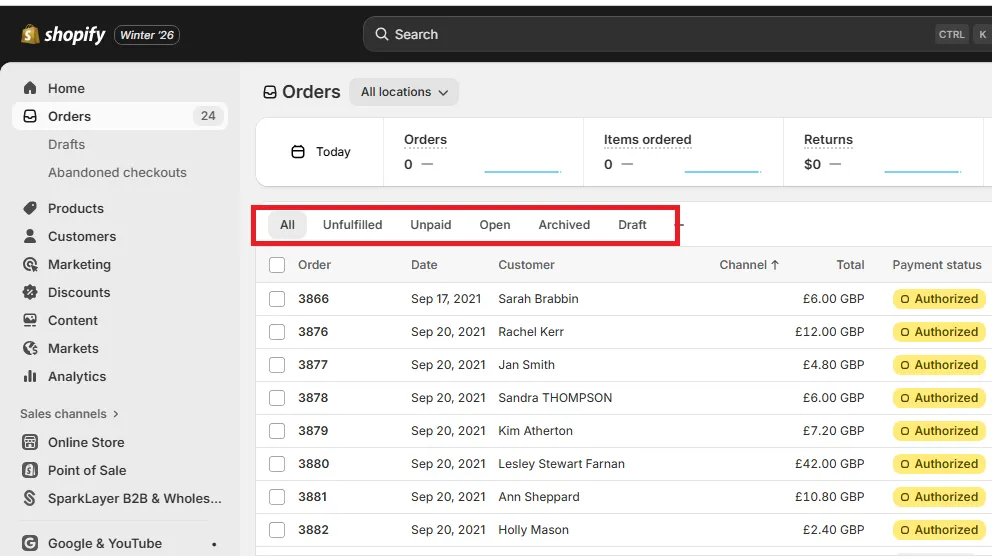
As your store grows, pre-orders can quickly become difficult to track if they’re mixed in with regular orders. Fortunately, Shopify helps solve this by allowing you to filter and sort orders based on their fulfillment and payment status.
Specifically, from the Orders page, you can use built-in filters such as Unfulfilled or Unpaid to surface pre-orders that still require attention. That way, it’s easier to identify which orders are waiting on stock, which ones still have outstanding payments, and which are ready to move into fulfillment.
3. Edit orders that contain pre-order products
Like regular orders, you can also edit existing orders that include pre-order items, which is often necessary when your customers request changes or when you need to make manual adjustments.
Specifically, within an editable order, you can:
- Increase or decrease the quantity of a pre-order item
- Apply a discount, modify an existing one, or remove it altogether.
- Remove a pre-order product from an order or add a standard one-time purchase item.
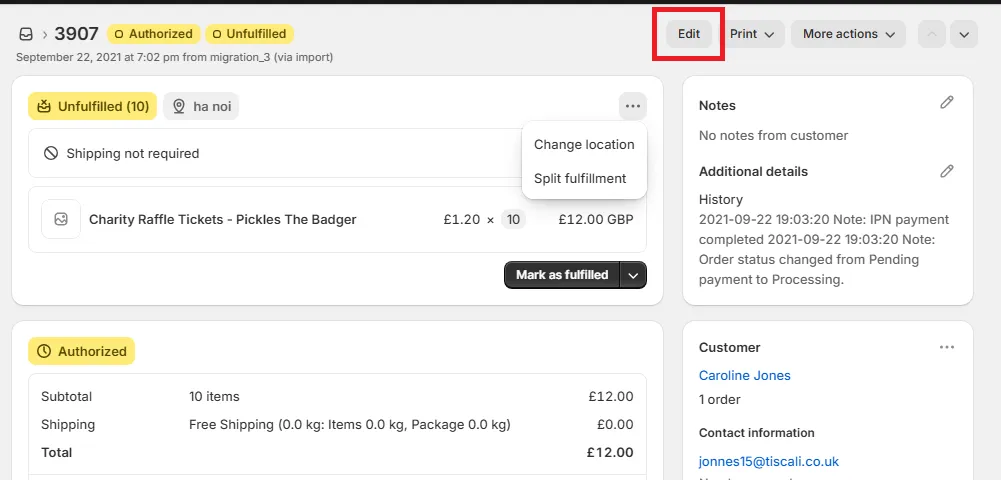
However, remember that though editing is flexible, you can’t add new pre-order products to an order once it’s been created. This limitation means any additional pre-order items must be placed as a separate order.
4. Change the payment due date or collect payment early
Additionally, for stores that use deferred or partial payments, Shopify allows you to manage when the remaining balance is collected. Specifically, if a product becomes available earlier than expected, you can choose to collect the outstanding payment sooner rather than waiting for the original due date.
To do this, open the relevant order in Orders and look for the Unfulfilled or Unpaid section.
From there, you can collect payment by charging the customer’s stored card or by sending them an invoice (Of course, before doing so, make sure you have properly notified the customer in advance). Better yet, you can even choose to split fulfillment payments so that your customers can pay in multiple installments.
5. Reserve inventory for pre-orders
Another important reminder is that inventory handling is also a part of managing pre-orders.
Depending on your setup, inventory may be reserved either when the order is placed or later, when fulfillment begins. In fact, some pre-order apps allow you to choose which approach works best for your business!
So, if inventory reservation settings are available, it’s best to review them and ensure they align with your fulfillment workflow and supplier timelines. If not, then you should reach out to the app developer or review their documentation to clarify how inventory is being handled behind the scenes.
6. Cancel and refund pre-orders when needed
Last but not least, learning how to remove pre order on Shopify is also important, especially when timelines change.
- If a pre-order hasn’t been fulfilled yet, you can always cancel it directly in Shopify, even if it’s only partially paid.
- Once an order has been fulfilled, cancellation is no longer possible, but you can still issue full or partial refunds for the fulfilled items.
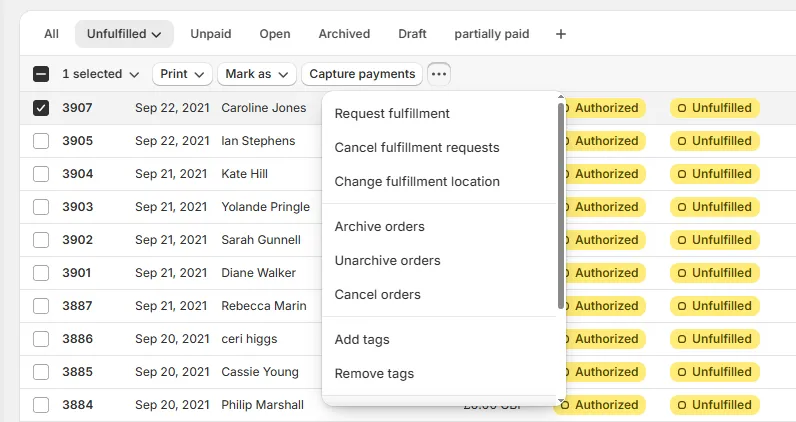
In some cases, customers may cancel through a channel outside of Shopify, which can require you to process the refund manually. But no worries; Shopify will display a notice on the order when that happens. After issuing a refund in the Orders section, make sure you cancel (or update) the order inside your pre-order app to keep records consistent across systems.
Bonus: 5 Best Shopify Apps for Pre-Orders Setup & Management
As you can see, to manage pre-orders smoothly, it’s important to choose a quality, well-built pre-order app right from the start. For this, we strongly recommend the following five applications: Notify! Back in Stock, STOQ, Timesact, Globo, and WOD:
1. Notify! Back in Stock | PreOrder
Rating: 4.9/5 (from 2,800+ users)
Subscription plans (7-day free trial available):
• Lite: $0
• Kickstart: $9.9/month
• Starter: $29.9/month
• Standard: $59.9/month
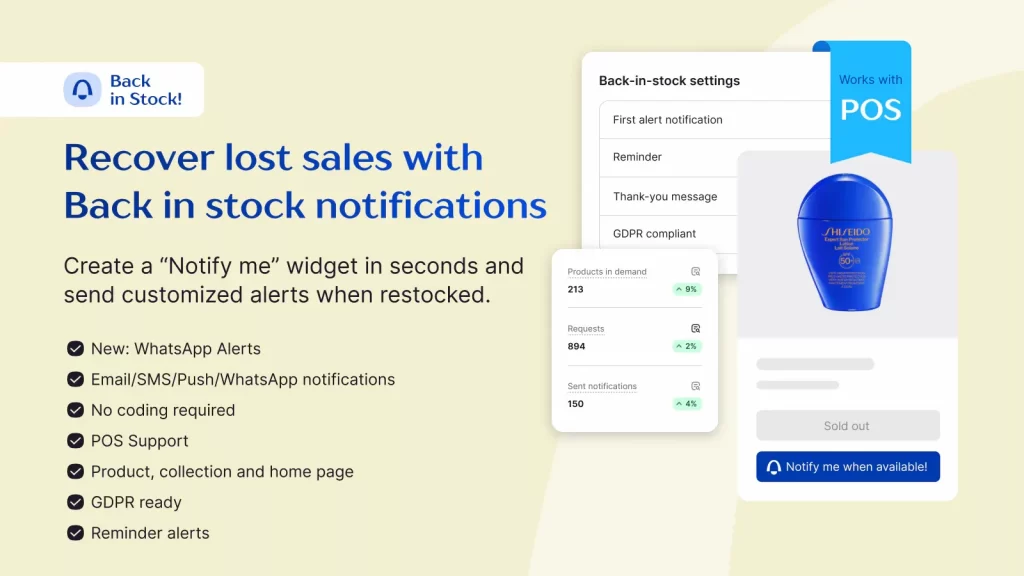
Notify! is a feature-rich solution designed for merchants who want full control over demand capture.
Currently, it allows you to place “Pre-order,” “Notify Me,” and “Wishlist” buttons across product pages, collection pages, and even the homepage. That way, your customers always have a way to express their intent, even when products are unavailable.
In addition, one of Notify!’s biggest strengths is its support for both D2C and B2B workflows. You can accept pre-orders from specific catalogs or locations, apply discounts, collect partial payments, and attach notes directly to orders. Better yet, automated restock notifications can be sent via email, SMS, push notifications, or WhatsApp, and shoppers can save products to a wishlist even without logging in.
2. Preorder, Back In Stock – STOQ
Rating: 5/5 (from 2,500+ users)
Subscription plans: (14-day free trial available):
• Free: $0
• Lite: $10/month
• Pro: $29/month
• Ultimate: $69/month
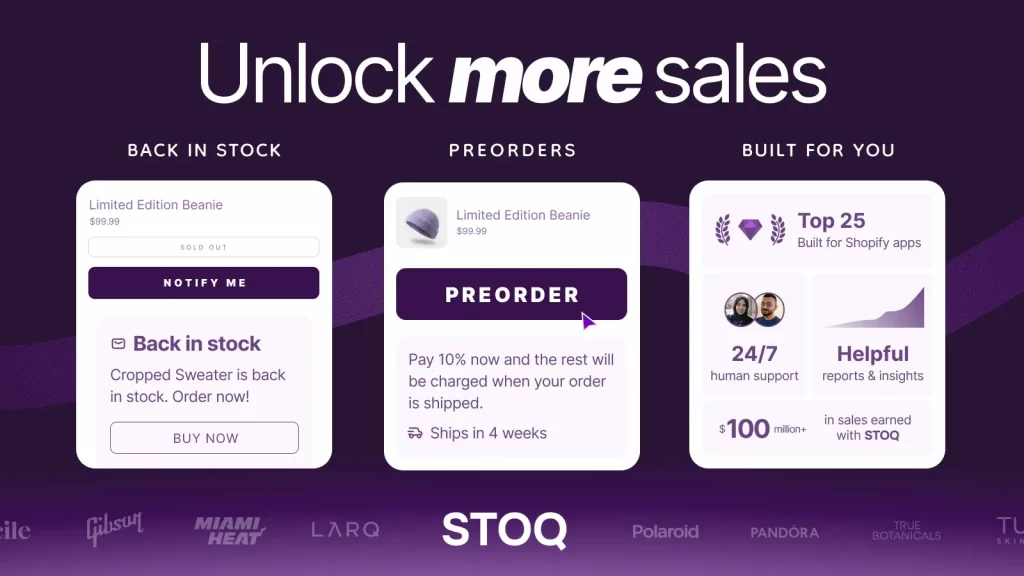
Next is STOQ, which helps merchants turn out-of-stock products into revenue opportunities with minimal friction. The app lets you quickly add Preorder or Notify Me buttons to sold-out products so that customers can either join a waitlist or place an order immediately.
Plus, automation is a key selling point of STOQ. When inventory is restocked, the app automatically sends back-in-stock alerts via email or SMS to customers who signed up, without requiring manual follow-ups. It also supports B2B pre-orders, multiple locations, and Shopify Markets, which is why we strongly recommend it for merchants selling across regions.
3. Preorder | Notify Me Timesact
Rating: 5/5 (from 1,700+ users)
Subscription plans:
• Free: $0
• Flexible: Starting from $1/month
• Fixed (for New users): $19/month
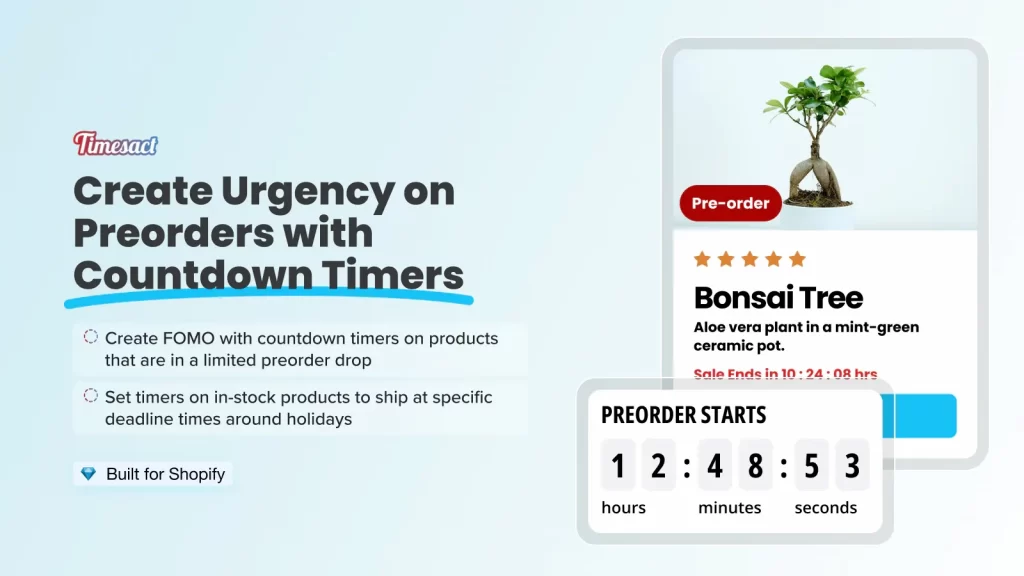
Timesact is particularly well-suited for brands that rely on launches, limited drops, or presales to build momentum.
Instead of configuring each product manually, Timesact lets you control pre-orders and restock alerts using product tags. This comprehensive tag-based system makes it much easier to manage large catalogs or frequently changing launch schedules.
Moreover, the app offers a wide range of tools to shape the pre-order experience. After installing it, merchants can:
- Collect partial payments
- Apply automatic discounts to pre-orders
- Limit the number of presale orders
- Display clear shipping dates directly on the product page.
And to top it off, visual elements like pre-order badges and countdown timers also help set expectations while reinforcing urgency during launch periods.
4. PreOrder Globo | Back in Stock
Rating: 4.9/5 (from 1,500+ users)
Subscription plans (7-day free trial available):
• Free: $0
• Lite: $9.9/month
• Pro: $19.9/month
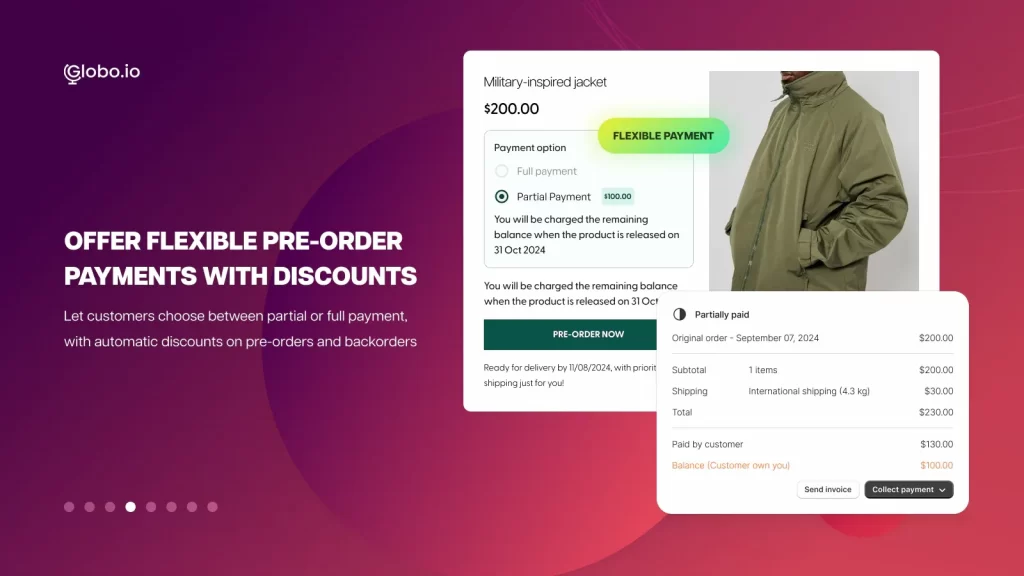
PreOrder Globo offers a clean, structured approach to managing pre-orders and restock alerts. You can enable pre-orders based on inventory conditions or schedule them to run within a defined time window, which is ideal for planned launches or seasonal campaigns.
Merchants are also impressed with how clearly it communicates delivery expectations. Your team can display custom delivery notes (such as “Delivery in 21–30 days”) directly below the pre-order button to help customers understand timelines before they commit. And since the app also supports partial payments and automatic discounts, incentivizing early purchases should be a breeze.
5. WOD: PreOrder Now
Rating: 4.5/5 (from 1,000+ users)
Subscription plans (14-day free trial available):
• Free Plan: $0
• Shopify Basic: $19.95/month
• Shopify Grow: $39.95/month
• Shopify Advanced: $59.95/month

WOD: PreOrder Now is designed for scale and high-demand sales periods. You should find it quite easy to enable pre-orders in bulk, apply settings across multiple products or variants, and schedule pre-orders to activate automatically at a specific time. That’s why this app is widely used for holiday campaigns, flash sales, or major product drops.
And that’s not all; WOD also includes practical safeguards for complex carts, such as alerts when customers mix pre-order and in-stock items in the same checkout. Plus, there are many advanced branding features worth mentioning, including customizable buttons, badges, and confirmation emails that integrate smoothly with your storefront design.
FAQs
Can I do pre-orders on Shopify?
Yes, you can do pre-orders on Shopify, either by using a built-in "continue selling when out of stock" feature or by installing apps from the Shopify App Store.
How to create a pre-order form on Shopify?
To create a pre-order form on Shopify, you can use a dedicated app from the Shopify App Store (like Pre-Order Globo) or manually edit your theme's code to assign a custom template.
Can Shopify accept payments immediately for pre-order products?
Yes, Shopify can accept payments immediately for pre-orders if you clearly inform customers they are paying upfront for a future-dated item. But typically, payment is authorized and captured later when the product ships to avoid charging customers too early.
How do pre-orders work with Shopify inventory tracking?
Shopify pre-orders use apps to control inventory settings, allow sales of out-of-stock items, and manage payments and customer communication until stock arrives. Plus, they turn future inventory into current sales by setting specific rules (e.g., tracking quantity).
Final Words
All in all, learning how to set up pre order on Shopify can be a powerful growth lever for your store. And as this guide has shown, you can enable pre-orders on Shopify either by using dedicated apps for maximum flexibility or by applying manual workarounds!
That said, pre-orders do not just involve turning on a setting; they require thoughtful planning around inventory, payments, fulfillment timelines, and customer communication. So, if you’d rather skip the trial-and-error and set up a pre-order system that’s tailored to your business model, LitOS is here to help.
It’s time to set up pre-orders the right way!
Pre-orders on Shopify involve careful planning around inventory, payment timing, fulfillment, and customer expectations. At LitOS, we help merchants build reliable pre-order systems that fit their business model, avoid common pitfalls, and scale smoothly as demand grows.
Contact Us
