
How to Uninstall Shopify App: Complete 2026 Guide for All App Types
Many store owners search for how to uninstall Shopify app once they want a cleaner setup or no longer need a feature. This guide explains the steps clearly and shows you what to check before removing any app from your store.
Here is what you will learn
- How to uninstall a Shopify app using the standard method
- Extra steps for theme apps, fulfillment apps, and custom apps
- How to view or reinstall previously removed apps
- How to solve common uninstall problems
Let’s begin with the moments when removing an app makes sense.
When You Should Uninstall a Shopify App
You can uninstall a Shopify app any time it no longer supports your store or creates issues that affect your operations. The most common situations are simple and easy to identify.
Common reasons to uninstall a Shopify app
- You want to remove tools you no longer use
- You want to reduce recurring app charges
- The app slows down your store
- The app creates theme conflicts or layout problems
- You are switching to a new app with the same function
- You want a cleaner and lighter store setup
A quick review of these situations helps you decide if uninstalling the app is the right step before you move on to the removal process.
How to Uninstall a Shopify App (Standard Method)
Uninstalling most Shopify apps only takes a few clicks from your admin. This is the process that applies to almost every app in your store.
Important: Create a theme backup first before uninstalling any app, especially page builders, design apps, or apps that modify your storefront, it is highly recommended to create a backup. If the uninstallation leaves behind broken code or messes up your layout, you can instantly restore the previous version.
- Go to Online Store > Themes.
- Click the three dots (…) next to your current theme.
- Select Duplicate.
Now that your store’s look is safe, let’s proceed to the removal process.
Step 1: Access the Shopify apps list
Open your Shopify admin on desktop or mobile and make sure you are signed in with the correct staff account.
Access the Apps List, the path to your apps differs slightly depending on your device:
- On Desktop: Log in to your Shopify Admin, click Settings (bottom left corner), and select Apps and sales channels.
- On Mobile (iPhone/Android): Open the Shopify App, tap the Store icon (bottom right), go to Settings, and tap Apps and sales channels.
Once you are on this screen, you will see a list of all installed apps.
Step 2: Click the three dots (…) next to the app
Locate the app you want to remove. Click the three dots next to its name to open the menu.
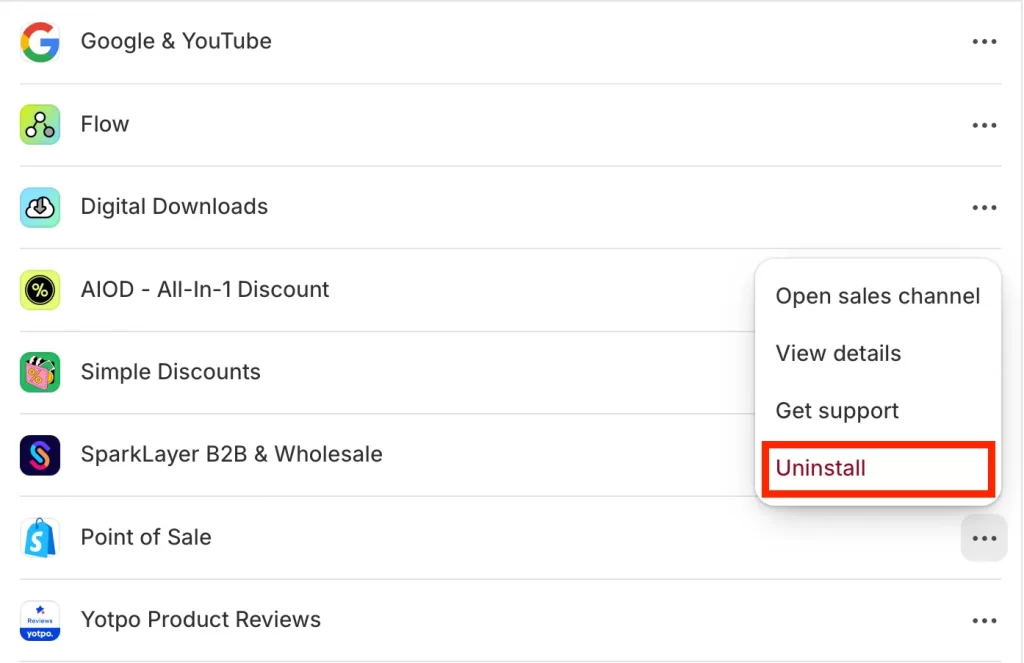
Step 3: Click Uninstall
Select Uninstall from the menu to begin the removal process.
Some apps, such as sales channels, require one more confirmation before you can complete the uninstall. A pop-up will appear showing tasks you must complete first.
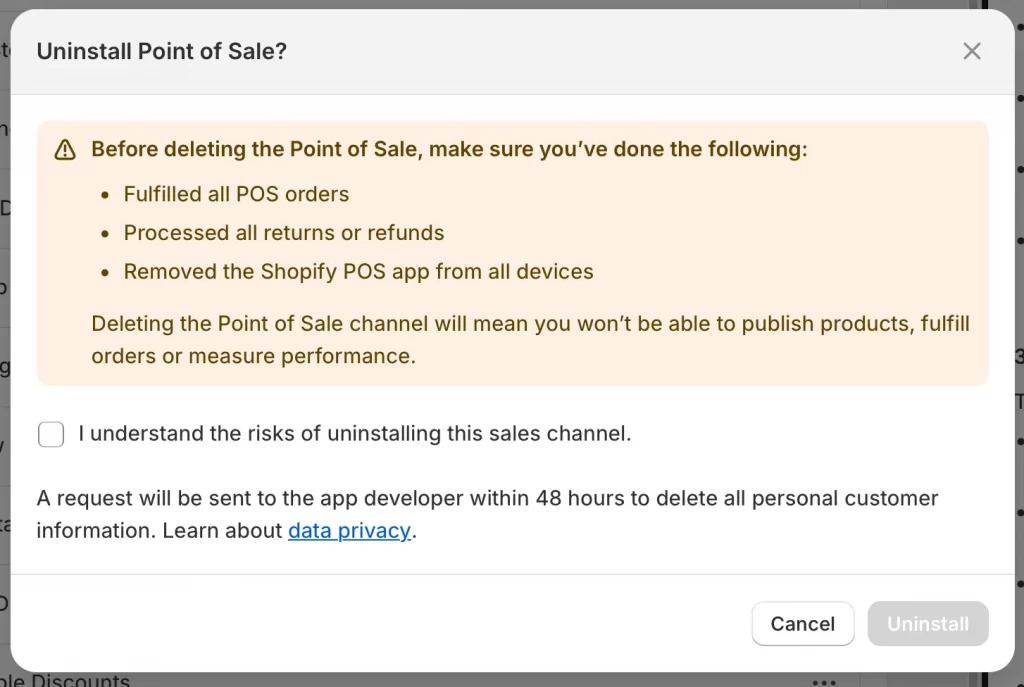
For example, for Point of Sale, Shopify asks you to confirm that you have:
- Fulfilled all POS orders
- Processed all refunds or returns
- Removed the Shopify POS app from all devices
You must check the box to confirm you understand the risks before the Uninstall button becomes active. Once confirmed, you can remove the sales channel from your store.
Step 4: Choose a reason (optional) and confirm
Before the removal completes, Shopify opens a final confirmation screen.
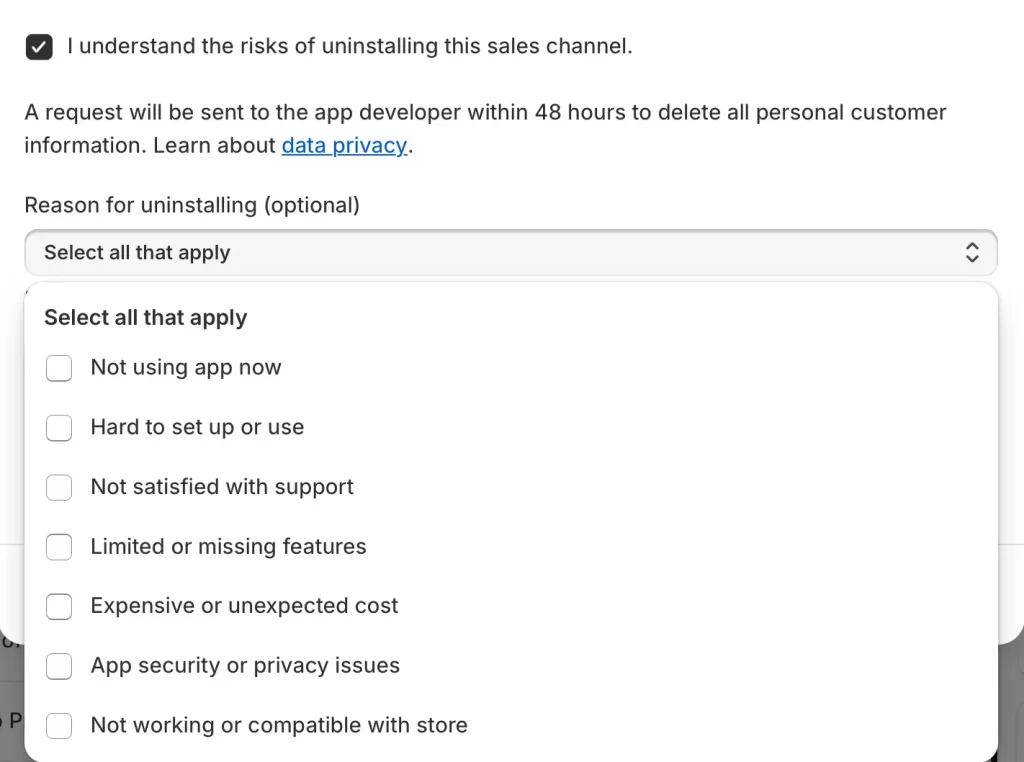
You can choose a reason for uninstalling from a list that includes options such as:
- not using the app now
- hard to set up or use
- limited features
- unexpected cost
Selecting a reason is optional and does not affect the process. Once you confirm your choice, click Uninstall to finish removing the app.
And that’s how to uninstall an app on Shopify!
How to Reinstall or View Previously Uninstalled Apps
Shopify keeps a full record of the apps you added or removed. You can return to this list at any time to check details, review uninstall actions, or bring an app back to your store.
1. View uninstalled apps
- Go to Settings
- Open Apps and sales channels
- Click the Uninstalled tab
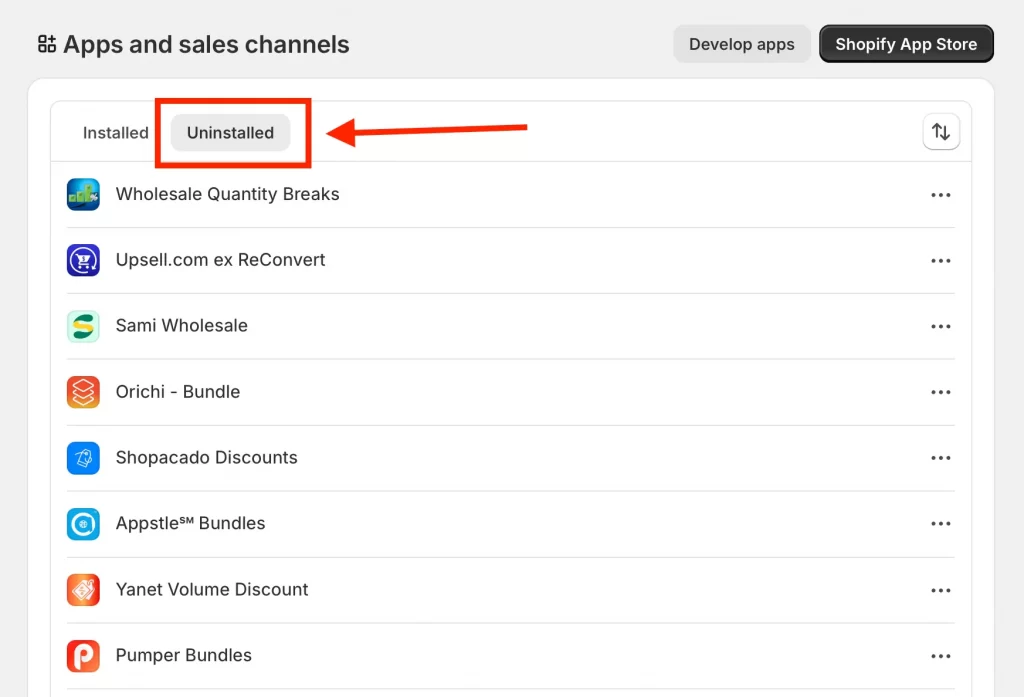
This tab shows every app that was removed from your store, including the date it was uninstalled and the staff member who performed the action.
2. Reinstall an app
- Click the name of an app in the Uninstalled list
- Review its About page
- If it is compatible with your store setup, an Install button will appear
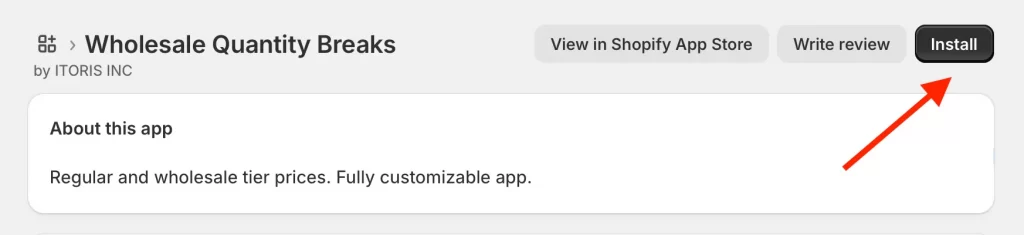
You can reinstall the app with one click. If the developer updated the app after you removed it, you will see the most recent version.
3. Check install and uninstall history
Each app has an About page that includes its history.
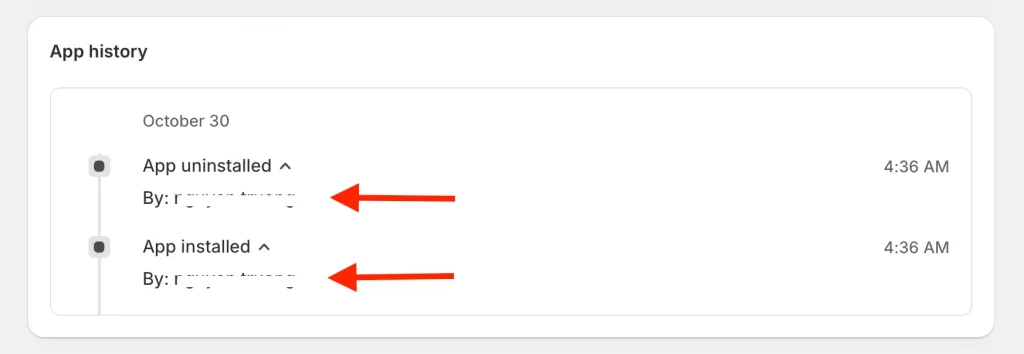
This section shows:
- The date the app was installed
- The date it was uninstalled
- Notes or reasons selected during uninstall
- The staff member who completed the action
- Any compatibility alerts from Shopify
This history helps you track changes and understand how each app was used in your store.
How to Uninstall a Shopify App Using the API (For Developers)
Developers can remove an app programmatically by sending a DELETE request to Shopify’s API. This method is useful for automated systems or cases where you need to uninstall an app without using the Shopify admin.
When you uninstall an app through the API, Shopify completes several cleanup steps automatically:
- All access tokens for the app are revoked
- Registered webhooks are deleted
- Script tags created by the app are removed
- Shopify admin links added by the app are removed
If the uninstall happens during key rotation, both the old and new tokens become invalid.
Shopify notes that this action is irreversible, so make sure the app no longer needs to make API calls before you proceed.
Developers can uninstall an app by sending a DELETE request to the following endpoint:
https://{shop}.myshopify.com/admin/api_permissions/current.jsonHere is the example from Shopify’s documentation:
require 'rest_client'
require 'json'

access_token = 'secret'
revoke_url   = 'https://{shop}.myshopify.com/admin/api_permissions/current.json'

headers = {
  'X-Shopify-Access-Token' => access_token,
  content_type: 'application/json',
  accept: 'application/json'
}

response = RestClient.delete(revoke_url, headers)
response.code # 200 for success
A 200 response means the uninstall was successful and the app no longer has access to the store.
And that’s how to uninstall app on Shopify via API.
Special Cases When Uninstalling a Shopify App
Some apps need extra steps before they can be removed. These cases are uncommon but important because they can affect your theme, your inventory, or the way your store connects with custom tools.
The sections below explain what to check before uninstalling and how to complete a clean removal.
Case 1: Removing “ghost code” (manual code cleanup)
Even after you click Uninstall, many apps leave behind snippets of code (often called “Ghost Code”) in your theme files. This leftover code can slow down your site speed and affect your Core Web Vitals.
If you notice your site loading slower after an uninstall, check these specific files.
Identify the files to check Go to Online Store > Themes > Edit code. Based on the type of app you removed, check these common locations:
- theme.liquid: Look for <script> tags or {% render %} / {% include %} lines related to the app between the <head> tags.
- product.liquid or main-product.liquid: Common hiding spots for review apps, size charts, or preorder apps.
- cart.liquid: Check here if you uninstalled an upsell or discount app.
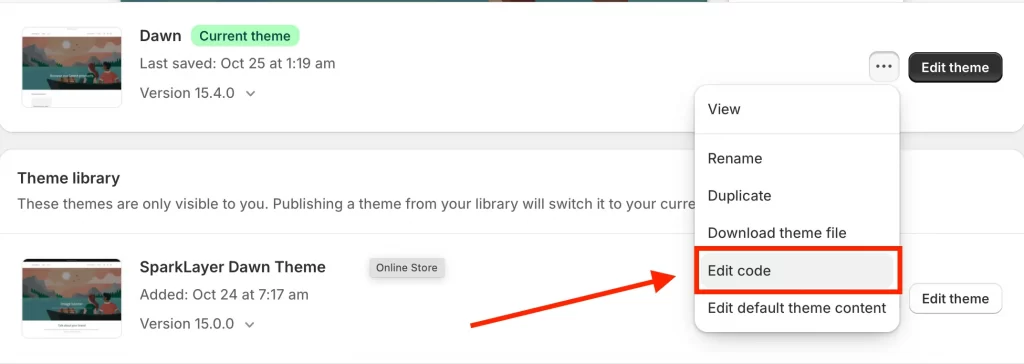
Use the Search Function You don’t need to read every line of code. Click inside the file and press Ctrl + F (Windows) or Cmd + F (Mac). Type the name of the app (e.g., “Judge.me”, “Klaviyo”) to find related code blocks quickly.
Compare with your Backup If you are unsure whether a piece of code belongs to the app, open the Duplicate Theme you created before uninstalling (or a fresh version of your theme). Compare the files to see exactly what the app added, and delete only those lines.
Case 2: Fulfillment apps with Inventory at an app location
Some fulfillment or inventory apps store products at their own app location. You must handle that inventory before the uninstall can continue.
What you need to do
- Start the uninstall from Settings and open Apps and sales channels
- Shopify will show a prompt asking how you want to manage the inventory
Inventory options
- Delete inventory: Works only for uncommitted inventory
- Transfer inventory to an existing location: Move the products to a location already in your store
- Transfer inventory to a new location: Create a new location if your plan has space available
After you choose how to manage the inventory, you can finish the uninstall.
Case 3: Custom apps built for your store or ones you created
If you are asking How do I remove an app that I have created?, the process takes place in the Develop apps area instead of the standard app list. Custom apps use their own uninstall flow because they are built specifically for your store.
How to remove a custom app you created
- Go to Settings
- Open Apps and sales channels
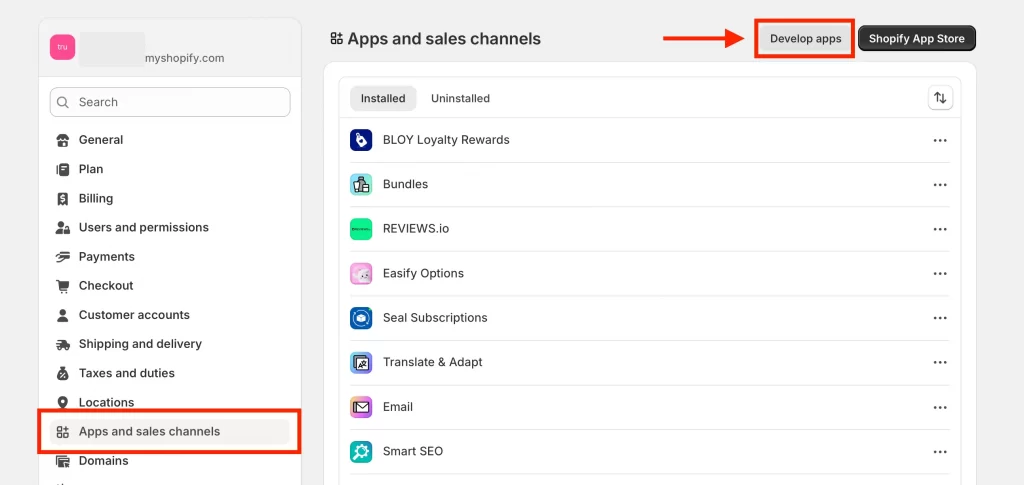
- Click Develop apps
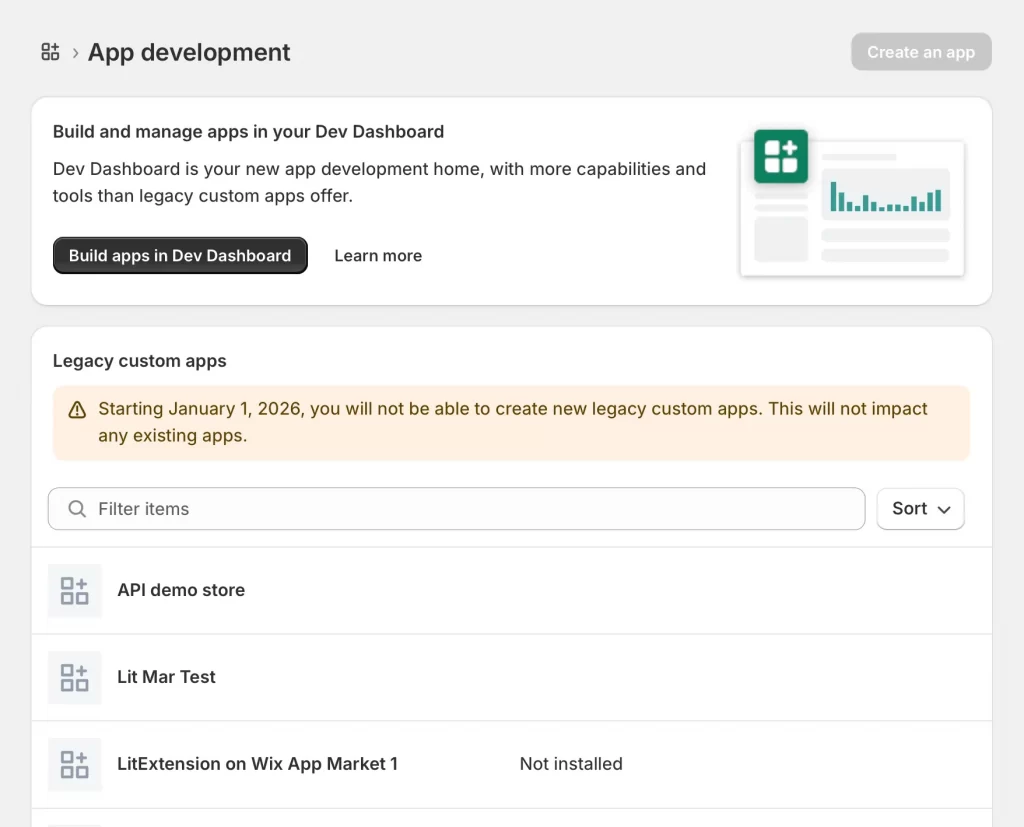
- Select the custom app you want to remove
- Click Uninstall app
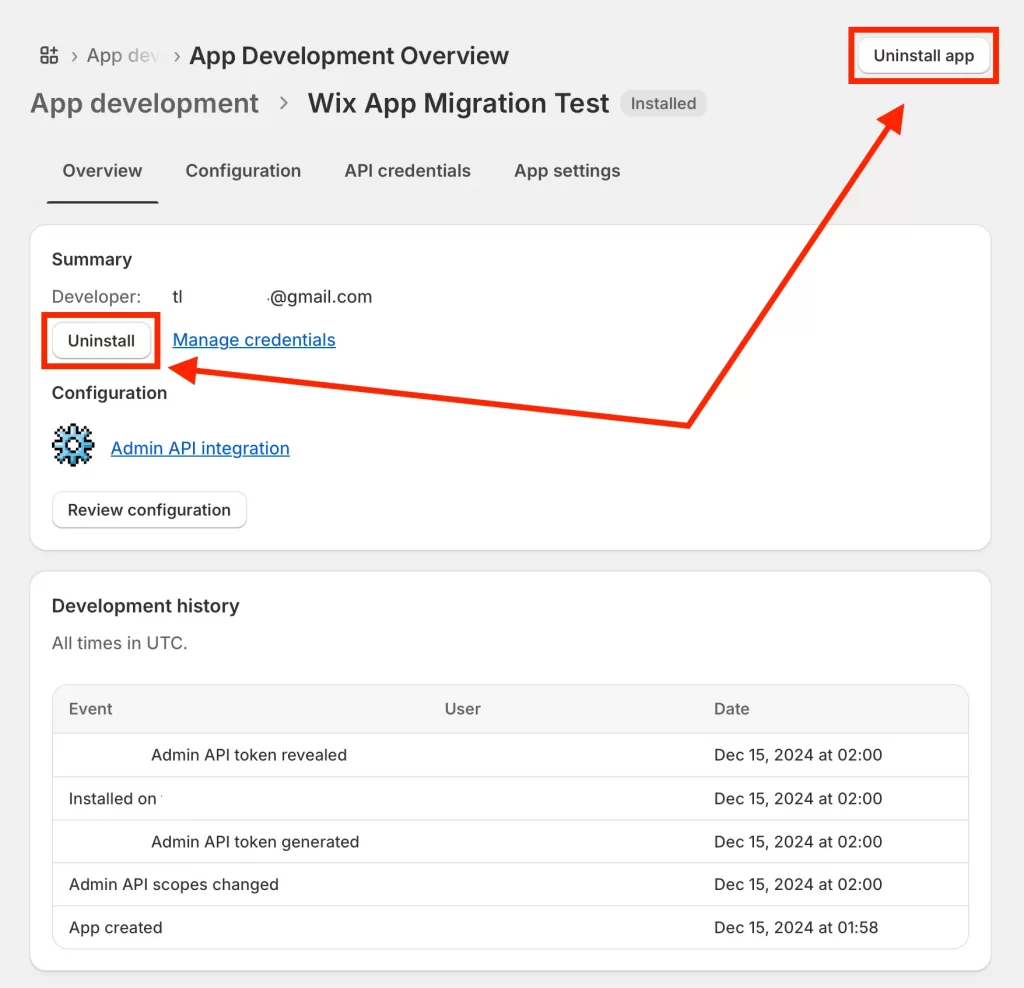
A confirmation window appears explaining that:
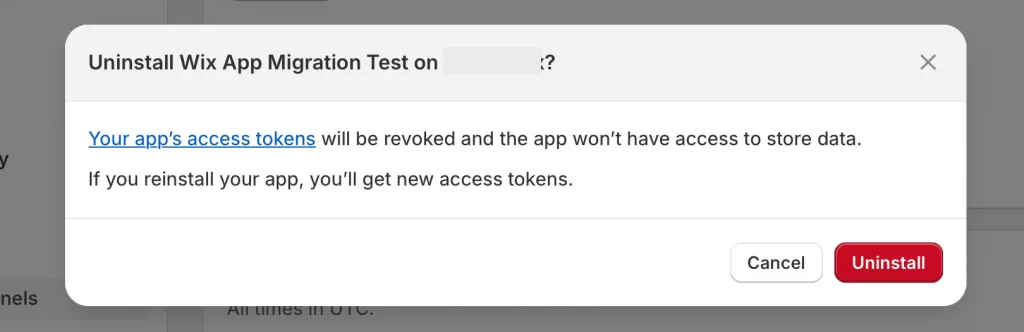
- Your app’s access tokens will be revoked
- The app will no longer have access to store data
- New access tokens will be issued if you reinstall the app
What happens after removal
- All API access tokens are deleted
- Webhooks registered by the app are removed
- The app no longer has access to store data
- A new token is created if you install it again
Case 4: Tax apps or sales channels
Some tax apps and sales channels need extra steps before you can remove them. These apps connect deeply with your store settings and require deactivation before the Uninstall button becomes available.
What you need to do first
- Open the app or sales channel
- Turn off its active settings
- Disconnect it from any linked services
- Review any prompts that must be confirmed
Once the app or channel is fully deactivated, return to Apps and sales channels and complete the uninstall using the standard steps.
Troubleshooting Issues When Uninstalling Shopify Apps
Most apps uninstall without any issues, but some situations create errors or unexpected results. These points help you identify the cause and complete the uninstall successfully.
1. “App can’t be uninstalled” error
This error appears when the app requires additional uninstall steps before removal. This is common for apps that modify your theme or add code to your store.
How to fix
- Open Settings
- Go to Apps and sales channels
- Click Get support next to the app
- Contact the developer for instructions on the proper removal steps
- Complete the steps they provide and try uninstalling again
2. App data loss concerns
Uninstalling an app affects its stored data, and the way data is handled depends on how the app was built.
Key points about data
- Most app data created inside the app is deleted once you uninstall it
- Subscription app data is deleted after 48 hours except for contracts and customer payment information
- Shopify sends a request to the app developer within 48 hours to delete personal customer data
- Some apps provide backup or restoration options
What to do
- Check the app for an export or backup option before uninstalling
- Contact the developer if you need to preserve data
3. Billing still active after uninstall
“Why was I charged after uninstalling?“
This is the most common confusion store owners face. Shopify app billing operates on specific rules that you must understand to avoid surprise invoices.
The 30-day billing cycle: Shopify apps are billed on independent 30-day cycles, which often do not align with your main Shopify subscription date. If you uninstall an app on day 5 of its cycle, the charge for that full month has usually already been approved. Uninstalling prevents the next renewal, but it does not automatically refund the current cycle.
Usage-based charges: If an app charges based on activity (e.g., emails sent, orders processed), these charges are calculated at the end of the billing period. You will likely see a final charge on your next invoice covering the usage that occurred before you uninstalled the app.
Important:
The “Free Trial” trap: If you are on a free trial, you must uninstall the app before the trial period expires (even by one minute). Once the trial ends, Shopify’s system automatically approves the charge. We recommend uninstalling at least 24 hours before a trial ends.
How to request a refund (the correct way): If you were charged unexpectedly, do not contact Shopify Support first. Shopify cannot refund third-party app charges without the developer’s permission.
- Contact the App Developer: Find their support email on their App Store listing.
- Explain the situation: (e.g., “I uninstalled the app but was charged due to a time zone discrepancy”).
- Wait for approval: If the developer agrees, they will trigger the refund, and Shopify will process it as an app credit on your future bill.
What to do now: Always check the “Billing” section in the app’s internal settings before uninstalling to see exactly when your current cycle ends. If you are close to the renewal date, uninstall immediately to avoid the next cycle’s charge.
How to Uninstall Shopify App: FAQs
How do I delete the Shopify store app?
You can remove the Shopify POS or other Shopify owned apps by going to Settings and opening Apps and sales channels. Click the three dots next to the app and select Uninstall. Sales channels may require extra confirmation steps before the uninstall button becomes active.
Will I be charged if I uninstall a Shopify app?
Charges stop after uninstall but any fees already created in your billing cycle will still appear on your next invoice. Usage based charges can also be billed later if they were generated before uninstalling.
How do I remove leftover code after uninstalling a Shopify app?
Open Online Store and select Themes. Click Edit code and look for snippets, script tags, or files added by the app. Remove the related code or contact the developer through Get support if you need help finding the correct files.
What happens to a Shopify app's data after uninstall?
Most app data is deleted immediately. For subscription apps, some data such as customer payment information and contract details are kept for a short period before removal. Shopify also sends a deletion request to the developer within 48 hours for personal customer data.
How do I see which staff uninstalled a Shopify app?
Go to Settings and open Apps and sales channels. Click the app from the Uninstalled tab. The App history section shows who installed and uninstalled the app along with timestamps and any reasons selected during removal.
Conclusion
The steps in this guide give you a clear process of how to uninstall Shopify app. Most apps use the standard removal method, and the special cases help you handle apps that affect your theme, your inventory, or your custom integrations. Reviewing these points before uninstalling ensures a smooth removal and keeps your store organized and easy to manage.
Ready to optimize your Shopify setup?
LitOS helps you build a cleaner, faster, and more efficient Shopify store. From app optimization to full store improvements, our team supports your next stage of growth with clear strategy and reliable execution.
Contact Us
