
How to Add Shopify Product Categories 2026
When a customer lands on your Shopify store, their experience is shaped long before they click “Add to cart.” In fact, how easily they can browse, filter, and ultimately purchase your products depends largely on how well your catalog is structured. That’s why learning about Shopify product categories is a critical part of building a successful business!
However, to this day, many beginners still assume that product categories on Shopify are simply another way to group products. There’s actually far more happening beneath the surface; in this article, we’ll help you understand it better by discussing:
- What Shopify product categories really are
- Why they matter beyond basic organization
- How to add product category in Shopify
- 5 tips to manage categories effectively.
Let’s begin!
What Are Shopify Product Categories?
Shopify product categories are a standardized way to classify products using a predefined, hierarchical system created by Shopify, known as the Standard Product Taxonomy.
They describe what a product fundamentally is (for example, “Apparel & Accessories > Clothing”) and are used primarily for internal logic, automation, and compliance rather than for customer-facing navigation.
It’s important to distinguish product categories from other Shopify concepts.
For instance, Product categories are not the same as Product Types. Categories are standardized and controlled by Shopify, while Product Types are custom labels you define yourself (such as “T-shirt”) and are mainly used for internal organization.
Likewise, Product categories are also different from Collections:
- Categories provide backend structure for tax/channel integration, are hierarchical, limited in number, and don’t create dedicated storefront pages.
- Collections are customer-facing groupings like “New Arrivals” or “Summer Sale.” Though they might use product categories as a condition, their purpose is to help shoppers discover items and navigate your catalog.
Why Shopify Product Categories Are Important for Your Online Store
Shopify product categories are important because they determine how product data is interpreted, how taxes are calculated, whether products can be sold on external channels, and how efficiently large catalogs can be managed:
Product categories create a standardized product structure
For starters, product categories matter because they give Shopify an unambiguous definition of what each product is.
Since categories must be selected from Shopify’s predefined taxonomy, a product categorized as “Home & Garden > Bedding” is understood by the system in exactly the same way across every store. As a result, it removes interpretation gaps that would otherwise arise from custom naming or inconsistent labeling.
In practical terms, that means standardized categories prevent data fragmentation as your store scales. When product data follows a shared structure, all your apps, analytics tools, and Shopify-native features will behave predictably.
Product categories enable accurate tax calculation
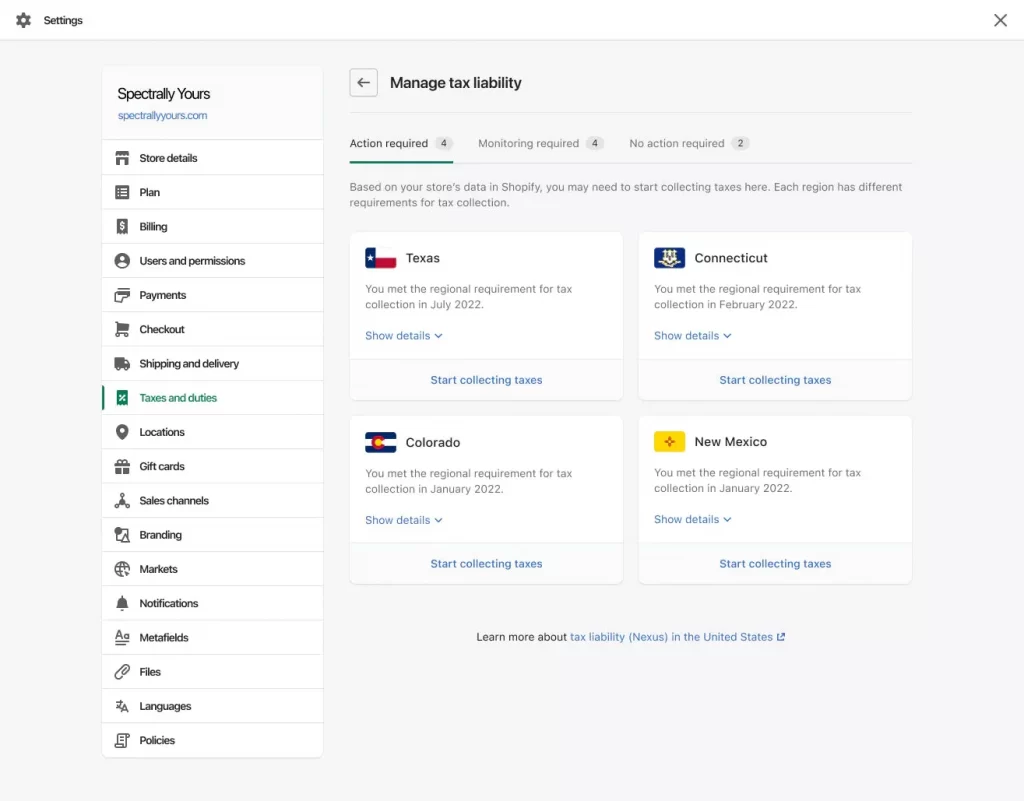
Secondly, remember that many tax rules depend on what the product is, not just where it is sold. So, when you assign a category, Shopify will use that classification as a key input to determine which tax rules apply at checkout, based on the customer’s location and the nature of the product.
For stores selling across multiple regions, this feature is very important since different jurisdictions may tax clothing, food, or digital goods differently. Otherwise, you might either overcharge customers or under-collect taxes, both of which lead to severe consequences and even potential penalties.
Product categories are essential for selling on external channels
Another important reminder is that external sales channels require standardized product classification to function properly.
Platforms like Facebook and Instagram, for instance, do not understand store-specific naming conventions. They all rely on structured taxonomies to determine how products should be listed, approved, and displayed.
Therefore, when a product is assigned the correct Shopify category, that classification can be mapped cleanly to the requirements of external channels. This design ensures your products:
- Sync successfully
- Appear in the correct contexts
- Meet the eligibility rules for those platforms.
In short, product categories act as the bridge between your Shopify catalog and external ecosystems. If that bridge is weak or inconsistent, your multi-channel strategy becomes fragile or impossible to scale.
How to Select and Update Product Categories
To update product categories in Shopify, you can use one of the 3 methods: update categories within individual products, assign categories to multiple products at once, or apply them through a CSV import:
Method 1: Manage categories individually
To create product categories Shopify individually, go to Products, open the product to select its category from the Category field, and then click Save to apply the change.
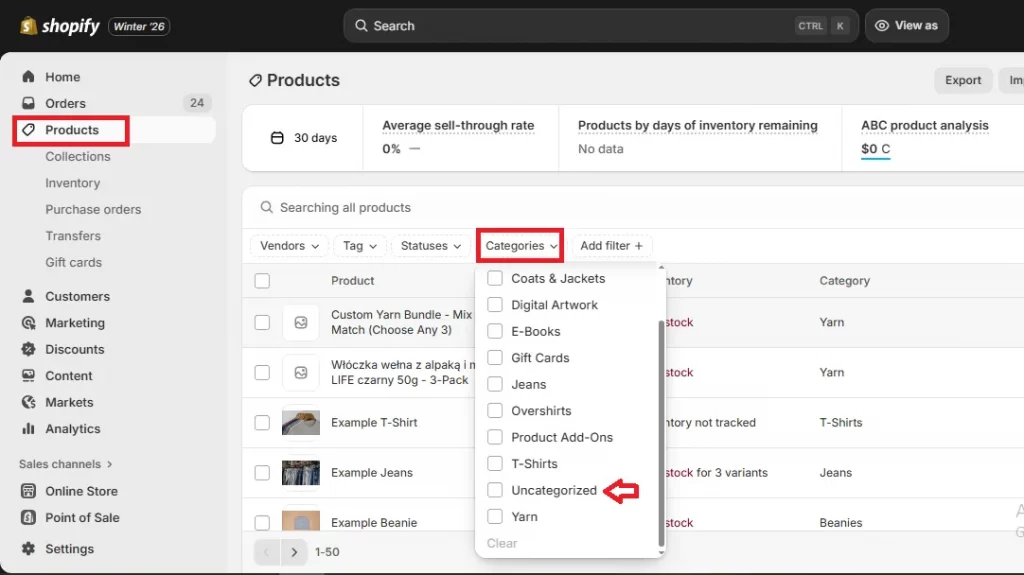
Step 1. Go to Products
First, open Products in your Shopify admin. If you want to choose a product currently not under any category, apply the Categories filter and select Uncategorized.
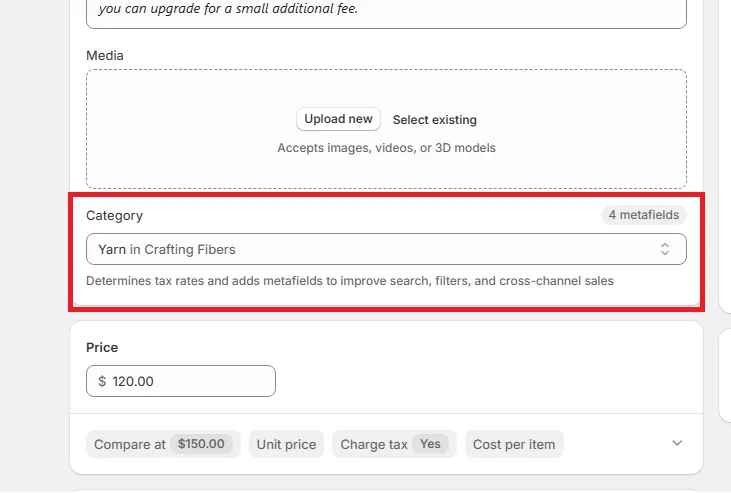
Step 2. Find the product’s Category field
Next, open the product you want to update and find the Category field in the product details.
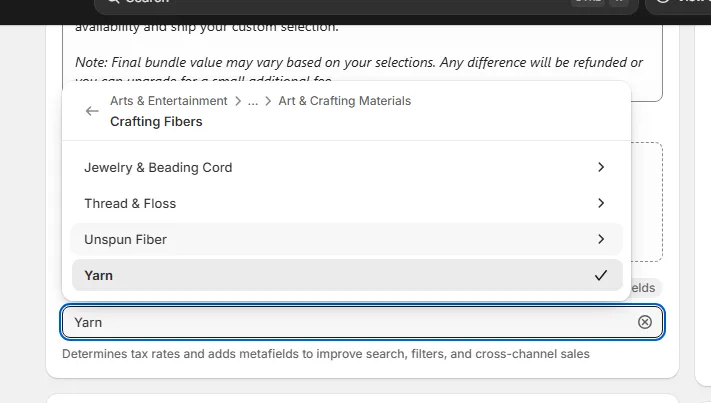
Step 3. Update the category
Now, enter a category keyword, then move through Shopify’s category and subcategory structure until you reach the most appropriate level. Once done, click Save to apply the category.
Method 2: Manage categories in bulk
If you need to assign the same category to more than one product, then bulk editing is highly recommended. To do so, select items from Products, click Bulk edit, enable the Product category column from Columns, and assign categories directly in the table:
Step 1. Select the products
Go to Products and select the products you want to change. You can:
- Tick each box to choose individual products
- Click “Select all 50 on page” to choose all items on the current page
- Click “Select all in this store” to choose your entire catalog.
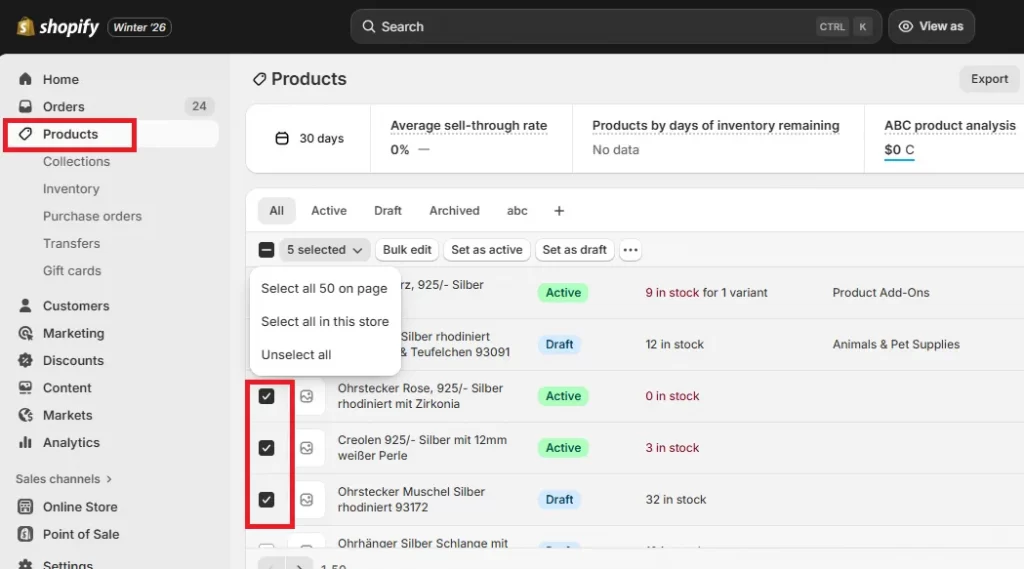
Step 2. Access the editor
Next, click Bulk edit to open the editor.
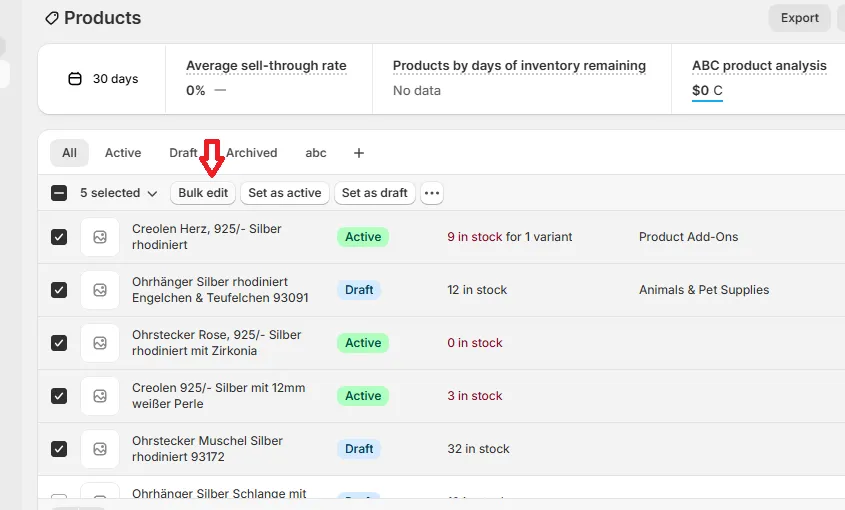
You’ll see a table appear on the screen, as shown in the image below. If the category field isn’t visible, open Columns and tick Product category to add it to the table.
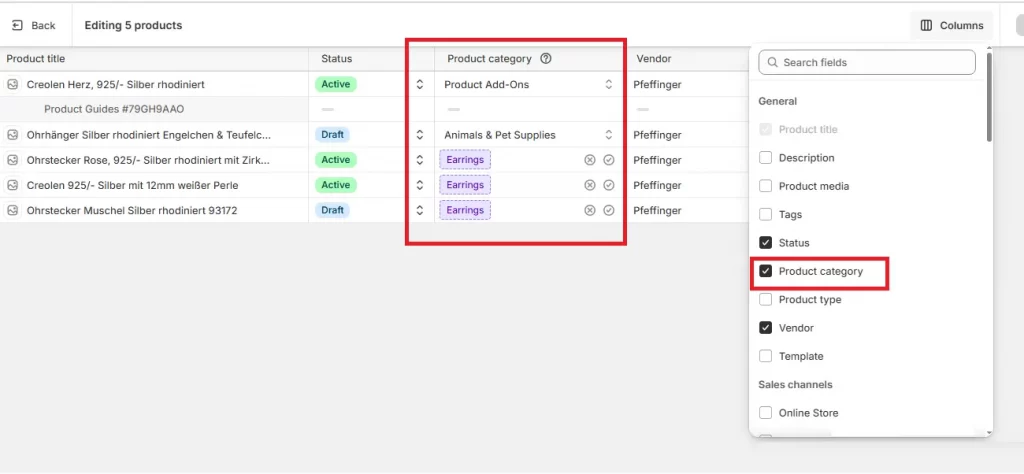
Step 3. Update the new Shopify product categories
Now, to assign categories in the Product category column, simply search for the correct option or navigate through the category hierarchy. After that, save your changes to apply them to all selected products.
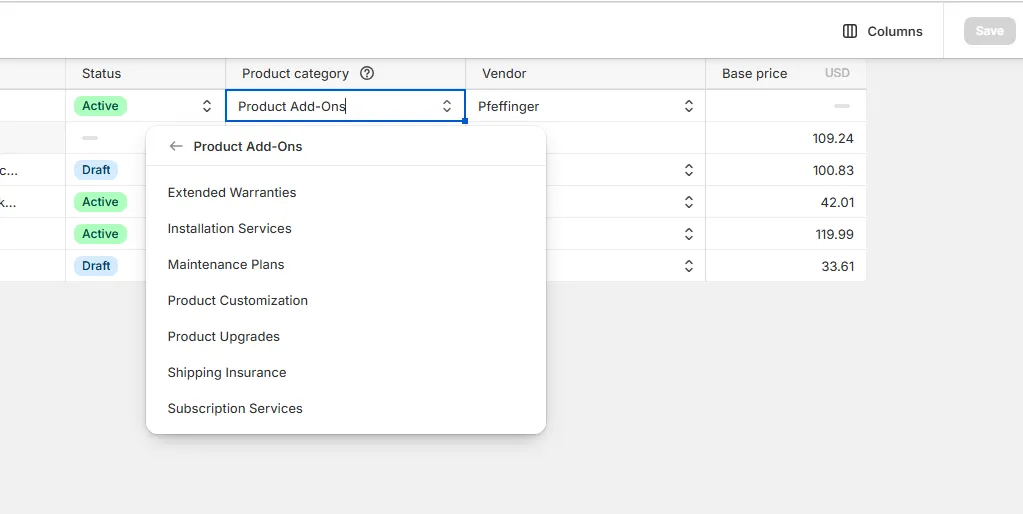
Method 3: Import new categories via CSV
What if you need to handle hundreds of products or predefined category mappings? In that case, CSV import is the best choice. Export the products first, edit the category values in the CSV file, and then return to Shopify to import them.
Step 1. Export the product data
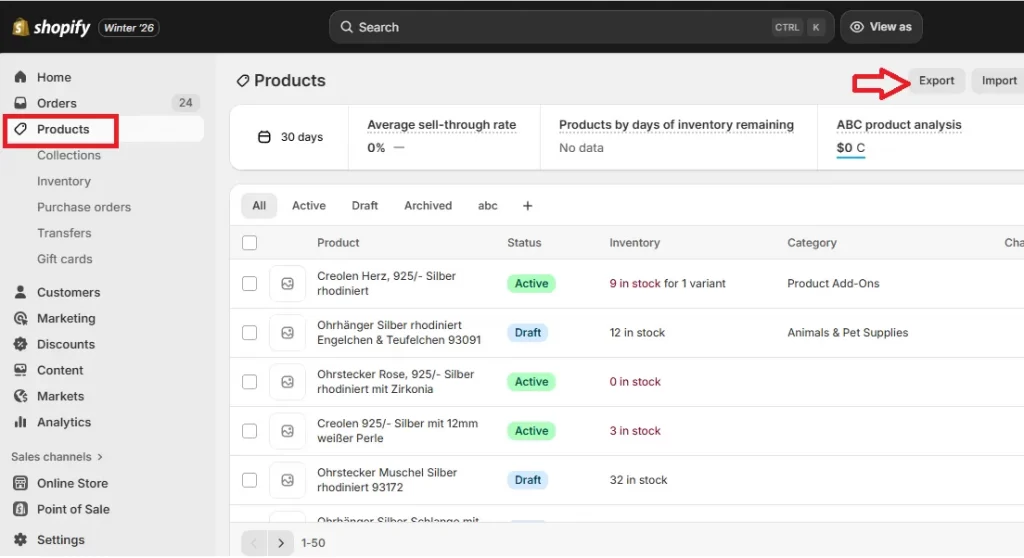
First, go to Products and click the Export button at the top of the product list.
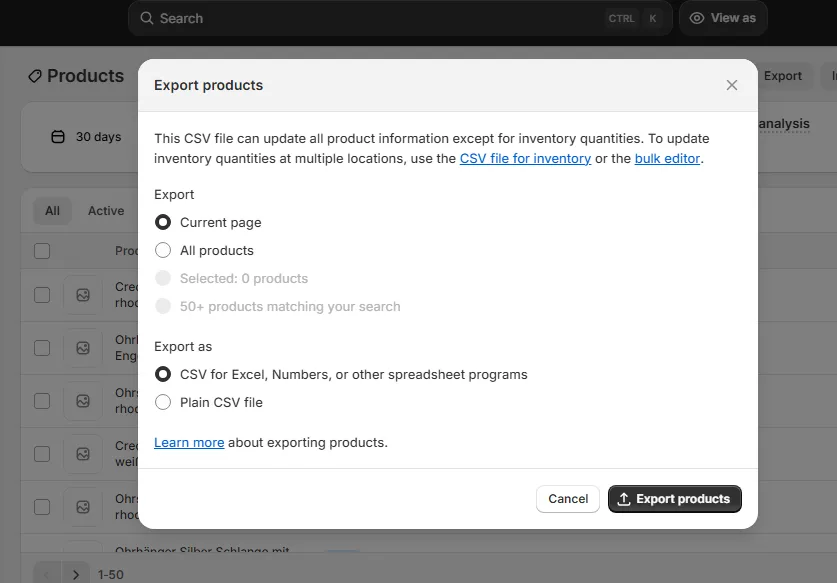
Here, choose the products you want to export (either the entire catalog or only the current page) and tick CSV for Excel as the file format. Once done, click Export products to download your CSV file.
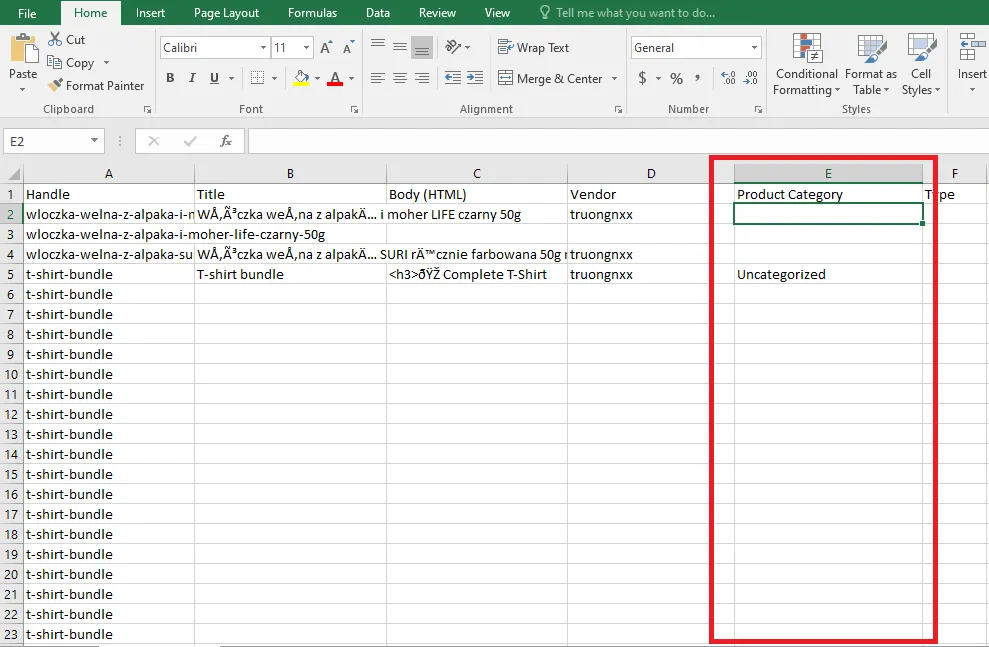
Step 2. Fill in the new category values
Now, in this CSV file, enter product category values that align exactly with Shopify’s predefined categories. We recommend using Shopify’s Standard Product Taxonomy as a reference to ensure the values are valid.
Step 3. Import the updated CSV file
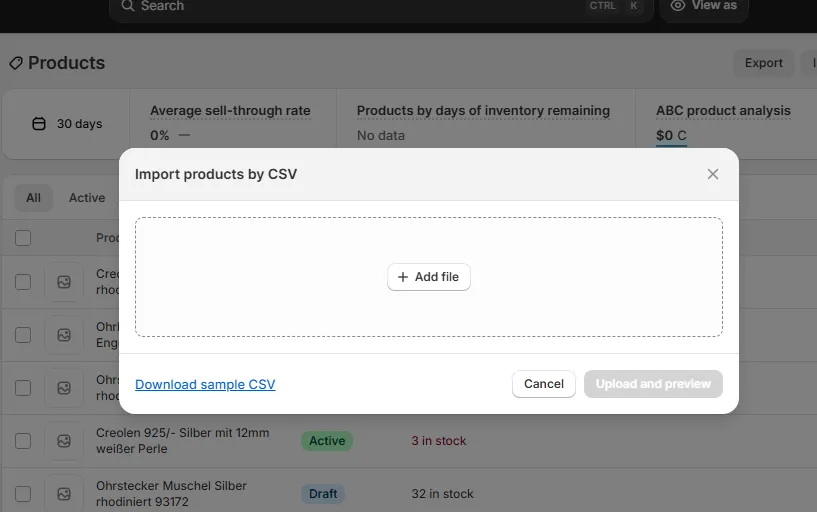
Finally, return to Products and click Import.
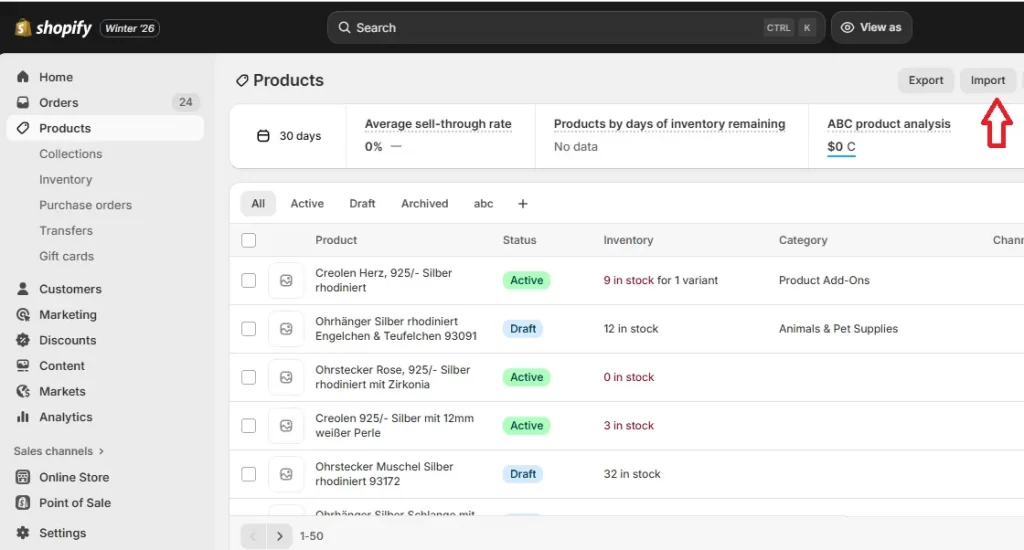
Upload the updated CSV file, then review the import summary to make sure the category assignments were processed correctly. And that’s it!
5 Tips to Organize Product Categories Effectively 2026
To effectively categorize products on Shopify, you should:
- Create clear, customer-focused hierarchies (Broad > Specific)
- Use intuitive navigation with filters/tags (style, size, color)
- Ensure consistent data
- Leverage Shopify Collections (manual/automatic)
- Continuously refine based on analytics for better SEO and user experience.
1. Build customer-focused category hierarchies
First, you need to define top-level categories that customers immediately understand. These should represent how shoppers mentally group products when they arrive at your store (for example, “Men,” “Women,” “Shoes,” or “Home & Living”).
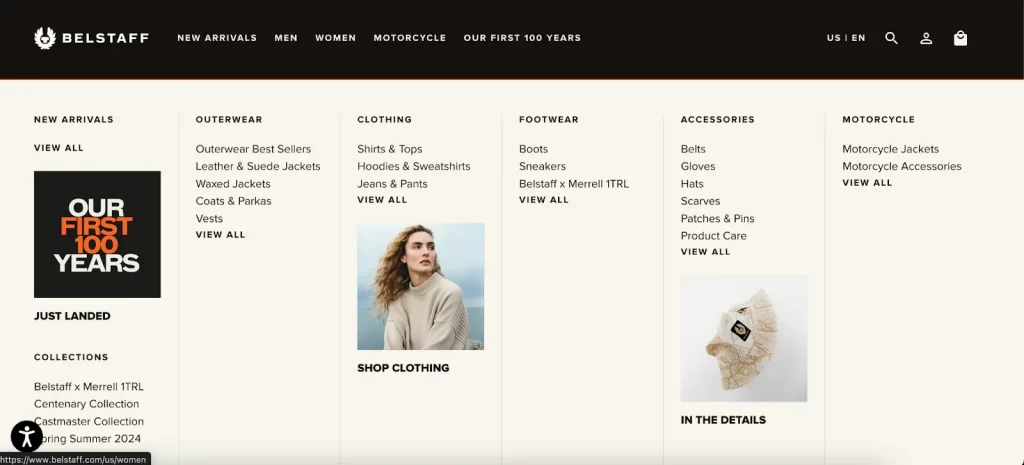
Once the broad categories are set, break them down step by step into more specific subcategories. For example, instead of listing “Slim Fit Cotton T-Shirt” as a category, structure it as “Clothing → T-Shirts → Short Sleeve.”
The rule of thumb is: categories answer what kind of product this is. Details like fit, fabric, or style should belong elsewhere.
2. Use intuitive navigation with filters and attributes
After defining categories, the next step is deciding what should be a category and what should be a filter.
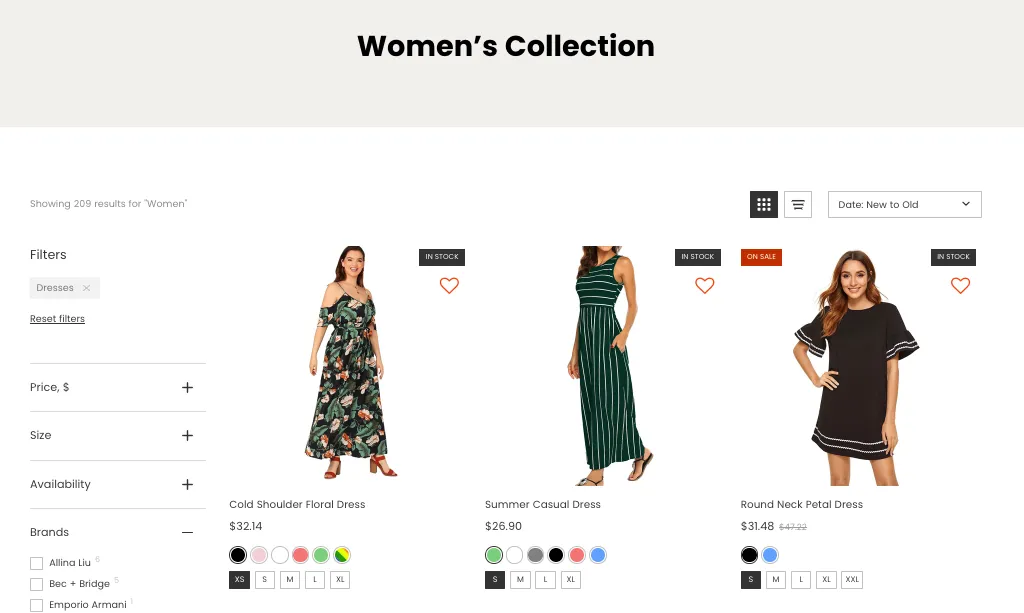
Categories should narrow products by type; meanwhile, filters handle variations such as size, color, material, style, or price. That way, you can keep your category tree clean and prevent it from exploding into dozens of micro-categories.
A good check is to observe how many clicks it takes to reach a relevant product. If your customers need to navigate through too many category layers to find basic variations, you should simplify the category structure and shift those distinctions into filters instead.
3. Ensure consistent product data across your catalog
Consistent categorization only works if similar products are tagged, categorized, and attributed the same way.
Basically, your store should agree on a single category for each product type and stick to it across your entire catalog. For example, all hoodies should live under the same category path, not split between “Sweatshirts,” “Outerwear,” and “Casual Tops.”
You should also periodically audit your products to catch drift. Every month, make sure your team filters by product category or reviews uncategorized items to identify where products were assigned incorrectly or not at all.
4. Leverage Shopify collections strategically
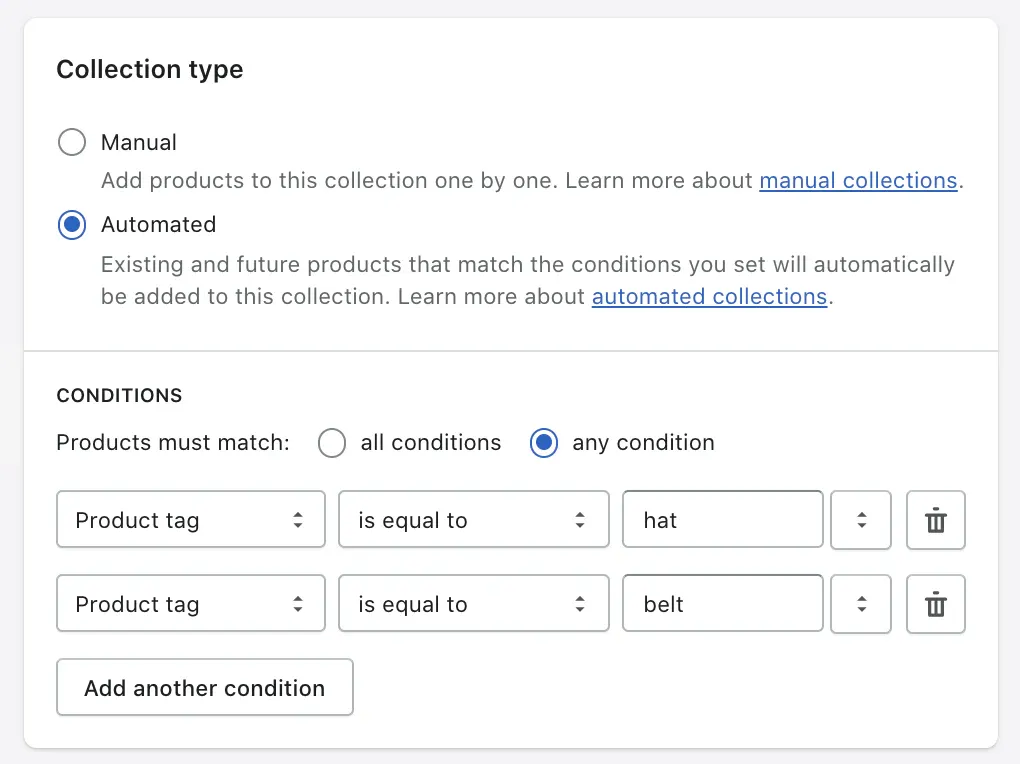
As mentioned earlier, collections are where categorization becomes visible to customers. That’s why they need to be used intentionally.
- Automatic/Smart collections should be your default choice for stable groupings such as “All T-Shirts” or “Women’s Shoes,” using conditions like product category, type, or attributes.
- Manual collections should be reserved for cases where order and selection matter (e.g., seasonal campaigns or limited-time promotions). Otherwise, using them for core catalog structure will slow you down over time.
Basically, categories define what products belong together, and collections decide how those products are shown to customers on the storefront. Hence, a good strategy is to let product categories and attributes handle logic, while collections handle presentation.
5. Continuously refine categories using analytics and behavior data
Last but not least, even a well-planned category structure needs adjustment over time.
Therefore, you must observe analytics to see how customers actually interact with your categories. Look at category page bounce rates, internal search terms, and which filters are used most often:
- If customers frequently search for terms that don’t exist as categories or filters, that’s a signal your structure is missing something.
- Likewise, if users consistently apply the same filter after entering a category, it may indicate that a new subcategory is needed.
All in all, always treat categorization as an ongoing optimization process. Small, data-driven adjustments can significantly improve both usability and SEO without requiring a full catalog overhaul.
Shopify Product Categories: FAQs
How do you categorize your products in Shopify?
To categorize products in Shopify, use Collections, which act as your main categories and subcategories. You can create them either manually or automatically by setting conditions (like tags or types), then linking these collections to your store's navigation menu for customers to browse.
What is the Shopify product category?
A Shopify product category is a standardized label from Shopify's predefined taxonomy (like Home & Garden > Linens > Bed Sheets), used for internal organization, tax calculation, and selling on external channels (like Google/Facebook). It's not the same as custom "product types" or customer-facing "collections."
What are product categories?
Product categories are logical groupings of similar items based on shared features, functions, or uses, like "Electronics" or "Apparel." They make it easier for customers to find things and for businesses to manage inventory and marketing.
How do I categorize my products?
To categorize products, you must understand customer needs and your inventory, then build a clear, hierarchical structure (like Apparel > Men's > Shirts) using intuitive names and relevant keywords for SEO. Finally, use analytics to refine categories based on user behavior for better sales and navigation.
Final Words
Shopify product categories may not be visible to customers, but they play an important role in shaping how your entire store operates. When used correctly, they create a clear, standardized structure that lets you scale with confidence!
And if you’re unsure about your current category setup – or you’re planning to restructure, migrate, or scale your catalog – let LitOS help you. With years of experience, our team helps Shopify merchants like you build clean, future-proof product structures that support growth, automation, and multi-channel selling from day one.
Ready to organize your Shopify catalog the right way?
Product categories directly impact how your store scales and stays compliant with taxes and automation. At LitOS, we help Shopify merchants structure and manage their product data correctly from day one, whether you’re cleaning up an existing catalog, migrating stores, or preparing for long-term growth.
Contact Us
