
How to Add Shopify Product Type by 3 Methods 2026
As one of the most popular eCommerce platforms, Shopify stands out for its flexible product management system, from collections and categories to tags and automation rules. And at the core of this robust system sits the Shopify product type, a foundational layer that supports how products are classified behind the scenes.
In simple terms, learning how product types function in Shopify is important if you want to truly maximize this platform and its comprehensive product organization. That’s why, in this article, we’re going to address:
- What a Shopify product type is
- How it differs from categories, collections, and tags
- How to add or update product types correctly
- 4 tips to use Shopify product types more strategically
Let’s get started!
What Is The Shopify Product Type?
In Shopify, a product type is a custom label that you assign to a product to describe what kind of product it is, in your own terms. It’s mainly used for internal organization, filtering, and automation, rather than for customer-facing navigation.
Let’s say you run an online fashion store, which sells T-shirts, hoodies, and jeans. Then, for each product, you can set one product type as follows:
- Product type: T-Shirt
- Product type: Hoodie
- Product type: Jeans
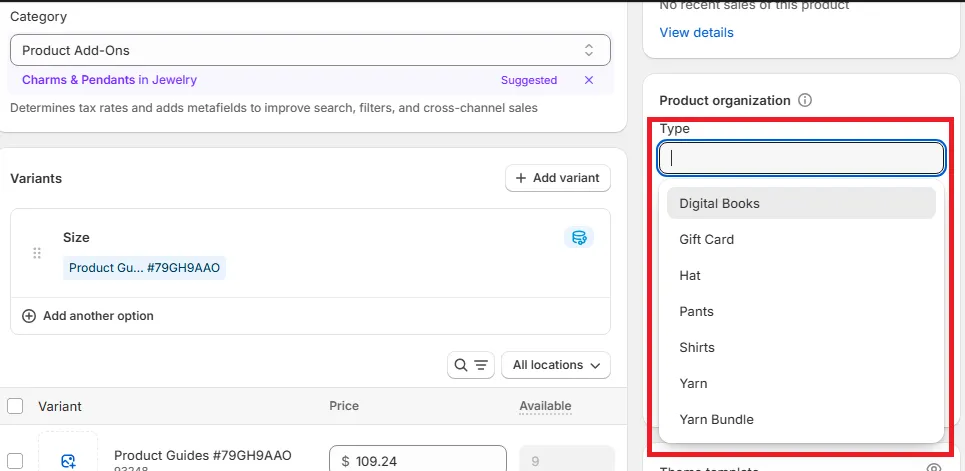
As you can see in the Shopify product type example above, the product type forces intentional classification. Basically, since every product must belong to exactly one type, it naturally pushes you toward cleaner, more consistent data.
Such consistency is what makes product type reliable for both backend organization and inventory management. You can quickly filter and audit products in the admin, build automated collections (without relying on dozens of overlapping tags), and create clear rules for apps that handle pricing, shipping, inventory, or promotions.
On the other hand, keep in mind that a product type is not the same as:
- A collection (which is customer-facing)
- A product category (Shopify’s standardized taxonomy)
- A tag (which can be many per product)
The next section will discuss these differences in more detail.
Shopify Product Type vs Category vs Collection vs Tag
In Shopify, product type is a custom internal label, category is a standardized taxonomy defined by Shopify, collections are customer-facing groupings, and tags are flexible markers for filtering and automation. You must understand how they differ in order to structure your catalog cleanly:
| Definition | Purpose | Visibility |
| Product type: A custom, single-value label assigned to a product | Internal organization and logic | Admin only |
| Product category: A standardized product classification from Shopify’s taxonomy | Platform-wide consistency, feeds, and integrations | Admin only |
| Collection: A group of products curated manually or by rules | Navigation, merchandising, and SEO | Customer-facing |
| Tag: Free-form keywords attached to products | Filtering, automation, and workflows | Admin only |
In short:
- Use product types to define what a product is in your own terms.
- Use categories to align with Shopify’s standardized taxonomy.
- Use collections to control what customers browse.
- Use tags to add flexible, operational metadata.
Shopify collections
A Shopify collection is a group of products created to be displayed to customers. Basically, collections are what shoppers actually browse on your storefront, such as category pages or featured product sections.
And unlike product types, collections are not limited to one per product. A single product can belong to multiple collections at the same time, either through manual assignment or automated rules.
To understand the difference between Shopify product type vs collection, let’s look at an example. Suppose you sell a black leather jacket; that means you can set the attributes of a product as follows:
- Product type: Jacket
- Collections: Winter Collection, Men’s Clothing, Stuff We’re Loving
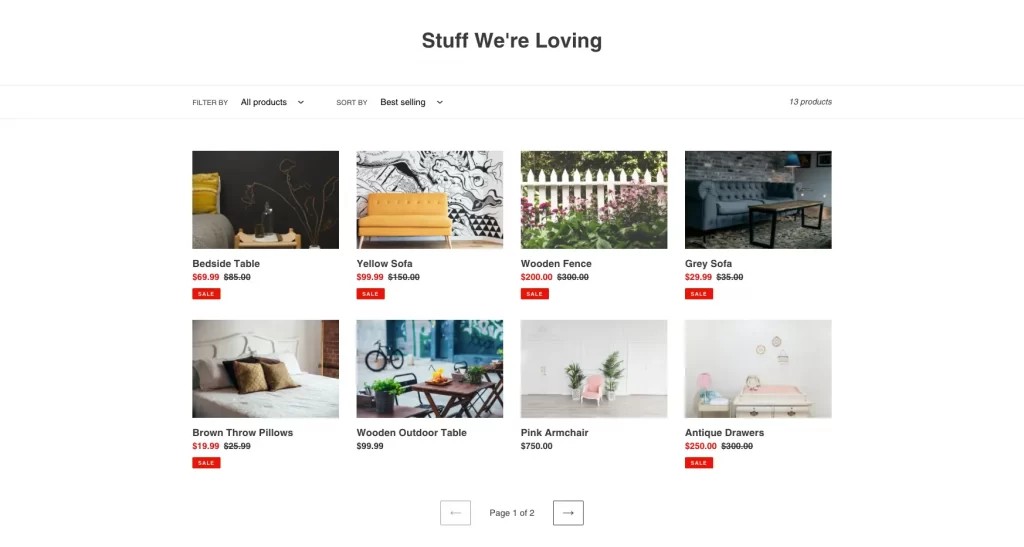
Here, the product type describes what the product is; meanwhile, collections describe where and how it should appear on your store. Collections are customer-facing, whereas product types remain purely behind the scenes.
Shopify tags
Next, Shopify tags are flexible keywords attached to products to support filtering, search logic, and automation. Tags are far more granular than product types and are intentionally unstructured.
A key difference is that a product can have many tags, but only one product type. Tags don’t define what a product is; they describe attributes, states, or operational details.
For example, the same leather jacket might have:
- Product type: Jacket
- Tags: leather, black, fall-2025, limited-edition
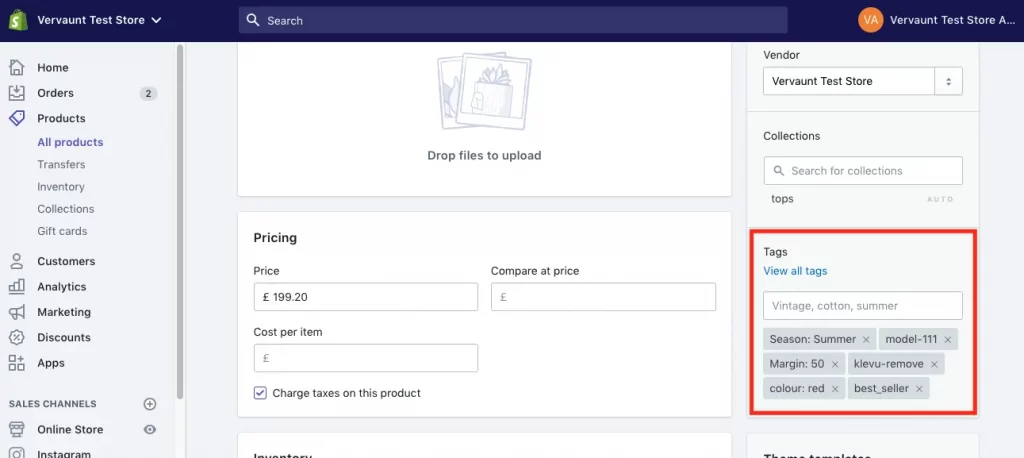
Tags help you trigger automated collections, apply discounts, or run backend workflows. Product type, by contrast, is a higher-level classification meant to stay stable over time.
Shopify categories
Lastly, Shopify categories are part of Shopify’s standard product taxonomy, which is shared across the platform.
Unlike product types, categories are not custom; you choose from predefined options maintained by Shopify. They exist primarily to help Shopify understand your products consistently for features like analytics, sales channels, and integrations.
For instance, you might set:
- Category: Electronics > Accessories > Phone cases
- Product type: Phone case
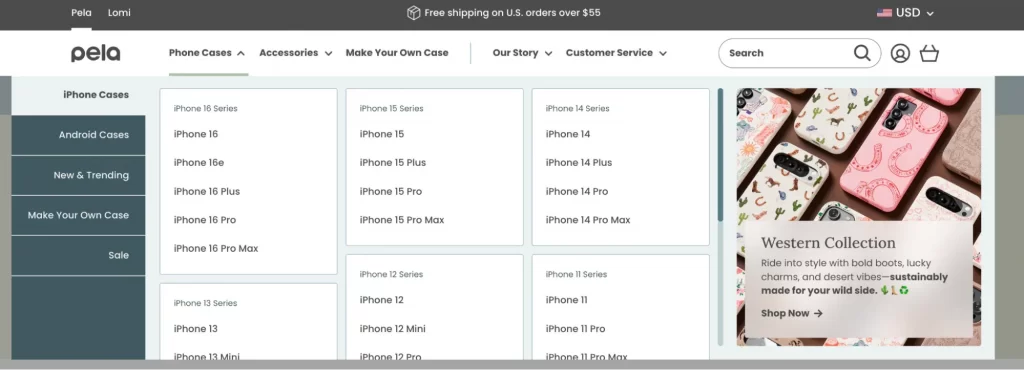
To sum it up, the category follows Shopify’s global classification system for platform-level compatibility. Product types, on the other hand, reflect your own internal naming and business logic to improve store-level organization.
Now that we have properly discussed the Shopify product organization type, let’s walk through how to add and update product types in Shopify.
How to Add & Update Product Type in Shopify
Currently, Shopify provides three ways to update product types: managing individually, managing in bulk, or using a CSV file. Let’s discuss each method in more detail!
Method 1: Manage product types individually
To edit product types manually, you must open one product at a time and assign its product type directly within the product’s organizational settings. The change only affects that specific product and doesn’t interact with others in any way, as seen below:
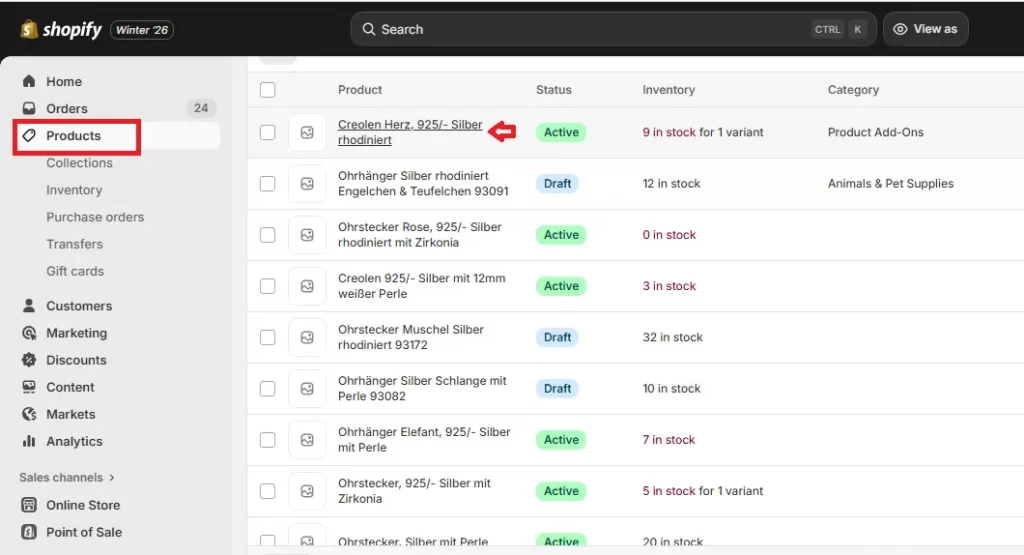
Step 1. Open a specific product
First, navigate to Products from your Shopify admin. This page displays your entire catalog and serves as the entry point for all product-level edits.
Then, click on the product you want to edit. You’ll be taken to the product detail screen, where pricing, inventory, media, and organization settings are managed.
Step 2. Add or update the product type
Now, scroll down until you reach the Product organization area. This section groups together classification-related fields, including product category, vendor, collections, and the Type field.
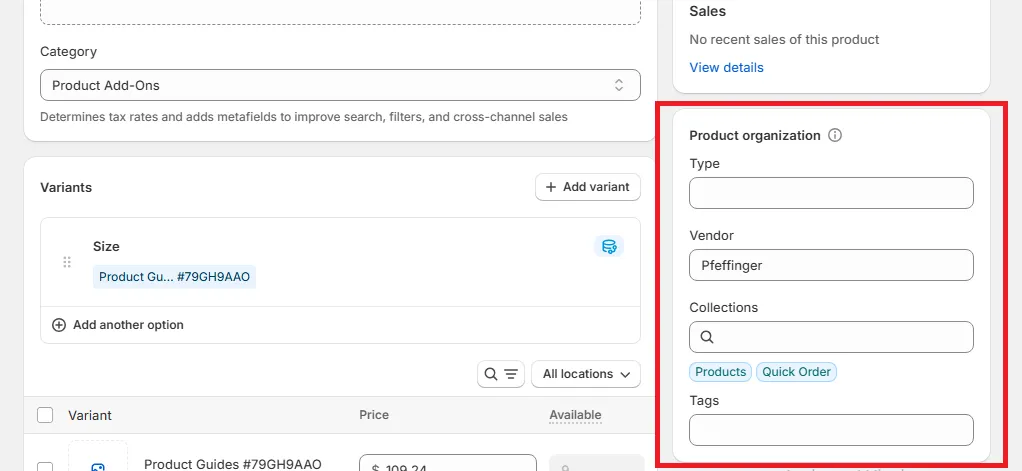
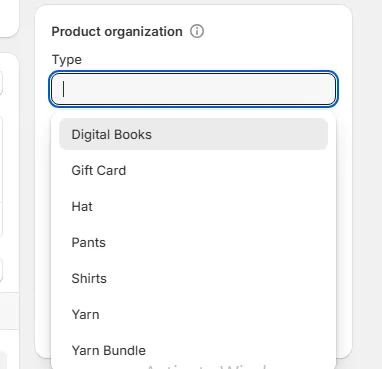
In the Type field, you can select an existing product type or type in a new one. If the value you enter doesn’t already exist, Shopify will treat it as a new custom product type and make it available for future use.
Step 3. Finish
Finally, click Save to apply the change. The updated Shopify product type is now associated with that single product only.
Method 2: Manage in bulk
Once consistency across multiple products becomes a priority, bulk editing offers a far more practical alternative than individual management. You simply select several products, access the table-style editor inside the Shopify admin, and then update values across multiple rows:
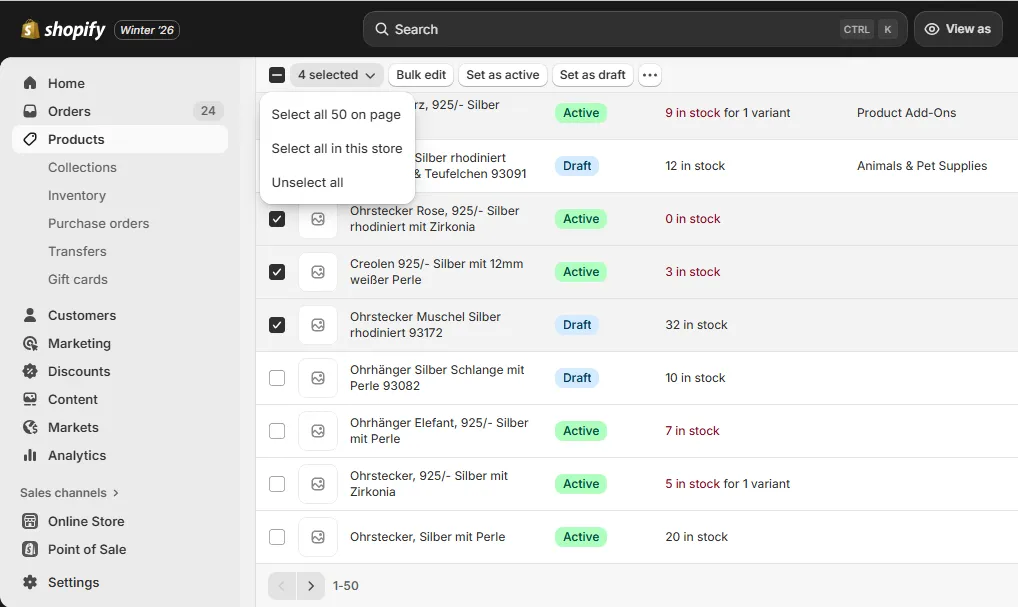
Step 1. Select the products to edit
First, go to Products in your Shopify admin and use the checkboxes to select the products you want to modify. You can also click “Select all 50 on page” to choose all products on the current page, or “Select all in this store” to edit your entire catalog.
Step 2. Open the bulk editor
Once your selection is made, click Bulk edit.
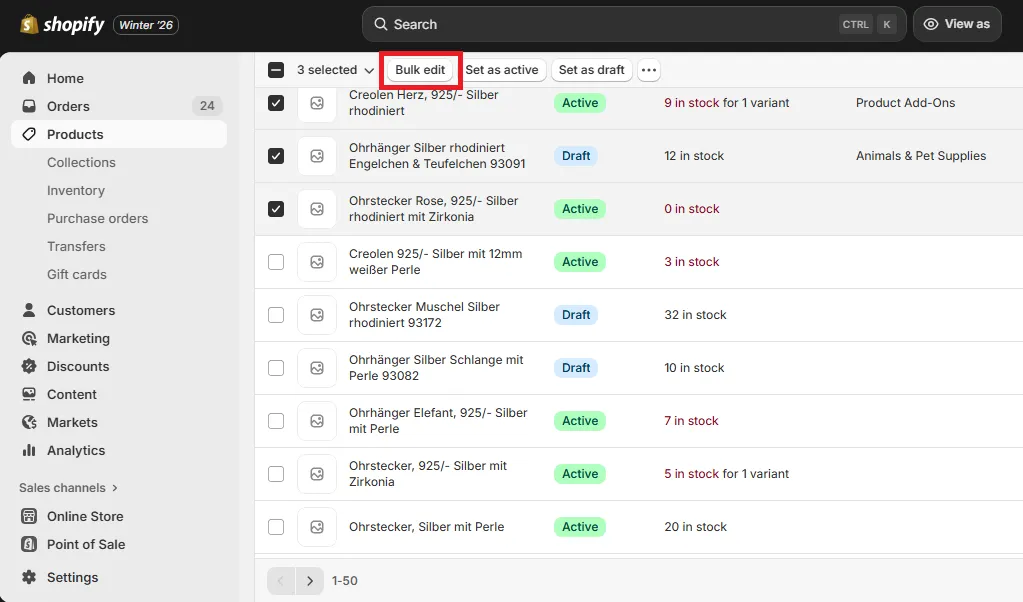
Shopify will open a grid view where each row corresponds to a product, and each column represents an editable field. If the Product type column isn’t visible, click Columns to enable it. This step ensures you can view and edit product types across all selected products.
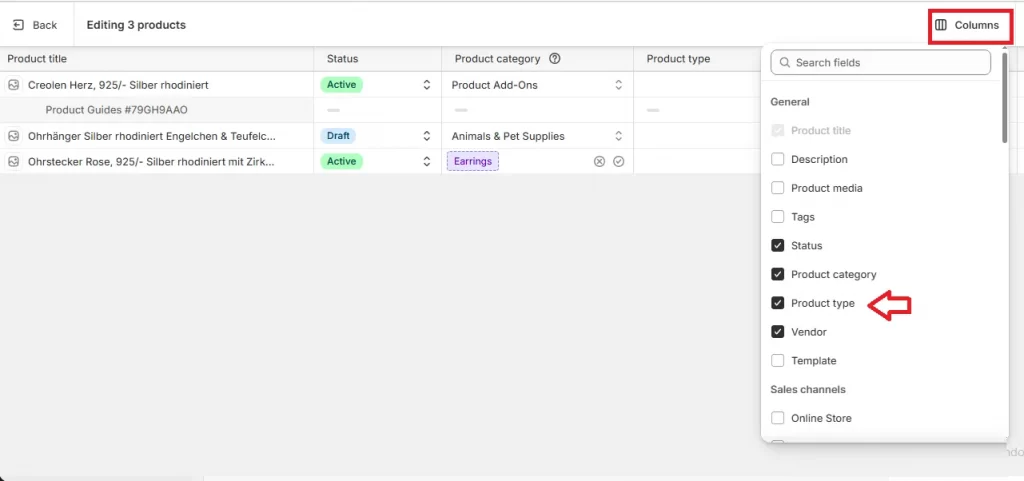
Step 3. Assign or change product types
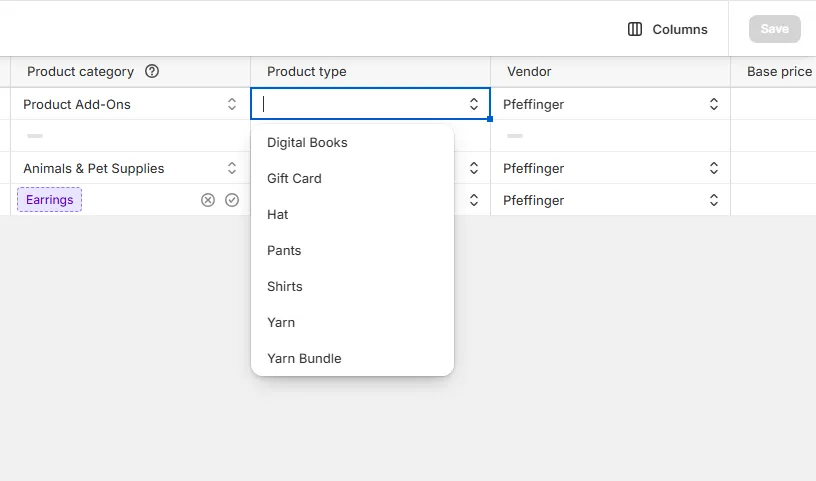
Now, enter the desired product type for each product directly in the grid. You can reuse existing types or introduce new ones; Shopify will recognize and store any new product type values when you save.
Once done, click Save to apply the updates. Shopify will process the changes and update product types for all selected products simultaneously.
Method 3: Use a CSV file
For very large catalogs or structured data operations, working with CSV files provides even more flexibility than bulk editing. To do so, export your product data in a CSV file, edit the Product type field, and then import the file back into Shopify:
Step 1. Export your product data
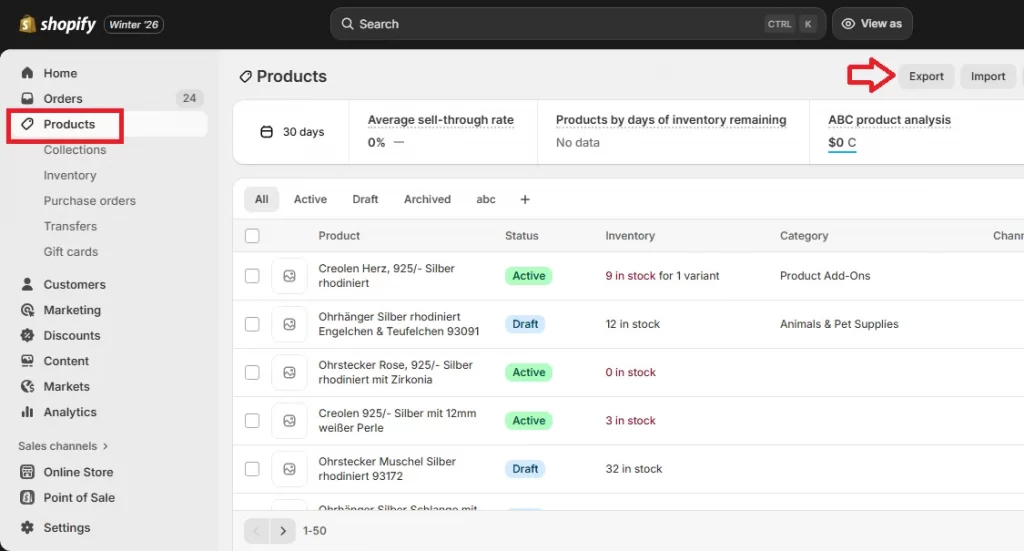
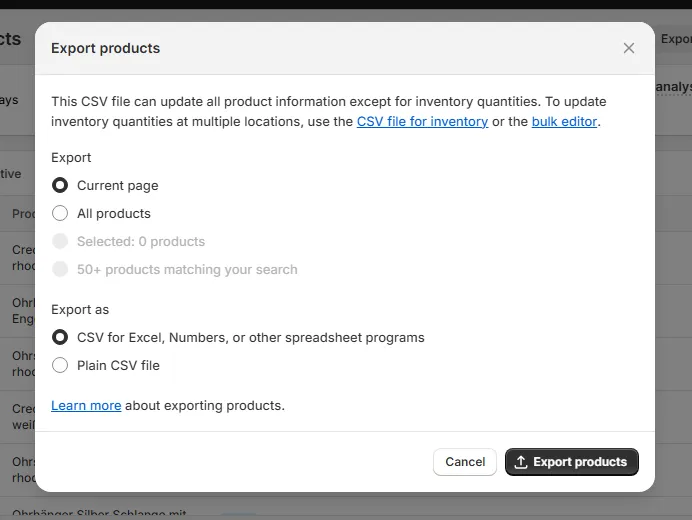
In your Shopify admin, go to Products. Then, click Export to open the “Export products” dialog.
First, tick “Current page” if you only want to export the products currently shown on the page. Otherwise, select “All products” to export your entire catalog.
Next, select the CSV format. Shopify provides two options:
- (Recommended) CSV for Excel, Numbers, or other spreadsheet programs, which is optimized for common spreadsheet tools
- Plain CSV file, which is better suited for raw data processing or automated workflows.
Tick a format option you prefer, then click “Export products.” Shopify will generate the CSV file and make it available for download.
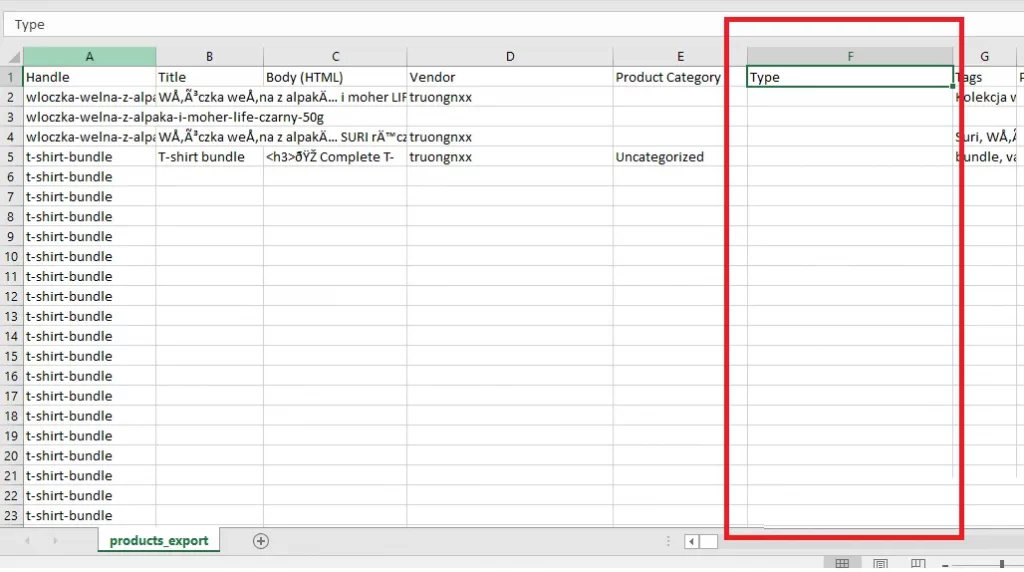
Step 2. Open and review the CSV structure
Now, open the CSV file in a spreadsheet editor.
For each product row, enter or update the value in the Type column. Make sure you keep the naming consistent, as even minor differences in spelling or spacing will create separate product types in Shopify.
Step 3. Import the updated CSV
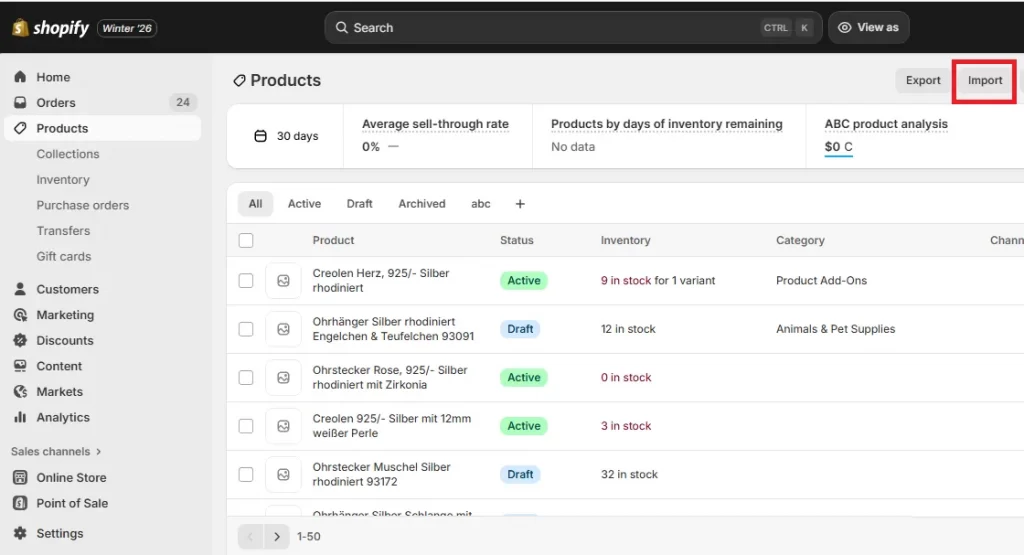
Finally, return to Products in your Shopify admin and click Import to upload the edited CSV file. Shopify will match products using their existing identifiers and apply the updated product types accordingly.
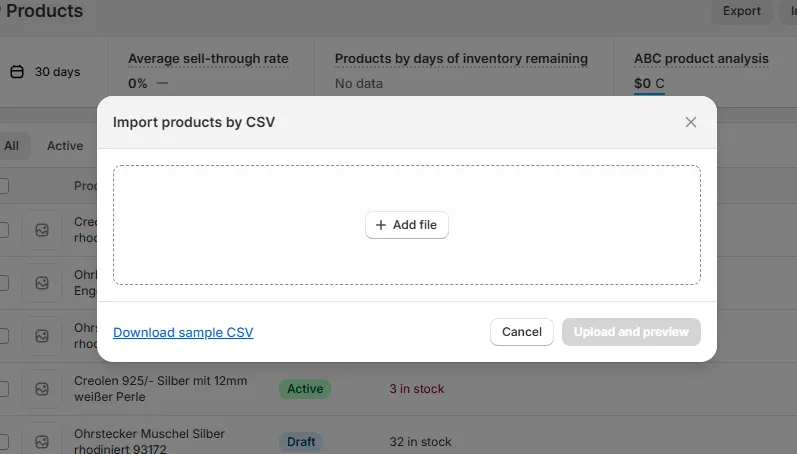
After the import completes, review the import summary and spot-check a few products in your admin to confirm that the product types were applied correctly. And that’s how to add a new product type in Shopify!
4 Tips to Use Shopify Product Types Smartly 2026
To use Shopify product types effectively in 2026, you need to keep your classification logic simple, combine product types with collections and tags, make filtering intuitive for both admins and customers, and design flexible structures for special or temporary product groups.
These four principles help ensure that product types remain a long-term asset instead of turning into another catalog clutter:
1. Keep hierarchy simple
One of the most common mistakes with product types is overengineering them.
Keep in mind that product type is not meant to reflect every variation, material, or use case. It should describe the product at a high, stable level. Otherwise, when product types become too granular, they lose their value as a structural tool.
For example, instead of creating separate product types like “Men’s Black Cotton T-Shirt,” “Women’s White Cotton T-Shirt,” and “Oversized Graphic T-Shirt,” a single product type (such as T-Shirt) is usually sufficient. Size, color, gender, and style can be handled elsewhere.
A rule of thumb: If a product type would only apply to one or two products, it’s probably too specific.
2. Utilize collections and tags
Secondly, product types work best when they are not used in isolation. In fact, their real strength comes from how well they integrate with collections and tags to create a flexible but structured system.
Specifically, product type serves as the foundation. Collections then decide how products are grouped and displayed to customers, whereas tags add operational detail. For instance:
- All products with the product type Hoodie can be pulled into an automated “Hoodies” collection
- Tags like new-arrival, winter-2026, or limited-edition can further refine how those products are promoted or managed.
3. Implement user-friendly filters
Though Shopify product types are not customer-facing by default, they can still play an important role in building intuitive filters. When clearly defined and consistent, they can be used as reliable conditions for automated collections or layered navigation systems.
For instance, let’s say every jacket (regardless of gender or season) uses the product type Jacket. In that case, you can then build a “Jackets” collection based on product type and layer additional filters on top of it, such as size, color, price, or availability. From the customer’s perspective, this feels natural: they first choose what they’re shopping for, then refine which one they want.
Another common setup is filtering by product type at the top level, then narrowing down by attributes. A clothing store might expose filters like:
- Product type: T-Shirt, Hoodie, Jacket
- Size: S, M, L
- Color: Black, White, Blue
- Price range
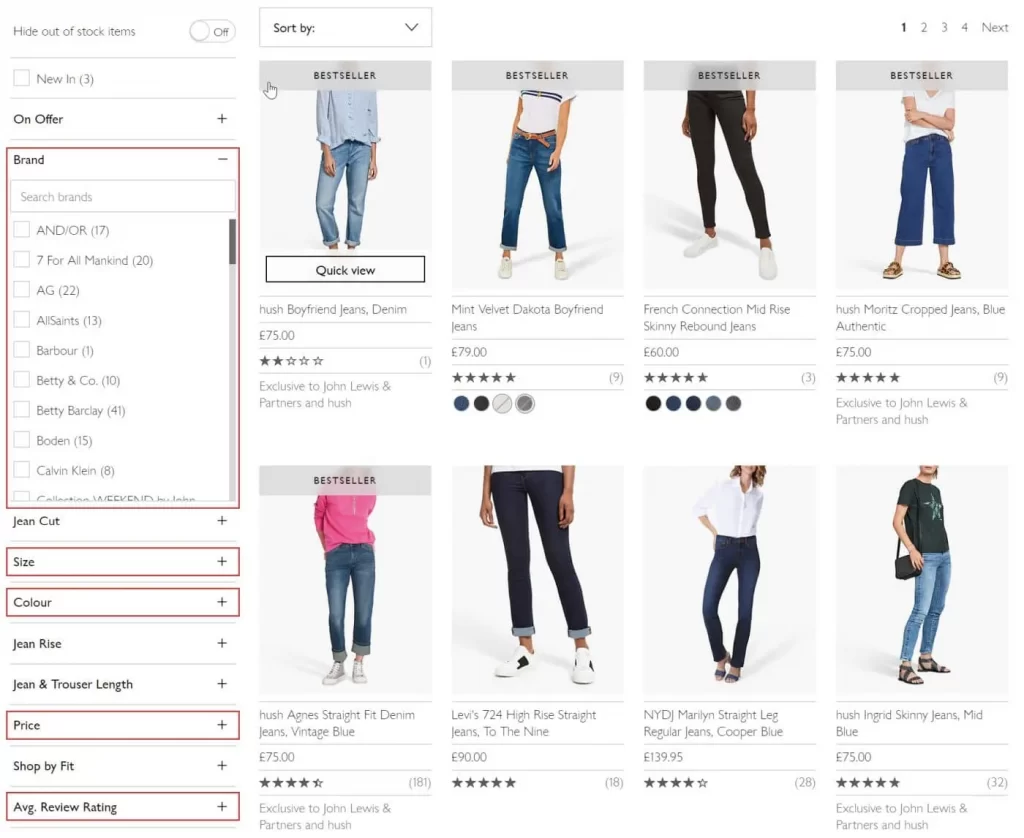
In addition, clear product types also make it faster for store managers to filter products in the admin, review specific product groups, or apply bulk changes without second-guessing classification rules.
4. Create “special” categories for temporary or cross-category groups
Lastly, not every product grouping should become a permanent product type. Seasonal campaigns, limited-time promotions, or cross-category groupings are better handled through collections and tags, not by creating new product types.
For example, a Holiday Gifts or Back to School grouping might include products with different product types such as backpacks, notebooks, hoodies, and accessories. In such cases, creating a new product type for this would break your hierarchy and add long-term clutter. Instead, you should use an automated collection based on tags or other conditions while keeping product types unchanged.
Shopify Product Type: FAQs
What does product type mean in Shopify?
In Shopify, a Product Type is a custom label for grouping similar products (e.g., "T-Shirts," "Mugs") for internal organization, marketing, and filtering, separate from Shopify's official Product Category (e.g., "Apparel & Accessories > Clothing > Shirts") used for taxes and sales channels.
What are the 4 types of products?
The four main classifications of consumer products are Convenience Goods (frequent, low effort), Shopping Goods (compared for quality/price), Specialty Goods (unique, high effort/brand loyalty), and Unsought Goods (unaware of need or avoid buying, like insurance).
What are the different types of collections in Shopify?
Shopify has two main types of collections: Manual Collections, where you hand-pick every product, and Automated Collections (Smart Collections), which automatically group products based on rules you set (like price, tag, or vendor).
What is the difference between product type and tag in Shopify?
In Shopify, Product Type defines a product's broad category (like "T-Shirts"). Meanwhile, Tags are flexible keywords for specific attributes (like "summer," "cotton," "sale"). That means Shopify allows one Type but multiple tags per product.
Final Words
When used smartly, Shopify product types become a powerful backbone for catalog organization. They help you maintain clean data, build reliable automated collections, streamline backend workflows, and avoid structural issues as your store scales.
That said, getting product organization right does not sound that simple. If your product types feel inconsistent or disconnected from your broader Shopify setup, it may be time for a more strategic approach. And that’s where LitOS can help you!
Ready to clean up your Shopify product structure?
At LitOS, we help brands set up clear, scalable product organization on Shopify, from product types and categories to collections, tags, and automation rules. If your catalog feels inconsistent or hard to manage, our team can help you build a structure that actually works long term.
Contact Us
