
Shopify SSL Pending: What It Means & How to Fix It (2026 Guide)
When Shopify SSL Pending shows up on your domain, it means Shopify is still setting up the secure HTTPS connection for your store.
Shopify provides a free SSL certificate for every domain, and this certificate protects customer data, removes security warnings, and shows the padlock icon that builds trust during checkout, so fixing any Shopify domain SSL pending or SSL unavailable status quickly is important. If SSL is still pending, the secure connection has not been fully activated yet, and your store might temporarily load without full protection.
This guide helps you:
- Understand what SSL Pending means
- Learn why the status appears
- Fix the issue with a simple checklist
Let’s get in!
Key Takeaways
- Standard wait time: SSL Pending usually resolves automatically within 24 to 48 hours.
- Primary cause: Conflicting A Records or CNAME records are the most common reason for delays.
- The fix: Ensure your A Record is 23.227.38.65 and CNAME is shops.myshopify.com. Delete all other A records.
- Important: Do not repeatedly change DNS settings during the wait period, as this resets the propagation timer.
What does SSL Pending mean on Shopify?
SSL Pending means Shopify is still issuing the free SSL and TLS certificate for your domain through its automated Shopify domain security system. This status typically appears after you connect a new domain or modify DNS records, and it indicates that the TLS handshake and certificate validation are not complete yet.
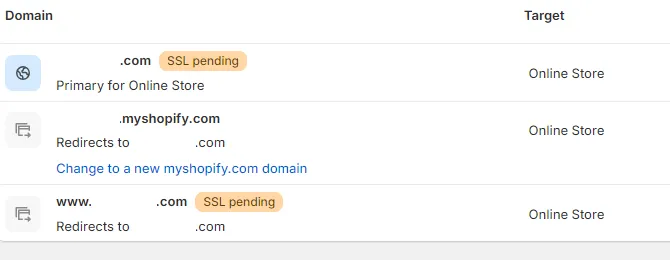
During this period, your store may load without HTTPS and may display browser security warnings, but the setup usually finishes once Shopify verifies your DNS configuration and activates the secure HTTPS connection.
If the status remains stuck, it can lead to related issues such as Shopify domain SSL pending, SSL Pending needs attention, Shopify, or SSL Unavailable.
Why Shopify SSL Gets Stuck on “Pending”
SSL can stay stuck on Pending when Shopify cannot verify your domain or complete the certificate setup.
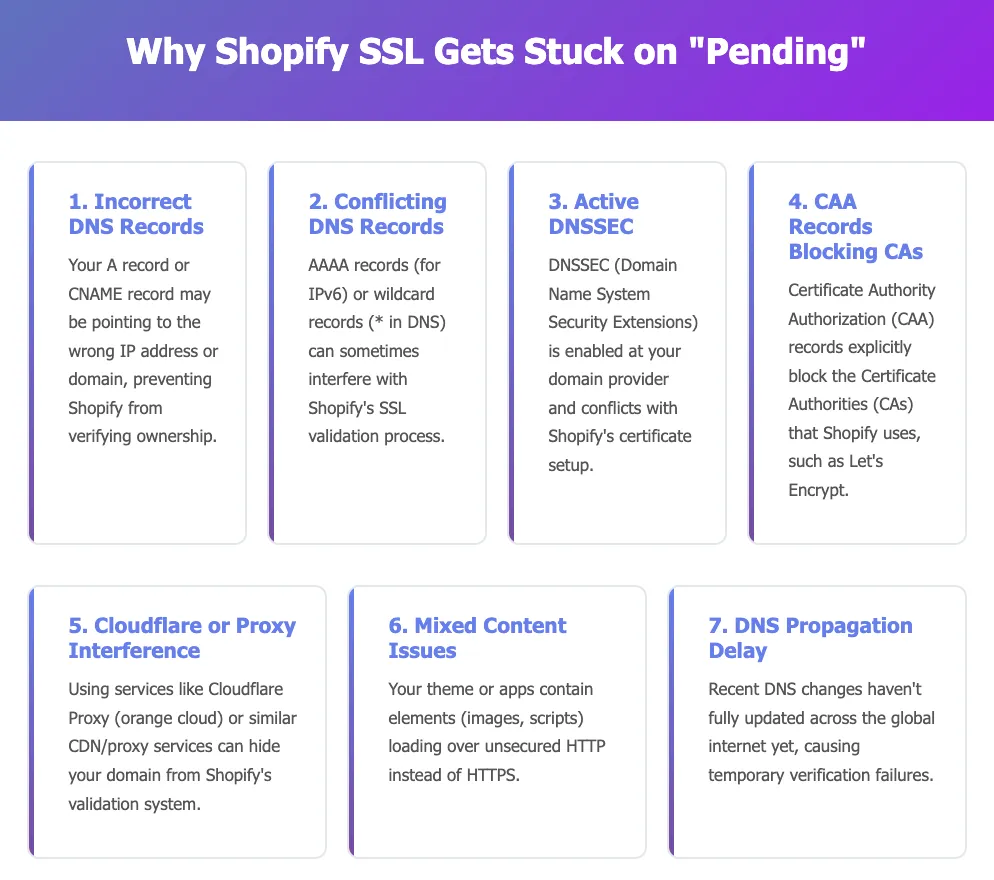
The most common reasons include:
- Incorrect DNS records, such as wrong A or CNAME entries
- AAAA or wildcard records that conflict with Shopify
- DNSSEC is active at the domain provider
- CAA records block the certificate authorities Shopify uses
- Cloudflare proxy or similar services interfere with SSL
- Mixed content in your theme or apps
- DNS changes need more time to finish updating across the internet
| SSL status | What it means | Action required |
| SSL pending | Shopify is verifying your domain and issuing the certificate. | Wait. Allow up to 48 hours for DNS propagation. |
| SSL unavailable | The certificate failed because of a conflict (usually DNS). | Check DNS. Remove extra A records or AAAA records. |
| Needs attention | Domain settings are incomplete or expired. | Renew Domain or finish the setup in your domain provider. |
| Not secure | Mixed content (HTTP images/links) is present. | Edit Theme. Update all asset links to https://. |
These issues prevent Shopify from completing the SSL setup and keep your domain in the Pending state. Once the underlying conflict is removed, SSL can activate, and your store will load securely over HTTPS.
How to Fix Shopify SSL Pending: A Full Checklist
Use this checklist to identify what is blocking SSL and apply the correct fix. Each step targets a specific cause so you can confirm your domain settings, remove conflicts, and help Shopify complete the secure HTTPS setup for your store.
1. Verify your DNS records (A, CNAME, AAAA, wildcard)
Start by checking that your domain points to the correct Shopify DNS records. Your A record must point to Shopify, and your CNAME must point to shops.myshopify.com. Remove any outdated or conflicting entries before moving to the next step.
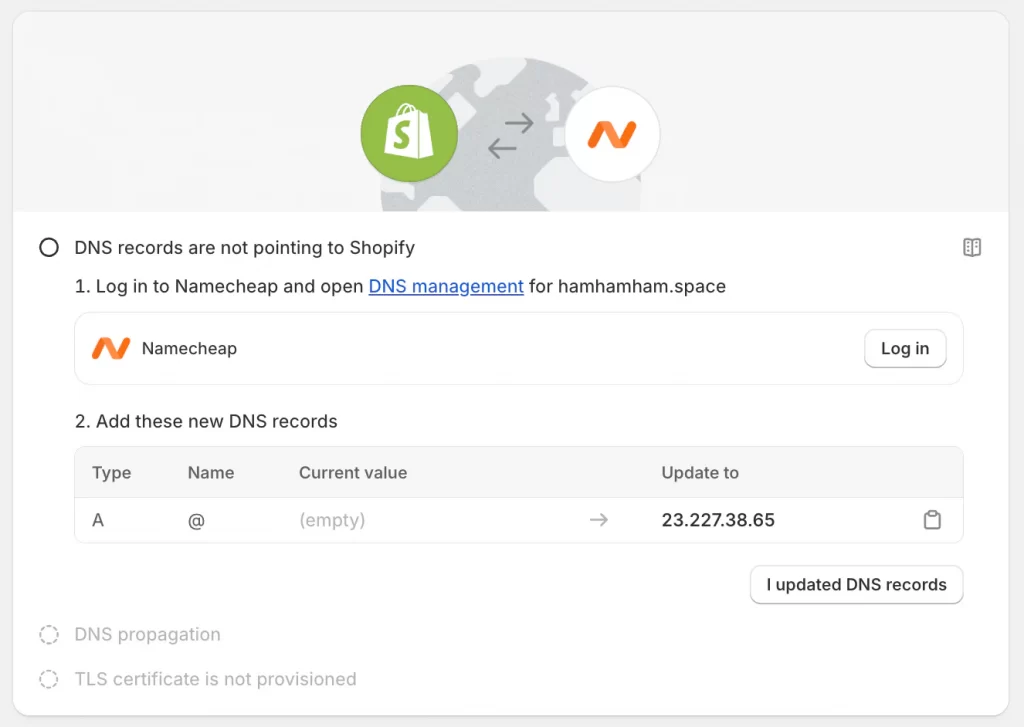
Correct DNS values for Shopify:
- A record: 23.227.38.65
- CNAME: shops.myshopify.com
- Remove: AAAA records
- Remove: Wildcard records such as * or @ pointing elsewhere
2. Remove AAAA and wildcard records that conflict with Shopify
You should keep the correct Shopify AAAA record if your domain provider already includes it. The valid IPv6 value is 2620:0127:f00f:5::. You should remove any AAAA record that points to a different address and delete all wildcard records, because they create routing conflicts that block Shopify from completing the SSL setup.
3. Disable DNSSEC at your domain provider
DNSSEC, or Domain Name System Security Extensions, adds extra validation rules that can block Shopify from confirming domain ownership during the SSL and TLS handshake process. If DNSSEC is active, open your domain registrar dashboard and turn it off.
After disabling DNSSEC, wait for the change to fully deactivate across the DNS network so Shopify can complete the SSL certificate issuance without authentication conflicts.
4. Check and update CAA records to allow Shopify’s certificate authorities
CAA records control which Certificate Authorities (CAs) can issue SSL or TLS certificates for your domain. If these records are too restrictive, they can block the certificate authorities Shopify relies on, such as Let’s Encrypt, Google Trust Services, and SSL.com.
If your domain provider requires you to manually list the Certificate Authorities (CAs), you must add a CAA record for each of the following to ensure Shopify can issue certificates:
- letsencrypt.org
- pki.goog
- ssl.com
- digicert.com
- globalsign.com
You should update your CAA records to include these providers or remove the restrictive entries entirely so Shopify can generate a valid SSL certificate chain and avoid SSL activation errors, such as SSL Unavailable or TLS failure Shopify.
5. Turn off Cloudflare proxy or CDN services
The Cloudflare proxy can interfere with Shopify’s SSL setup because Cloudflare inserts its own certificate in front of your domain, which can break the HTTPS configuration.

Open your Cloudflare dashboard, switch your domain to DNS only mode, and turn off any CDN, caching, or security layers that override Shopify’s SSL pipeline. This allows Shopify to generate, validate, and activate your SSL certificate through its own Shopify firewall and security system.
6. Ensure your domain is fully connected inside Shopify
Open the Domains section in your Shopify admin and confirm that your domain shows as connected.
If Shopify displays a setup prompt or connectivity warning, follow the connection instructions again so Shopify can verify DNS records, validate your A and CNAME records, and complete the SSL activation. A fully connected domain is required before Shopify can finalize the HTTPS redirect and secure your site end-to-end.
7. Wait 24 to 48 hours for DNS propagation after changes
DNS updates need time to spread across global DNS servers, and this process directly affects the TLS handshake Shopify uses to issue your certificate. After correcting your DNS records, give the system up to 48 hours for full DNS propagation so Shopify can complete the SSL certificate validation without interruptions.
8. Fix mixed-content issues caused by themes or apps
You should update any HTTP links in your theme or apps to HTTPS because mixed content can cause browsers to display a Not secure warning even after Shopify activates the SSL certificate. This step does not resolve SSL Pending, but it prevents future HTTPS security issues and helps your site pass modern browser content security checks.
9. Clear your browser cache and DNS cache
You should clear your browser cache and local DNS resolver cache so your device loads the most recent version of your site after Shopify issues the SSL certificate. This step does not fix SSL Pending, but it helps you confirm when the HTTPS connection becomes fully active and removes outdated cached certificate data.
10. Contact Shopify Support if SSL is still pending after 48 hours
If everything is set up correctly and SSL is still pending, reach out to Shopify Support through your Shopify login so they can check the backend certificate status or firewall rules in the Shopify firewall system.
Follow this timeline before contacting support:
- 0 – 24 hours: Normal processing time. No action needed.
- 24 – 48 hours: Check your status on a DNS propagation tool (like whatsmydns.net) to ensure your A record (23.227.38.65) is visible globally.
- 48+ hours: If the status is still “Pending,” contact Shopify Support to request a manual certificate reset.
They can check the backend certificate status and manually reissue it if needed.
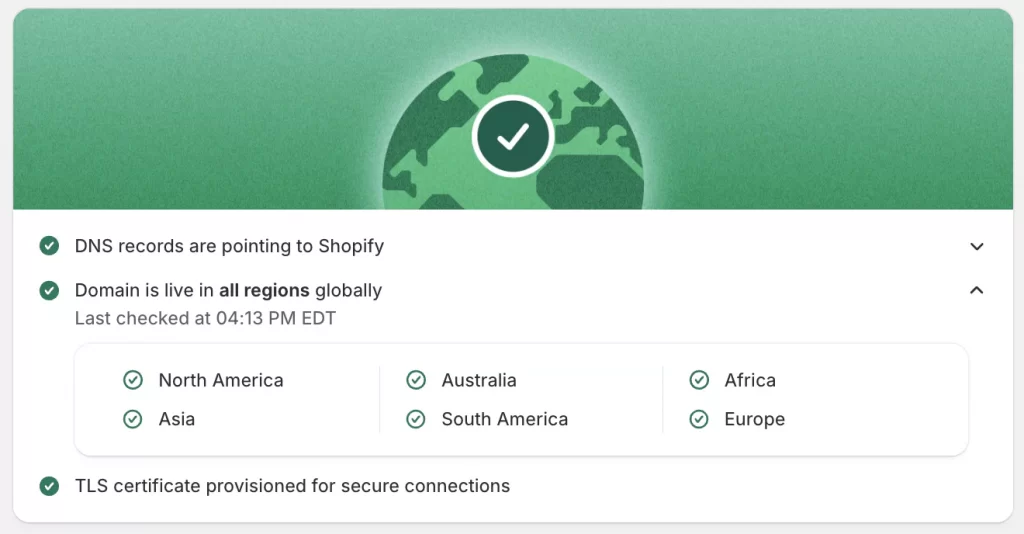
This is what your domain looks like when DNS is correct and Shopify has provisioned the SSL certificate successfully.
Once you complete this checklist, your domain should have everything it needs for Shopify to issue the SSL certificate.

If the status is still pending after all corrections and enough time has passed, Shopify Support can review the certificate setup from their side and finalize the activation.
FAQs about Shopify SSL Pending
What does SSL pending mean for my new Shopify domain?
SSL pending means Shopify is still setting up the secure HTTPS connection for your domain. The certificate is being issued in the background and your store may temporarily load without full security until the process finishes.
How long does SSL pending take on Shopify?
SSL setup usually completes within 24 to 48 hours after your domain and DNS records are configured correctly. If the status does not change after this period, there may be a DNS conflict that needs attention.
How to fix SSL pending on Shopify?
You can fix SSL pending by correcting your DNS records, removing conflicting AAAA or wildcard entries, disabling DNSSEC, updating CAA records, turning off Cloudflare proxy, and allowing time for DNS propagation. Once these issues are resolved, Shopify can activate the SSL certificate.
How to fix SSL certificate on Shopify?
You can fix SSL certificate issues by verifying that your domain is connected, confirming the correct A and CNAME records, allowing Shopify to issue the certificate automatically, and contacting Shopify Support if the status remains stuck.
Why is my Shopify domain still showing “Not secure”?
Your domain may show “Not secure” if SSL is still pending, if your browser is loading a cached version of the site, or if your theme or apps load mixed content over HTTP. Once SSL is active and all links use HTTPS, your site will show as secure.
Do I need to enable HSTS for Shopify?
No, you do not need to enable HSTS manually. Shopify automatically enables HSTS (HTTP Strict Transport Security) for your store. This forces web browsers to only load your site via a secure HTTPS connection. Once your SSL is active, any visitor typing http:// will be automatically redirected to https://.
Conclusion
Shopify SSL Pending is a normal status that appears while Shopify prepares the secure HTTPS connection for your domain. Most stores resolve the status automatically once the correct DNS records are in place, DNSSEC is disabled, and any conflicting settings are removed.
If you follow the full checklist and allow time for propagation, your SSL certificate should activate, and your domain will load securely. If the status remains stuck, Shopify Support can complete the setup from their side and help you finalize the connection.
And now, let’s build what’s next!
At LitOS, we help brands grow smarter on Shopify with better technology, practical strategy, and hands-on support that delivers real results. From migration to long-term growth, we make the process seamless and scalable.
Contact Us
