
How to Export WooCommerce Orders as CSV or XML in 2026
WooCommerce export orders is a common task for store owners who need to analyze sales data, share order information with accountants or fulfillment partners, or prepare for a store migration. While WooCommerce provides basic export options, many stores quickly run into limitations around filtering, file formats, and automation.
In this guide, you’ll learn how to export WooCommerce orders in 2026, including:
- Free built-in methods to export orders as CSV or XML
- Plugin-based exports for advanced filtering and custom order fields
- Advanced options such as Google Sheets, database, and WP-CLI exports
- Common export issues and how to fix them
By the end, you’ll know which WooCommerce order export method fits your needs and when it makes sense to move beyond manual exports.
Why Export WooCommerce Orders & What Order Data You Can Export
If you run a WooCommerce store, you’ll eventually need your order data outside the dashboard. Maybe you’re reviewing last month’s sales, sending files to your accountant, or preparing to move your store to a new setup. In all of these cases, exporting WooCommerce orders gives you flexibility and control over your data.
Why you might need to export WooCommerce orders
You may want to export orders if you need to:
- Review sales performance for a specific date range
- Share order data with accounting or tax software
- Send structured order files to a fulfillment or shipping partner
- Import order history into a CRM or reporting tool
- Back up your data before rebuilding or migrating your store
If any of these sound familiar, choosing the right export method matters.
What order data you can export from WooCommerce
What you can export depends on how you export it. At a minimum, WooCommerce lets you export:
- Order numbers, statuses, and dates
- Customer names, emails, and billing details
- Shipping addresses and shipping methods
- Products, variations, SKUs, and quantities
- Order totals, taxes, discounts, and fees
With plugins or advanced export methods, you can also include:
- Refund and partial refund data
- Payment method details
- Custom checkout fields
- Metadata added by subscriptions, bookings, or other extensions
If you only need a quick snapshot, the built-in tools may be enough. If you need structured, reusable data, you’ll want more control, which we’ll cover next.
How to Export WooCommerce Orders as CSV or XML Without a Plugin (Free)
If you only need a basic export with no custom fields or automation, WooCommerce already gives you two free ways to export order data. You won’t see an Export button on the main Orders list, but the tools are still there if you know where to look.
When this WooCommerce export orders method works best: Use the built-in CSV or XML export if you need a quick snapshot of orders and don’t require advanced filtering, custom fields, or scheduled exports.
Step 1: Open WooCommerce Report → Orders
From your WordPress dashboard, go to: WooCommerce → Report → Orders
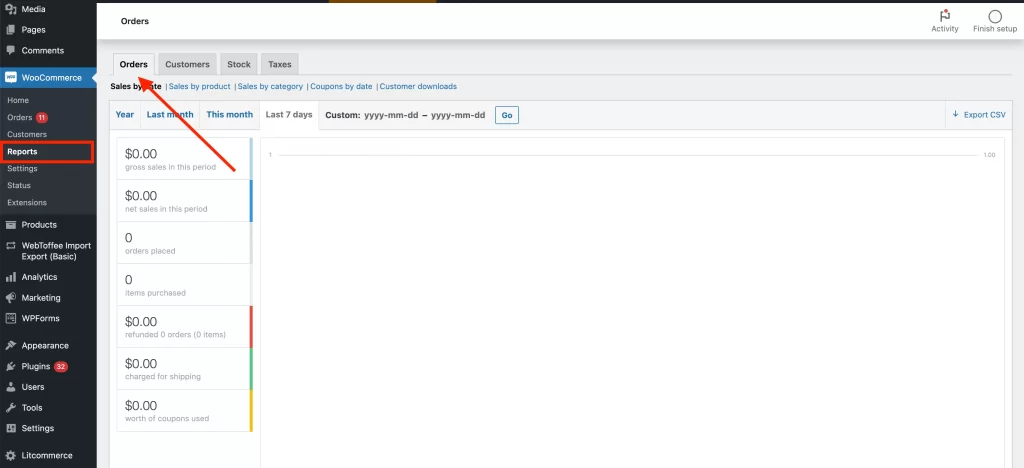
This screen is designed for reporting, not order management. That’s why it includes export options that don’t appear on the regular Orders page.
Once you’re here, you’ll see a table showing orders, totals, and trends.
Step 2: Choose your date range and filters
Before exporting anything, narrow the data to exactly what you need.
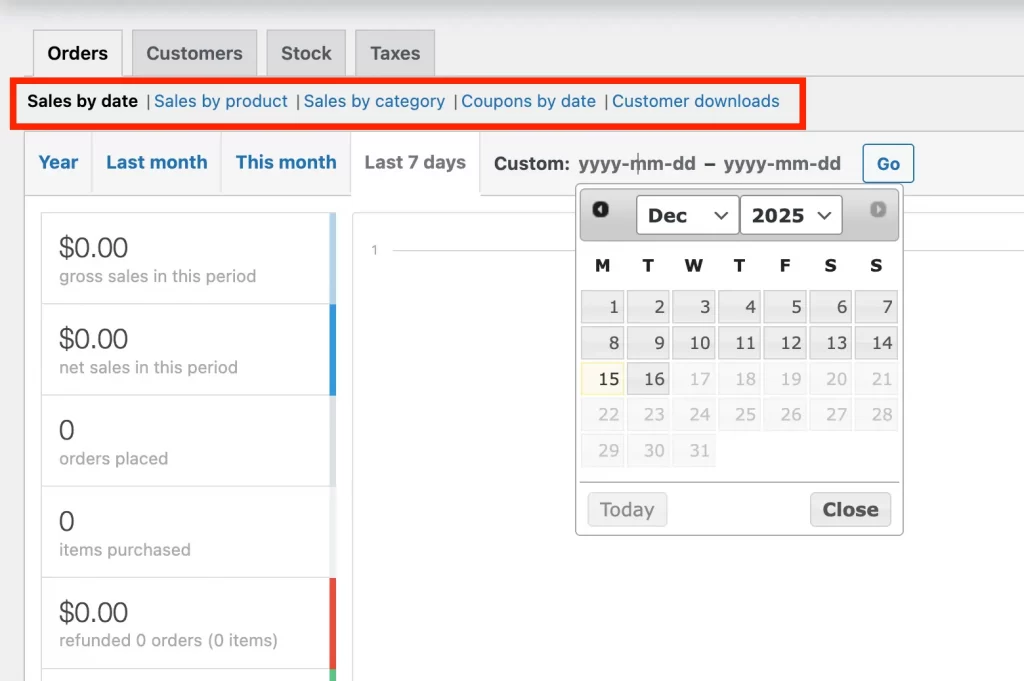
You can filter orders by:
- Date range (last month, last quarter, custom dates)
- Order status (completed, processing, refunded)
- Product or coupon
- Customer type (new vs returning)
Filtering first saves time and avoids cleaning up large CSV files later.
Step 3: Click “Download” to export WooCommerce orders to CSV
After applying your filters, click Export CSV in the top-right corner of the table.
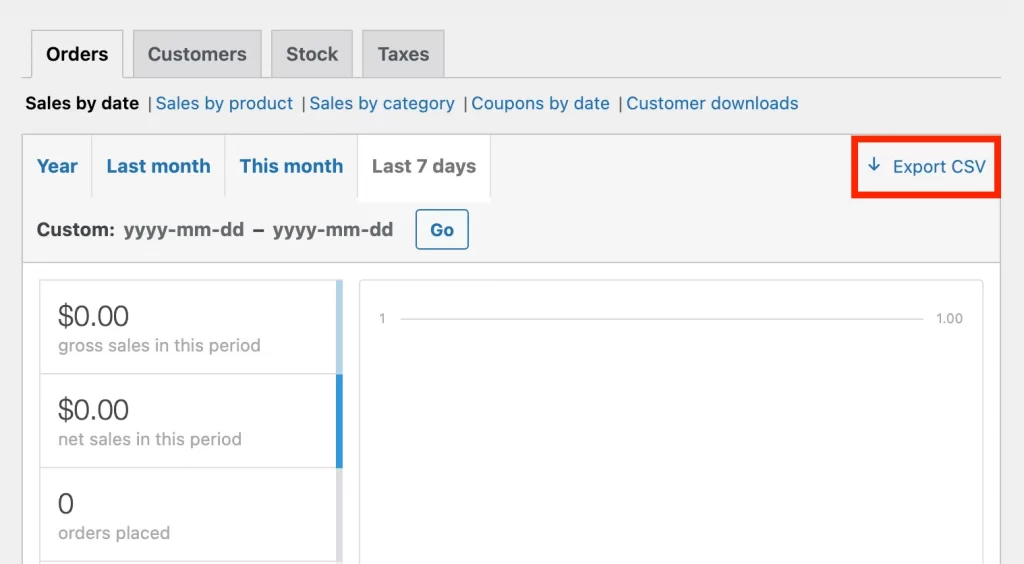
WooCommerce will generate a CSV file that includes:
- Order dates and IDs
- Customer information
- Products and quantities
- Net sales, taxes, and totals
If you’re exporting a large date range, WooCommerce may prepare the file in the background and email you a download link.
Step 4: (Optional) Export orders as XML via Tools → Export
If you need an XML file, usually for backups or migrations, you can use WordPress’s built-in exporter:
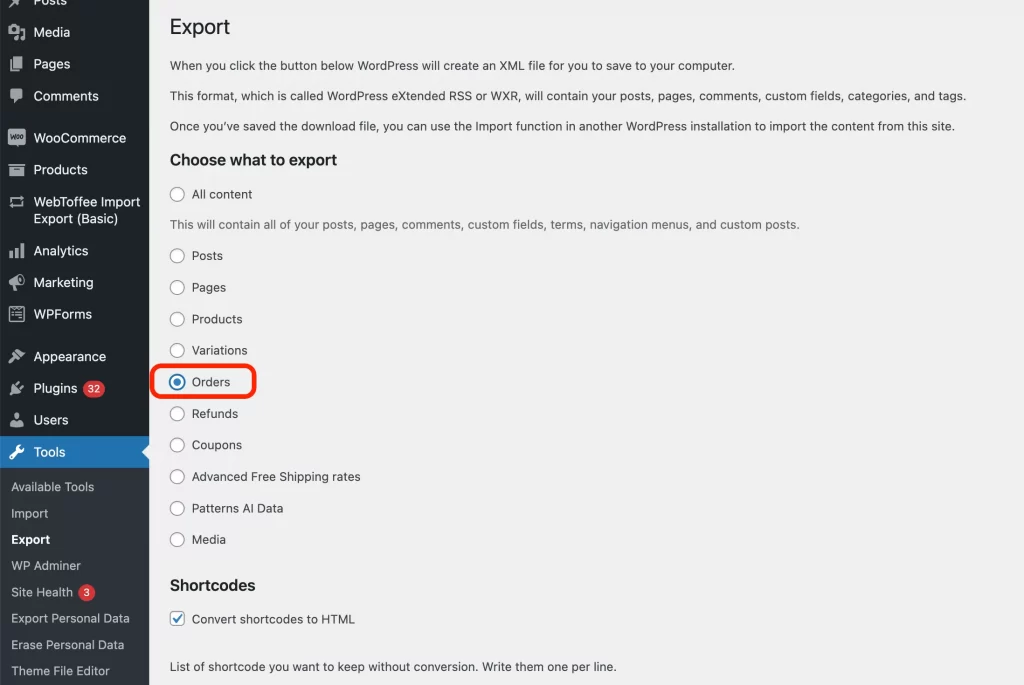
- Go to Tools → Export
- Choose Orders
- Click Download Export File
This creates an XML file with order posts and metadata. Keep in mind that XML exports are not ideal for spreadsheets or accounting tools, they’re better suited for data transfers.
How to Export WooCommerce Orders Using a Plugin (Best for Most Stores)
If you need more control over your exports, like custom fields, specific order items, or recurring exports, a plugin is usually the most reliable option. This is where WooCommerce’s built-in tools fall short, and most growing stores switch to a dedicated export solution.
Before you start, it helps to know what plugins do best: they let you choose exactly which order data to export, how it’s formatted, and when the export runs. Below are some you can refer to:
| Plugin | Best for | Export formats | Custom field support | Scheduled exports | Free version |
| WP All Export | Most flexible | CSV, Excel, XML, JSON | ✔️ Full mapping | ✔️ Yes (Pro) | ✔️ Yes |
| Advanced Order Export for WooCommerce | Easy & robust | CSV, Excel, XML | ✔️ Yes | ✔️ Yes | ✔️ Yes |
| WooCommerce Customer/Order/Coupon Export | Woo-backed tool | CSV, XML | ✔️ Basic | ✔️ Yes | ✔️ Yes |
| Order Export & Order Import for WooCommerce | Bulk export + import | CSV, Excel | ✔️ Yes | ✔️ Limited | ✔️ Yes |
| Export Order Items for WooCommerce | Deep order item exports | CSV | ✔️ Yes | ❌ | ✔️ Yes |
The steps below use WP All Export as an example, but the overall process is similar in other WooCommerce order export plugins such as Advanced Order Export or WooCommerce Customer/Order/Coupon Export.
Step 1: Install a WooCommerce order export plugin
From your WordPress dashboard, go to Plugins → Add Plugin, search for your chosen export plugin, then install and activate it.
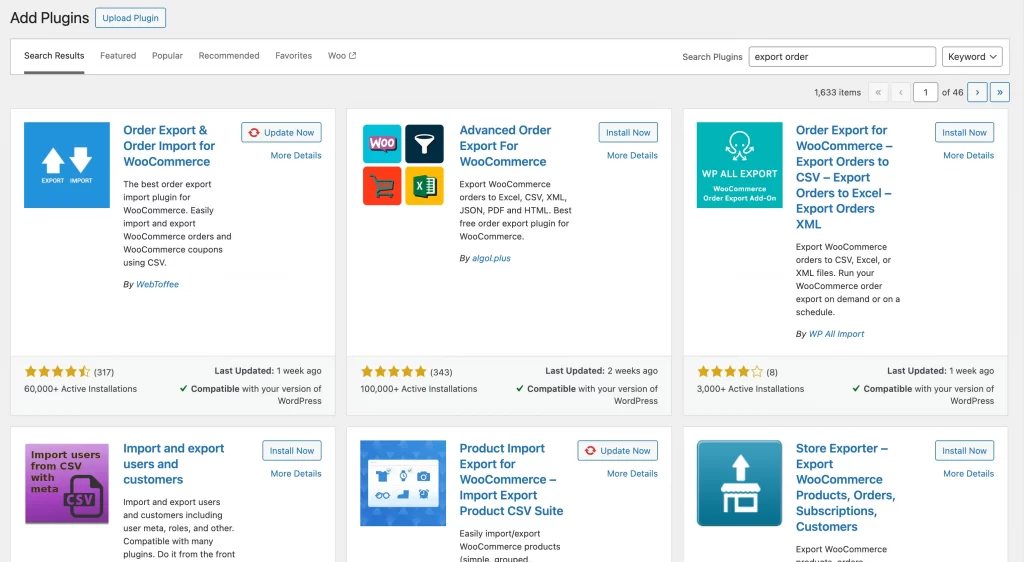
If you’re exporting complex orders (subscriptions, custom fields, large datasets), choose a plugin that supports field mapping and scheduled exports.
Step 2: Create a new export template
Open the plugin’s export screen and start a new export. At this stage, you usually select:
- What you’re exporting (orders)
- The export structure (simple CSV vs custom layout)
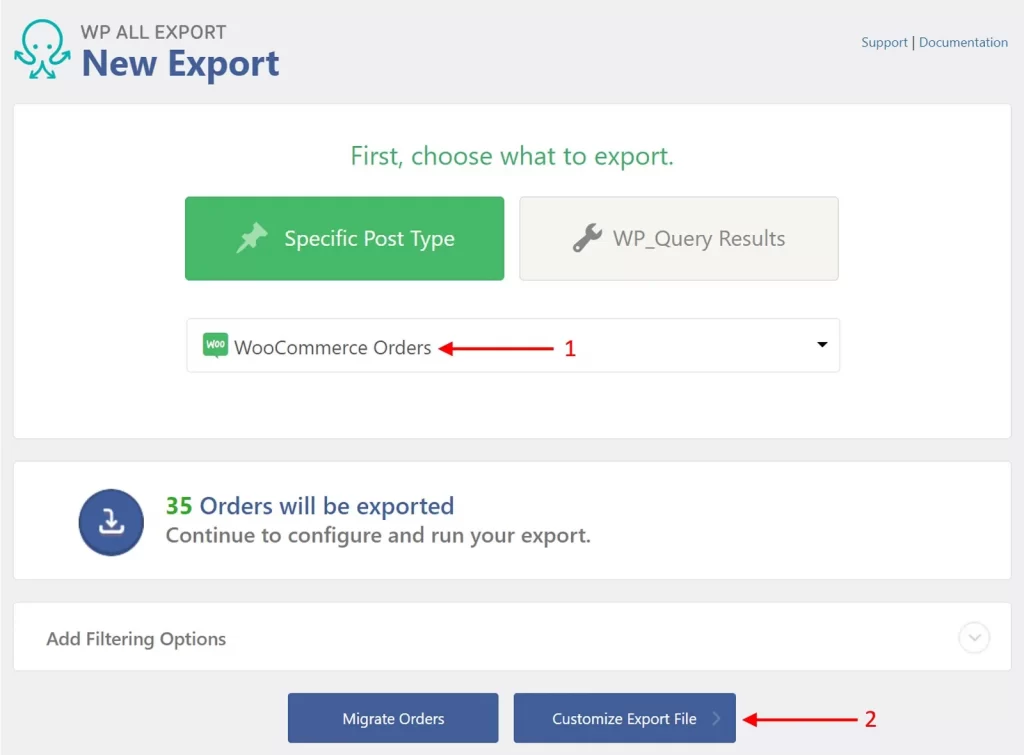
You can run it again later without resetting everything.
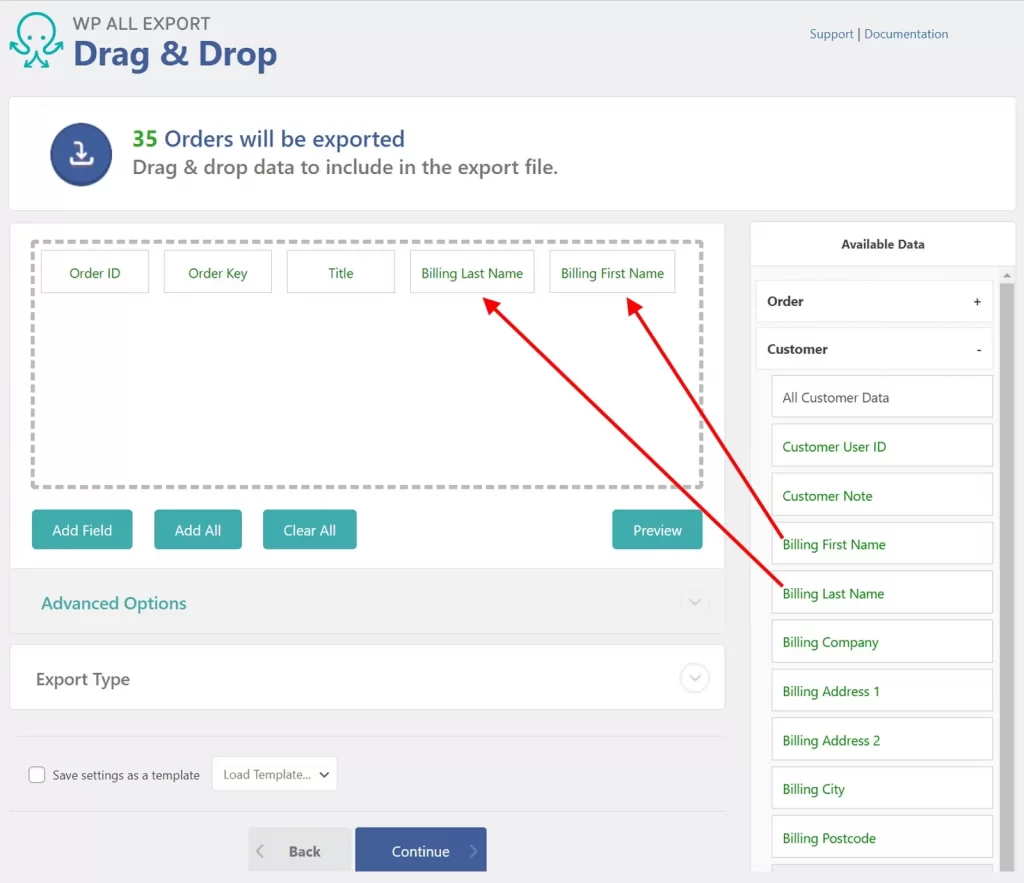
Step 3: Select order fields to export (mapping options)
This is where plugins shine.
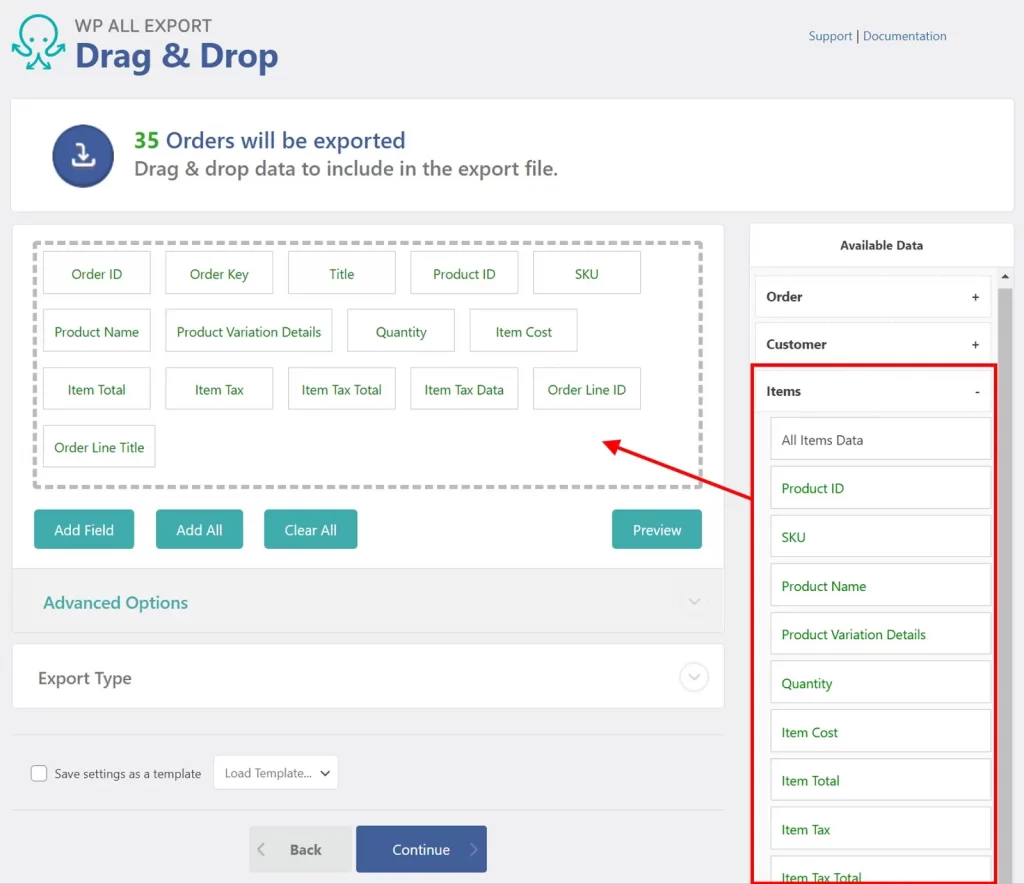
You can choose exactly which data to include, such as:
- Order numbers and statuses
- Customer details
- Product names, SKUs, and quantities
- Prices, taxes, and totals
- Custom checkout fields or metadata
Drag, map, or reorder fields so the export matches the format required by your accountant, fulfillment partner, or import tool.
Step 4: Apply filters (status, product, date, etc.)
Instead of exporting everything, you can narrow the data to what you actually need.
Common filters include:
- Order status (completed only, refunded only)
- Date range
- Specific products or SKUs
- Payment method
- Customer type
This keeps your export files smaller and easier to work with.
Step 5: Choose export format (CSV, Excel, XML, JSON) & download
Most plugins support multiple formats. Choose:
- CSV for spreadsheets and accounting tools
- Excel for direct editing and reporting
- XML or JSON for system imports and integrations
Pick the format based on where the data is going next.
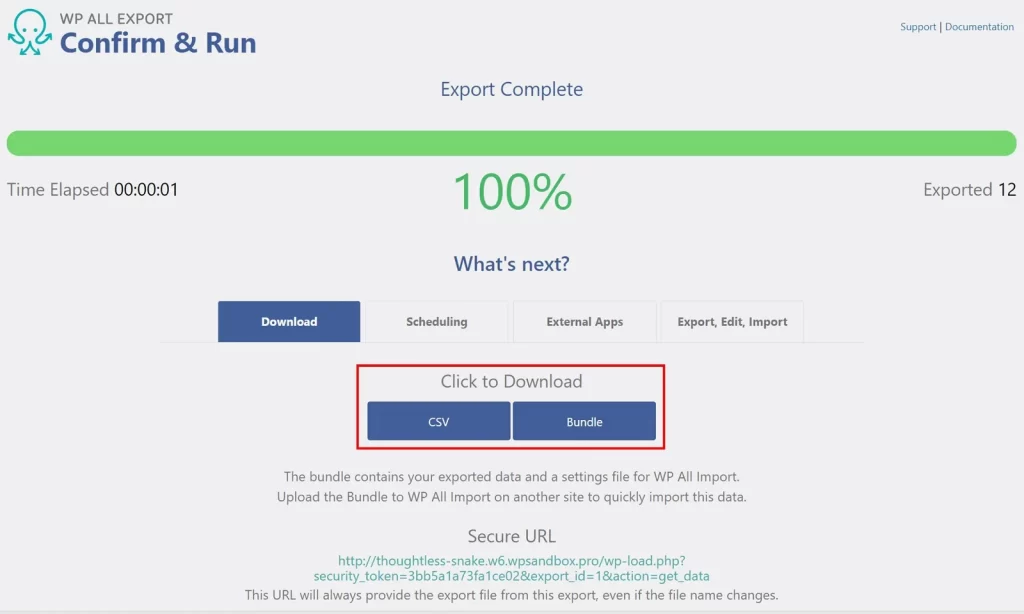
Now, you can run the export and download the file to your computer.
For large stores, this step may take a few minutes. Many plugins process exports in the background to avoid server timeouts.
Step 6: (Optional) Schedule automatic WooCommerce order exports
If you export orders regularly, you can automate the process. You can schedule exports to run:
- Daily
- Weekly
- Monthly
- Or when new orders are created
The file can be emailed or sent to cloud storage, depending on the plugin.
Step 7: Export large datasets safely (timeout & memory tips)
If your store has thousands of orders:
- Export in smaller date ranges
- Use background processing if available
- Avoid running exports during peak traffic
This helps prevent timeouts and incomplete files.
How to Export Orders from WooCommerce: Advanced Methods
If you’ve reached this point, you’re probably dealing with larger datasets, recurring exports, or system-to-system data flows. Advanced export methods give you more control over how, when, and where your WooCommerce order data is sent.
You don’t need these options for everyday reporting, but they’re essential once your store starts scaling or integrating with other platforms.
1. Export WooCommerce orders to Google Sheets (Make.com or Zapier)
If you want your order data to update automatically without downloading files, connecting WooCommerce to Google Sheets is one of the most practical options.
This method works best when you:
- Review orders or revenue daily in spreadsheets
- Share live order data with remote teams
- Build dashboards for sales, fulfillment, or finance
- Want near real-time visibility without manual exports
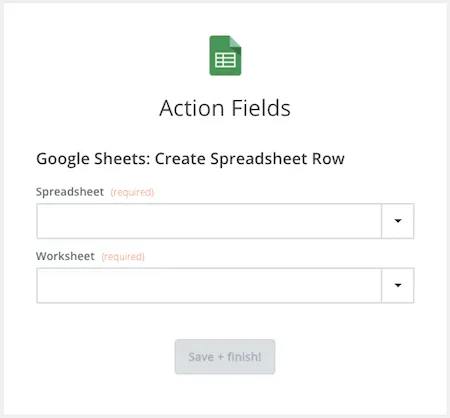
Using automation tools like Make.com or Zapier, you can:
- Send new orders to Google Sheets as they’re created
- Update existing rows when order status changes
- Filter which orders get synced (for example, completed only)
This approach trades file-based exports for continuous data syncing.
How to connect? The most reliable way to trigger these exports is using Webhooks. In WooCommerce settings: Advanced > Webhooks. you can set a “Topic” of Order Created. This sends the data payload to Zapier/Make immediately, ensuring your Google Sheet updates within seconds of a sale.
2. Export WooCommerce orders via SQL or phpMyAdmin
Direct database exports give you the most raw and flexible access to WooCommerce order data, but they also require the most caution.
You might consider this method if:
- Your store has tens of thousands of orders
- Plugin-based exports consistently time out
- You need very specific datasets for analysis or migration
- You’re working with a developer or technical team
WooCommerce order data lives across multiple tables and includes metadata for products, customers, payments, and extensions. Exporting via SQL allows you to query exactly what you need, but incorrect queries can lead to incomplete or misleading data.
This method is best reserved for technical audits, migrations, or large-scale data processing.
Sample SQL Query for Order Exports:
Sample SQL Query for Order Exports If you are comfortable using phpMyAdmin, you can run a direct SQL query to fetch order details. Because WooCommerce splits data between wp_posts and wp_postmeta, a JOIN query is required.
Here is a safe, read-only query to get you started:
SELECT
    p.ID as order_id,
    p.post_date,
    p.post_status,
    MAX(CASE WHEN pm.meta_key = '_billing_email' THEN pm.meta_value END) as billing_email,
    MAX(CASE WHEN pm.meta_key = '_order_total' THEN pm.meta_value END) as order_total
FROM wp_posts p
JOIN wp_postmeta pm ON p.ID = pm.post_id
WHERE p.post_type = 'shop_order'
GROUP BY p.ID;
Note: Always back up your database before running raw SQL queries.
3. Export WooCommerce orders using WP-CLI
WP-CLI lets you export order data from the command line instead of the browser, which avoids many common limitations.
This method is ideal when:
- Browser-based exports fail or time out
- You need to export large order volumes reliably
- You want to automate exports via cron jobs
- You’re working in staging or production environments
Because WP-CLI runs server-side, it’s faster and more stable for bulk exports. It’s often used by developers to generate scheduled exports or prepare order data for migrations and integrations.
Useful WP-CLI Export Commands:
To export orders directly to a CSV file on your server without timing out your browser, use the following command structure:
Export all completed orders to a CSV file:
wp wc shop_order list --status=completed --format=csv > completed_orders.csvExport orders from a specific customer (by user ID):
wp wc shop_order list --customer=5 --format=csv > customer_5_orders.csvExporting Personal Data for GDPR/CCPA Requests
Sometimes you don’t need to export orders for analysis, but to comply with a customer’s legal request for their data (“Right to Access”). WooCommerce includes a specific tool for this that generates a compliance-friendly file rather than a raw spreadsheet:
- Go to Tools > Export Personal Data.
- Enter the customer’s email address.
- Click Send Export Link.
This generates a zip file containing an HTML index of the customer’s profile and order history, which you can send directly to them. This protects you by ensuring you provide exactly what is legally required without exposing internal store metadata.
Moving WooCommerce Orders to a New Store with LitOS
If you are exporting WooCommerce orders because you plan to rebuild your store or move to a new platform, exporting data is only part of the process. Order data needs to be handled carefully so it remains accurate and usable after the transition.
LitOS supports eCommerce store migration and setup by helping you prepare and move WooCommerce data, such as orders, products, customers, categories, and related records. We ensure that product details, customer accounts, and order history remain consistent during the transition, reducing the risk of missing data or broken reporting.
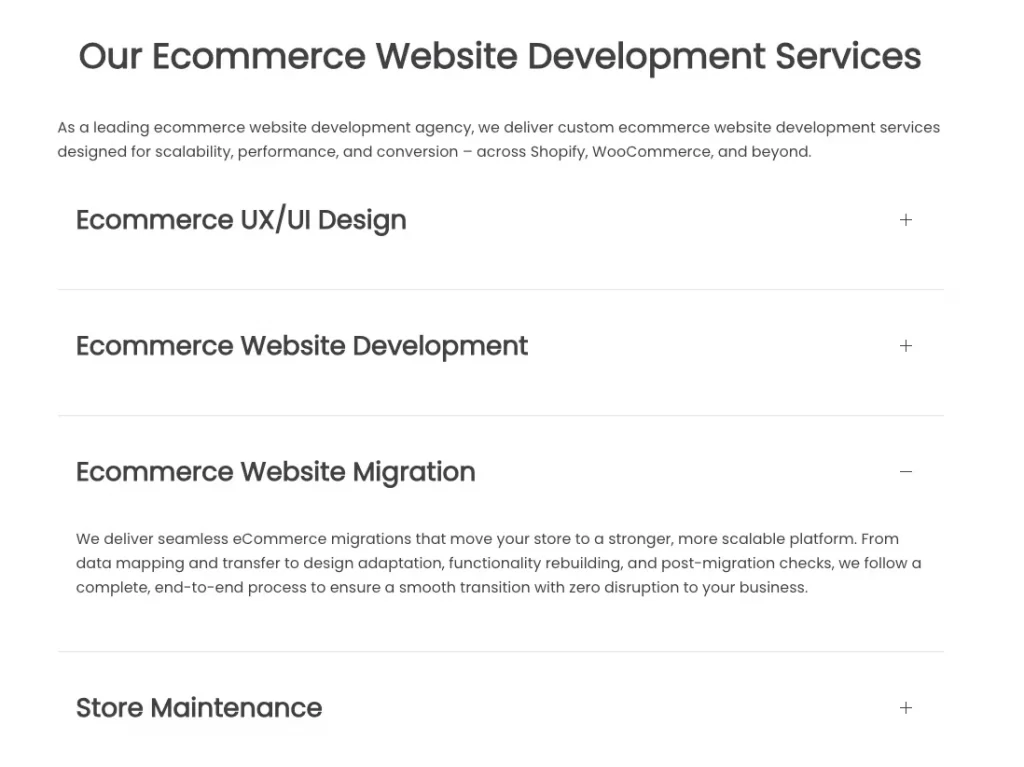
Once your data is moved, LitOS focuses on store setup and design. This includes configuring your new ecommerce store, applying a conversion-focused layout, and making sure key features such as checkout, payments, and integrations are ready before launch. The goal is to give your business a clean start without losing critical store data.
If you are planning a new WooCommerce store or a platform change, exporting orders is the first step. Proper migration and store setup ensure your business continues smoothly without losing critical data.
Troubleshooting WooCommerce Order Export Issues
When a WooCommerce order export does not work as expected, the problem is usually simple but not always obvious. Before switching tools or reinstalling plugins, it helps to understand what typically goes wrong.
1. Blank or empty export file
If your export file downloads but contains no orders, the first thing to check is your filter settings. A date range that does not include any orders, or a status filter that does not match your actual order statuses, will result in an empty file. This is especially common when exporting from WooCommerce Analytics or using a plugin with saved filters.
2. Missing fields or metadata
If some data appears to be missing, such as product SKUs, custom checkout fields, or payment details, the export method may be too limited. Built-in exports only include standard order fields. Any data added by plugins, themes, or custom code usually lives in order metadata and requires a plugin or advanced export method to access it.
3. CSV encoding or character issues
Strange characters or broken text usually point to an encoding issue. This often happens when CSV files are opened directly in spreadsheet software. Re-importing the file with UTF 8 encoding or exporting again using a plugin that supports encoding settings usually resolves the problem.
4. Excel changing your data format
Excel has a habit of automatically changing data when opening CSV files. Order numbers may lose leading zeros, dates may be reformatted, and large values may be converted into scientific notation. To avoid this, import the CSV instead of opening it directly, or export to Excel format if your plugin supports it.
5. Timeout or memory errors
If the export fails midway or never completes, the file may simply be too large. Large stores often need to export orders in smaller date ranges or use background processing. For very large datasets, WP CLI or database level exports are usually more reliable than browser based tools.
6. Plugin conflicts
If exports suddenly stop working after an update, a plugin conflict is a common cause. Testing the export with other plugins temporarily disabled or running the export on a staging site can help identify the issue.
When export problems happen repeatedly, it is often a sign that your store has outgrown manual workflows. At that point, a structured approach to data handling or a planned store migration becomes the safer long term option.
WooCommerce Export Orders FAQs
How do I export WooCommerce orders to CSV without using a plugin?
Go to WooCommerce → Reports → Orders, select your date range and filters, then click Export CSV. This method is suitable for basic order data but does not support custom fields or advanced filtering.
How do I export only completed WooCommerce orders or filter by date and status?
Use filters before exporting. In WooCommerce Analytics, choose the completed status and a specific date range. If you need more control, a plugin lets you filter by order status, product, payment method, or customer type.
Which plugin is best for exporting WooCommerce orders with custom fields and metadata?
Plugins like WP All Export and Advanced Order Export are popular because they allow you to select custom fields, map order data, and export in multiple formats. The right choice depends on how much control you need and whether you plan to automate exports.
How can I export WooCommerce order items including product SKUs, variations, and quantities?
Built in exports include limited product details. To export detailed line items such as SKUs, variations, and quantities, you will need a plugin that supports order item level data mapping.
Can WooCommerce automatically export new orders on a schedule?
WooCommerce itself does not support scheduled exports. However, many export plugins allow you to run exports daily, weekly, or when new orders are created, making them useful for recurring reports or integrations.
Can I export WooCommerce orders as PDF invoices?
Standard export methods (CSV/XML) generate data spreadsheets, not printable documents. If you need a PDF invoice to print or email to a customer, you should not use a standard export plugin. Instead, install a dedicated plugin like WooCommerce PDF Invoices & Packing Slips, which is designed specifically to format order data into a printable layout.
Let’s Wrap Up!
WooCommerce export orders are more than simple file downloads. The method you choose should match how you use your data, how often you need it, and where the data needs to go next.
- For quick reporting or one time checks, the built in CSV or XML tools can be sufficient.
- For stores that require precise field selection, filtering, or recurring exports, a plugin based approach offers better control.
- Large stores or complex workflows benefit most from advanced export methods that reduce errors and improve reliability.
When order exports support a larger change, such as rebuilding a store or moving to a new platform, data structure matters. Orders, products, and customers must remain connected to avoid reporting gaps and operational issues.
And now, let’s build what’s next!
At LitOS, we help brands move, rebuild, and scale WooCommerce stores with the right technical foundation. Our team supports data migration, store setup, and design so your orders, products, and customers continue to work smoothly in your new store.
Contact Us
