
WooCommerce International Shipping: A Quick 2026 Guide
As one of the most scalable eCommerce platforms, WooCommerce is a solid choice for businesses planning to expand beyond domestic borders. Nevertheless, selling internationally doesn’t just mean accepting orders from different countries. To ensure smooth operations and reliable customer experiences, you also need to set up WooCommerce international shipping correctly from the start.
And that’s exactly what this article will walk you through! In this guide, we will discuss:
- How to set up international shipping in 5 steps
- Recommended shipping plugins
- Best practices when setting up international shipping
Let’s begin!
How to Configure WooCommerce International Shipping in 5 Steps
To configure WooCommerce international shipping, you first enable international shipping locations, then configure shipping taxes and shipping classes. Next, structure shipping zones and shipping methods. Finally, make sure to test your setup and add HS codes (if needed).
Step 1. Enable international shipping
First, before configuring rates or taxes, you need to confirm where your store is allowed to sell and ship. To do so, go to WooCommerce → Settings → General to review the Selling location(s) and Shipping location(s) fields.
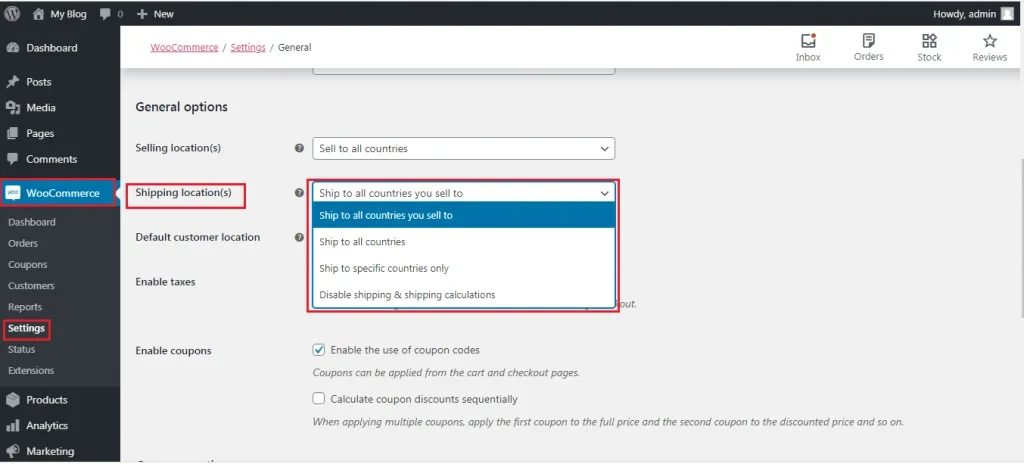
By default, WooCommerce allows you to sell and ship to all countries. However, if you want tighter control, select “Ship to specific countries only.” This allows you to manually define exactly which markets you’re targeting.
Once selected, choose the countries from the list provided. If you prefer not to restrict shipping at this stage, you can leave it set to all countries.
Then, save your changes. At this point, your store is technically enabled for international shipping, but without taxes and shipping rules configured yet.
Step 2. Configure shipping taxes and classes
After defining where you ship, the next logical step is determining how pricing should be calculated across those regions.
Let’s start with tax calculation: scroll down and check the option to enable tax rates and calculations (a little below the Shipping locations). Once activated, a Tax tab will appear in your WooCommerce settings.
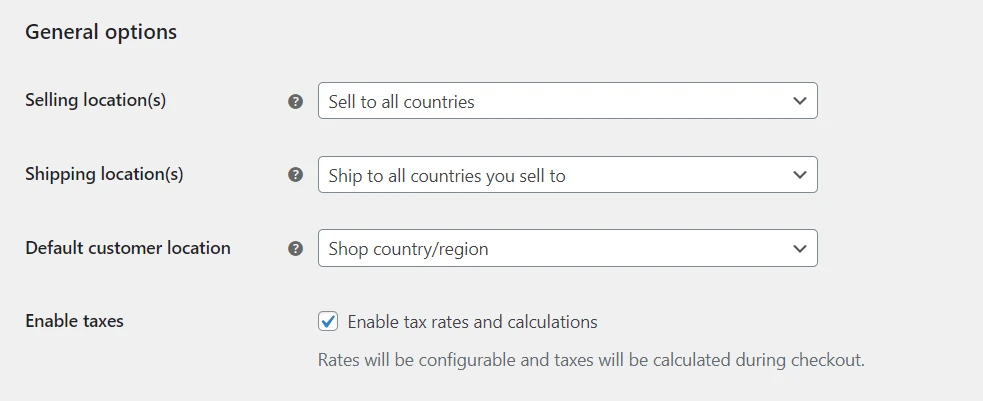
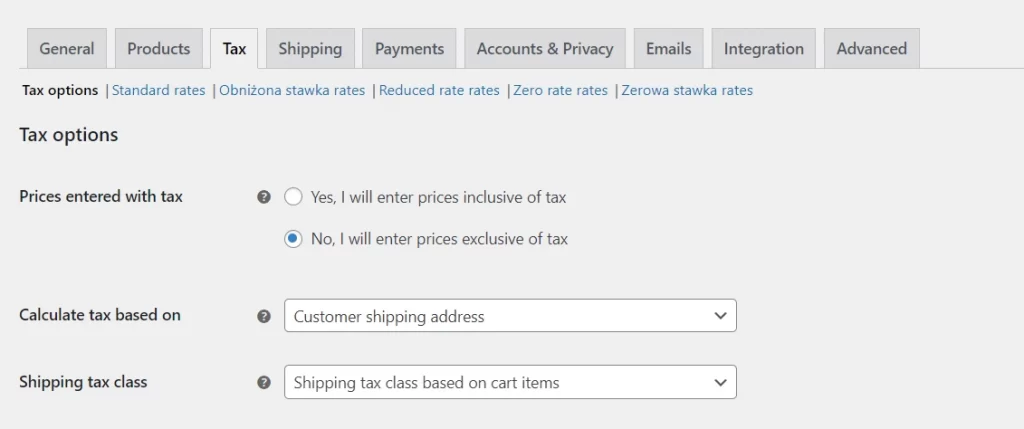
Inside the Tax tab, you can define the shipping tax class, as well as how taxes are calculated and displayed at checkout. This option controls whether prices are shown inclusive or exclusive of tax and how rates are applied.
Also, to set country-specific shipping taxes, open the Standard rates section and click Insert row to create a new tax rule. For each entry, you should specify:
- The two-letter country code (ISO standard format, such as US, GB, AU)
- Optional limitations by state, postcode, or city if needed
- The tax rate percentage (entered numerically)
- A tax name visible to customers on invoices and checkout
- Ensure the Shipping box is checked so the tax applies to shipping fees
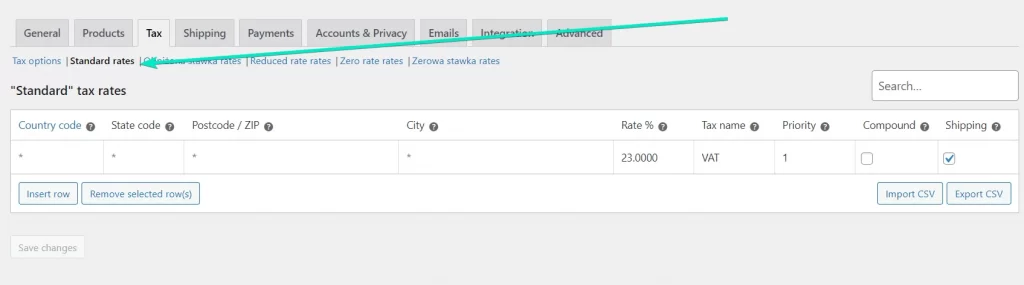
You can repeat this process for each country you serve, or import rates via CSV (by clicking the Import CSV button) if managing multiple markets.
Once taxes and customs-related details are properly configured, your pricing structure becomes aligned with your international markets.
Step 3. Set shipping zones
Shipping Zones allow you to group geographical areas and assign specific shipping methods to each group. That way, customers only see relevant delivery options based on their address.
Go to Shipping > Shipping Zones and click Add shipping zone. Each zone should have a clear, descriptive name, such as “Europe Standard” or “North America Express.”
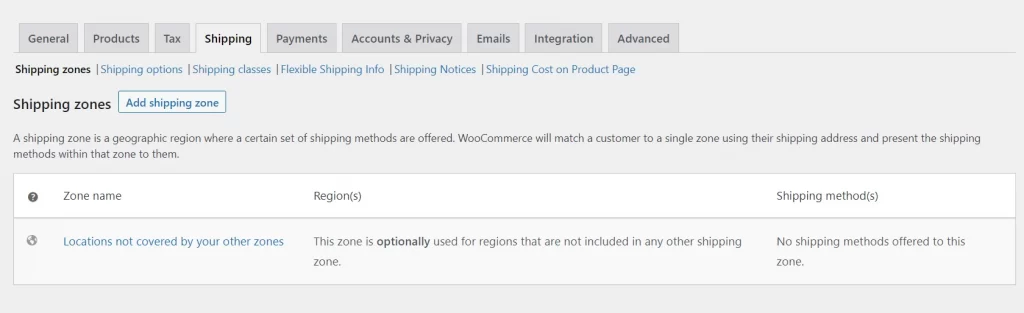
Then define the Zone regions, which can include:
- Entire continents
- Individual countries
- Selected states or provinces
- Specific cities
- Postal codes
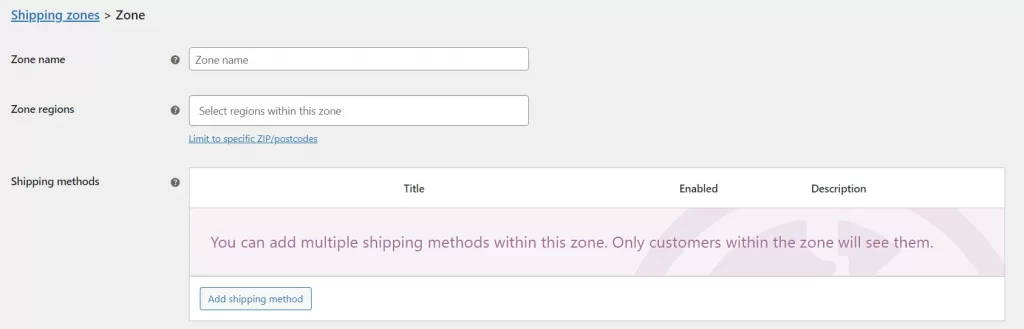
The flexibility here allows you to tailor shipping logic very precisely. For example, you might offer different rates for Western Europe compared to Eastern Europe, or separate Canada from the United States.
Once the regions are selected, save the zone. Repeat the process for each international market you want to serve.
Step 4. Add shipping methods
After defining your zones, you can now assign shipping methods to each one.
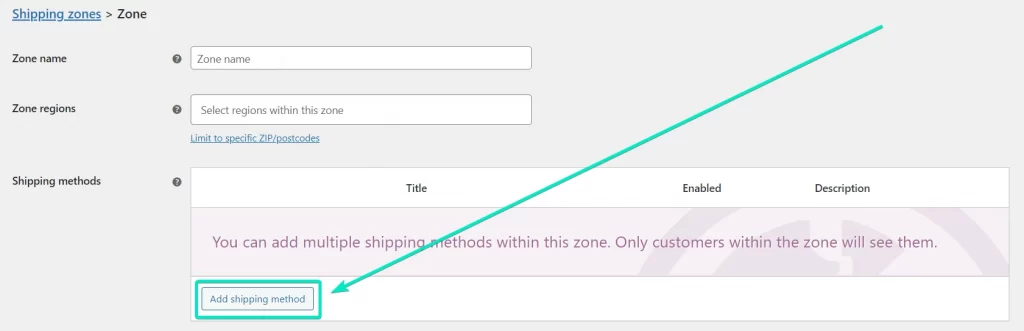
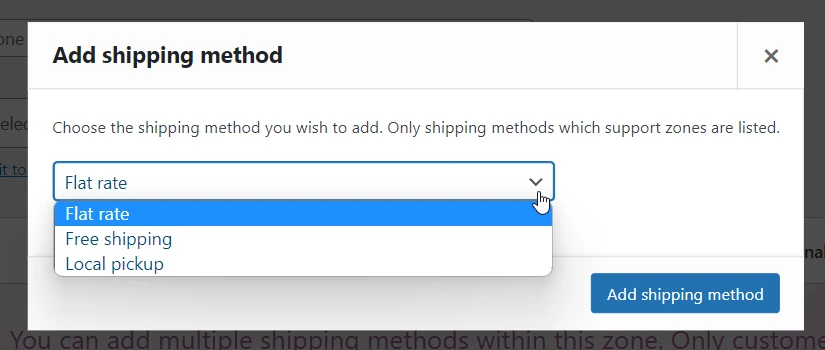
Inside a shipping zone, click Add shipping method. WooCommerce includes three built-in options:
- Flat Rate
- Free Shipping
- Local Pickup
For international shipping, Flat Rate is often the simplest starting point. You can set a fixed shipping cost for orders within that zone. And if you require more advanced pricing logic (such as weight-based shipping calculations, table rates, or real-time carrier rates, you’ll need to install additional shipping plugins. These extensions integrate directly with carriers and dynamically calculate shipping costs at checkout.
Step 5. Test your setup and add HS codes (if you haven’t)
Now that everything is configured, you may consider running test orders using addresses from each international zone you created. Add products with different shipping classes (if applicable) to your cart and proceed to checkout, and verify that:
- Only the correct shipping methods appear for each country
- Shipping costs match your configured rates
- Taxes are calculated properly and displayed clearly
- Free shipping thresholds (if enabled) trigger correctly
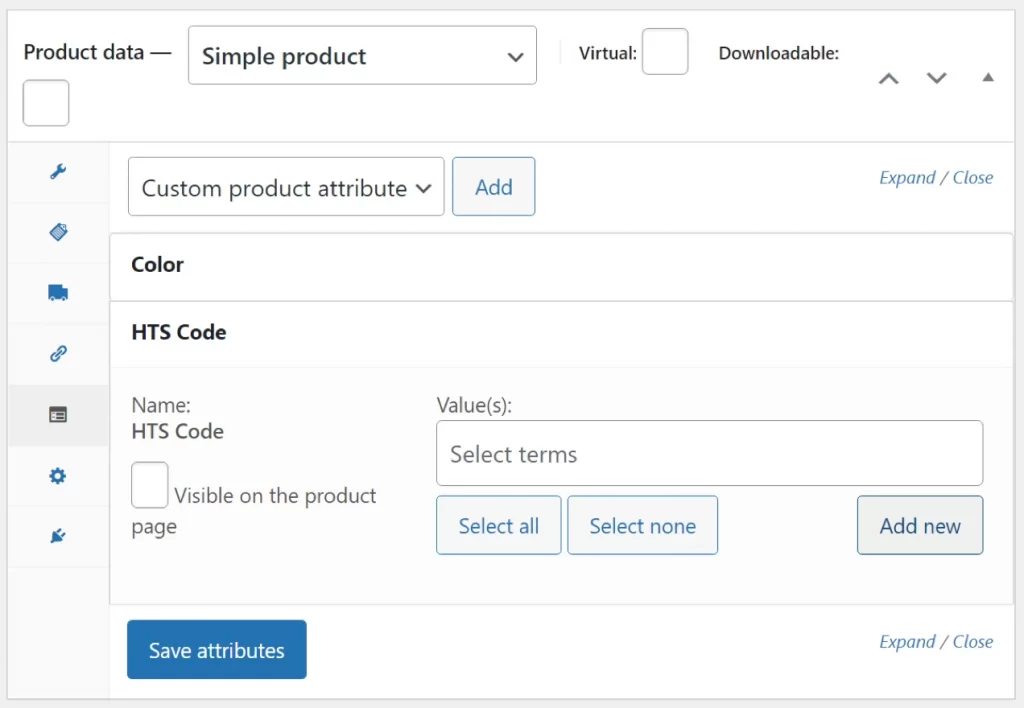
Also, if you’re using carrier integrations (such as DHL or FedEx plugins), make sure products include accurate HS codes and countries of origin. To include this data, simply go to Products, then navigate to Product Data > Inventory and enter the 6–10 digit code in the HS/Tariff Code field.
And that’s how to add international shipping to WooCommerce!
Recommended Extensions for WooCommerce International Shipping
Native settings aside, you can also use the following WooCommerce extensions to handle international shipping, including UPS Shipping Method, FedEx Shipping Method, Easyship for WooCommerce, and USPS Shipping Method.
1. UPS Shipping Method
- Pricing: $109 (1-year plan) or $174.40 (2-year plan)
If your priority is enterprise-grade global delivery coverage, then UPS stands out for its strong international logistics network and wide range of cross-border services.
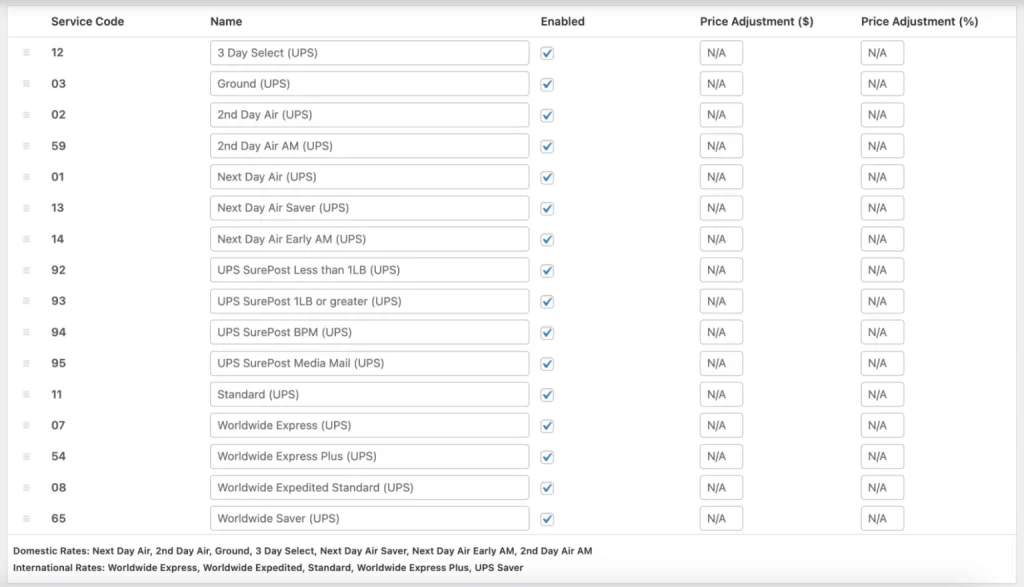
The UPS Shipping Method for WooCommerce connects directly to the UPS API to display real-time international shipping rates at checkout. Plus, it also offers an extensive portfolio of international services, including Worldwide Express, Worldwide Saver, and Worldwide Expedited, to cater to businesses shipping to multiple continents.
Beyond international rate calculation, the extension allows you to configure service-level preferences, packaging methods, and custom box packing rules. It also supports automatic unit conversion if your store uses different measurement units, though it primarily works with inches and pounds.
2. FedEx Shipping Method
- Pricing: $109 (1-year plan) or $174.40 (2-year plan)
FedEx is particularly strong for time-sensitive international shipping and freight options.
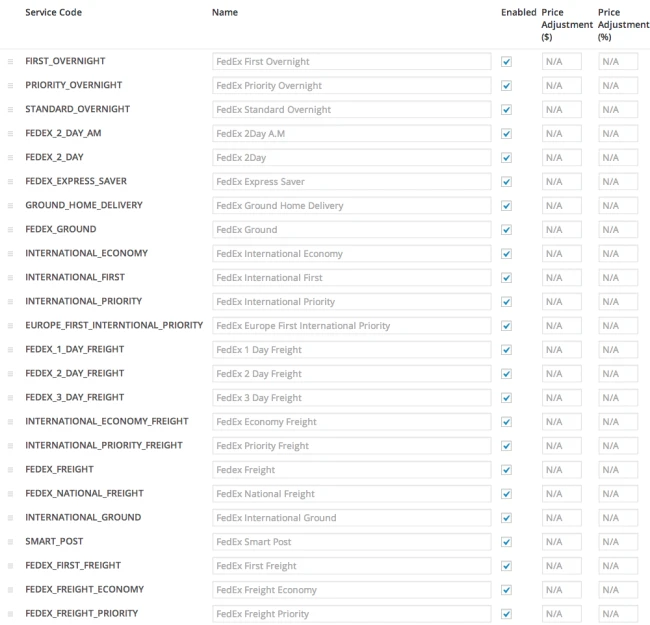
Through the FedEx Shipping Method extension, your checkout displays live rates pulled directly from the FedEx API. International services such as International Priority, International Economy, and International First allow you to offer tiered global delivery speeds to customers.
Furthermore, the extension also supports automated rate calculation, box configuration, and service customization. However, note that for this function, it requires your store to use USD or CAD as the currency and be based in the US or Canada.
3. Easyship for WooCommerce
- Free to install
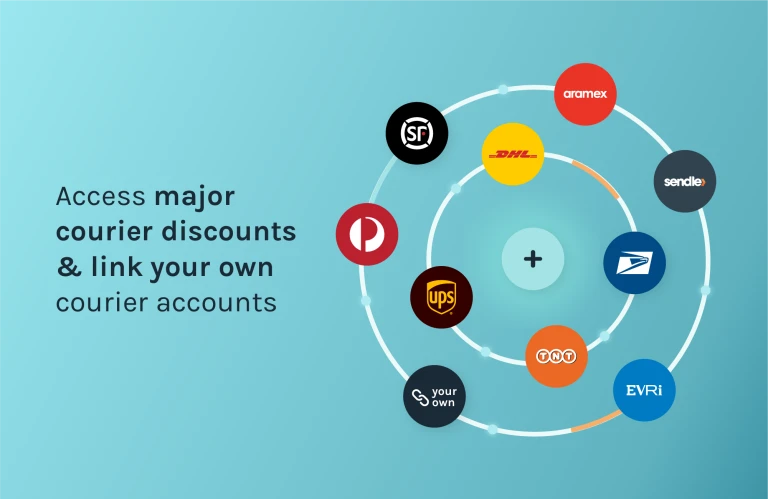
Instead of connecting to just one shipping provider, Easyship acts as an all-in-one global shipping platform. It allows you to compare international courier options in real time, access discounted rates, and automate taxes and duties at checkout.
One of its most distinctive features for international sellers is automated tax and duty calculation, which helps reduce unexpected customs fees for customers. It also enables Dynamic Rates at Checkout, allowing shoppers to choose between the cheapest, fastest, or best-value shipping option.
In addition, Easyship automatically generates customs documents, syncs orders from WooCommerce, and supports branded tracking emails and returns. The built-in box selection algorithm helps optimize packaging for international parcels.
4. USPS Shipping Method
- Pricing: $109 (1-year plan) or $174.40 (2-year plan)
Lastly, USPS is a strong choice for cost-effective international shipping from the United States.

Indeed, compared to premium global carriers, USPS often provides more affordable international options, especially for smaller packages. As a result, it’s quite suitable for eCommerce businesses shipping lightweight goods abroad. The extension also includes built-in box packing logic and allows you to enable, disable, or rename services based on your store strategy.
However, keep in mind that to use this extension, your store must use US Dollars and be based in the United States, Puerto Rico, or the US Virgin Islands.
_
Nevertheless, setting up international shipping is only the first step. Optimizing it is what drives sustainable cross-border growth, which is what we will discuss in the next section.
Best Practices When Setting Up WooCommerce International Shipping
To make your WooCommerce global strategy truly effective, focus on four key practices: building region-specific pricing structures, aligning shipping with multi-currency logic, localizing shipping communication, and ensuring compatibility with payment gateways.
1. Build region-specific pricing strategies
A common mistake among WooCommerce beginners is applying one flat international shipping rate for all countries outside their base market. Though this is easy to configure, it often creates two problems: either you overcharge nearby countries or undercharge distant ones.
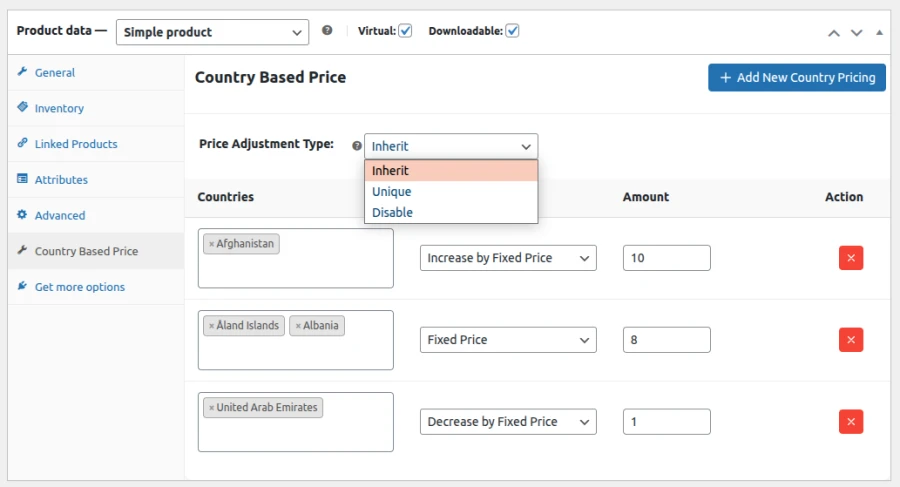
Instead, you should analyze your carrier cost structure and group countries based on actual fulfillment behavior. For example:
- Countries within the same logistics corridor (e.g., US → Canada vs. US → Australia) should rarely share the same flat rate.
- Regions with high remote-area surcharges should be isolated into their own zone.
- Markets with strong purchasing power may tolerate higher express-only pricing.
You can also strategically set different free shipping thresholds per region. For instance, if shipping to Europe costs more than shipping to Southeast Asia, your European free shipping minimum should be higher to protect the margin.
2. Adjust shipping logic for multi-currency consistency
If your store supports multi-currency, the shipping configuration cannot be treated as static. The reason is that shipping fees often expose rounding inconsistencies more visibly than product prices.
To manage this properly:
- Test how your shipping fees convert across major currencies you support.
- Adjust region-based flat rates manually if necessary. Instead of relying purely on exchange rates, you may want to define psychologically cleaner price points per currency.
- Verify that free shipping thresholds convert correctly. For example, if free shipping applies above $150 USD, confirm that it triggers properly in EUR, GBP, or AUD without small rounding gaps.
At the end of the day, multi-currency support improves international trust, but only if shipping fees behave logically within that ecosystem.
3. Localize shipping communication, not just product content
Many stores use extensions to translate product pages but forget to localize operational messaging, especially shipping-related information.
So, in WooCommerce, make sure you review:
- Shipping method names
- Estimated delivery time labels
- Checkout shipping notices
- Policy pages explaining international shipping
For example, instead of displaying a generic “Flat Rate,” rename it to something market-appropriate like “International Standard Delivery (7–12 business days).”
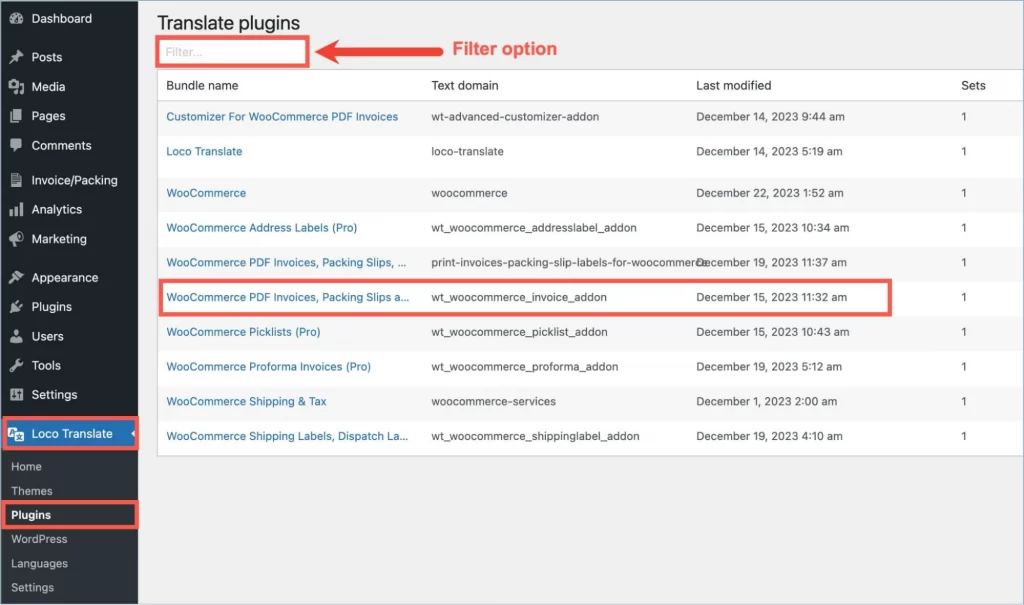
Likewise, delivery expectations vary by region: some countries expect highly precise timelines, while others accept ranges. So if your shipping method simply says “Standard,” customers may hesitate because it lacks clarity.
4. Ensure shipping works with localized payment gateways
Last but not least, shipping fees directly influence checkout behavior, even more so when customers must pay immediately.
In many cases, customers may accept a higher shipping fee if they can pay using a familiar regional method. So if you charge international shipping but only offer limited payment options, abandonment rates can rise significantly.
Hence, before expanding shipping into a new country, verify that:
- Your payment gateway supports that country
- The gateway supports the local currency (if using multi-currency)
- Payment processing fees do not erode margin on high shipping-cost orders.
FAQs
No schema found.Final Words
All in all, expanding your store beyond borders opens up enormous growth potential, but only when your WooCommerce international shipping setup is structured correctly!
Not to mention, in the long run, shipping is still just one part of the bigger picture. If you’re planning to scale globally but want to ensure your WooCommerce store is technically optimized, strategically structured, and ready for international demand, LitOS can help.
Ready to scale your WooCommerce store globally?
At LitOS, we help WooCommerce brands build a solid technical foundation for international growth. Whether you’re expanding into new markets or refining your cross-border strategy, our team ensures your store is structured to scale sustainably.
Contact Us