
How to Back Up WooCommerce Products and Database Safely (2026 Guide)
In WooCommerce, product data such as titles, prices, stock levels, variations, and attributes are stored inside the WordPress database. Product images, themes, and plugins are stored separately in website files. A proper WooCommerce product backup must include both the database and the file system, otherwise, your store cannot be fully restored after a failure.
In this 2026 guide, you will learn:
- Why WooCommerce product backup is critical for store stability
- How to automate backups using hosting
- How to manually export your database as an SQL file
- How to use a free plugin to schedule backups
- How to export and restore product data via CSV
- Best practices to reduce downtime and data loss
By the end of this guide, you will understand how to protect your WooCommerce products and restore your store safely when needed.
Why Should You Back Up WooCommerce Products?
Backing up WooCommerce products means creating a copy of your store data so you can restore it if something goes wrong. In WooCommerce, product information is stored in the WordPress database, while images, themes, and plugins are stored in your website files. A complete backup should include both.
You should back up your store to prevent data loss from failed updates, plugin conflicts, or malware that can corrupt your database. A backup also helps you recover quickly from common issues like the white screen error, which can make your website inaccessible.
Regular backups protect your revenue during hosting crashes, accidental deletions, or database corruption. They are also essential before migration, installing new plugins, redesigning your theme, or making major changes. With a proper backup, you always have a restore point and can return your store to a stable version safely.
How to Automate Back Up WooCommerce Products Using Hosting
Many managed WordPress or WooCommerce hosting providers offer automatic server-level backups. This is one of the easiest ways to protect your WooCommerce products and database, because backups run automatically without installing a plugin.
Hosting backups typically include:
- The WordPress database (where WooCommerce products, orders, and customers are stored)
- Website files (themes, plugins, media uploads, including product images)
- Daily or hourly snapshots
- One-click restore options
Since WooCommerce product data lives inside the database, a hosting-level database backup protects your entire product catalog at once.
Here are the steps to enable or check hosting backups:
- Log in to your hosting dashboard.
- Go to the Backups or Site Management section.
- Check the backup frequency (daily, hourly, weekly).
- Confirm how many restore points are stored.
- Download a copy if your host allows manual download.
So, how to restore from the hosting backup?
- Open the Backups section in your hosting dashboard.
- Select a restore date.
- Confirm restore.
- Clear cache and test your storefront and checkout.
Not all hosting plans include automatic backups, and retention may be limited to 7–14 days. Always confirm that the backup includes both the database and website files. For business-critical WooCommerce stores, hosting backup alone may not be enough. Combining it with a plugin-level backup provides an additional layer of protection and more flexible restore points.
Automated hosting backups are a strong first line of defense, especially for small and medium WooCommerce stores that want simple, reliable protection for product data.
How to Back Up WooCommerce Database (Manual SQL Method)
WooCommerce products are stored inside your WordPress MySQL database. This includes product titles, prices, variations, stock levels, attributes, and categories. By exporting the database as an SQL file, you create a complete backup of your WooCommerce product data.
Here are the steps to back up WooCommerce product database:
- Log in to your hosting account (cPanel or hosting dashboard).
- Open phpMyAdmin.
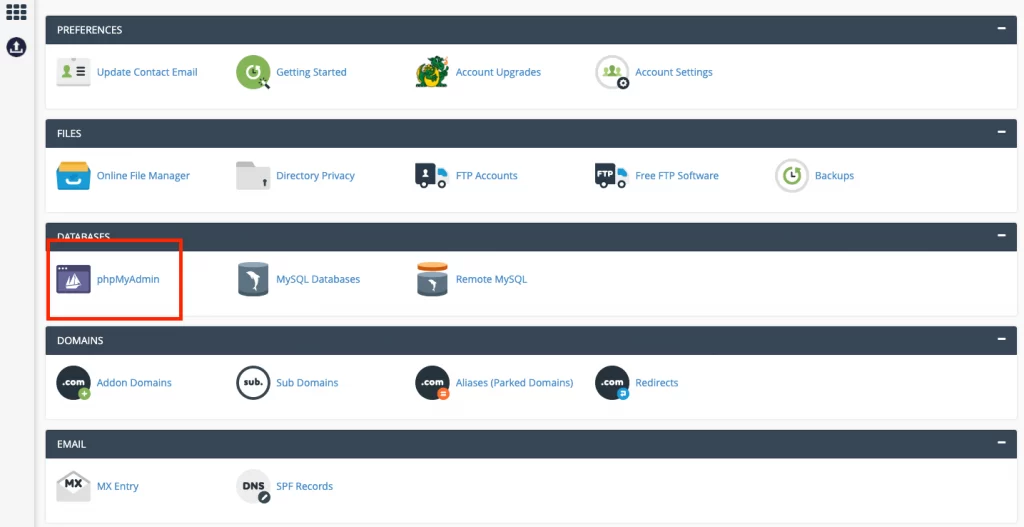
- Select your WordPress database from the left panel.
- Click Export.
- Choose Quick export method.
- Select format SQL.
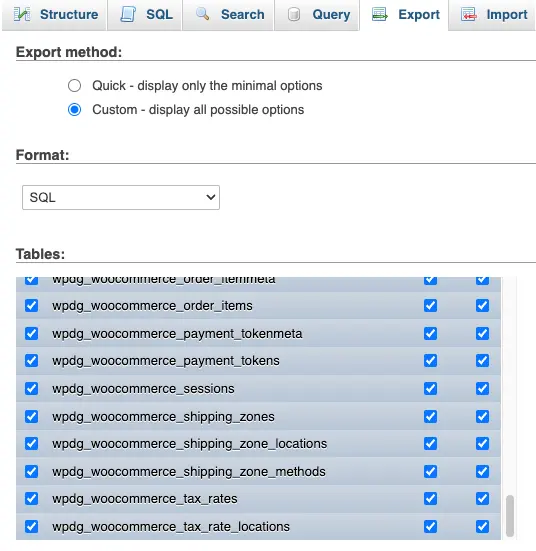
- Click Go to download the SQL file (database dump).
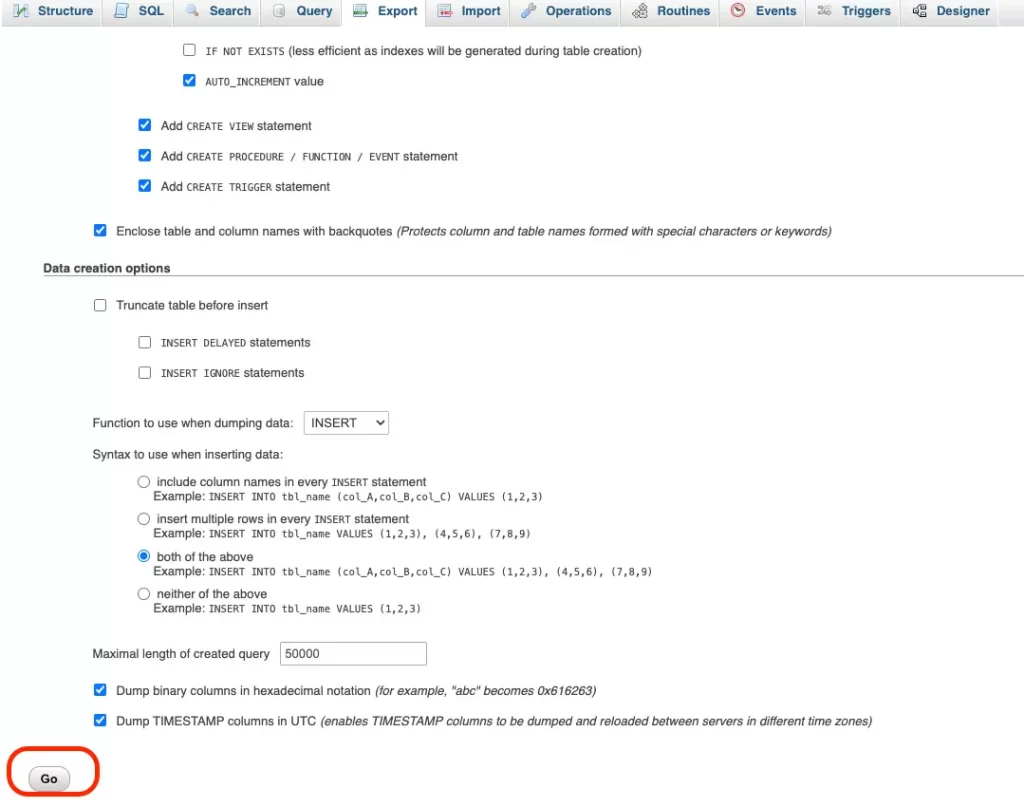
This SQL file contains your full WooCommerce product catalog and related data. Store the file in a secure location, preferably outside your hosting server.
So, how to restore from a SQL file:
- Log in to hosting and open phpMyAdmin.
- Select the correct WordPress database.
- Click Import.
- Upload the saved SQL file.
- Click Go to run the import.
Important: Restoring an SQL file will overwrite the current database. Enable maintenance mode before restoring and make sure you are importing into the correct database.
How to Back Up WooCommerce Products Using a Free Plugin (UpdraftPlus)
UpdraftPlus is a popular WordPress backup plugin that allows you to back up your WooCommerce database and files automatically. Since WooCommerce product data is stored in the database, this method protects your full product catalog, including variations and stock.
Step 1: Install the plugin
- Go to WordPress Dashboard → Plugins → Add New.
- Search for UpdraftPlus.
- Click Install Now, then Activate.
After activation, go to Settings → UpdraftPlus Backups.
Step 2: Run a manual backup
- Click Backup Now.
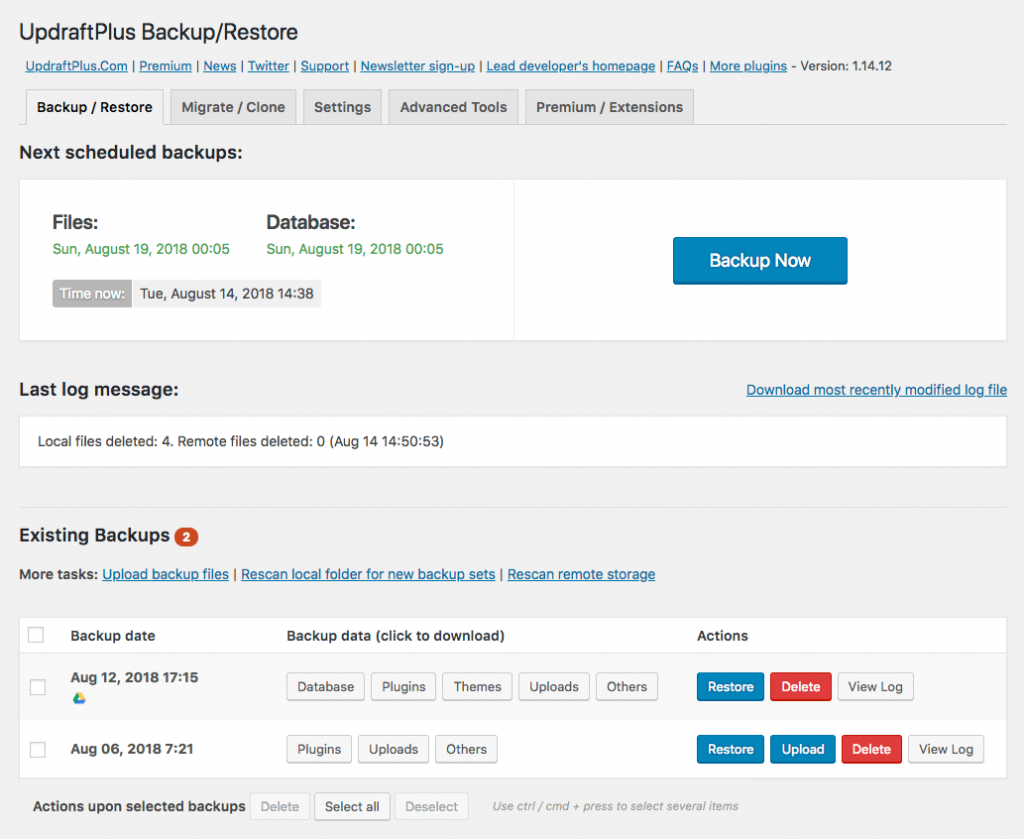
- Make sure both options are selected:
- Include your database (contains WooCommerce products)
- Include your files (themes, plugins, uploads including product images)
- Confirm and start the backup.
This creates a restore point for your WooCommerce products and store data.
Step 3: Schedule automatic backup
To automate WooCommerce product backup:
- Go to the Settings tab inside UpdraftPlus.
- Set backup schedule:
- Database: Daily (recommended for active stores)
- Files: Weekly
- Choose remote storage (Google Drive, Dropbox, etc.).
- Save changes.
Automated backups reduce the risk of data loss caused by updates or plugin conflicts.
So, what are the steps for restoring using UpdraftPlus?
- Go to Settings → UpdraftPlus Backups.
- Scroll to Existing Backups.
- Click Restore next to your chosen backup.
- Select components to restore: Database (required to restore WooCommerce products), Plugins, Themes and Uploads.
- Confirm and run restore.
After restoring, clear cache and check product pages, cart, and checkout to ensure everything works correctly.
How to Back Up WooCommerce Products via Export (CSV Only)
This method allows you to export WooCommerce product data into a CSV file. It is useful for creating a backup of your product catalog only. However, it does not back up orders, customers, settings, or website files.
Use this method if you want to save a copy of your product list, edit products in bulk, restore product data only or prepare for migration.
Follow the steps below for WooCommerce product backup process.
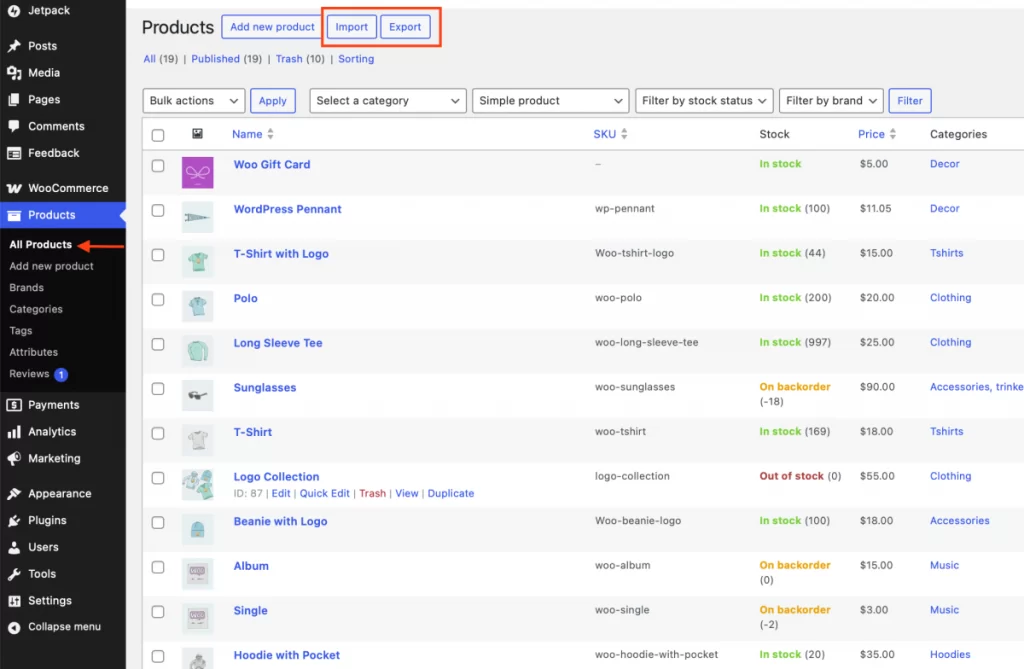
- Go to WooCommerce → Products in your WordPress dashboard.
- Click the Export button at the top.
- Choose which columns to export (or export all fields).
- Click Generate CSV.
- Download the CSV file.
The CSV file contains product titles, descriptions, prices, SKUs, stock, categories, attributes, and variations.
Important: This is not a full WooCommerce product backup because it does not include database relationships, orders, or site configuration.
To restore products via CSV import:
- Go to WooCommerce → Products.
- Click Import.
- Upload your saved CSV file.
- Map the CSV columns to WooCommerce fields.
- Run the importer.
This will recreate or update product data based on the CSV file. After importing, review product pages and variation settings to confirm accuracy.
WooCommerce Product Backup Best Practices for 2026
Backing up WooCommerce products is revenue protection. In 2026, daily backups are the minimum standard. High-growth stores now focus on redundancy, speed of recovery, and minimal data loss.
Follow these five practical pillars.
1. Separate database and file backups
WooCommerce product data (titles, prices, stock, variations) is stored in the WordPress database. Product images, themes, and plugins are stored in website files.
A backup is not complete unless it includes both.
Restoring only the database without the uploads folder will result in missing product images. Restoring only files without the database will result in missing products.
2. Move beyond daily to incremental backups
For active stores, daily backups create a 24-hour risk window.
If your site fails at 10 PM, you lose every order and product update made since the last backup.
Professional stores now use incremental backups, which back up only changed data, sync updates automatically, reduce performance impact, and minimize data loss. This significantly lowers Recovery Time and Recovery Point risks.
3. Enforce off-site cloud redundancy
Storing backups on the same server as your live store is not real protection.
If the server fails or is compromised, your backup may be lost as well.
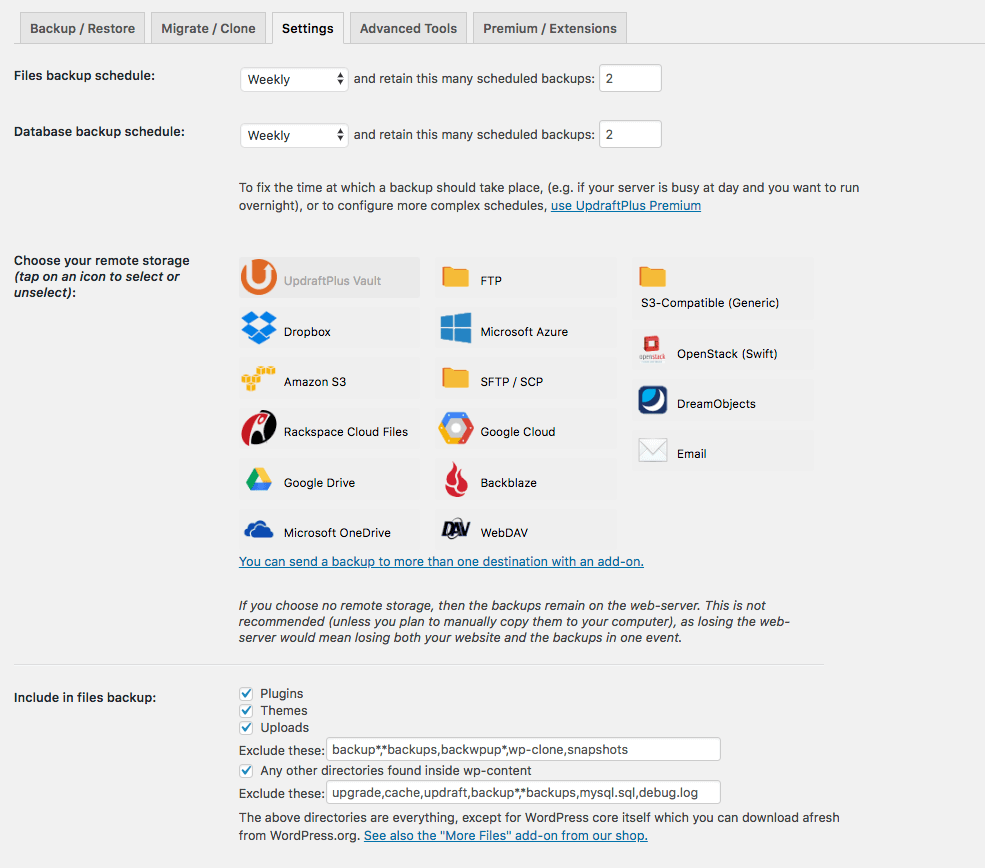
You should always store backups in external cloud storage, such as Google Drive, Dropbox, or Amazon S3. This ensures your WooCommerce product backup remains accessible even if your hosting provider goes offline.
4. Maintain rolling restore points
Never rely on a single backup file. If your database was corrupted several days ago, the latest backup may already contain the problem.
You should maintain at least 7-14 days of rolling restore points. This allows you to restore to a version of your store that was fully functional.
5. Test your restore process in staging
A backup is not valid until it has been successfully restored. Many stores discover restore errors only during emergencies.
Once a month, restore your backup to a staging environment and confirm product pages load correctly, variations work, and checkout functions properly. This ensures your WooCommerce product backup is usable when needed.
When to Get Professional Backup & Migration Support
Basic hosting backups and plugins work well for small stores. But as your WooCommerce business grows, the technical risk increases. If your store generates steady revenue, backup and migration should be treated as business continuity planning, not just a technical routine.
You should consider professional support when:
- Your store has thousands of products or complex variable products
- You process high daily order volume and cannot afford downtime
- You are migrating to new hosting or a different eCommerce platform
- Your site uses custom themes, plugins, or database modifications
- You require minimal data loss and a fast recovery time
Large WooCommerce stores rely on structured database relationships between products, variations, categories, orders, and customers. A simple CSV export or basic backup may not preserve these relationships correctly during restore or migration.
This is where a professional migration partner like LitExtension can help. LitExtension specializes in secure data migration and store transfer, ensuring:
- Full database integrity
- Accurate product and variation mapping
- Secure data transfer
- Staging validation before launch
- Minimal downtime during migration
If your WooCommerce store is business-critical, investing in professional backup and migration support reduces operational risk and protects long-term revenue stability.
And now, let’s build what’s next!
At LitOS, we help brands grow smarter on WooCommerce with secure migration, performance optimization, and long-term growth strategy.
Contact UsWooCommerce Product Backup FAQs
How often should I back up WooCommerce products?
For most active stores, the database should be backed up at least daily. High-volume stores should consider incremental or real-time backups to reduce data loss risk. File backups (themes, plugins, uploads) can usually run weekly unless changes are frequent.
Is exporting products enough?
No. Exporting products via CSV only saves product data such as titles, prices, and SKUs. It does not include orders, customers, settings, or full database relationships. A proper WooCommerce product backup requires a database backup and file backup.
What is the safest way to back up WooCommerce database?
The safest approach is automated database backups stored in external cloud storage. For high-revenue stores, incremental backups combined with off-site redundancy provide stronger protection.
Where is WooCommerce product data stored?
WooCommerce product data is stored inside the WordPress MySQL database. Product images are stored separately in the /wp-content/uploads/ directory. A complete backup must include both the database and the uploads folder.
How do I recover deleted products from WooCommerce?
If the product was recently deleted, check the Trash in WooCommerce → Products. If it is permanently deleted, restore it using a database backup (SQL file or plugin restore). If you previously exported a CSV file, you can re-import the product data.
Final Words
A proper WooCommerce product backup is a core part of running a stable and profitable online store. Since product data is stored inside your WordPress database and images are stored in website files, a complete WooCommerce product backup must protect both components.
In 2026, the standard is no longer occasional manual exports. Stores now rely on automated database backups, off-site cloud storage, multiple restore points, and tested recovery processes to minimize downtime and revenue loss.

