
WooCommerce Product Schema: How to Add WooCommerce Product Schema (2026)
WooCommerce product schema helps search engines understand your product pages by clearly describing key details such as price, availability, and reviews. When product schema is added correctly, platforms like Google can process your WooCommerce products more accurately and decide if they are eligible to appear with rich results such as price or rating information in search.
In this guide, you will learn:
- What WooCommerce product schema
- Which product schema properties matter most
- How to add product schema using plugins or manual JSON LD
- How to avoid common mistakes that stop products from showing rich results
This guide is written for WooCommerce store owners and teams who want to add product schema the right way. The focus is on accuracy, clarity, and long term results, not quick tricks or shortcuts.
What Is WooCommerce Product Schema and How Google Uses It
WooCommerce product schema is a type of structured data based on Schema.org that describes product information in a clear and organized format. It helps search engines and other platforms understand what a product is without guessing from page content alone.
Product schema usually includes details such as:
- Product name
- Product images
- Price and currency
- Stock status, like in stock or out of stock
- Reviews and ratings when they exist
Product schema is not only used by Google. It is a shared data format that can be read by many search engines and platforms, including Bing and AI systems that rely on structured data to understand product information. This helps ensure your product data stays consistent across the web.
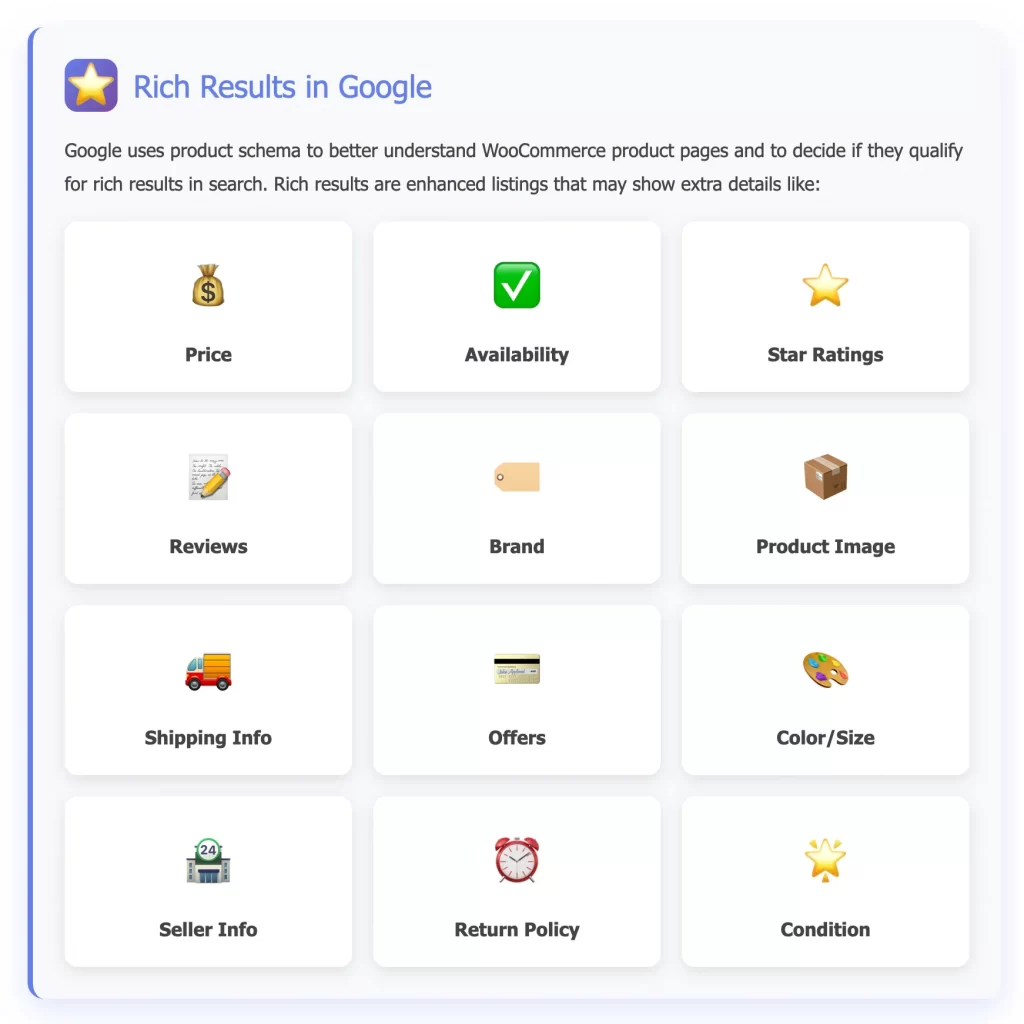
Product schema must always match what users see on the page. If the schema shows a product as in stock or reviewed, the same information must be visible to visitors. When there is a mismatch, Google may ignore the schema or mark it as invalid.
In simple terms, WooCommerce product schema helps platforms understand your products better, but it only works when the data is correct, complete, and honest.
Product Schema Requirements and Edge Cases in WooCommerce
For WooCommerce product schema to work properly, it must include the right information and reflect real product conditions accurately. Different platforms may use this data differently, but all of them rely on accuracy. When the product schema does not match the visible content on the page, platforms may ignore it or treat it as unreliable.
Core & recommended product schema properties
Some product schema properties are essential for any platform to understand a product page. Other properties are not required but strongly recommended because they provide clearer and more complete product information.
Core properties most search engine expect:
- Name which matches the product title on the page
- Image that represents the product clearly
- Offers including price, currency, and availability
Recommended properties that improve results:
- SKU to identify the product
- Brand when the product has a clear brand
- Aggregate rating if real customer reviews exist
- Review content that matches visible reviews on the page
All schema values must match what users see. If the page shows a different price, stock status, or review information than the schema, platforms may ignore the markup or flag it as inaccurate.
Product type considerations
WooCommerce supports different product types, and product schema should reflect them correctly:
- Simple products usually work without issues as long as price and availability are clear.
- Variable products must handle price ranges carefully. Google expects a valid offer, not confusing or conflicting values.
- Out of stock products should clearly show the correct availability status.
- Virtual and downloadable products can still use product schema if they are real products with a clear offer.
Handling these cases correctly helps ensure consistent understanding across search engines, marketplaces, and AI systems that read structured data.
Common issues that break rich results eligibility
Many WooCommerce stores add product schema, but still do not see enhanced displays on platforms like Google because of common setup mistakes.
The most frequent issues include:
- Incorrect price ranges on variable products
- Availability in schema that does not match the page
- Ratings or reviews added in schema but not shown to users
When these issues occur, platforms may ignore the product schema altogether. In the case of Google, this can also affect eligibility for rich results.
In recent years, Google has expanded beyond basic product rich results. For full Merchant Listing eligibility, product schema may need additional details such as shipping information and return policies. These signals help Google understand not only the product itself, but also the overall buying experience offered by the store.
How to Add Product Schema in WordPress WooCommerce
There are several ways to add product schema to WooCommerce. The best method depends on the size of your store and how much control you need.
Before choosing a method, it is important to understand a few basic rules:
- Product schema should only be added to real product pages. Category pages and shop pages should not use product schema.
- All values in the schema must match what users see on the page. This includes price, availability, and reviews.
- Variable products need extra care. The schema should reflect a valid offer and not create confusion with wide price ranges.
In 2026, many stores also include shipping and return information as part of their structured data. This can be added through schema plugins or inherited from Google Merchant Center settings. When both on site schema and Merchant Center data exist, Google gives precedence to Merchant Center for shipping and return policies.
Option 1: Use a WooCommerce SEO plugin
Using an SEO plugin is the most common way to add product schema in WooCommerce. Most SEO plugins already support WooCommerce and can generate product schema automatically using product data.
Here are some popular WooCommerce SEO plugins that support product schema:
| SEO plugin | Product schema support | WooCommerce integration | Level of control |
| Rank Math | Yes | Built in | Medium to high |
| Yoast SEO | Yes | Built in | Medium |
| All in One SEO | Yes | Built in | Medium |
| SEOPress | Yes | Built in | Medium |
All of these plugins pull product data directly from WooCommerce. This includes product name, price, availability, images, and reviews if they exist. For most stores, using one of these plugins is enough to create valid product schema.
In this tutorial, we will use Rank Math as an example. When Rank Math is installed and WooCommerce support is enabled, product schema is generated automatically for every product page.
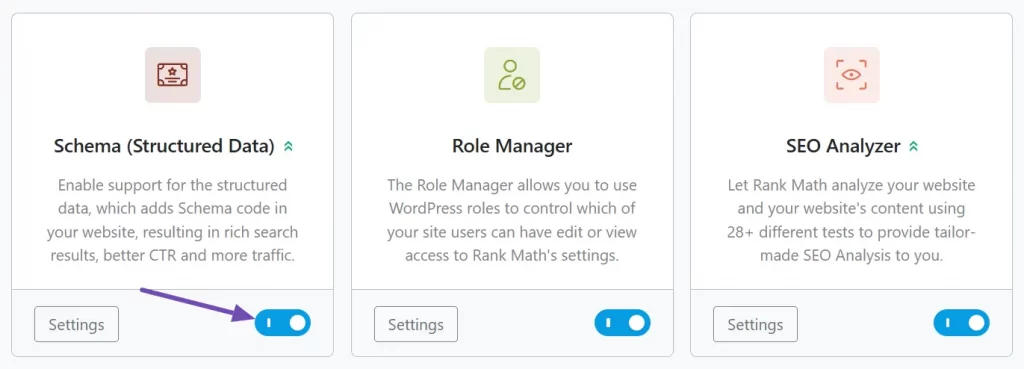
Here is how it works in practice:
Step 1: You create a product in WooCommerce. You set the product name, price, stock status, and product images.
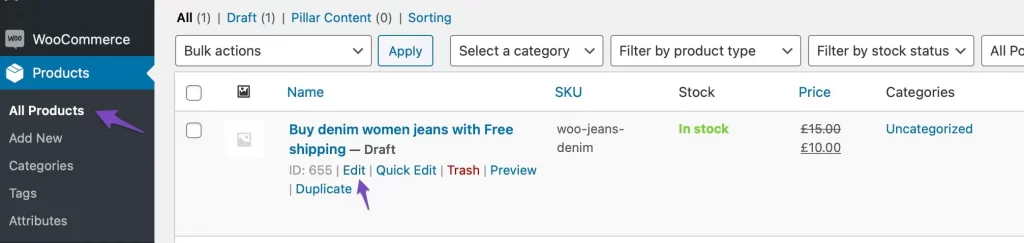
Step 2: Rank Math reads this data. The plugin pulls the same values that visitors see on the product page.
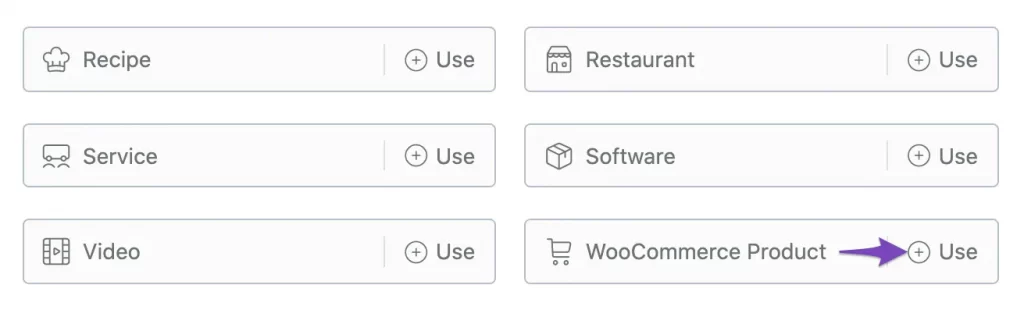
Step 3: Product schema is generated automatically. Rank Math outputs product schema that includes:
- Product name
- Product images
- Price and currency
- Availability status
- Ratings and reviews, if they are shown on the page
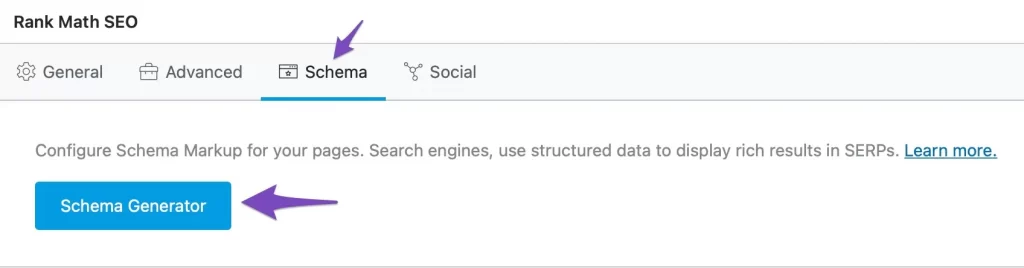
Step 4: Google reads the schema. Google uses this data to understand the product and check if it qualifies for rich results.
If you want better results, you should also:
- Add a brand name if the product has one
- Use real customer reviews
- Keep prices and stock status updated
Note: Only one plugin should generate product schema. If you install multiple SEO or schema plugins, duplicate schema can appear. This often causes Google to ignore the markup.
Also, you should always test product pages using Google Rich Results Test after setup. This helps confirm that the schema is valid and complete.
SEO plugins are best for small and medium WooCommerce stores because schema updates automatically when product data changes. If you need custom logic or advanced control, you may need a different approach.
Option 2: Use a dedicated schema plugin
A dedicated schema plugin gives you more control over structured data than most SEO plugins. This option is useful when default product schema is not enough or when you need to customize specific schema fields.
Dedicated schema plugins focus only on structured data. They allow you to edit product schema properties directly instead of relying only on WooCommerce defaults. And here are some popular schema plugins for WooCommerce:
| Schema plugin | WooCommerce product support | Custom schema control | Best use case |
| Schema Pro | Yes | High | Advanced control without coding |
| Structured Data for WP | Yes | Medium | Lightweight schema needs |
These plugins allow you to control fields such as brand, SKU, offer details, and review markup more precisely.
We will take Schema Pro as an example here. Once installed, you can assign product schema rules to WooCommerce product pages.
A typical setup looks like this:
Step 1: Create a schema rule for product. You select Product as the schema type and apply it to all WooCommerce product pages.

Step 2: Map schema fields to product data. You connect fields like price, availability, SKU, and brand to WooCommerce product values.
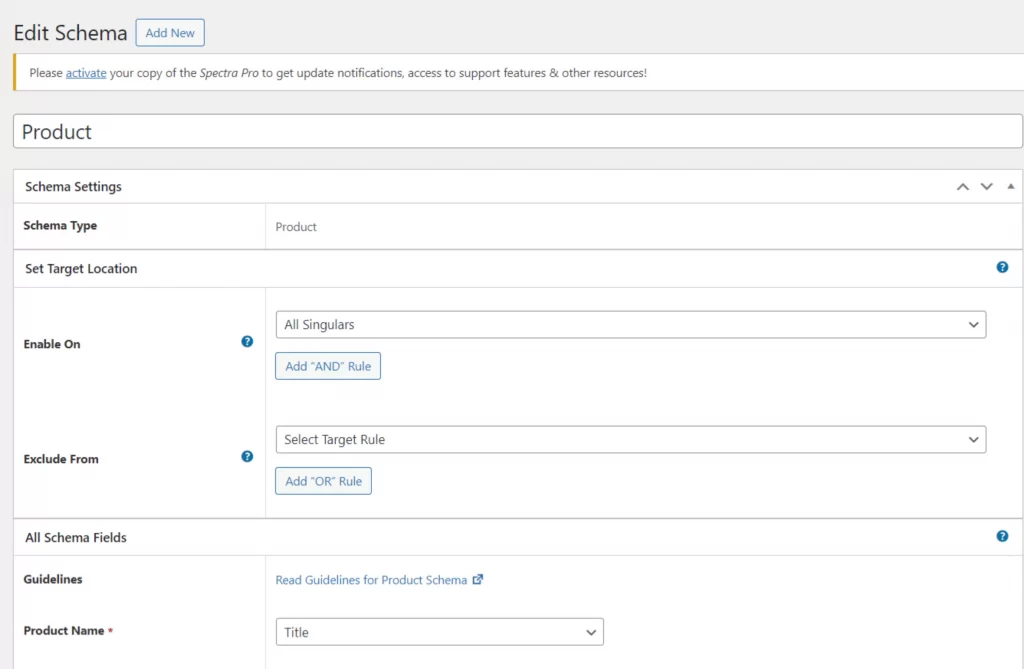
Step 3: Review schema output. The plugin generates product schema based on your mappings.
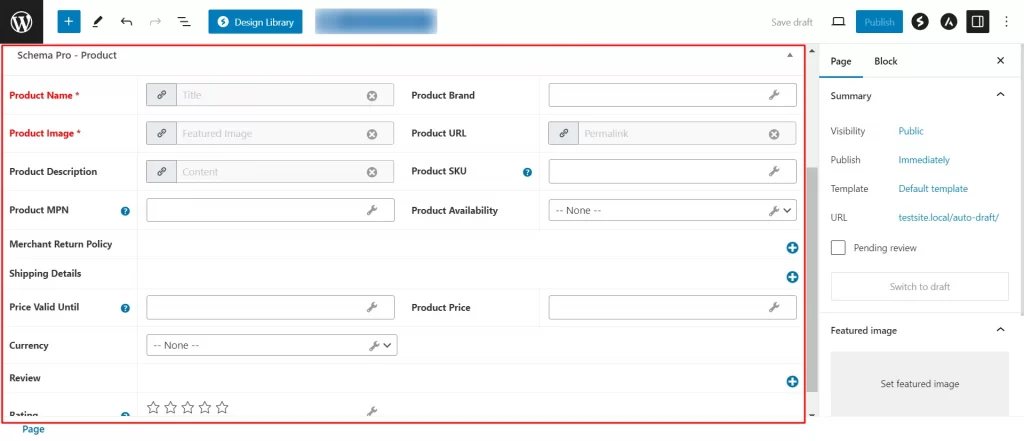
Step 4: Test the result. You check a product page using Google Rich Results Test to confirm that the schema is valid.
This approach is useful when:
- You want to control how price ranges are handled
- You need to map custom product fields
- You want more visibility into schema output
Note: Dedicated schema plugins can cause duplicate product schema if an SEO plugin is also active. In this case, you must disable product schema in one of the plugins.
Another risk is adding schema that does not match visible content. For example, adding ratings in schema when no reviews are shown on the page. This can cause Google to ignore the schema.
Dedicated schema plugins are best for stores that need more control but still want a visual interface instead of manual coding.
Option 3: Add product schema manually using JSON LD
Adding product schema manually gives full control over structured data. This option is best for advanced users or developers who need custom logic that plugins cannot handle.
With this method, product schema is written directly in JSON LD and added to the product page. Google recommends JSON LD because it is easy to read and does not affect how the page looks to users.
Manual schema is useful when:
- The store uses custom product logic that plugins cannot read
- Product data comes from external systems
- You need precise control over how offers or availability are handled
For most small and medium stores, this approach is not necessary.
The following example shows a modern product schema setup that includes shipping and return details for Merchant Listings. Most WooCommerce stores do not need to add this manually if they use updated plugins or connect their store to Google Merchant Center.
<script type="application/ld+json">

{

  "@context": "https://schema.org/",

  "@type": "Product",

  "name": "Organic Cotton Hoodie",

  "image": [

    "https://example.com/photos/1x1/photo.jpg",

    "https://example.com/photos/4x3/photo.jpg"

  ],

  "description": "A premium, eco-friendly hoodie made from 100% organic cotton.",

  "sku": "HOODIE-ORG-001",

  "brand": {

    "@type": "Brand",

    "name": "EcoWear"

  },

  "offers": {

    "@type": "Offer",

    "url": "https://example.com/product/organic-hoodie",

    "priceCurrency": "USD",

    "price": "59.99",

    "priceValidUntil": "2026-12-31",

    "availability": "https://schema.org/InStock",

    "itemCondition": "https://schema.org/NewCondition",

    "hasMerchantReturnPolicy": {

      "@type": "MerchantReturnPolicy",

      "applicableCountry": "US",

      "returnPolicyCategory": "https://schema.org/MerchantReturnFiniteReturnWindow",

      "merchantReturnDays": 30,

      "returnMethod": "https://schema.org/ReturnByMail",

      "returnFees": "https://schema.org/FreeReturn"

    },

    "shippingDetails": {

      "@type": "OfferShippingDetails",

      "shippingRate": {

        "@type": "MonetaryAmount",

        "value": "0",

        "currency": "USD"

      },

      "shippingDestination": {

        "@type": "DefinedRegion",

        "addressCountry": "US"

      },

      "deliveryTime": {

        "@type": "ShippingDeliveryTime",

        "handlingTime": {

          "@type": "QuantitativeValue",

          "minValue": 0,

          "maxValue": 1,

          "unitCode": "DAY"

        },

        "transitTime": {

          "@type": "QuantitativeValue",

          "minValue": 2,

          "maxValue": 5,

          "unitCode": "DAY"

        }

      }

    }

  }

}

</script>
This schema tells Google what the product is, how much it costs, and if it is available.
Note: Every change to price, stock, or product details must be updated in the schema. If the schema shows outdated information, Google may ignore it.
Manual schema requires regular testing using Google Rich Results Test. Errors are easier to create and harder to notice without testing.
For large WooCommerce stores with many products, manual schema can become difficult to maintain. In most cases, plugins are a safer and more efficient option.
Common WooCommerce Product Schema Errors and Fixes
Many product schema issues in WooCommerce come from how plugins, themes, and product data interact. These errors often go unnoticed until Google ignores the schema or reports problems in Search Console.
1. Duplicate product schema from multiple plugins
Duplicate product schema is one of the most frequent problems. It usually occurs when both an SEO plugin and a schema plugin generate Product schema on the same product page. When Google detects duplicate markup, it may ignore all product schema on that page.
To fix this, you should choose one plugin to handle product schema and disable product schema output in the others. After making changes, test the product page again to confirm the issue is resolved.
2. Product schema applied to category or shop pages
Another common issue is product schema appearing on category pages or shop pages. These pages list multiple products and should not use Product schema. This problem often happens when schema rules are applied too broadly inside a plugin. The fix is to review schema settings and limit Product schema only to individual product pages.
3. Price or availability does not match the page
Price and availability mismatches are also common in WooCommerce stores. This can happen when prices change, stock updates, or caching is involved. If the schema shows different values than the product page, Google may ignore the markup.
The best solution is to ensure schema pulls live data directly from WooCommerce and to clear cache after any product updates. Pages should always be tested again after changes.
4. Invalid review or rating markup
Invalid review or rating markup can also break product schema. You should reviews included in schema must be real and visible to users on the page. If ratings appear only in the schema and not on the page, Google may flag the markup. To fix this, either enable visible customer reviews or remove review schema entirely.
5. Schema breaks after theme or plugin updates
Finally, the product schema can break after theme or plugin updates. Some WooCommerce themes add their own structured data, which can conflict with plugins. After any major update, product pages should be tested again. If conflicts are found, you can disable duplicate schema sources and revalidate the page.
FAQs About Schema Markup for WooCommerce Products
Is product schema required for WooCommerce stores?
Product schema is not required, but it is strongly recommended. Without schema, platforms must guess product details from page content. With schema, product information is clearer and more consistent.
Does WooCommerce add product schema automatically?
WooCommerce adds very basic structured data by default, but it is usually limited and not optimized for rich results. In most cases, store owners need an SEO plugin, a schema plugin, or manual JSON-LD to provide a complete and reliable product schema.
How to use product schema for Woocommerce products?
Product schema is used by adding structured data that matches your WooCommerce product details, such as name, price, and availability. Most stores use an SEO or schema plugin to generate this automatically, while advanced setups may use manual JSON-LD. Product schema should only be used on product pages and must match visible content.
Why does my WooCommerce product have a valid schema but no rich results?
A valid schema only makes a product eligible for rich results. It does not guarantee them. Platforms like Google decide when to show rich results based on data accuracy, consistency, trust signals, and other factors such as site quality and competition. Even a correct schema can be ignored if the product data is incomplete or inconsistent.
What happens if multiple WooCommerce plugins output product schema on the same page?
When multiple plugins generate product schema on the same page, duplicate or conflicting data can appear. This often causes platforms to ignore the schema completely. To avoid this, only one plugin or method should be responsible for product schema output.
Can variable products use product schema in WooCommerce?
Yes, variable products can use product schema, but they require careful handling. The schema should represent a valid offer and match what users see on the page. Incorrect price ranges or availability values are common reasons variable products fail to qualify for rich results.
Conclusion
WooCommerce product schema helps platforms understand your product pages by providing clear and consistent product data. When implemented correctly, it improves how products are interpreted and increases eligibility for enhanced search displays.
Accuracy is critical. Product schema must match visible product information, reflect real stock and pricing, and stay updated as product data changes.
For most WooCommerce stores, a single well configured plugin is enough. More complex setups may use dedicated schema plugins or manual JSON LD, but these approaches require careful testing and ongoing maintenance.
And now, let’s build what’s next!
At LitOS, we help brands grow smarter on WooCommerce with better technology, practical strategy, and hands-on support that delivers real results. From migration to long-term growth, we make the process seamless and scalable.
CONTACT US
