
13 Ways to Optimize WooCommerce Speed: Practical Guide to a Faster Store (2025)
WooCommerce speed optimization helps your store load faster, improve conversions, and create a smoother shopping experience for every visitor. A fast store also supports stronger SEO performance and reduces drop-offs on key pages such as product, cart, and checkout.
In this guide, we’ll show practical methods that help you approach WooCommerce page speed optimization with clarity and confidence. Below are the 13 most effective ways to optimize WooCommerce speed:
- Remove heavy or unused plugins
- Compress and resize large images
- Enable page caching and browser caching
- Reduce cart fragments (AJAX requests)
- Disable WooCommerce features you don’t need
- Choose hosting optimized for WooCommerce
- Use lightweight, fast-loading themes
- Use caching properly (page, object, browser)
- Optimize media and static assets (CSS/JS, images, CDN)
- Optimize the WooCommerce database
- Manage plugins and extensions smartly
- Improve product, cart, and checkout performance
- Update PHP and server settings
These methods give you a clear path to a faster WooCommerce store, whether you are improving performance for a small catalog or scaling to thousands of products.
Why WooCommerce Speed Matters
A fast WooCommerce store gives customers a smooth shopping experience and reduces the chance of abandoned visits. Shoppers expect pages to load quickly, especially on mobile, so any delay affects how they browse products and move to checkout. A slow store increases bounce rates and lowers trust, even when the design looks polished.
Speed also supports search visibility. Google rewards websites that load fast and meet Core Web Vitals standards. Faster pages help your product and category pages move up in search results and bring in more organic traffic. When your store responds quickly, every action from viewing images to completing payments feels simple for customers.
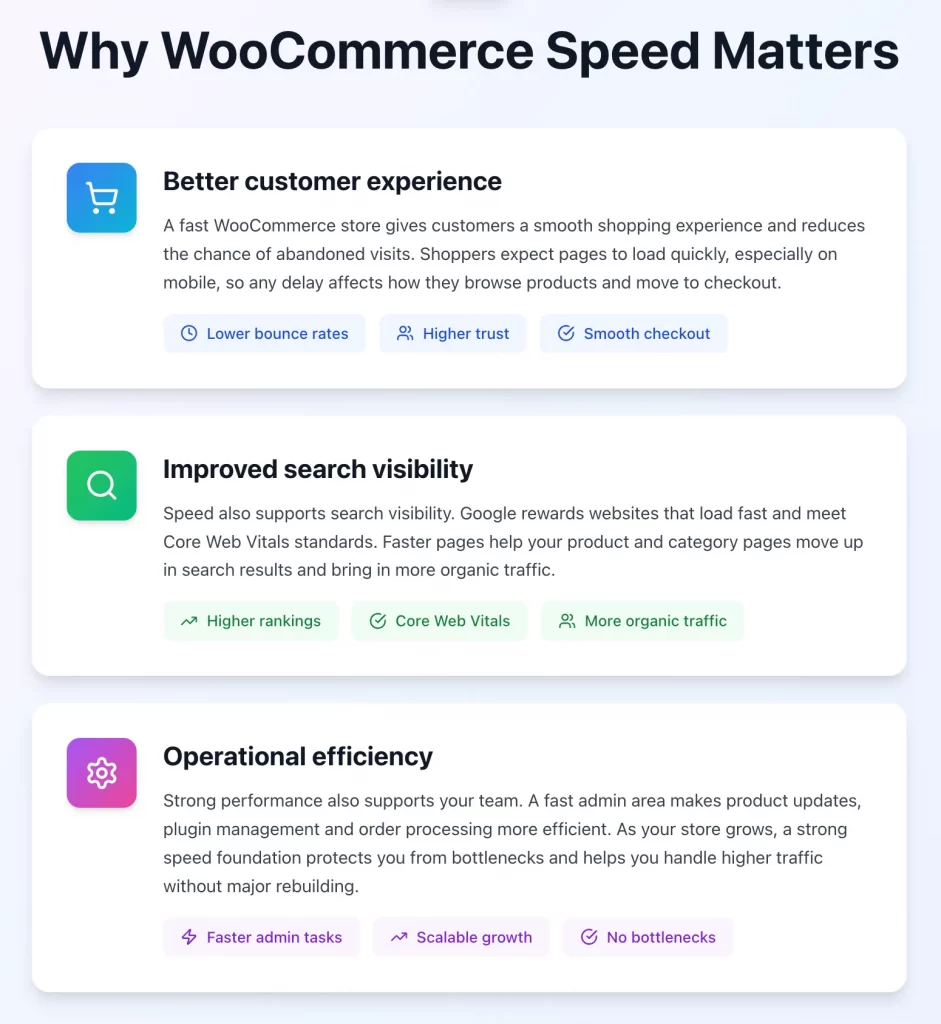
Strong performance also supports your team. A fast admin area makes product updates, plugin management and order processing more efficient. As your store grows, a strong speed foundation protects you from bottlenecks and helps you handle higher traffic without major rebuilding.
How to Test Your WooCommerce Store Speed
Testing your WooCommerce speed gives you a clear view of how your store performs for real visitors. You can spot slow pages, heavy scripts and server delays before they impact your customers. A simple test helps you decide what to fix first and how much improvement each change may bring.
Before you start WooCommerce speed optimization, come with tools that measure real loading behavior:
- PageSpeed Insights shows Core Web Vitals and highlights elements that slow down product, category and checkout pages.
- GTmetrix provides a full waterfall report so you can see how each file loads.
- WebPageTest gives advanced insights and shows how your store performs across different devices and network conditions.
You should focus on the Core Web Vitals that impact ranking and user experience:
- LCP (Largest Contentful Paint): Measures loading performance. Aim for 2.5 seconds or faster.
- INP (Interaction to Next Paint): This 2025 standard has replaced FID. Unlike the old metric, INP measures the responsiveness of every click, tap, and keyboard interaction throughout the user’s entire visit. A good INP score is under 200 milliseconds. Poor INP in WooCommerce is often caused by heavy JavaScript execution from complex menus, variation swatches, or unoptimized “Add to Cart” scripts.
- CLS (Cumulative Layout Shift): Measures visual stability. Ensure elements don’t jump around as the page loads.
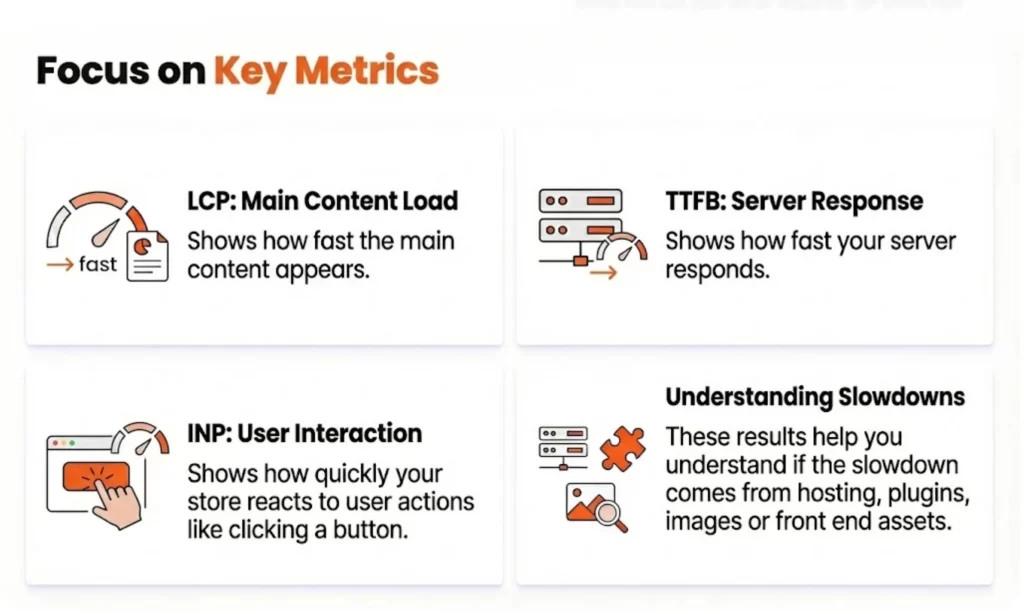
A quick look at your own setup also helps. Too many plugins, large images and unoptimized themes often slow down key pages. Slow server response times may indicate limited resources or outdated PHP versions. These early checks guide your next steps and help you focus on improvements that create visible results.
How to Quickly Boost WooCommerce Speed
You can improve WooCommerce speed by fixing a few areas that usually slow down product, category and checkout pages. These steps are simple to apply and often create visible gains right away.
1. Remove heavy or unused plugins
A fast store starts with a clean plugin list. You can open the Plugins page and review tools that you no longer rely on.
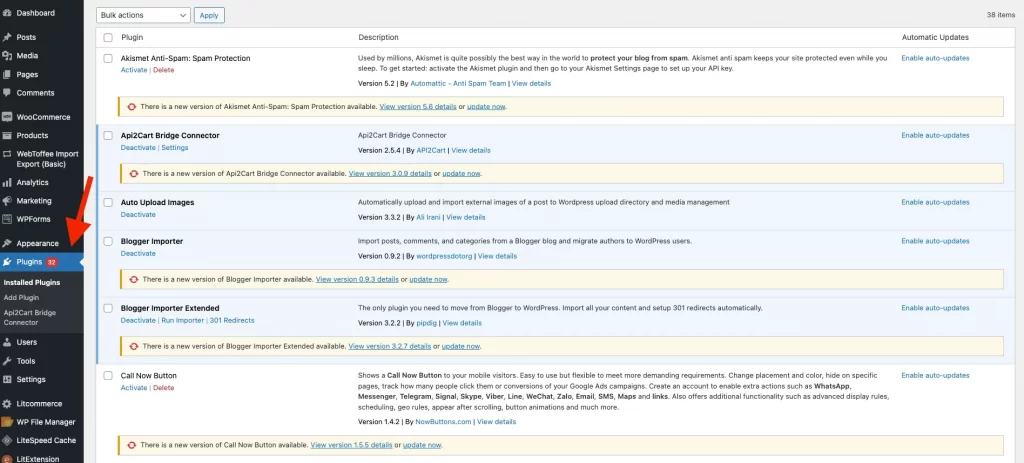
Every plugin you deactivate reduces background scripts and database queries, which helps your pages load faster.
2. Compress and resize large images
Large images place heavy pressure on bandwidth, and smaller optimized files help speed up WooCommerce on product and category pages. You can set a maximum resolution for product photos or use a compression plugin to handle WooCommerce speed optimization automatically. This approach keeps images clear while cutting loading time on key pages.
Upgrade to Next-Gen Formats (AVIF) While WebP has been the standard for years, AVIF (AV1 Image File Format) is now the superior choice for WooCommerce stores in 2025. AVIF files are typically 50% smaller than JPEGs and 20–30% smaller than WebP while maintaining better detail and color depth.
Most modern optimization plugins now support automatic conversion to AVIF. Use a “content negotiation” strategy: serve AVIF to modern browsers that support it, fall back to WebP for others, and keep JPEG as a final backup.
3. Enable page caching and browser caching
Caching supports stronger WooCommerce page speed optimization because it reduces the time your server needs to deliver each page. You can activate a caching plugin to store prebuilt pages and reduce repeated processing. Browser caching also helps by saving static files on the visitor’s device, so returning users load pages more quickly.
4. Reduce cart fragments (AJAX requests)
Cart fragments often slow down sites that use modern themes. You can disable or limit these AJAX calls so the cart icon stops triggering constant background requests. Once you reduce these calls, pages load more smoothly and the server handles less work on busy traffic days.
5. Disable WooCommerce features you do not need
Some WooCommerce features run automatically even when you do not use them. You can turn off features such as reviews, related products or certain widgets to cut down on extra queries. This adjustment reduces work on product and category pages and leads to quicker responses.
How to Optimize Your Setup (Hosting, Themes, Plugins)
Your hosting, theme and core configuration shape the overall speed of your WooCommerce store. When these elements work well together, your pages respond quickly, your server stays stable and your customers enjoy a smoother shopping flow.
6. Choose hosting optimized for WooCommerce
A strong hosting environment gives your store clear speed advantages and helps you speed up WooCommerce at the server level.
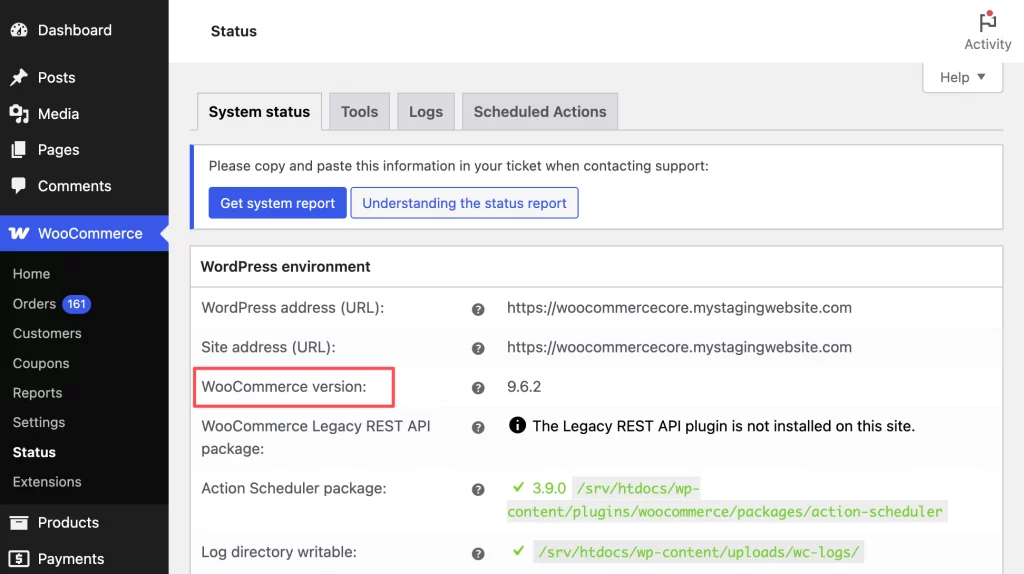
You can select a provider that supports the latest PHP versions, offers enough RAM and includes built in server caching. Once you move to a WooCommerce focused plan, slow server responses and TTFB issues often drop significantly.
7. Use lightweight, fast loading themes
Themes influence how much code your pages must load. You can switch to a theme that focuses on performance and avoids heavy page builders. A clean theme reduces CSS and JavaScript files, which supports WooCommerce page speed optimization on product and category pages.
8. Use caching properly across your setup
Caching works best when you apply it in layers. You can enable page caching for static parts of your site, Standard “Page Caching” stores static HTML, but it cannot be used on dynamic pages like the Cart, Checkout, or My Account areas. This is where Persistent Object Caching (using Redis or Memcached) becomes essential.
Object caching stores the results of complex database queries, such as retrieving cart contents or product variations in the server’s memory (RAM). This allows dynamic pages to load instantly without querying the database repeatedly. Ask your hosting provider if Redis is enabled on your plan. This combination lowers server load and helps your store stay fast as traffic increases.
9. Optimize media and static assets such as CSS, JavaScript, and images
Static files often create large delays when they are not optimized. You can minify CSS and JavaScript, move non-essential scripts to the footer, and load images in modern formats. A CDN can also help by serving these files from a nearby location, which reduces waiting times for customers in different regions.
How to Improve WooCommerce Performance Specifically
WooCommerce adds its own layers of scripts, queries and dynamic content. These elements help your store function, but they also increase processing time when they are not set up efficiently. The steps below target WooCommerce features directly and help your store respond faster under real shopping behavior.
10. Optimize the WooCommerce database
Your database grows steadily as orders, customers and product data increase. You can improve performance by cleaning expired transients, removing old revisions and enabling High Performance Order Storage (HPOS):
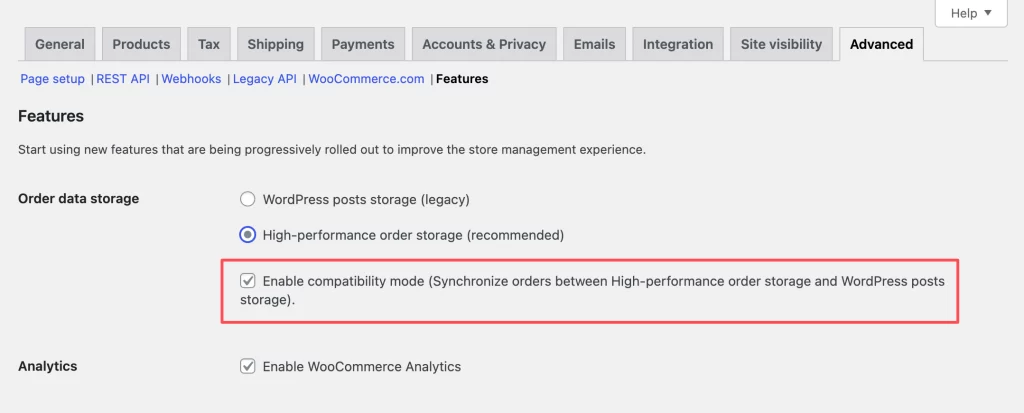
- Enable High-Performance Order Storage (HPOS) Formerly known as Custom Order Tables, HPOS is the new standard database architecture for WooCommerce. Traditionally, WooCommerce stored order data in the generic WordPress
wp_postsandwp_postmetatables. This meant every order created dozens of separate database rows, slowing down queries as your store grew. - HPOS moves order data into dedicated, optimized tables (like
wp_wc_orders). This structure allows for up to 5x faster order creation and 40x faster order lookups. It significantly reduces database bloat and ensures your checkout remains fast even during high-traffic sales events. - To enable it, go to WooCommerce > Settings > Advanced > Features. You can start in “Compatibility Mode,” which synchronizes data between old and new tables to ensure your plugins are ready before making the full switch.
Clean Up Autoloaded Data:
- A hidden killer of WooCommerce speed is “autoloaded data” in your
wp_optionstable. This is data that plugins instruct WordPress to load into memory on every single page load, regardless of whether it is needed. - If you have uninstalled old plugins, they often leave this data behind. If your total autoloaded data exceeds 1MB, it will noticeably drag down your Time to First Byte (TTFB). You can use a database cleaner plugin or a SQL query to identify and remove these orphaned rows.
InnoDB also helps your site handle more write operations without slowing down.
11. Manage plugins and extensions smartly
Extensions add useful features but they also load scripts on key pages, so a light speed optimization plugin for WooCommerce helps keep requests under control.
You can keep your plugin list lean by removing tools you do not use and replacing heavy extensions with lighter options. This approach cuts the number of queries WooCommerce processes on each request.
12. Improve product, cart, and checkout performance
These pages hold the most customer intent and speed matters the most here. You can simplify the checkout form, reduce complex product queries and review how your theme handles dynamic elements. A smoother cart and checkout page increases conversions and lowers abandonment.
The fastest checkout is one that requires no typing. Enable Express Checkout options like Apple Pay and Google Pay (via Stripe or WooCommerce Payments). This allows customers to bypass the traditional checkout form entirely, pulling their address and payment info directly from their device.
For standard checkout, rendering too many form fields can degrade your INP score on mobile devices. Use a checkout editor plugin to remove non-essential fields like “Company Name,” “Address Line 2,” and “Phone Number” (if not required for shipping). Fewer fields mean less browser rendering work and a faster path to payment.
Related post: How to Customize WooCommerce Checkout Page.
13. Update PHP and server settings
Modern PHP versions offer faster execution and better memory handling, which helps you speed up WooCommerce at the core processing level. You can switch to the latest stable version and adjust server limits to give WooCommerce enough resources.
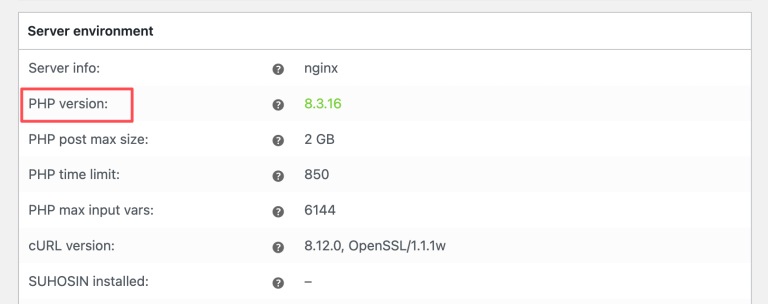
Once you update PHP, many stores report a clear improvement in response time. These WooCommerce speed optimizations focus on the core of WooCommerce and help your store deliver faster results across product views, cart activity and checkout actions.
Tips to Keep Your WooCommerce Store Running Fast
A few simple habits help your store stay fast as your catalog grows and visitor traffic increases. These tips give you quick checks that prevent hidden slowdowns and keep your pages responsive.
Tip 1. Reduce high TTFB by checking server load and slow queries
High TTFB often signals that the server is struggling. You can inspect resource usage, review the slow query log and track plugins that create heavy requests. Once the main bottleneck becomes clear, response times usually improve quickly.
Tip 2. Keep checkout and cart pages clean and distraction free
Checkout speed improves when the page carries only essential elements. Popups, chat widgets, large banners and extra tracking scripts often create delays. A more focused layout helps customers complete payments without interruptions and reduces loading time.
Tip 3. Improve product search and filters for large catalogs
Large catalogs place extra pressure on product queries, so small WooCommerce speed performance tips help you manage the load before it grows into a serious issue.
You can test how your filters behave, check the number of queries per request and adjust plugin settings that load unnecessary data. A more efficient search process helps visitors move across categories with less friction.
Tip 4. Limit third-party scripts that block rendering
Some external tools load before your content appears. You can move these scripts to the footer, set them to load on demand, or replace heavy tools with faster versions. Once blocking scripts are reduced, your layout becomes visible sooner on every device.
You can expect smoother browsing and quicker page responses after adding these checks to your routine.
WooCommerce Speed Optimization: FAQs
Why is my WooCommerce so slow?
A slow store often comes from heavy plugins, large images, slow hosting or unoptimized themes. You can test your site with a speed tool and check which part of your setup creates the delay. Most issues improve once you fix server response time, large files and unnecessary scripts, since these changes support stronger WooCommerce site speed optimization.
How do multilingual plugins impact WooCommerce performance at scale?
Multilingual plugins load extra queries and duplicate content structures, which creates more work for your database. A store with many translated products usually needs stronger hosting and careful optimization of search and filtering. You can reduce the impact by disabling unused modules inside the translation plugin.
How do third party analytics scripts silently slow WooCommerce checkout pages?
Analytics tools often load tracking files before the page finishes rendering. These files block content and add delay to the checkout flow. You can move tracking scripts to the footer or load them only after the customer interacts with the page to reduce blocking time.
Can WooCommerce performance degrade due to poor image naming conventions or metadata?
Poor naming or missing metadata does not slow down the server directly, but it can create confusion for systems that generate thumbnails or search indexes. Large or unoptimized images cause much bigger delays. You can keep file names clean and consistent to support better organization and smoother processing.
What performance mistakes do WooCommerce store owners make when scaling from 100 to 1,000 products?
Many stores slow down during growth because the database receives too many queries. Heavy filters, complex product attributes and old transients also add strain. You can avoid these problems by cleaning the database, improving hosting and reviewing plugins that run product queries on every page.
Key Takeaways
WooCommerce speed optimization helps your store load faster and gives customers a smoother shopping flow. Fast pages support stronger search visibility and improve the chances of completing a purchase.
You can raise speed by improving hosting, selecting a light theme and managing plugins carefully. Each method in this guide upgrades a different part of your setup and supports consistent performance as your store grows.
Ready to improve your WooCommerce performance?
LitOS supports brands that want a faster, cleaner, and more stable WooCommerce store. Our team helps you refine your setup, improve design, and apply the right technical changes for long-term speed gains. Your store can run smoothly with the right plan and the right guidance.
Contact Us
