
WooCommerce Product Tags: Complete Guide for Beginners & Store Owners (2025)
WooCommerce product tags are a simple feature, but they are often misunderstood or misused. Many store owners add tags without a clear strategy, while others avoid them entirely because they are unsure how tags affect store navigation or SEO.
In this guide, you’ll learn:
- What product tags are in WooCommerce
- How to add WooCommerce tags to products
- How to manage and organize tags in WooCommerce properly
We’ll also explain how tags differ from categories and attributes, and how to apply them in a way that improves product discovery without creating clutter or SEO issues.
This article is written for beginners and store owners who want clear explanations, practical examples, and safe best practices, not vague definitions.
What Are Product Tags in WooCommerce & How Do They Work?
Product tags in WooCommerce are descriptive labels that can be assigned to one or more products. They help group products that share similar characteristics and make it easier for customers to find related items across your store.
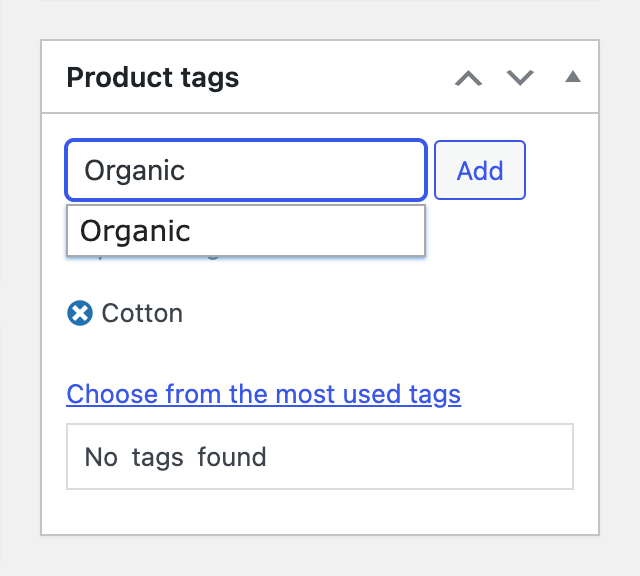
Unlike product categories, tags do not have a hierarchy. There are no parent or child tags, which makes them ideal for linking products that belong to different categories but share a common feature.
To understand where tags fit best, it helps to compare them briefly with WooCommerce categories and WooCommerce attributes.
| Feature | Categories | Tags | Attributes |
| Primary purpose | Define store structure | Add descriptive labels | Define product specifications |
| Hierarchy | Yes (parent / child) | No | No |
| Typical use | Main product grouping | Cross-category linking | Variations and filters |
| Example | “Electronics” | “Wireless” | “Color: Black” |
For example, you might use product tags such as “eco-friendly,” “summer,” “wireless,” or “handmade” to connect products that share a theme or feature, even if they belong to different categories.
When you assign a tag to a product, WooCommerce creates a tag archive page that lists all products using that tag. Depending on your theme and settings, tags may also appear:
- On individual product pages
- As clickable links for browsing related products
- Inside filtering or faceted search tools
From a user perspective, product tags help shoppers discover related items quickly. From a store management perspective, tags offer a lightweight way to organize products without changing your main category structure.
How to Add WooCommerce Product Tags
WooCommerce provides several ways to add and edit product tags, depending on whether you are working with individual products, managing tags centrally, or updating products in bulk.
Below are the most common and reliable methods.
Method 1: Add tags from the product edit screen
Adding tags from the product edit screen is the most beginner friendly method. It works well when creating new products or updating a small number of items.
To add tags using this method:
- Go to Products → All Products in your WordPress dashboard.
- Click Edit on the product you want to update.
- Locate the Product tags box in the right sidebar.
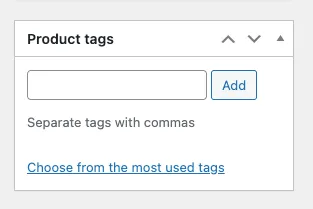
- Type a tag name and click Add or press Enter.
- Click Update or Publish to save changes.
You can assign multiple tags to a product by entering them one at a time or separating them with commas. As you type, WooCommerce will suggest existing tags, which helps prevent duplicates and keeps your tag structure consistent.
This method is ideal when you manage a small or medium-sized catalog, want precise control over tags on individual products, or review products one by one for accuracy.
Because tags added here immediately affect the product’s tag archive and navigation links, it’s a good practice to use clear, descriptive tag names rather than long phrases or keyword-stuffed terms.
Method 2: Add bulk tags from Products → Tags
This method allows you to create and manage product tags centrally before assigning them to products. It’s useful when you want consistent naming or plan your tag structure in advance.
To add tags this way:
- Go to Products → Tags in your WordPress dashboard.
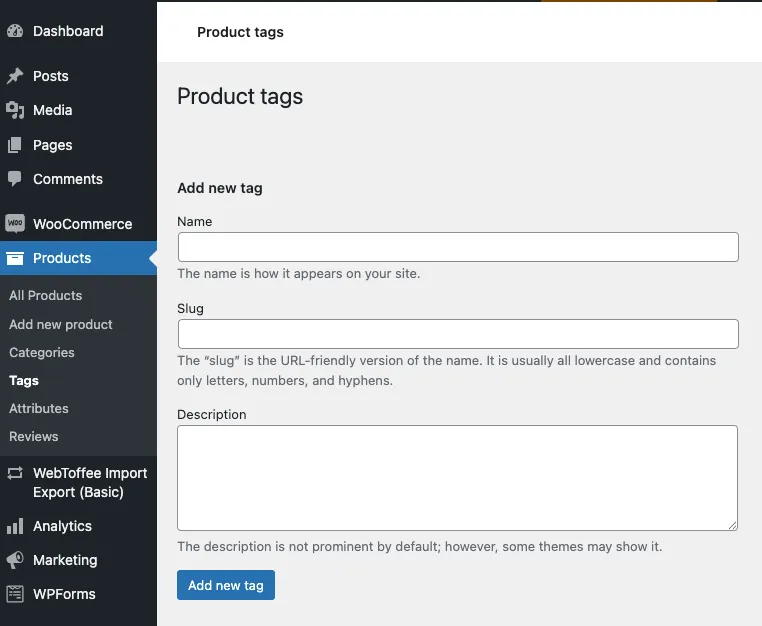
- Enter a Name, Slug, and an optional Description.
- Click Add New Tag.
Once created, these tags become available for selection on product edit pages and during bulk updates.
This approach works well when you want to standardize tags across many products or avoid creating similar tags with slightly different names.
Method 3: Add multiple tags using Quick Edit
Quick Edit lets you add or update product tags without opening the full product editor, which saves time when making small changes.
To use Quick Edit:
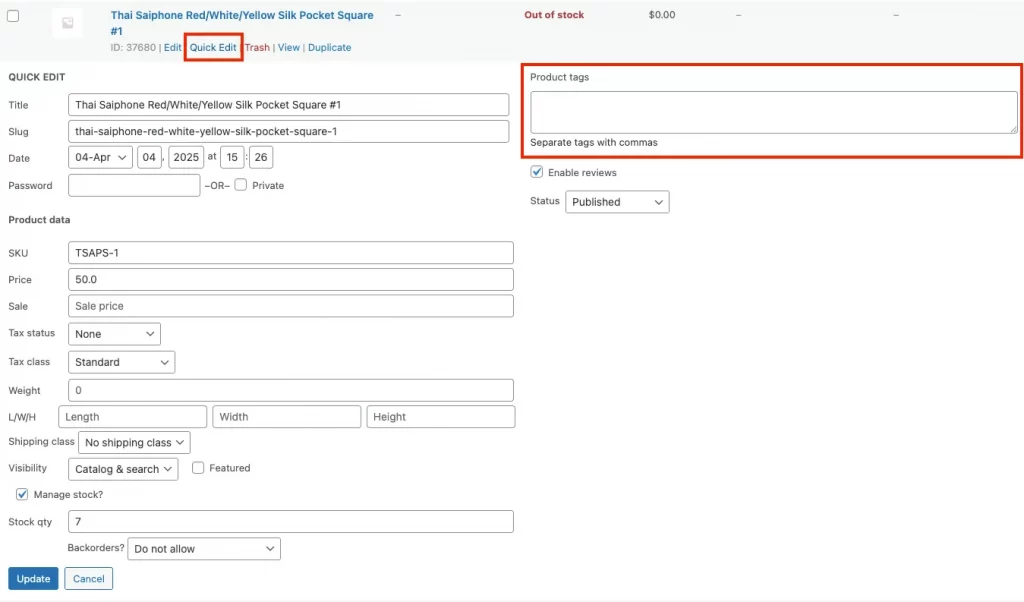
This method is best for fast updates across individual products but offers less control than the full product edit screen.
Method 4: Add tags during CSV import
When importing products in bulk, WooCommerce allows you to add product tags directly through a CSV file.
To do this:
- Prepare a CSV file with a column named Tags.
- Enter tag names separated by commas for each product.
- Go to Products → Import and upload the CSV file.
- Map the Tags column during the import process.
WooCommerce will automatically create new tags if they don’t already exist, making this method ideal for large catalogs or store migrations.
(Optional) Method 5: Add tags using code (for developers)
For advanced setups, product tags can be assigned programmatically using WordPress or WooCommerce functions. This approach is typically used when syncing products from external systems, applying tags automatically based on rules, or integrating with custom workflows.
This method is not required for most store owners and should only be used if you are comfortable working with code or have developer support.
How to Manage and Organize Product Tags Properly
As your product catalog grows, managing product tags becomes just as important as adding them. A well-organized tag system keeps your store easy to navigate, prevents duplicate or unused tags, and avoids SEO issues caused by cluttered tag archives.
The following practices help you maintain a clean and effective tag structure in WooCommerce.
Edit, rename, or delete tags
WooCommerce allows you to edit or remove tags at any time.
To manage existing tags:
- Go to Products → Tags.
- Click Edit under the tag you want to change.
- Update the tag name, slug, or description, or delete the tag if it’s no longer needed.
Renaming a tag updates it across all products using that tag, which makes cleanup easier than removing and re-adding tags individually.
Merge duplicate tags
Duplicate tags often appear when similar names are used, such as “eco friendly” and “eco-friendly.” While WooCommerce does not provide a one-click merge option, you can consolidate duplicates manually.
A simple approach is to:
- Assign the preferred tag to all relevant products
- Remove the duplicate tag once it is no longer in use
This helps keep your tag archive pages clean and avoids splitting products across multiple similar tags.
Tag hierarchy (clarification that tags do not have hierarchy)
Unlike categories, WooCommerce product tags do not support parent–child relationships. All tags exist on the same level and are treated equally by the system.
This design is intentional and allows tags to stay flexible. If you need structured grouping, categories or attributes are the better choice.
Tag count (how many tags per product is OK)
Using too many tags on a single product can reduce clarity and create unnecessary archive pages. In most cases, a small number of relevant tags works best.
As a general guideline:
- Use tags only when they add meaningful context
- Avoid adding tags that repeat category names
- Keep tag names short and descriptive
A focused tag set is easier to manage and more helpful for both users and search engines.
Export/import WooCommerce product tags (SEO considerations)
When exporting or importing products in WooCommerce, product tags are usually handled through CSV files or migration tools. While this process is convenient, it requires attention to avoid SEO and taxonomy issues.
During imports, WooCommerce will automatically create new tags if the tag names do not already exist. This can lead to duplicate or slightly varied tags (for example, “eco-friendly” vs “eco friendly”) if naming is inconsistent.
To reduce problems:
- Review and standardize tag names before importing
- Avoid importing unnecessary or one-off tags
- Check tag slugs after import to ensure consistency
- Clean up unused or duplicate tags once the import is complete
From an SEO perspective, importing too many low-value tags can create thin tag archive pages. If tags are not actively used for navigation or discovery, consider noindexing tag archives or removing unused tags entirely.
Common Mistakes When Using WooCommerce Product Tags
Product tags are easy to add, but they are also easy to misuse. Many stores run into organization or SEO issues not because tags are bad, but because they are applied without a clear structure or purpose.
Below are some of the most common mistakes to avoid when using product tags in WooCommerce.
Tag stuffing
Adding too many tags to a single product weakens their purpose and creates unnecessary tag archive pages. This mistake usually happens when tags are treated like SEO keywords instead of descriptive labels.
From an SEO perspective, tag stuffing can lead to thin-content archives that add little value for users and search engines. A better approach is to use a small number of tags that clearly describe meaningful features or use cases customers actually look for.
Creating dozens of similar tags
Using multiple variations of the same idea, such as “eco friendly,” “eco-friendly,” and “environment friendly,” fragments your product listings across different tag pages.
This duplication splits internal linking signals and reduces the usefulness of tag-based navigation. Standardizing tag names and slugs helps consolidate products under a single archive and improves both crawl efficiency and user experience.
Duplicating categories with tags
Tags should not repeat category names. If a product is already in the “Shoes” category, adding a “Shoes” tag adds no value and can confuse both users and search engines.
Categories define structure, while tags add context.
Using long or confusing tag names
Tags work best when they are short and easy to understand. Long phrases or unclear wording reduce their usefulness and make tag pages harder to scan.
Aim for concise, descriptive tags that reflect how customers naturally think about products.
Leaving unused tag archives indexed
Over time, some tags may end up assigned to only one product or no products at all. When these tag archive pages remain indexed, they can create thin or low-value pages that weaken overall site quality.
Regularly auditing your tag list and either removing unused tags or noindexing low-value tag archives helps prevent SEO issues and keeps your store taxonomy clean.
Smart WooCommerce Tagging Strategies for Better Store Navigation
When used intentionally, product tags can do more than label products. They can guide customers through your catalog, surface related items, and support browsing patterns that categories alone cannot handle.
The strategies below focus on clarity and usefulness, not adding more tags for the sake of it.
Tags for product features
Feature-based tags highlight specific characteristics that shoppers care about, such as “wireless,” “waterproof,” “USB-C,” or “organic.” These tags work well across categories and help customers quickly find products that meet a particular requirement.
This approach is especially useful when features are not consistent enough to justify a dedicated category or attribute.
Tags for styles and preferences
Style and preference tags describe how a product looks or feels rather than what it technically is. Examples include “minimalist,” “vintage,” “modern,” or “compact.”
These tags support browsing behavior where customers are exploring rather than searching for a specific product type, which can increase time on site and product discovery.
Tags for seasons and promotions
Seasonal and promotional tags like “summer,” “holiday,” “back to school,” or “limited edition” help group products temporarily without changing your category structure.
Because these tags may only be relevant for part of the year, they should be reviewed regularly and removed or reused when campaigns end.
Tags for collections and themes
Collection-based tags group products under a shared concept, such as “eco-friendly,” “best sellers,” or “gift ideas.” These tags are often used to support curated product lists or internal landing pages.
When used consistently, collection tags can act as lightweight merchandising tools that help customers explore related products across different categories.
WooCommerce Tags FAQ
What are product tags in WooCommerce and how do they work?
Product tags in WooCommerce are non-hierarchical keywords used to describe products and group related items across different categories. When a tag is assigned, WooCommerce creates a tag archive page that lists all products using that tag, helping customers browse similar items.
What is the difference between WooCommerce categories, tags, and attributes?
Categories define the main structure of your store, tags add flexible descriptive labels, and attributes describe specific product details such as size or color. Each serves a different purpose and should not be used interchangeably.
Are WooCommerce product tags important for SEO and product discovery?
Product tags can support SEO and product discovery when used carefully, but excessive or low-value tags may create thin archive pages. Tags work best when they improve navigation and help users find related products, not when they are used purely for keywords.
How should I use product tags in WooCommerce without creating clutter or duplicates?
You can use a limited number of meaningful tags, follow consistent naming conventions, and avoid creating multiple tags with similar meanings. Regularly review and clean up unused or duplicate tags to keep your taxonomy organized.
What is a good product tag example, and how many tags should one product have?
A good product tag is short, descriptive, and useful across multiple products, such as “wireless” or “eco-friendly.” Most products only need a small number of relevant tags, which is enough to add context without overwhelming navigation or SEO.
Key Takeaways
WooCommerce product tags are a flexible tool for organizing products and improving how customers discover related items across your store. When used correctly, tags complement categories and attributes without replacing them.
The key to using product tags effectively is intentional structure. Tags should describe meaningful features, themes, or use cases, not repeat category names or act as SEO keywords. A small, consistent set of well named tags is easier to manage and more helpful for both users and search engines.
As your store grows, regularly reviewing and cleaning up tags helps prevent clutter, duplicate archives, and SEO issues. When tags support navigation and discovery, they add real value to your WooCommerce store instead of becoming another maintenance problem.
Ready to build a smarter WooCommerce store?
At LitOS, we help brands grow on WooCommerce with practical strategy, clean store architecture, and hands on technical support. From store setup and optimization to long term scalability, we focus on solutions that improve performance without adding complexity.
Contact Us
