
WooCommerce Variable Product: How to Create, Price, and Optimize Variations
If you sell products that come in different sizes, colors, or styles, understanding how a WooCommerce variable product works is essential. Instead of creating multiple separate listings, you can manage all options under one product page while controlling pricing, stock, and SKUs for each variation.
In this guide, you’ll learn:
- What a WooCommerce variable product is and how it works
- Step-by-step instructions to create a WooCommerce variable product correctly
- How to manage pricing, inventory, and images for each variation
- How to fix common issues if something doesn’t display properly
By the end, you’ll understand not just how to add variable product in WooCommerce, but how to manage them efficiently as your store grows.
Understand WooCommerce Variable Products
Before creating one, it helps to understand what a WooCommerce variable product actually is and how it works. Many store owners get confused between products, attributes, and variations, but once you see how they connect, everything becomes much easier.
What a WooCommerce variable product is
A WooCommerce variable product is a single product that comes in different options, such as size, color, material, or style.
For example, imagine you sell a T-shirt. Instead of creating separate products for “T-shirt – Small,” “T-shirt – Medium,” and “T-shirt – Large,” you create one product and let customers choose their size from a list.
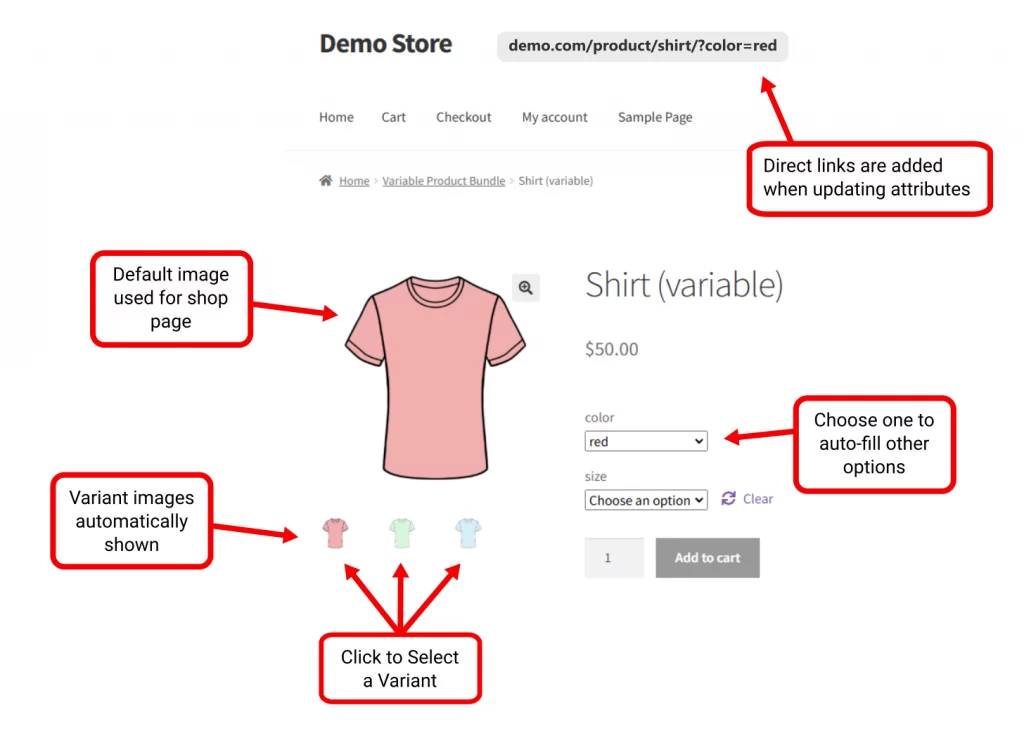
Each combination (like Medium / Blue) is called a variation. Every variation can have its own:
- Price
- SKU
- Stock quantity
- Image
So even though customers see one product page, WooCommerce treats each option as a separate variation behind the scenes.
Variable products vs attributes: What’s the difference?
Many beginners mix up these two terms. They are related, but they are not the same. Here’s the simple difference:
| Attribute | Variation |
| A characteristic of a product | A specific version of the product |
| Describes options like size or color | Combines attribute options into a purchasable item |
| Example: Size, Color | Example: Size Medium + Color Black |
| Does not have a price or stock by itself | Has its own price, SKU, and stock |
You can think of it this way:
- Attributes define the choices.
- Variations are the actual items customers can buy.
If you only create attributes but do not use them to generate variations, customers will not see selectable options on the product page.
Why variable products make your store easier to manage
If you sell products with options like size or color, using separate simple products can quickly make your store messy. You may end up with multiple product pages that look almost identical, which can confuse customers and make your catalog harder to manage.
A variable product keeps everything organized on a single product page. Customers can switch between sizes or colors without leaving the page, which creates a smoother shopping experience.
Behind the scenes, you still keep control. Each variation can have its own price, SKU, and stock level. That means you can track inventory accurately while presenting a clean storefront.
In short, variable products help you stay organized while making it easier for customers to buy the exact version they want.
How to Create a WooCommerce Variable Product
Now that you understand what a variable product is, let’s walk through how to create one in WooCommerce. Follow these steps in order.
Step 1: Select the variable product type
In your WooCommerce dashboard: Go to Products → Add new product. After entering the product name, scroll down to the Product Data section.
From the dropdown menu, change the product type from “Simple product” to “Variable product.”
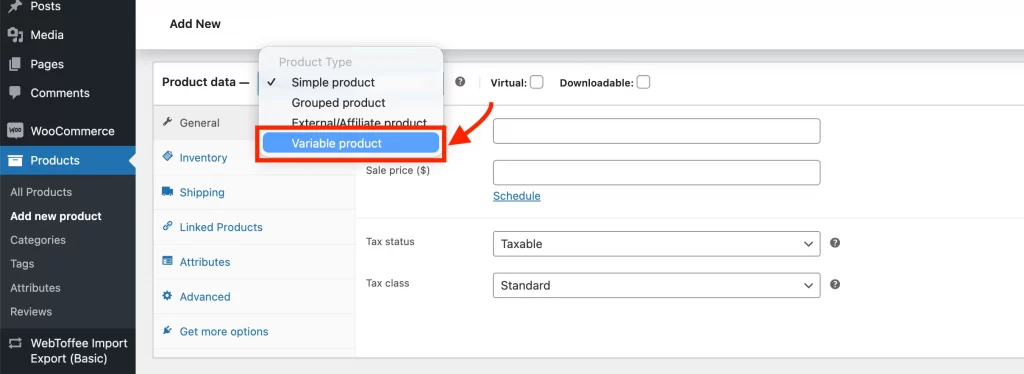
This tells WooCommerce that this product will have multiple selectable options.
Step 2: Create attributes and terms
Attributes define the choices customers can select. For example, you can create size, color, and material.
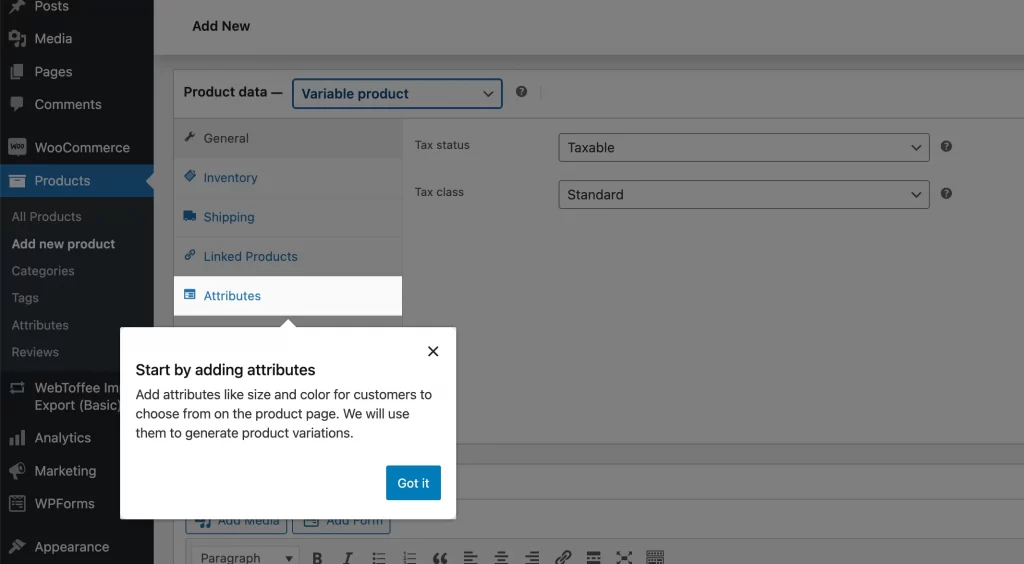
In the Attributes tab:
- Add a new attribute (for example, “Size”).
- Enter its options (for example: Small | Medium | Large).
- Check the box “Used for variations.”
- Click Save attributes.
You can either use global attributes (created for the whole store), or create custom attributes specific to this product. For most beginners, custom attributes are fine.
Step 3: Generate product variations
Now go to the Variations tab. From the dropdown menu, choose “Generate variations from all attributes.”
WooCommerce will automatically create every possible combination. For example:
- Small + Blue
- Medium + Blue
- Medium + Red
Each combination becomes a variation. You can also create variations manually if you only want certain combinations available.
Step 4: Configure variation data (SKU, price, and stock)
Each variation must be configured individually. Let’s click a variation to expand its settings.
For each variation, you can:
- Set a regular price (required)
- Set a sale price (optional)
- Assign a unique SKU
- Enable stock management
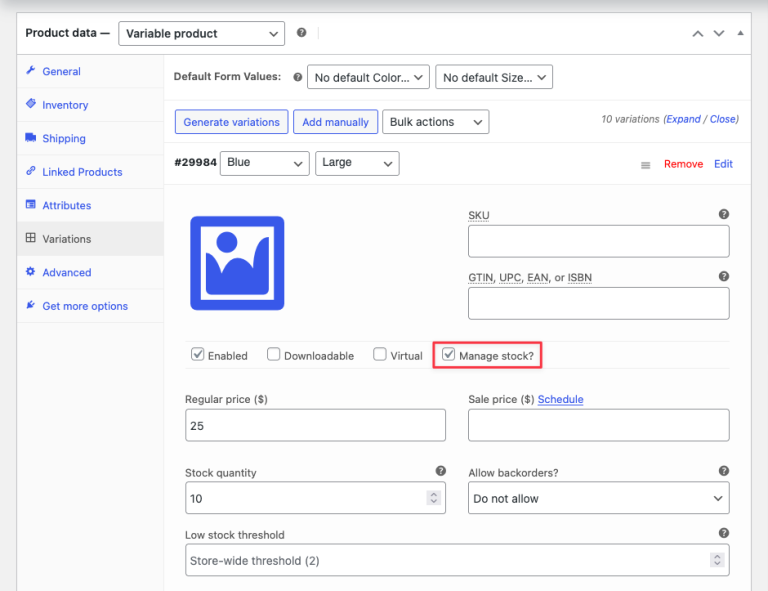
- Set stock quantity
- Allow or disallow backorders
- Upload a specific variation image
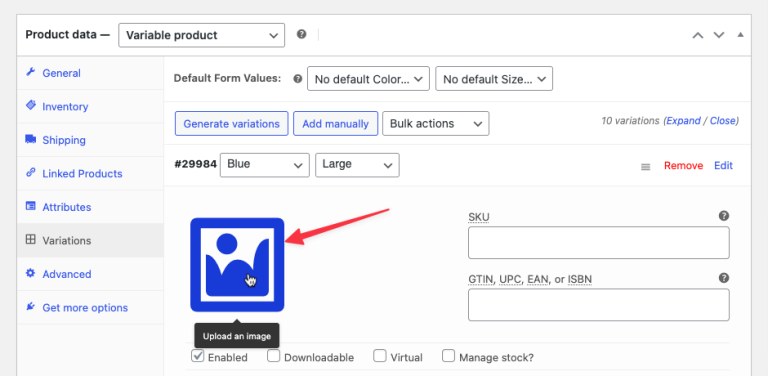
Important: If a variation does not have a price, it will not appear on your store. Adding variation-specific images is especially helpful for color-based products.
Step 5: Set default and out-of-stock variation behavior
At the top of the Variations tab, you can set a default variation (for example, Medium is pre-selected when the page loads).
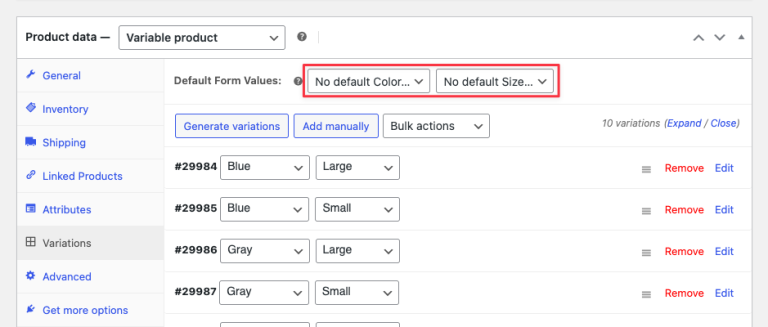
You can also control how out-of-stock variations behave.
If you want to hide out-of-stock options completely when going to WooCommerce → Settings → Products → Inventory.
Then enable: “Hide out of stock items from the catalog.”
However, keep in mind:
- Variations must have stock managed at the variation level.
- Backorders must be disabled for them to disappear from the dropdown.
Otherwise, they will still appear but show as unavailable.
Now on the product page, your customers will:
- Select options from the dropdown menus
- See the price update after selection
- See stock availability
- Click “Add to cart” only after choosing all options
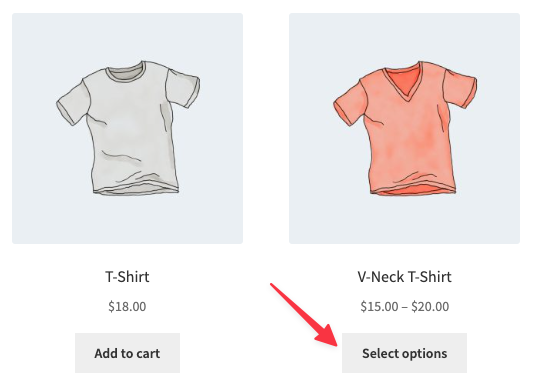
On shop pages, they will see a “Select options” button instead of “Add to cart.”
If your product has more than 30 variations:
- The dropdown menus become static
- Customers may see unavailable combinations
- WooCommerce shows a message if the combination doesn’t exist
This behavior improves the performance of your WooCommerce store.
How to Manage WooCommerce Variable Products
Once your variable products are live, managing them properly becomes just as important as setting them up.
As your store grows, you may deal with dozens, or even hundreds, of variations per product. Without a clear system, this can quickly become confusing. And once your product structure is stable, you can further increase conversions by improving how items are displayed together – for example, by setting up strategic related products in WooCommerce to guide customers toward complementary options.
Here are the key areas you should focus on.
1. Structure SKUs systematically across variations
When every size and color has its own variation, your SKUs must follow a clear pattern.
Instead of random codes, use a structure that reflects the product and its options.
For example: TSHIRT-BLUE-M | TSHIRT-BLUE-L | TSHIRT-RED-M.
This makes it easier to track inventory, export data, avoid duplicate SKUs, and identify variations quickly.
A clean SKU system prevents long-term confusion.
2. Manage inventory at the right level
WooCommerce allows you to manage stock in three ways:
- At the product level
- At the variation level
- Or a mix of both
If every variation has its own stock (for example, different shirt colors), use variation-level inventory.
If all variations share the same physical stock (for example, physical product + digital bundle), use product-level inventory.
Choosing the right method keeps your stock counts accurate and prevents overselling.
3. Use bulk editing to save time
When you have many variations, editing them one by one is inefficient. WooCommerce includes bulk actions that allow you to:
- Set prices for all variations
- Adjust stock status
- Toggle “Manage stock”
- Schedule sales
This is especially helpful when you run promotions, increase prices, or update shipping data. Bulk editing reduces mistakes and saves hours of manual work.
4. Organize and sort variations for better control
You can reorder:
- Attributes (like Size, Color)
- Attribute values (Small, Medium, Large)
- Variations inside the admin panel
Sorting will help you control how options appear to customers, keep complex products manageable, and avoid confusion when using “Any” attributes. If your product has many variations, organization becomes critical.
How to Troubleshoot Common WooCommerce Variable Product Issues
If something looks wrong with your variable product, don’t panic. Most problems come from small settings that are easy to overlook.
Let’s walk through the most common ones.
1. Variations not showing on the product page
If customers cannot see size or color options, WooCommerce is usually missing one required setting.
First, you should check whether the product type is set to Variable product. If it’s still set to Simple product, variations will never appear.
Next, make sure your attributes are marked “Used for variations.” Without this, WooCommerce treats them as informational only.
Finally, confirm that each variation has a price. Variations without a price will not display in your store. In most cases, one of these small details is the cause.
2. The price range looks wrong
You might see something like $20 – $35. This is not an error. WooCommerce shows a price range when variations have different prices.
However, it can look confusing if:
- Some variations have sale prices, and others don’t
- You accidentally set a price at the parent product level
- A variation is missing its regular price
To fix this, you can review pricing directly inside each variation and make sure your pricing structure is consistent.
3. Stock levels don’t behave as expected
Stock confusion usually comes from managing inventory at the wrong level.
- If you manage stock at the product level, all variations share the same quantity.
- If you manage stock at the variation level, each option tracks its own inventory.
Also, you should check whether backorders are enabled. If backorders are allowed, variations may still appear available even when stock reaches zero.
And if out-of-stock variations are still visible in the dropdown, confirm that:
- “Hide out of stock items” is enabled in WooCommerce settings
- Backorders are disabled
- Stock is managed per variation
Small inventory settings can completely change what customers see.
WooCommerce Variable Product: FAQs
What is a variable product in WooCommerce?
A variable product in WooCommerce is a single product that offers multiple options, such as size, color, or material. Each option combination becomes a variation, and every variation can have its own price, SKU, stock level, and image. Customers select their preferred options before adding the product to the cart.
How do I create a variable product in WooCommerce programmatically?
To create a variable product programmatically, you need to use WooCommerce’s product classes in PHP. This involves creating a parent variable product, defining attributes, and then creating child variation products linked to it. This method is typically used by developers building custom integrations or importing products at scale.
How do attributes and variations work together in WooCommerce?
Attributes define the available options, such as size or color. Variations are the specific combinations created from those attributes. For example, “Medium” and “Blue” are attributes, while “Medium / Blue” becomes a variation that customers can purchase. Attributes create the choices, and variations turn those choices into actual products.
How do I set different prices and SKUs for each variation?
Inside the Variations tab, expand each variation and enter its regular price, sale price (optional), and SKU. Every variation should have a price to appear in your store. Assigning unique SKUs helps you track inventory and sales accurately, especially when variations represent different physical products.
When should I use a variable product instead of multiple simple products?
You should use a variable product when the items share the same core product but differ by options like size or color. This keeps your store organized and improves the customer experience by showing all options on one page. You can use separate simple products only when the items are fundamentally different.
Wrapping Up
WooCommerce variable products allow you to sell different versions of the same product without creating multiple separate listings. By using attributes and variations correctly, you can control pricing, stock, SKUs, and images for each option while keeping your storefront clean and organized.
Most issues with variable products come from small setup details, not system errors. Once you understand how attributes, variations, and stock management work together, managing complex products becomes much easier.
Ready to take your store further?
If you’re planning to customize your WooCommerce setup, improve performance, or scale your product catalog, having the right technical structure matters. LitOS helps brands turn complex eCommerce setups into clean, scalable systems.
Contact Us
