
How to Connect PayPal to Shopify: 2026 Step-by-Step Guide
Connecting PayPal to Shopify is an important step when setting up your online store. Many customers already trust PayPal, and offering it at checkout can make payments easier and faster. This guide explains how to connect PayPal to Shopify step by step, using the correct setup that Shopify supports in 2026.
In this guide, you’ll learn:
- How PayPal works on Shopify in 2026
- How to connect PayPal to Shopify step by step
- How to avoid common PayPal setup mistakes
- How PayPal fees, payouts, and payment holds actually work
This guide is useful whether you are setting up PayPal for the first time or fixing an existing PayPal issue. No technical knowledge is required.
PayPal on Shopify: Integration Overview
Why connect PayPal to Shopify
PayPal is one of the most popular payment options on Shopify. Many customers already trust and use PayPal. When you add PayPal to your Shopify store, customers can pay using PayPal balances, credit cards, debit cards, or linked bank accounts. This makes checkout easier and can help increase completed orders, especially for international customers.
What PayPal Shopify integration actually is
Shopify connects to PayPal through PayPal Express Checkout. This is the only PayPal integration that Shopify supports.

With PayPal Express Checkout, customers are redirected to PayPal to complete the payment. PayPal processes the payment, and Shopify automatically receives the order and payment status.
In the United States and France, PayPal can also appear as PayPal Wallet when Shopify Payments is enabled. In this setup, PayPal is included inside Shopify Payments, and PayPal transactions are managed directly from the Shopify admin together with other Shopify Payments methods.
What Shopify sets up automatically
When you create a Shopify store, Shopify automatically prepares PayPal Express Checkout using your store email address. If this email already belongs to a PayPal account, you can start receiving payments right away.
For eligible merchants in the US and France, PayPal Wallet is automatically activated when Shopify Payments is turned on. No extra setup is needed at the beginning.
What Shopify doesn’t control
Shopify does not control your PayPal account or your PayPal funds. PayPal holds the money and decides when payouts are released. PayPal also handles account reviews, payment holds, and disputes.
To use features like refunds from Shopify or manual payment capture, you must complete your PayPal Business account setup and approve the required permissions.
If you have problems with PayPal payments, pending funds, or account verification, you need to contact PayPal directly. Shopify Support cannot fix PayPal account issues.
How to Connect PayPal to Shopify
What you need before connecting PayPal to Shopify
Before you start, you need a PayPal Business account, not a personal account. The email address on your PayPal account should match the email you use for your Shopify store, or you should add your Shopify email to your existing PayPal account.
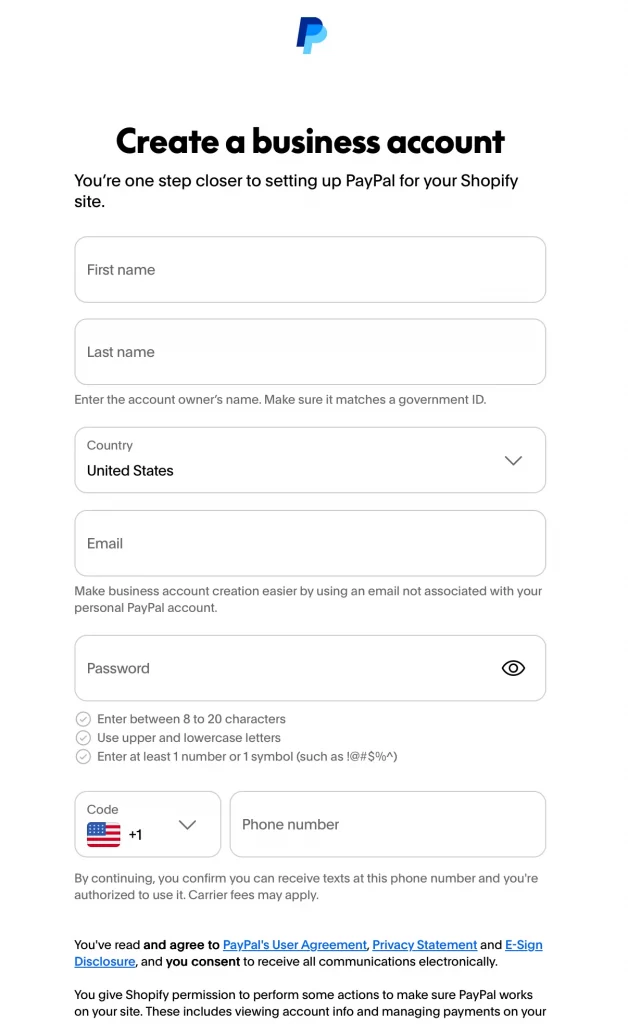
If you are creating a new PayPal account, you must verify your business information and complete PayPal’s identity checks (KYC). This step is required before you can use features like refunds or manual payment capture.
For security reasons, only the store owner can change PayPal Express settings in Shopify.
Step 1: Find PayPal under Additional payment methods
From your Shopify admin, go to Settings → Payments.
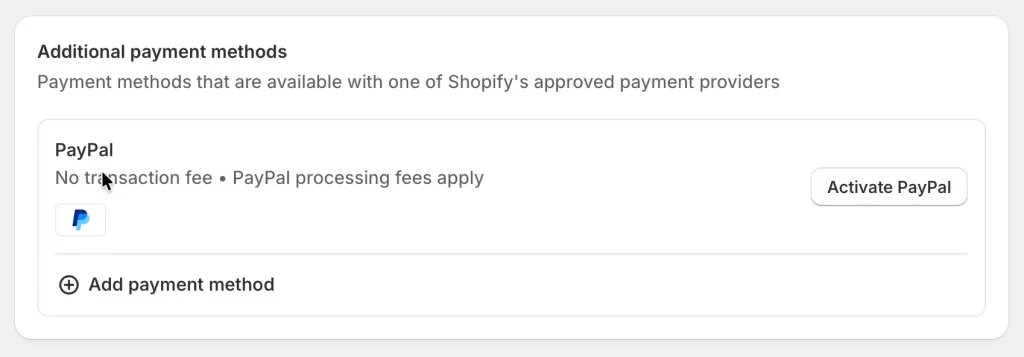
Scroll to the Additional payment methods section, and you’ll see PayPal listed. Click Activate PayPal to start the connection process.
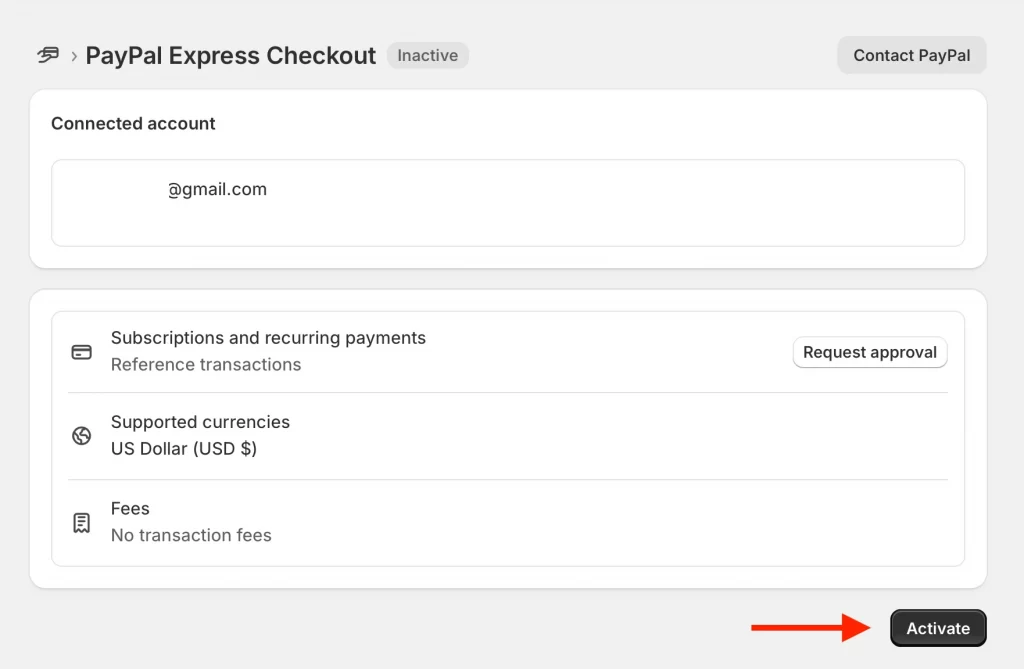
Now click Activate.
Step 2: Log in to your PayPal Business account
You’ll be redirected to PayPal. Log in using your PayPal Business account email and password.
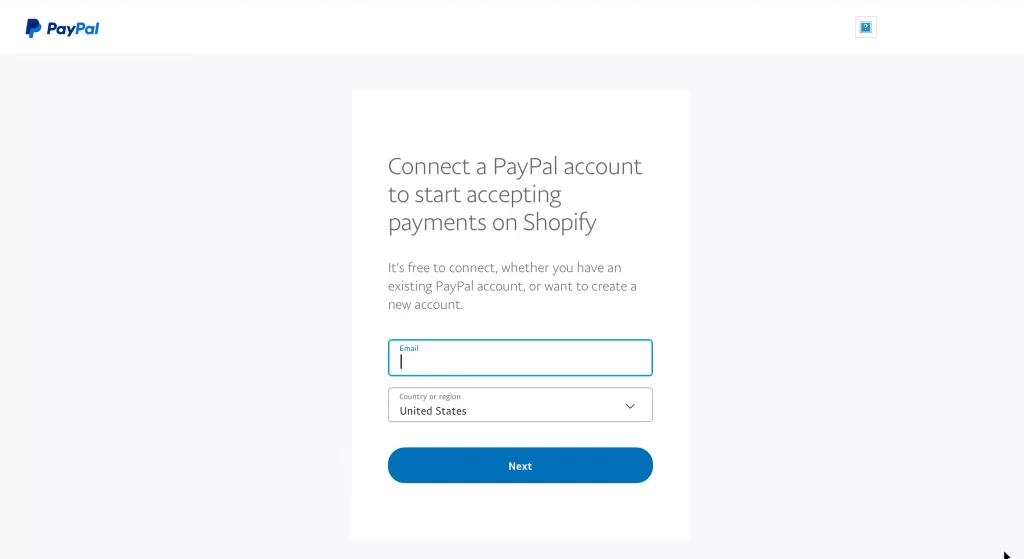
Make sure the email belongs to the PayPal account you want to connect. If another email appears, change it before continuing.
Step 3: Grant permissions and complete verification
PayPal will ask you to grant Shopify permission to:
- Process payments
- Issue refunds
- Access transaction details
Click Grant Permission to continue.
Step 4: Return to Shopify and save
After permissions are approved, you’ll be redirected back to Shopify automatically. Click Save to finish the setup.
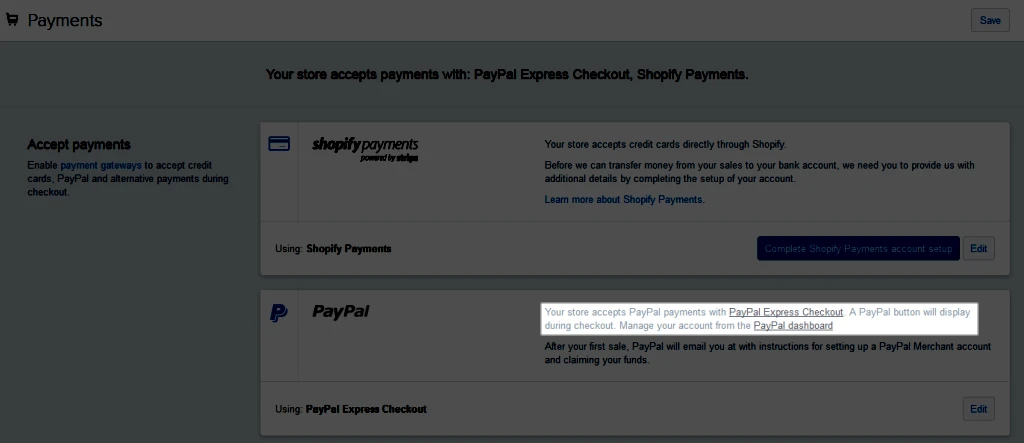
Step 5: Test the connection
You can now place a test order to confirm PayPal is working correctly.
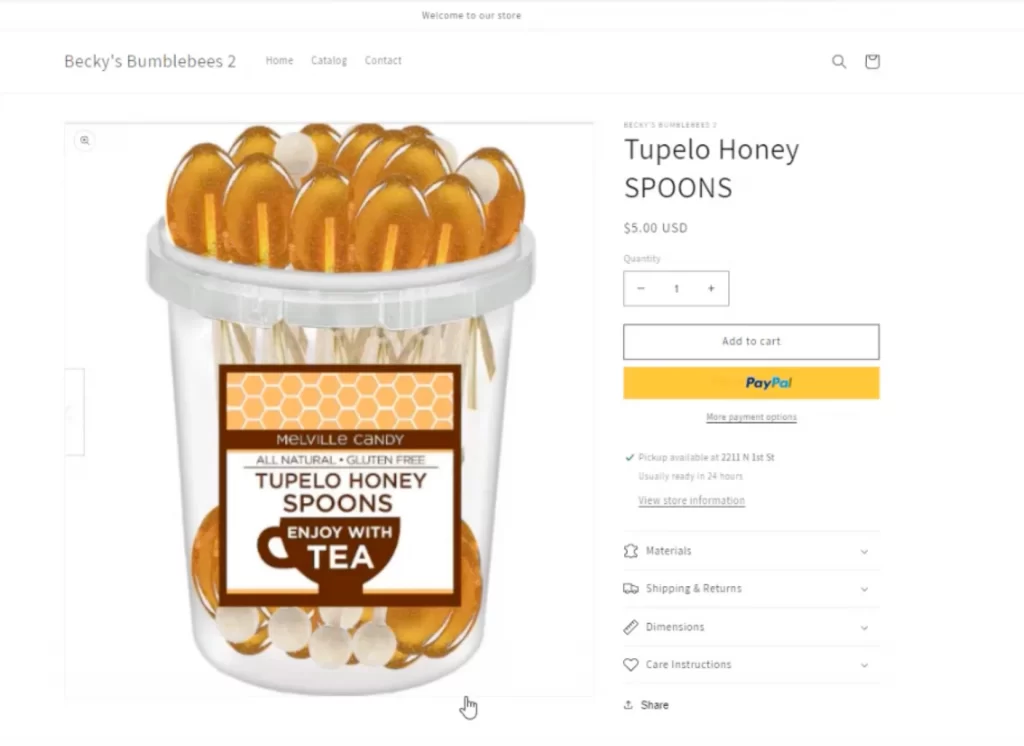
Your store should now show PayPal as an available payment option at checkout.
Note: If your steps don’t look exactly like older screenshots, that’s normal. Shopify has simplified the PayPal setup process, but the result is the same: PayPal Express Checkout is enabled once setup is complete.
PayPal Express Checkout Features and Common Settings
1. Checkout and payment experience
PayPal Express Checkout adds a fast checkout button to your store. Customers can log in to their PayPal account and pay without entering their address or card details again. This helps speed up checkout and reduce abandoned carts.
During checkout, customers see a clear order summary with all products and prices listed. PayPal can also save payment details for returning customers, making future purchases faster.
In some regions, customers can pay with a credit or debit card without creating a PayPal account. This is called guest checkout. Shopify automatically sends your store’s checkout language to PayPal, so the payment page appears in the correct language.
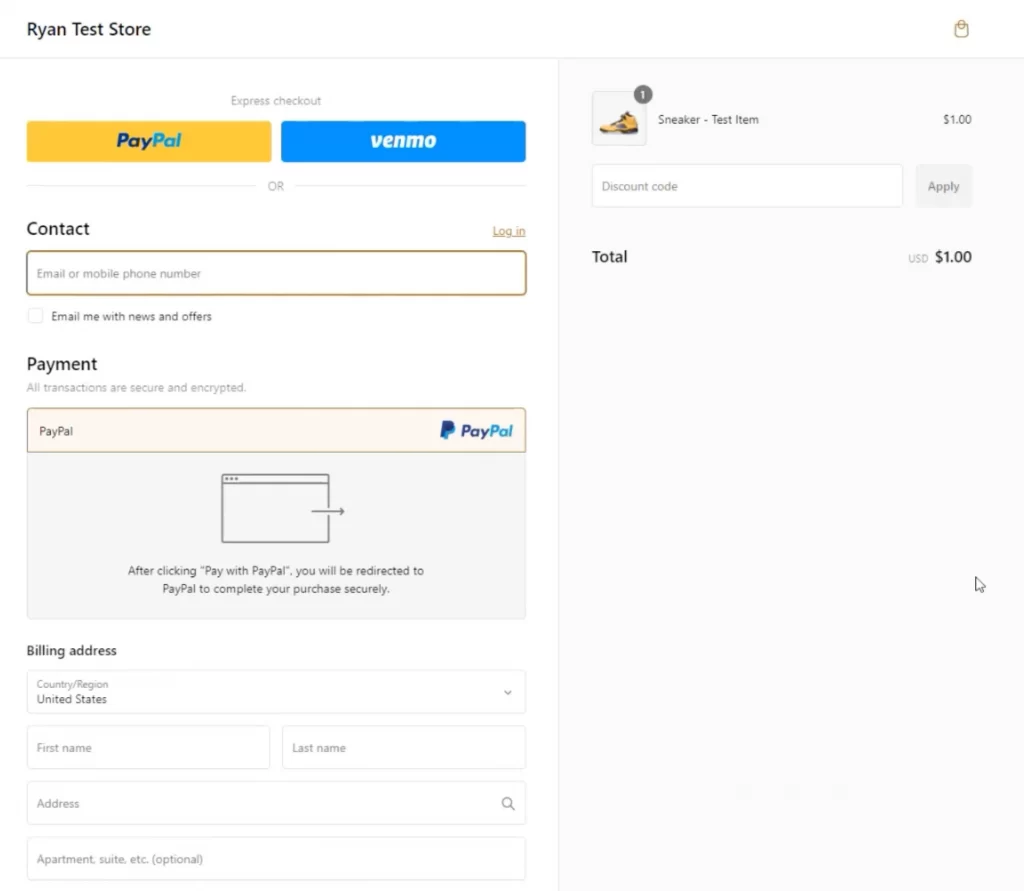
For US merchants, Venmo may appear automatically as a payment option for eligible customers.
2. Order, refund, and cancellation handling
When an order is canceled and refunded in Shopify, the refund is processed automatically through PayPal. You do not need to log in to PayPal to issue the refund manually.
To use refunds and other order management features correctly, you must allow Shopify to access refund permissions in your PayPal account. Without these permissions, refunds may fail or require manual handling.
3. Payment capture and authorization
PayPal Express Checkout supports both automatic and manual payment capture.
By default, payments are captured automatically based on your Shopify settings. If you want to capture payments manually, you must grant Shopify the required permissions in your PayPal account. Manual capture is useful for some businesses, but it may increase the risk of payment holds on new PayPal accounts.
4. Customer data handling
During checkout, PayPal usually fills the billing address using the customer’s shipping address. Customers can edit this information if needed.
Shopify sends only one address to PayPal, which is usually the shipping address. Because of this, the billing address may be missing when customers choose pickup in store instead of shipping.
You can also configure whether phone numbers are required for PayPal Express Checkout orders.
5. Account and onboarding behavior
Shopify makes it easy to start using PayPal Express Checkout. In many cases, you can begin accepting payments immediately, even if your PayPal account setup is not fully complete.
When you create a Shopify store, PayPal Express Checkout is automatically prepared using your Shopify email address. To keep payments secure, only the store owner is allowed to edit PayPal Express Checkout settings.
Understanding PayPal Transaction Fees on Shopify
PayPal fees on Shopify come from two different sources: PayPal and Shopify. Which fees you pay depends on whether Shopify Payments is enabled.
PayPal’s own processing fees
When a customer pays using PayPal, PayPal charges its own processing fees. These fees depend on your country, PayPal account type, and the transaction details.
Shopify does not control PayPal’s fees. To see exact rates, you should check PayPal’s official pricing page for your region.
Shopify transaction fees
Shopify may charge additional transaction fees if PayPal is treated as a third-party payment provider. This depends on your setup.
| Setup | PayPal processing fees | Shopify transaction fees | What you actually pay |
| Shopify Payments enabled | Yes | No | Only PayPal fees |
| Shopify Payments not enabled | Yes | Yes (varies by plan) | PayPal fees + Shopify fees |
| Shopify Plus (with Shopify Payments) | Yes | No (waived) | Lowest total fees |
If you use Shopify Payments, PayPal Express Checkout is excluded from Shopify’s third-party transaction fees. You only pay PayPal’s processing fees.
If Shopify Payments is turned off, Shopify charges third-party transaction fees on top of PayPal’s fees. The exact rate depends on your Shopify plan.
Learn more: How to Set up Shopify Payments.
Shopify Plus exemption: Stores on the Shopify Plus plan that use Shopify Payments as their primary payment gateway do not pay third-party transaction fees for any payment method, including PayPal.
Currency conversion fees: If you accept PayPal payments in a currency different from your payout currency using PayPal Wallet with Shopify Payments:
- A 3% currency conversion fee applies
- This fee is charged by Shopify, not PayPal
- This applies to merchants in the United States and France
The most cost-effective setup is to enable Shopify Payments and use PayPal through it. With this setup, you avoid Shopify’s transaction fees on PayPal orders and only pay PayPal’s processing fees.
Troubleshooting Common PayPal Issues on Shopify
Below are common problems when you learn how to add PayPal to Shopify and how to fix them.
1. Unable to complete PayPal activation
Problem: You can’t activate PayPal in your Shopify store.
Solution: Your Shopify store country must match the country set in your PayPal account.
Go to Settings → General in Shopify and check your store country. Let’s update it so it matches your PayPal account country, then try activating PayPal again.
2. Gateway error: Too many requests
Problem: You see an error saying “too many requests for operation.”
Solution: This means too many requests were sent to PayPal in a short time. PayPal may temporarily limit your account for up to 24 hours. You should now wait for some time and try again. If the problem continues, contact PayPal Support to remove the restriction.
3. Payment already processed for Invoice ID
Problem: You get an error saying the payment was already processed for that invoice ID.
Solution: This often happens when the same PayPal account is connected to multiple Shopify stores. PayPal sees duplicate order IDs. To fix this, you can change your order ID format in Shopify. Add a prefix or suffix so each store uses unique order IDs.
4. Payment is pending
Problem: An order shows a “payment pending” status.
Solution: This usually means the payment was sent to an unverified PayPal account. Let’s log in to PayPal and verify your account email address.
After verification, it can take up to two business days for the payment to be released. Before marking the order as paid in Shopify, make sure the money has arrived in your PayPal account.
5. PayPal account type requirement
Problem: PayPal works, but some features like refunds or manual capture are missing.
Solution: You must use a PayPal Business account, not a personal account. If you are using a personal account, upgrade it to a business account by following PayPal’s instructions.
6. Refund permission error
Problem: You see an error like “Unable to refund: You don’t have permissions to make this API credentials call.”
Solution: This means Shopify does not have the required permissions in your PayPal account. You should now log in to PayPal and grant Shopify full access. Then go to Settings → Payments in Shopify, deactivate PayPal, and activate it again.
Orders placed while the connection was broken may need to be refunded manually in PayPal.
Important note: Shopify cannot manage your PayPal account or fix PayPal account-level issues. If the problem is related to verification, holds, or payouts, contact PayPal directly. For checkout or connection errors inside Shopify, contact Shopify Support.
How to Remove or Deactivate PayPal from Shopify
If you don’t want to use PayPal Express Checkout, you can deactivate it from your Shopify admin. Once deactivated, PayPal is removed from your checkout, and customers will no longer see it as a payment option.
Here is how to remove PayPal from Shopify:
| On desktop | On mobile (Shopify app) |
| Step 1. Go to Settings → Payments in your Shopify admin Step 2. Scroll to Additional payment methods Step 3. Click PayPal Step 4. Click Deactivate | Step 1. Tap Menu → Settings Step 2. Under Store settings, tap Payments Step 3. In Additional payment methods, tap PayPal Step 4. Tap Deactivate |
If you are a merchant in the United States or France using PayPal Wallet, PayPal is part of Shopify Payments. To remove it, you must turn off Shopify Payments first. After that, you can set up PayPal Express Checkout separately if needed. Most merchants can’t use Shopify Payments and PayPal Express Checkout at the same time.
Deactivating PayPal is the same as removing it. There is no separate delete option. Your PayPal account details stay saved in Shopify, so you can reactivate PayPal later without setting it up again. For security reasons, only the store owner can change PayPal settings.
How to Connect PayPal to Shopify: FAQs
Why can’t I use PayPal on Shopify?
There are a few common reasons. Your Shopify store country must match your PayPal account country, and you must use a PayPal Business account, not a personal account. If you are in the United States or France, PayPal Express Checkout is not available as a standalone option. Instead, PayPal works as PayPal Wallet inside Shopify Payments, and it won’t appear under Additional payment methods.
How do I capture PayPal payments on Shopify?
To capture PayPal payments manually, you must grant Shopify the required permissions in your PayPal account. Payment capture follows your Shopify settings: automatic at checkout, automatic on fulfillment, or manual. If you choose manual capture, you must capture the payment within the authorization period to receive the funds.
Should I set up PayPal for Shopify?
Yes, in most cases. PayPal is widely used and trusted by customers worldwide, and it supports many payment methods such as cards, bank accounts, and PayPal balances. If you use Shopify Payments, PayPal orders are not charged extra Shopify transaction fees, which makes it a cost-effective option for most stores.
Does Shopify transfer money to PayPal?
No. When customers pay with PayPal, the money goes directly to PayPal, not to Shopify. With PayPal Express Checkout, payouts are handled in your PayPal account. With PayPal Wallet in the US and France, PayPal transactions are bundled with Shopify Payments and paid out to your bank account.
Who handles PayPal disputes on Shopify?
Dispute resolution for PayPal payments on Shopify is handled directly by PayPal. If a customer opens a dispute or chargeback, you must respond and manage it inside your PayPal account. Shopify only shows the dispute status on the order and cannot resolve PayPal disputes for you.
Final Thoughts
Knowing how to connect PayPal to Shopify makes payment setup much easier and helps you avoid common issues. Shopify uses PayPal Express Checkout (or PayPal Wallet in the US and France) to process PayPal payments, while PayPal handles the funds and payouts.
By using a PayPal Business account, matching your store and account settings, and enabling Shopify Payments when possible, you can reduce fees and manage payments more smoothly. Once everything is set up correctly, PayPal gives your customers a trusted and flexible way to pay and helps your Shopify store convert more visitors into buyers.
And now, let’s build what’s next!
At LitOS, we help brands grow smarter on Shopify, from payment setup and checkout optimization to migrations and long-term growth. Our team delivers practical strategy and hands-on support that scales with your business.
Contact Us
