
How to Do A Test Order on Shopify 2025 by 2 Methods
It’s common knowledge that testing your Shopify store before going live is one of the simplest ways to avoid checkout failures. Yet, many merchants skip this step because they’re unsure how to do a test order on Shopify safely without disrupting their store or accidentally charging their own card!
But no worries. The good news is that Shopify gives you two reliable ways to run test orders, each suited for different levels of verification:
- Testing using a payment gateway in test mode
- Testing via a real transaction (which can be cancelled)
Let us walk you through both methods step-by-step so you can confidently validate your payment setup. Keep scrolling!
5 Things to Consider Before Placing Your Test Order
Before learning how to do a test order on Shopify, you should prepare yourself for how Shopify behaves during testing to avoid unpleasant surprises down the line. Here are the key points you should keep in mind:
- Your payment provider’s test mode temporarily blocks customers from placing real orders.
- You need to use the right type of email address when creating test orders.
- Some payment fees aren’t refundable even when you cancel the test order.
- Automatic fulfillment or shipping behavior can interfere with testing.
- Test orders have reporting limits, and some can’t be deleted afterward.
Keep scrolling for further discussion:
Test mode temporarily prevents customers from placing real orders
Needless to say, when your payment gateway is set to test mode, Shopify automatically stops customers from making real purchases using that gateway.
This safeguard ensures no accidental charges occur, but it also means your store becomes temporarily unable to accept legitimate orders through certain gateways. Because of that, you should only activate test mode when you’re ready to test and deactivate it as soon as you’re finished.
Use the appropriate email address for clean, reliable testing
To keep your testing organized, Shopify recommends using an email address ending with @example.com. Shopify recognizes this domain as a safe testing address, meaning it won’t trigger spam filters and won’t overload your regular inbox with notifications. It’s a simple way to keep your testing clean and contained.
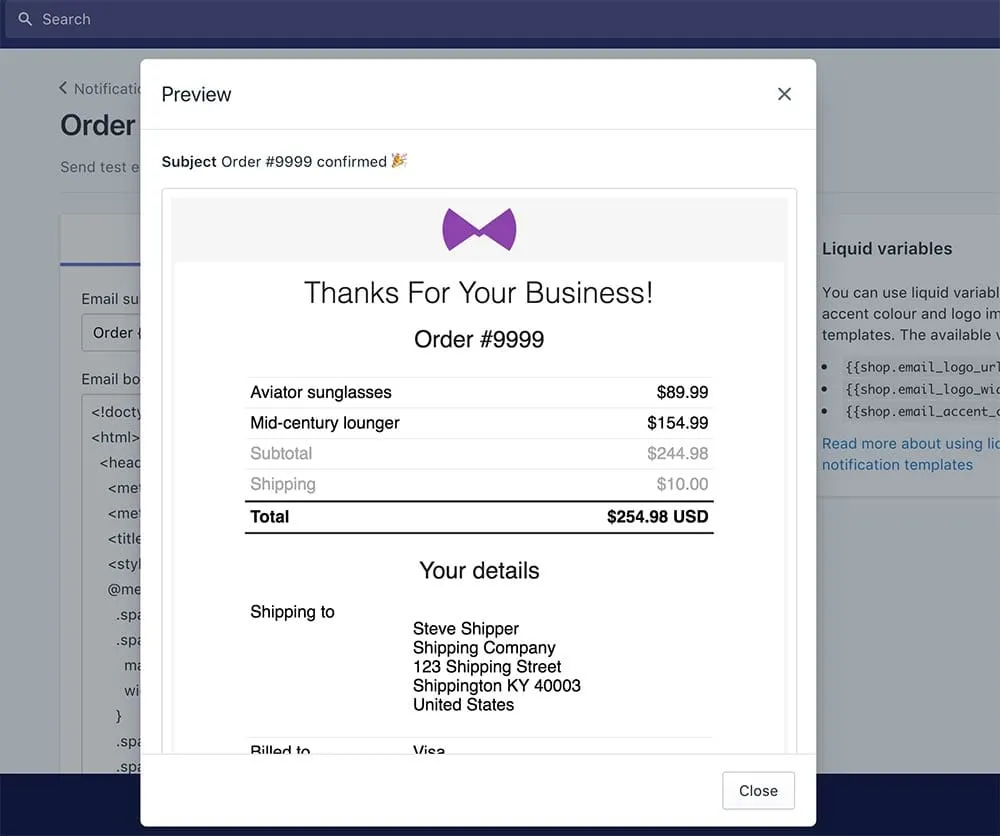
There are times, however, when you may need to use your real email address (for example, if you want to review how your automated notifications look in a real inbox). In those cases, limit the volume of test orders you send, because too many messages at once can lead to delivery issues.
And if you’re running B2B tests, remember that you must use a valid email so you can receive the one-time authentication code required for logging in as a B2B customer. Think all this through ahead of time to avoid unnecessary delays during testing.
Be aware that payment fees may not be refunded
For those who prefer real payment tests, keep in mind that they come with real financial implications. Some payment providers keep transaction fees even when a test order is canceled and refunded, which can result in small but unexpected costs. Needless to say, these charges will add up if you’re running multiple tests, so it’s helpful to know what your provider’s policies are before you begin!
On another note, if your payment provider charges fees only when a payment is captured, you may be able to avoid them by switching to manual payment capture for the duration of your test. Just remember that you must cancel the order afterward to release the authorization immediately; otherwise, the bank will release it automatically after a few days.
Similarly, if you have duties and import taxes activated at checkout, those fees also apply during testing, so temporarily turning that feature off can help you avoid unnecessary charges.
Automatic fulfillment or shipping tools may interfere with your test order
Does your store use automated fulfillment workflows, whether through Shopify’s native tools, a fulfillment app, or an ERP integration?
In that case, you’ll want to disable them before creating a test order. Otherwise, your test order might be sent straight into the fulfillment queue, generating shipping labels or triggering warehouse activity that you didn’t intend.
But what if you’re deliberately testing the fulfillment flow? Then, make sure to cancel both the fulfillment and the order afterward before turning your automated tools back on. Plus, if your test involves generating shipping labels, remember that some labels can be voided for credit as long as the carrier hasn’t scanned them.
Test orders don’t appear in reports, and some cannot be deleted afterward
The last thing to keep in mind is that test orders don’t behave like normal orders in your Shopify admin. They don’t show up in payouts, analytics, or financial reports, so you’ll need to view and evaluate them directly from the Orders page rather than relying on your reporting tools.
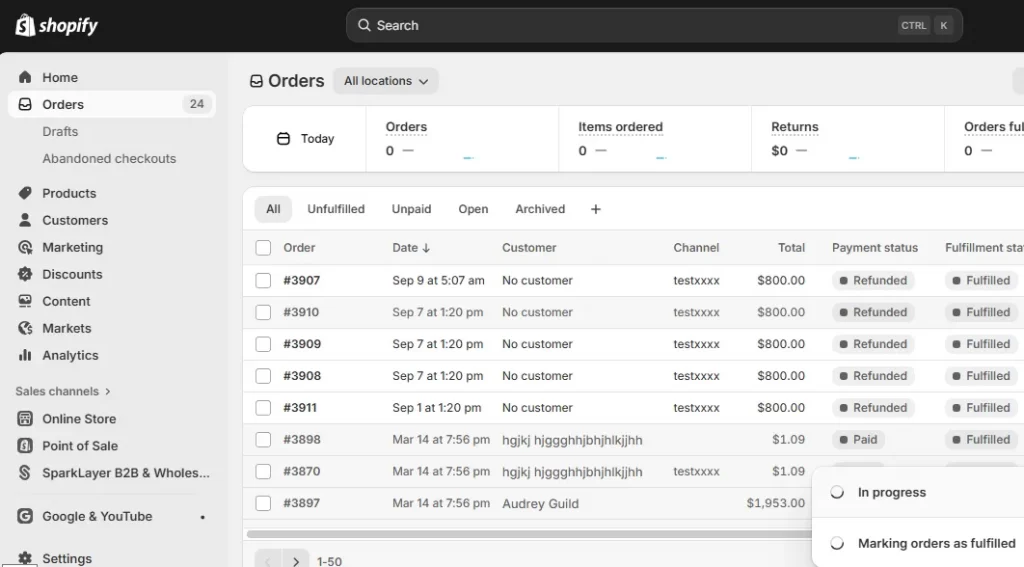
It’s equally important to know that only certain types of test orders can be deleted.
Specifically, orders created using the Bogus Gateway or Shopify Payments in test mode qualify as true “test orders,” which means you can delete them afterward. However, orders created through third-party payment gateways (even if the gateway itself was in test mode) can’t be deleted because Shopify doesn’t classify them the same way. And if you’re working from a development store, real transactions aren’t supported at all due to platform limitations.
How to Do A Test Order on Shopify with a Gateway in Test Mode
One of the safest and most controlled ways to test your store before going live is by placing a test order using a payment gateway in test mode. To carry out such tests smoothly, you’ll need to move through the following steps:
- Step 1. Enable test mode for your payment gateway
- Step 2. Add products to cart and go to checkout
- Step 3. Complete checkout using test payment details
- Step 4. Review the order in Shopify Admin
- Step 5. Turn off test mode after testing
Let’s go through each stage!
Step 1. Enable test mode for your payment gateway
First, open your Shopify admin, navigate to your Payments settings, and locate the gateway you plan to test. Depending on the provider, you can then enable test mode either by toggling the switch or entering sandbox credentials provided by the service.

This step makes sure the payment provider you want to test is actually running in test mode. If this setting hasn’t been activated, the checkout process will behave like a real transaction.
Step 2. Add products to cart and go to checkout
Now, visit the storefront as any shopper would, browse through your products, and add at least one item to the cart. After you’ve built your cart, proceed to checkout.
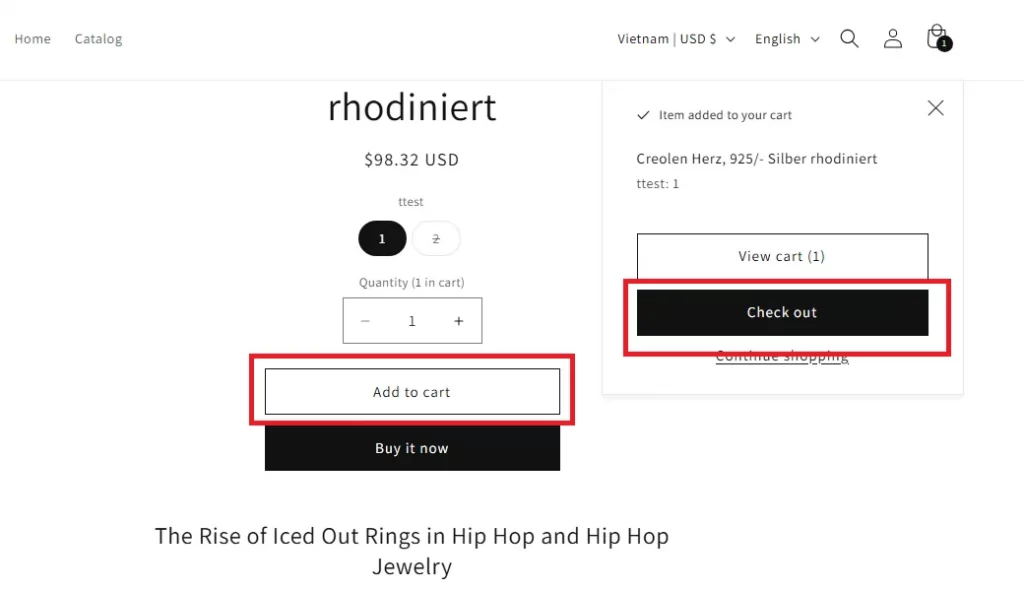
Step 3. Complete checkout using test payment details
At the payment section, the next step is to choose the payment method currently operating in test mode. If you have multiple gateways active, selecting the wrong one could accidentally trigger a real transaction, so make sure you pay attention!
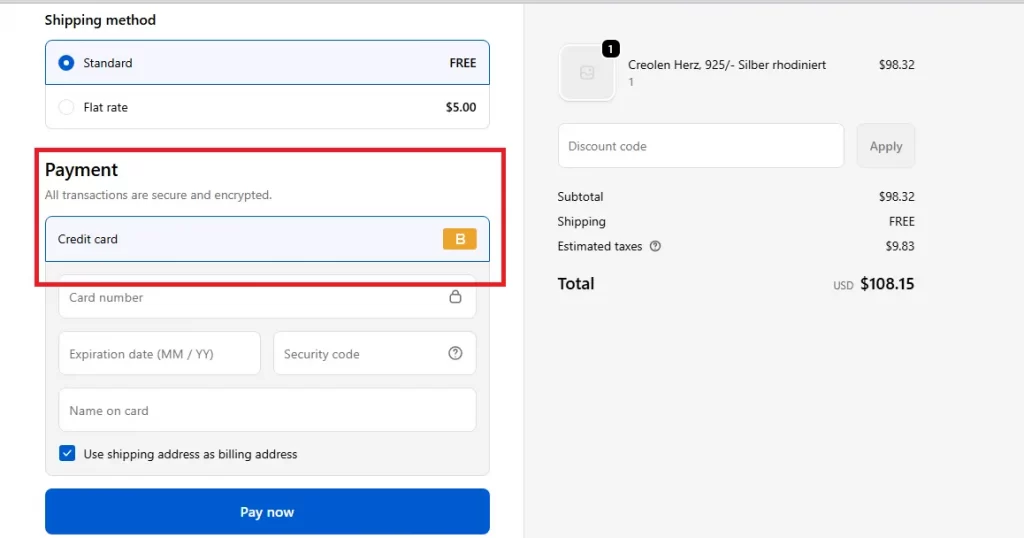
Then, enter the appropriate test payment information and continue through the checkout as normal. Shopify will treat the transaction as if it were real, giving you a clear view of what customers will see during confirmation screens, email notifications, and order status updates.
Step 4. Review the order in Shopify Admin
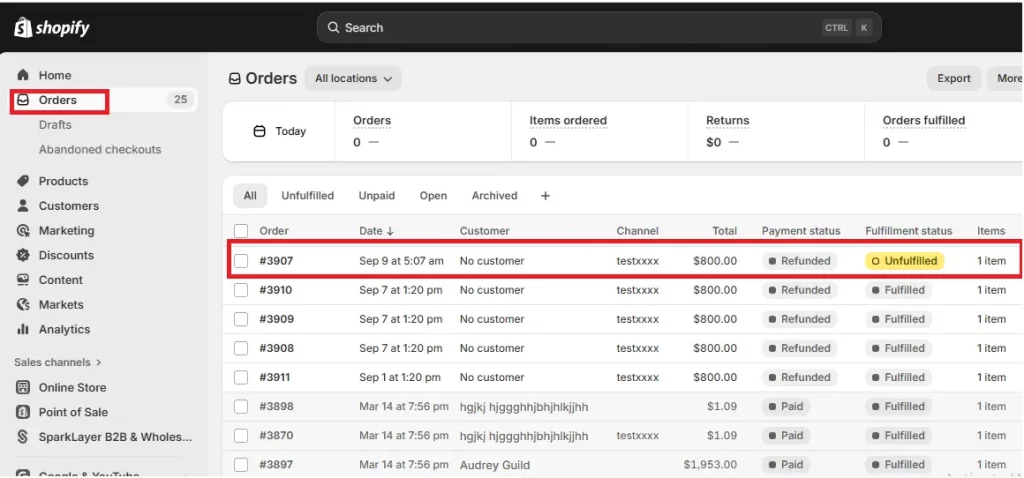
Once the test order goes through, return to your Shopify admin and open the Orders page. You should see the test order listed just like a genuine one, allowing you to review its details in full. Take a moment to check the order status, payment information, shipping settings, and any automated emails that were triggered.
Step 5. Turn off test mode after testing
After confirming that your checkout process works as intended, the final step is to deactivate the test mode. Your store will resume processing real payments, signaling that your checkout is now ready for actual customers.
And that’s how to do a test order on Shopify using the test mode!
How to Do A Test Order on Shopify with a Real Transaction
Already run a test using a payment gateway in test mode, but still feel uncertain about how your checkout will behave in a real scenario? In that case, there’s another option worth considering: placing a test order that processes as an actual transaction.
To run this type of test effectively, you’ll go through four main steps:
- Step 1. Prepare your live payment provider
- Step 2. Place an order like a real customer
- Step 3. Confirm the transaction with your payment provider
- Step 4. Cancel and refund the order
Let’s discuss the details further:
Step 1. Prepare your live payment provider
First, it’s essential to make sure your payment provider is fully configured and active in live mode. This includes confirming that:
- Your payout account is verified
- Your credentials are correctly connected
- Any necessary settings (such as fraud filters or currency options) are properly set up.

If anything is incomplete or incorrect, the transaction could fail or behave unpredictably, which makes your test less helpful.
Step 2. Place an order like a real customer
When your payment provider is ready, you can proceed to the testing itself by shopping on your storefront just like a customer would. Add products to the cart, go through the checkout, and complete the purchase using a real credit card.
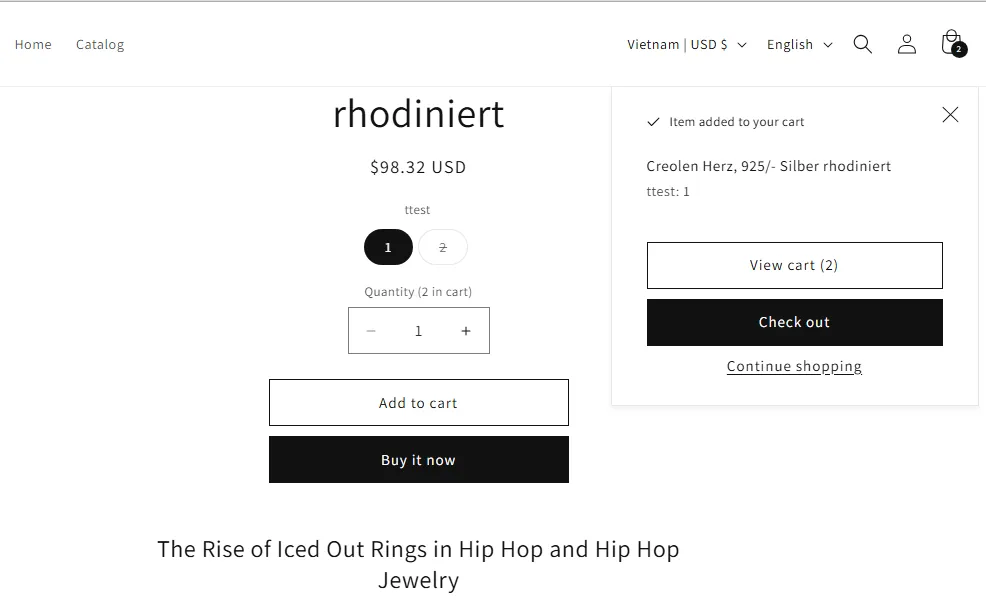
Note that since this isn’t a simulated transaction, Shopify will charge your card and process the payment through your live gateway, giving you a true reflection of how the system performs under real conditions.
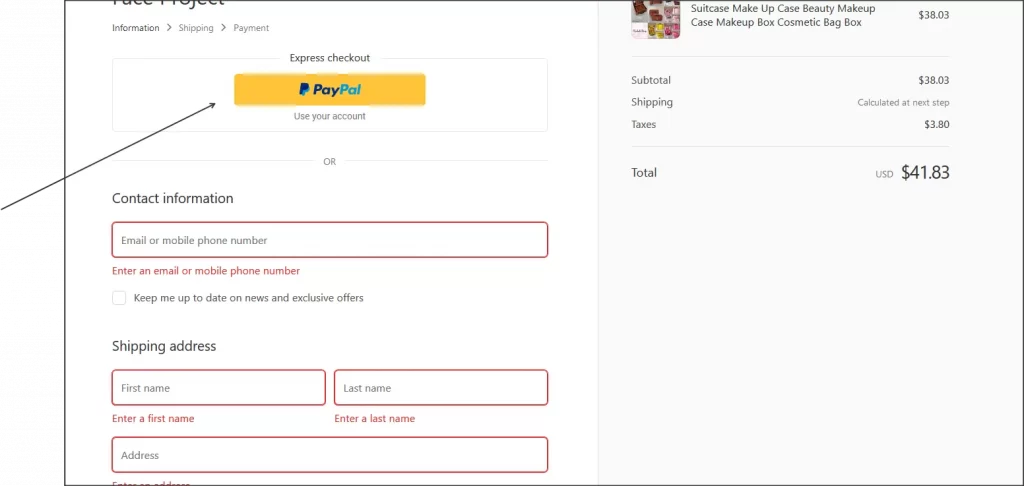
Step 3. Confirm the transaction with your payment provider
After you’ve completed the purchase, the next step is to verify that the payment was successfully processed on the provider’s side.
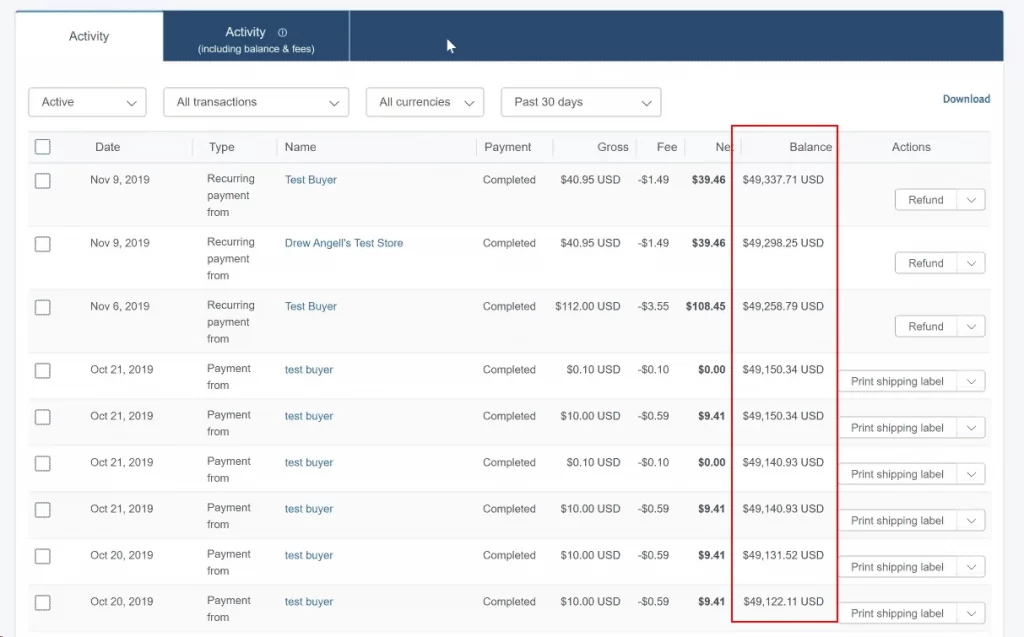
For those using a third-party payment service, log in to that provider’s dashboard and locate the transaction. If the payment appears there, that means the funds moved correctly and that the provider recognized and handled the order as expected.
Step 4. Cancel and refund the order
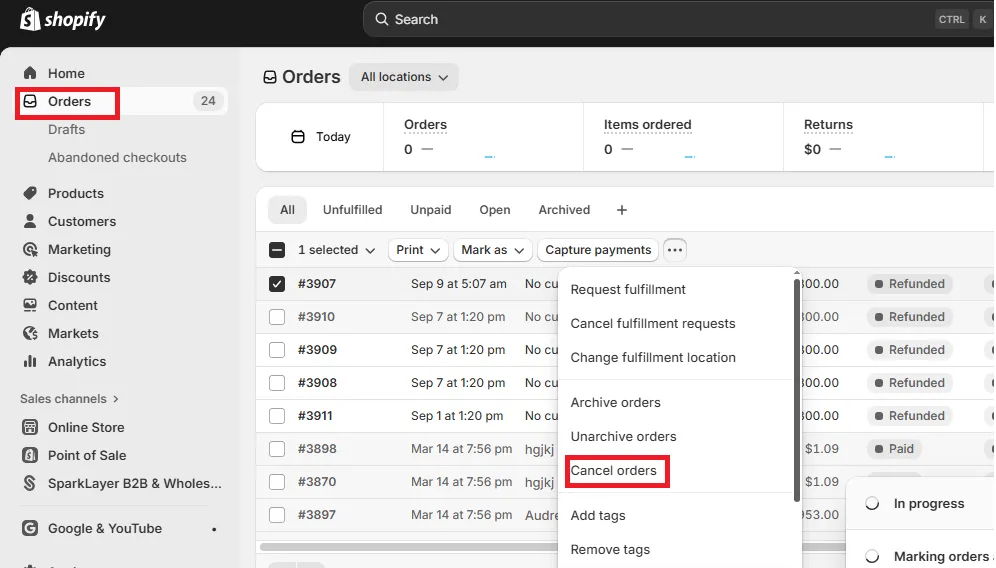
Now that you’ve confirmed that everything worked properly, you’ll want to reverse the transaction to avoid being out of pocket. Head back to your Shopify admin, locate the test order, and cancel it before issuing a refund. The payment will be returned to your card, although the exact timing varies depending on your provider and bank processing times.
And just like that, you have learned how to do a test order on Shopify properly!
What Should Your Test Order Include?
We have just discussed how to do a test order on Shopify. To make this test truly mirror what real shoppers will actually experience, it helps to focus on the following key elements:
- Discounts and promotions
- Customer login vs guest checkout
- Payment methods
- Shipping rates, addresses, and taxes
- Checkout experience
Discounts and promotions
Discount codes are something many customers use, especially during sales or seasonal campaigns, so it’s worth making sure they function the way you intend.
When adding a discount code to your test order, observe:
- How the system applies the reduction
- Whether the right items are included
- Whether the final total updates correctly
- How the discount is presented visually (clear and predictable messaging is a must)
Customer login vs guest checkout
Because your customers may interact with your store in different ways, it’s important to test both logged-in and guest checkout experiences.
Specifically, when you’re logged in, Shopify should auto-fill saved details like addresses or phone numbers, which makes checkout feel faster and more personalized.
On the other hand, repeating the test while logged out gives you a true sense of what new shoppers experience. Guest checkout is incredibly common (many customers prefer it to avoid creating an account), so any friction in this flow can quickly lead to abandonment.
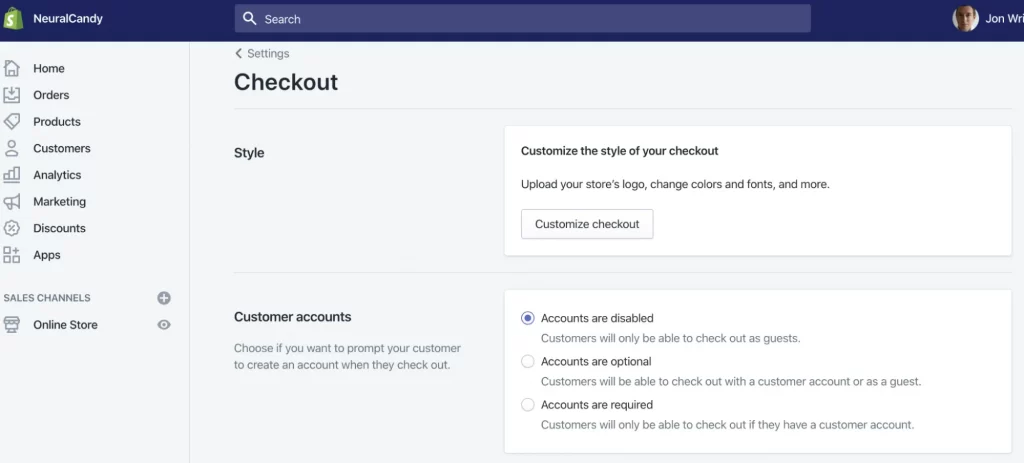
By comparing the two experiences side by side, you’ll get a clearer picture of how consistent, intuitive, and reliable your checkout actually feels.
Payment methods
Since payment is the final commitment point in the customer journey, you’ll want to test as many of your available methods as possible. After all, different gateways may behave differently at checkout; experiencing them firsthand helps you confirm that customers receive clear messages when their payment succeeds.
It can also be helpful to simulate failed payments if your provider supports it. That way, you can see how error messages display and whether they give customers enough information to try again with confidence.
Shipping rates, addresses, and taxes
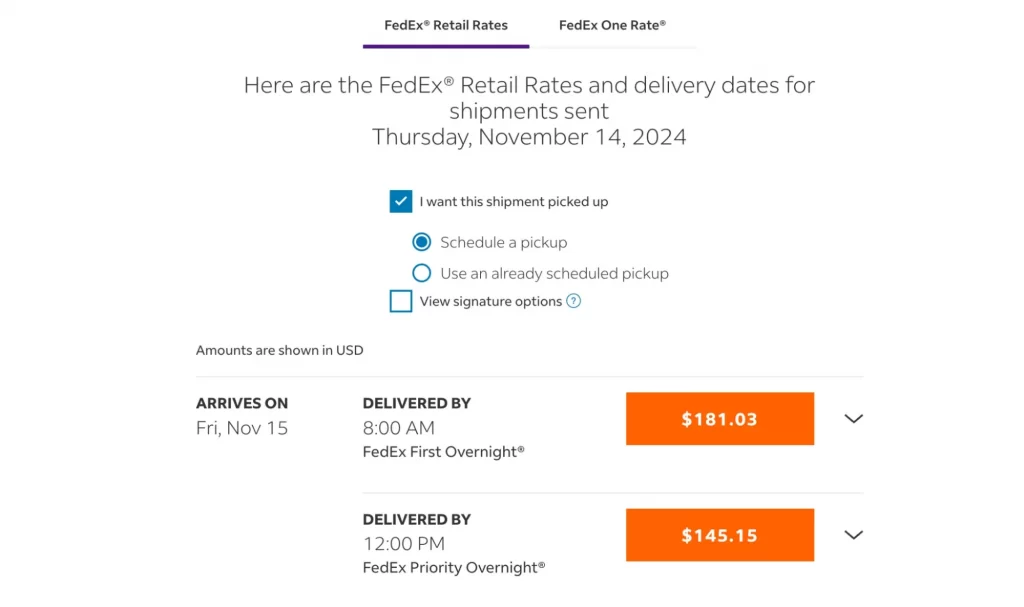
Shipping and tax calculations are often where unexpected issues appear. For that reason, we recommend you try entering multiple types of addresses (local, international, rural, or urban) to see how your shipping rates adjust. That way, you can verify that you’ve configured your rules correctly and that no inappropriate shipping options appear for certain regions.
Beyond shipping, it’s equally important to monitor how taxes are calculated. Shopify bases tax rules on the customer’s location, so testing a few different regions will confirm whether the correct percentages apply. Even small discrepancies can cause confusion or distrust, especially for customers who pay close attention to final totals.
Checkout experience
Finally, take time to evaluate how the overall checkout journey feels (not just the technical steps behind it).
For instance, you can consider testing your store on different devices. Many shoppers buy on mobile, so you should confirm that the checkout page loads quickly, displays cleanly, and remains easy to navigate on smaller screens.
And once your test order is complete, look closely at everything that happens afterward:
- Review the order confirmation email to ensure it reflects your brand and communicates information clearly.
- Walk through your fulfillment flow, whether you process orders manually or through an app or ERP system, to make sure no steps are missing.
- Add tracking information to verify that shipping notifications trigger properly.
- Explore both full and partial refunds to confirm they’re handled correctly.
Completing these checks gives you a far deeper understanding of the full customer journey, from placing an order to receiving updates. As a result, your test order will prove far more insightful than a simple checkout simulation.
Extra Tips for Shopify Test Order
We trust that you now know all the ins and outs of how to do a test order on Shopify and some limitations to keep in mind. To further ensure the success of the test, you should:
- Use dummy information: Never use your real credit card or personal details when a payment gateway is in test mode.
- Simulate different scenarios: Test both successful and failed transactions by using different test card numbers to ensure your store handles them properly.
- Use an accessible email: Provide your personal email address so you can receive the order confirmation email, just like a customer would.
- Deactivate test mode promptly: Remember to turn off test mode immediately after you are done to avoid missing out on real sales.
How to Do A Test Order on Shopify: FAQs
How can I place a test order on Shopify?
To place a test order on Shopify, first activate test mode for your payment gateway, then visit your storefront and add products to your cart like a normal customer. Next, go to checkout and enter the test payment details provided by your payment gateway.
If you need an even more realistic test, you can place a real order using your actual credit card, then cancel and refund it afterward.
What does test mode do on Shopify?
Test mode creates a safe, isolated environment where you can place orders without processing real payments. When test mode is enabled, Shopify temporarily prevents customers from completing live transactions, ensuring that your store doesn’t accidentally charge anyone while you’re experimenting.
How to order samples on Shopify?
To order samples, simply visit your storefront as a customer, add the items you want to check, and complete checkout with your preferred payment method.
If you work with a print-on-demand partner or dropshipping supplier, some providers offer discounted sample orders directly through their apps, which you can place without going through your storefront.
How much does Shopify take from a $100 sale?
Shopify takes between $2.70 and $3.20 from a $100 sale, depending on your Shopify plan and if you use Shopify Payments. The total fee is calculated as the percentage of the sale plus a flat fee, such as the $3.20 for a $100 sale on the Basic plan using Shopify Payments ($2.90 + $0.30).
Final Words
By the time you learn how to do a test order on Shopify, you’ll have a clear, firsthand look at how your store actually behaves, from the moment a shopper adds something to their cart to the moment the order is fulfilled or refunded!
And if you discover parts of your store that still feel clunky or uncertain, you don’t have to fix everything alone. The LitOS team specializes in polishing Shopify stores, optimizing checkout flows, and building reliable shopping experiences that convert. So, if you’re looking for guidance or hands-on support, feel free to reach out!
Let’s make your checkout flawless!
If your test order reveals anything that needs improvement, LitOS can help you optimize your payment setup, enhance the customer journey, and build a smoother, more reliable buying experience. From technical tuning to strategic guidance, we’re here to support your growth every step of the way.
Contact Us
