How to Improve Shopify Speed Score
For years, Shopify merchants relied on a single “Shopify speed score” to measure their store’s performance. But now, that has changed. Shopify officially retired the traditional speed score and introduced the Web Performance Dashboard – a more accurate, real-user-based way to measure site speed and usability.
Instead of chasing a number, you now get real insights into how your store loads, responds, and behaves for actual customers, powered by Core Web Vitals like Largest Contentful Paint (LCP), Interaction to Next Paint (INP), and Cumulative Layout Shift (CLS).
In this guide, we’ll explain:
- Why Shopify retired the old speed score?
- What the new Web Performance Dashboard shows?
- Which Core Web Vitals matter most for Shopify stores?
- How to Audit, Fix, and Improve your Shopify speed score with real data
Let’s get in!
What is Shopify Speed Score?
Shopify speed score is a performance rating provided by Shopify to help merchants understand how fast their online store loads, especially on mobile devices. It gives you a quick snapshot of your store’s performance based on data from Google Lighthouse, a widely used open-source tool of Google that simulates how real users experience your site.
Now, we have to say goodbye to Shopify speed score and say hello to the Web Performance Dashboard. But first, why did Shopify retire the old speed score?
The old speed score was based on a modified Google Lighthouse test and showed a single score from 0–100. But it had limitations:
- It used lab data only (simulated testing, not actual users)
- It averaged homepage, product, and collection page speeds—but didn’t show which one needed fixing
- It encouraged store owners to strip away functionality just to chase a higher score.
That’s why Shopify rolled out the Web Performance Dashboard—designed to give you deeper, more actionable insight into your storefront’s real-world performance.
What’s in the new dashboard?
The new dashboard reports on Core Web Vitals, Google’s standard for site performance:
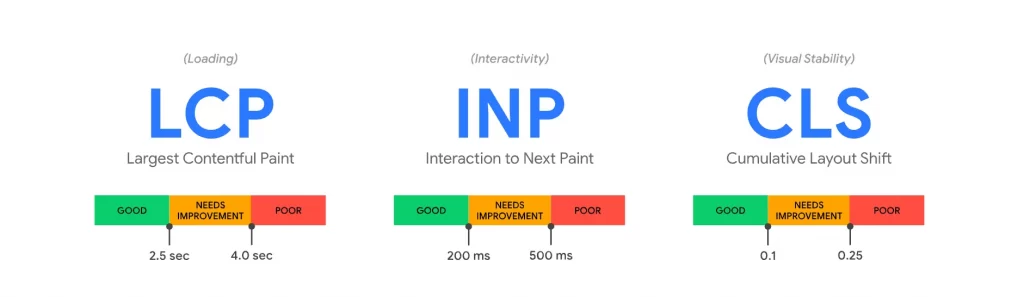
- LCP (Largest Contentful Paint) to measure loading: how quickly the main content appears
- INP (Interaction to Next Paint) to measure interactivity: how fast your site responds to taps or clicks
- CLS (Cumulative Layout Shift) to measure visual stability: how stable your layout is while loading
These scores are based on real user experiences, not synthetic tests—so you can finally see what your visitors are actually dealing with.
What the new Web Performance Dashboard shows?
You can access the Web performance reports dashboard from your Shopify Admin: Admin → Analytics → Reports → Web Performance Dashboard.
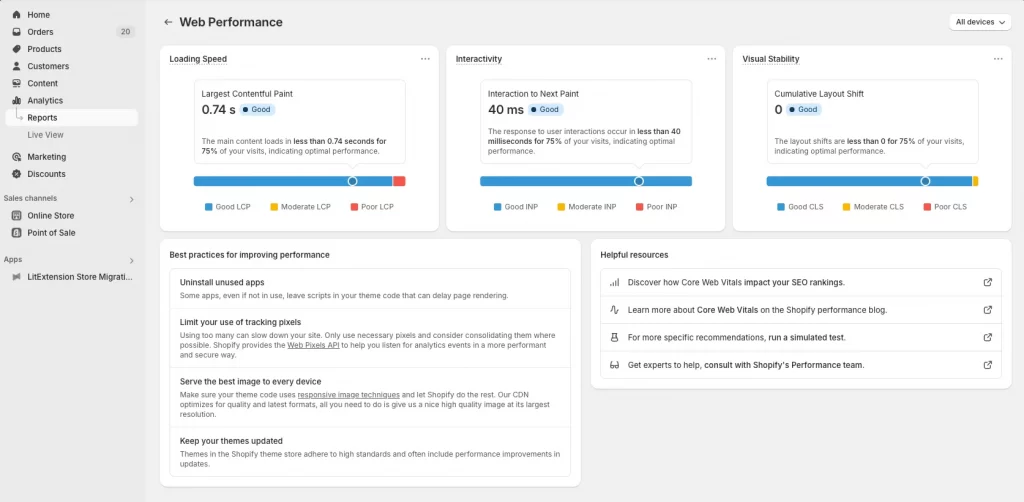
Every Shopify store using an Online Store 2.0 theme has access. You’ll see your metrics, page-level insights, and breakdowns of “Good,” “Needs Improvement,” and “Poor” scores.
You can even click on each metric to open a detailed view and see which pages need work—and why.
Why Shopify Store Performance Still Matters?
Just because Shopify removed the old speed score doesn’t mean performance no longer matters. In fact, it matters more because now we’re measuring the right things: what real shoppers actually experience on your site.
Here’s why performance is still a top priority—and when it’s okay not to panic over every number.
1. A Slow Store Drives Visitors Away
Modern shoppers expect near-instant loading. If your store takes more than a few seconds to load, you risk losing potential customers before they even see your products. According to Google research, as page load time increases from 1 to 3 seconds, the probability of bounce increases by 32%.
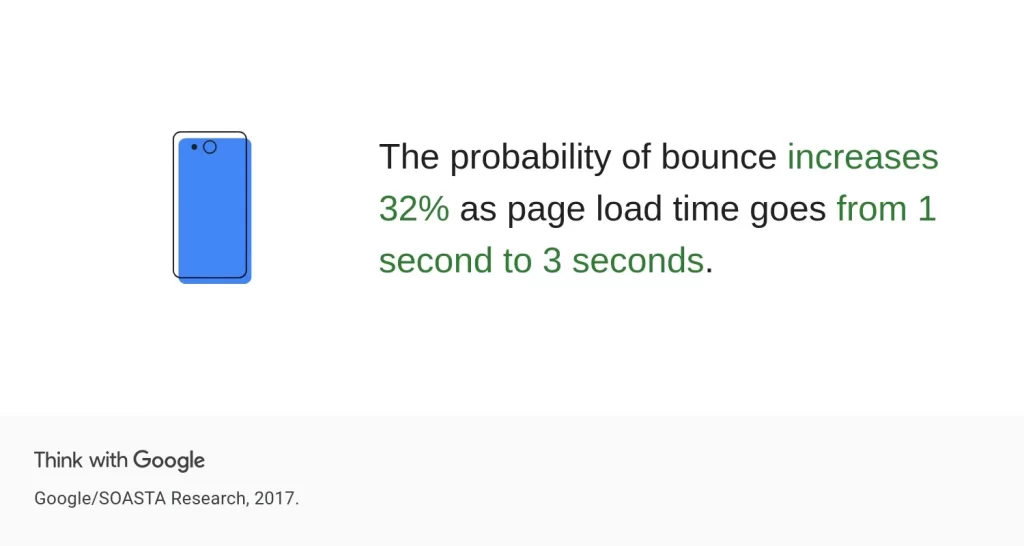
Even if you have amazing products and design, users won’t stick around if your store feels sluggish—especially on mobile. With the Web Performance Dashboard, you can now see exactly how many real users had a poor experience. If your LCP or INP scores are flagged as “Poor,” revenue is likely to be lost.
2. Speed Directly Impacts Conversions
Speed is more than just a user experience issue—it’s a sales issue. We’ve seen it firsthand at LitOS: when you reduce load time and improve interactivity, shoppers convert better.
When you speed store loading faster, you will enjoy:
- Convert more visitors into buyers.
- Lower cart abandonment rates.
- Encourage deeper browsing and higher order values.
In short, improving speed can have a direct, measurable impact on your bottom line.
3. Search Engines Favor Faster Websites
Google uses Core Web Vitals as a ranking signal. These vitals—like Largest Contentful Paint (LCP), Interaction to Next Paint (INP), and Cumulative Layout Shift (CLS)—are performance-focused metrics that reflect how fast and stable your pages load.
If your store is slow or visually unstable, it may be penalized in organic search results. That means lower rankings, less traffic, and fewer sales.
4. Not All Shopify Speed Problems Need Fixing
Yes—performance matters. But not every score drop or yellow flag means you need to strip down your store.
Here’s when it’s okay not to panic:
- A third-party app is essential (e.g., reviews, loyalty, personalization), even if it slightly affects INP.
- Your branding depends on high-quality visuals or animations, but you’ve optimized everything else.
- You’re hitting “Good” in Core Web Vitals for most users, even if one page is slightly below average.
Shopify says it best: “Every optimization project should deliver a strong return on investment.” You should focus on what improves actual user experience—not just numbers in a dashboard.
What is a Good Shopify Speed Score in The New Dashboard?
With the old Shopify Speed Score, you saw one number and little context. The new Web Performance Dashboard is different—it uses Core Web Vitals to show how your store performs across three key areas, using real-user data.
The scores are based on what 75% of your visitors experience, and each metric is categorized into one of three zones: Good, Moderate, or Poor.
Here’s how Shopify defines them:
| Metric | Good | Moderate | Poor |
| LCP (Largest Contentful Paint) | 0–2.5 seconds | 2.5–4.0 seconds | > 4.0 seconds |
| INP (Interaction to Next Paint) | 0–200 ms | 200–500 ms | > 500 ms |
| CLS (Cumulative Layout Shift) | 0–0.1 | 0.1–0.25 | > 0.25 |
You’ll see this breakdown directly in the dashboard, color-coded as:
- Good = optimal
- Moderate = needs improvement
- Poor = likely harming user experience and conversions
What LitOS considers an “optimized” performance profile
At LitOS, we’ve worked with Shopify and Shopify Plus merchants across industries—from fashion to tech to specialty retail. And here’s what we’ve learned: chasing “perfect” Core Web Vitals isn’t always practical, but aiming for a balanced, optimized performance profile is.
Based on our audits and projects, we consider a store well-optimized when:
- LCP under 2.5s for 85–90% of visitors
- INP under 200ms for key pages (product, collection)
- CLS under 0.1 across all templates
These are realistic targets, even for stores using third-party apps like reviews, personalization engines, or loyalty programs.
Instead of perfection, we focus on:
- Where users are actually struggling.
- Which fixes will directly improve UX and conversions.
- What the ROI is for each optimization.
For example, in one Shopify Plus store using Klaviyo, Yotpo, and a multi-language app, we prioritized optimizing LCP and CLS on product pages and deferred deeper INP work for a later sprint—because the biggest bounce rates were tied to slow loading, not interaction delays.
The result? A 17% drop in bounce rate and 10% lift in product page conversions, even without a “perfect” dashboard. At LitOS, we don’t chase vanity scores. We build Shopify storefronts that load fast, run lean, and convert better.
Do I need to score “Good” across the board?
Not always. Even Shopify encourages merchants to use Core Web Vitals to prioritize what’s worth fixing—not to chase perfection. What matters most is how performance impacts the actual user experience.
Here’s how to approach it:
- If 90% of sessions have “Good” LCP but INP is “Poor”, look into how scripts are loaded or how quickly buttons respond to taps and clicks.
- If CLS is “Needs Improvement,” but users aren’t noticing layout shifts and conversions are strong, it may not be urgent.
Our recommendation for you is to focus on what improves ROI. Performance work should lead to a better shopping experience and business results, not just a better report.
How to Check Your Shopify Store Performance Accurately
Store owners on Shopify now have better tools for checking performance. The focus has shifted from a single score to real user data—making your insights more meaningful, more actionable, and more trustworthy.
1. Use Shopify’s Web Performance Dashboard
This is the new standard for performance tracking inside Shopify. Go to Shopify Admin → Analytics → Reports → Web Performance Dashboard
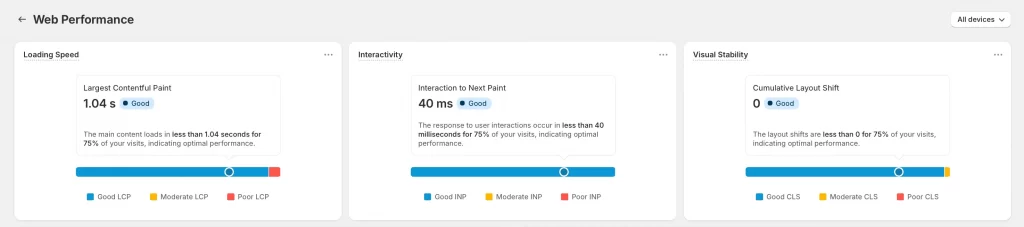
What you’ll see:
- Real-time Core Web Vitals data
- Breakdown by device, page type, and user session
- Clear indicators of “Good,” “Needs Improvement,” and “Poor”
- Deep dives into LCP, INP, and CLS, with clickable insights
If you want a Shopify-native view of how your storefront performs for actual customers, this is your go-to source.
2. Use Google PageSpeed Insights for Single-page Testing
Google PageSpeed Insights is still incredibly useful for getting page-by-page breakdowns—especially if you want to test specific templates like:
- A product page
- A blog post
- A collection filtered by tags
It shows both lab data and field data and gives suggestions for improvement that are tied to Core Web Vitals.
3. Try GTmetrix and Pingdom for Deeper Insights
While the Web Performance Dashboard shows what’s happening, tools like GTmetrix and Pingdom show why. You can:
- View waterfall charts showing exactly which assets load when
- Identify render-blocking scripts
- Spot large files, slow fonts, or unoptimized third-party apps
These tools are ideal for deeper audits or for your dev team to troubleshoot speed issues.
4. Check Real-world UX with Google Search Console
In GSC, go to Experience → Core Web Vitals Report. This shows how your pages perform based on real Chrome users over time, with groupings by URL type. It’s a great complement to Shopify’s dashboard for longer-term monitoring and SEO impact.
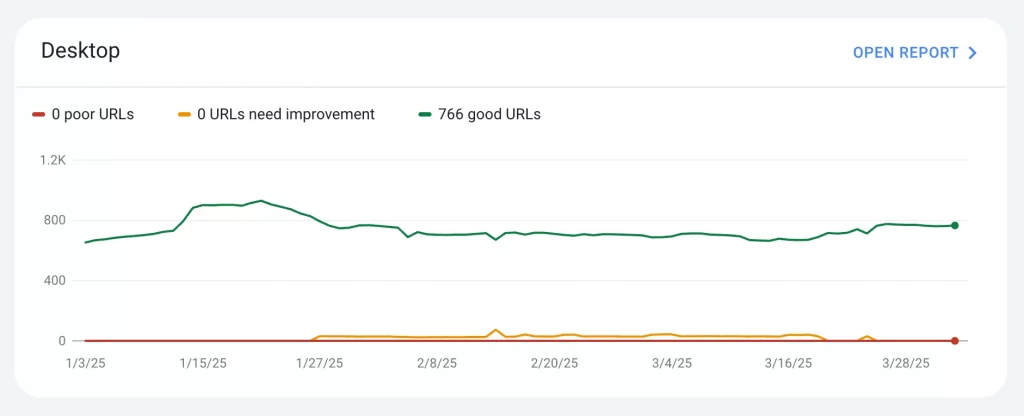
We recommend checking Shopify’s dashboard weekly and cross-referencing with PageSpeed Insights and GSC once per month. If you’re making theme or app changes, test before and after to measure the real impact.
What Causes Poor Performance in Shopify Stores?
Now that Shopify tracks Core Web Vitals like loading speed (LCP), interactivity (INP), and layout stability (CLS), it’s easier to spot what’s hurting your performance.
From our work at LitOS, here are the most common culprits behind poor metrics across hundreds of Shopify stores:
| Cause | How it hurts performance | Metric Impacted |
| Heavy or bloated themes | Loads too much CSS/JS and unused layout features | LCP, INP |
| Large, uncompressed images | Delays the loading of banners, product shots, and hero sections | LCP |
| Sliders and carousels above fold | Forces multiple images to load immediately; blocks key content | LCP, CLS |
| Too many third-party apps | Injects scripts into every page; adds weight and delays interactions | INP |
| Chatbots, popups, trackers | Loads external scripts before your page becomes interactive | INP |
| Late-loading fonts and icons | Causes text or layout shifts during load | CLS |
| Missing lazy loading | Loads all images upfront—even those not immediately visible | LCP |
| Custom code or scripts in theme | Often adds delay or conflicts with Shopify’s native loading sequence | LCP, INP, CLS |
For example, a fashion store we worked with was scoring poorly on INP due to three tracking tools, two review apps, and a chatbot—all loading in the <head>. By deferring those scripts and replacing two apps with custom theme features, we improved interactivity and raised their overall Core Web Vitals scores to “Good.”
How to Improve Shopify Speed Score?
Even though Shopify has replaced the old speed score with the Web Performance Dashboard, improving your “speed score” is still a valid goal because faster performance leads to better UX, higher conversions, and stronger SEO.
The difference now is that you’re no longer optimizing for a single number—you’re improving based on real user experience across three key areas: LCP, INP, and CLS.
1. Choose A Fast & Clean Theme
Heavy themes are one of the top reasons for poor LCP and INP scores. We’ve worked with clients using popular premium themes that look great but come with bloated code and unnecessary features. Some stores load over 6MB of assets just from the theme alone.
So, how to handle this case? Here are some recommendations from LitOS:
- Choose a lightweight Shopify 2.0 theme like Dawn, Ride, or Craft if you’re starting fresh.
- Audit your current theme: Remove unused sections, animations, and third-party integrations baked into the theme files.
- For growing stores, consider a custom-built theme with just the features you need.
2. Compress Your Images & Use WeBP Where You Can
On average, we find that 50–70% of a store’s page weight comes from uncompressed images. While Shopify automatically compresses and optimizes product images to some extent (e.g., converting them to WebP format where supported), it does not fully optimize all images—particularly banners, custom sections, or large visuals.
What to do:
- Use apps like TinyIMG or Crush.pics, or run your images through tools like Squoosh before uploading.
- Replace PNG/JPEG with WebP for product images and hero banners—it loads faster without quality loss.
- Resize images to fit display dimensions (e.g., don’t upload 3000px images into a 500px container).
3. Audit and Clean Up Third-party Apps
Most Shopify stores we audit typically have 10 to 15 installed apps, but only about 5 to 6 of them are truly essential. The other apps often inject unnecessary code, load scripts on every page, and can slow down your store, even when you’re not actively using them. This excessive use of apps is one of the main reasons for poor INP and CLS scores.
We always recommend running a quick audit to identify what’s worth keeping. Go to Shopify Admin → Apps, and ask yourself for each app:
- Do we use this regularly (daily/weekly)?
- Could this feature be handled natively by our theme or consolidated into another app?
Less app clutter = faster load times and fewer render-blocking scripts.
4. Minify and Defer Javascript & CSS
Shopify doesn’t automatically minify third-party scripts or control how/when they load. That’s where most of the page slowdown comes from.
Here’s what to do:
- Minify and combine CSS/JS where possible
- Defer non-essential scripts (chat widgets, cookie banners, etc.)
- Load third-party tools asynchronously when possible
5. Enable Lazy Loading for All Images
Lazy loading is a simple but highly effective way to improve your store’s performance. Instead of loading every image on the page upfront (even those users may never scroll to), lazy loading ensures images only load when needed—reducing initial page weight and improving perceived speed.
Most Shopify 2.0 themes support lazy loading automatically with loading=”lazy”, but it’s worth double-checking key areas like:
- Product list thumbnails
- Blog post cover images
- Homepage sections with multiple media blocks
You should also avoid placing sliders or carousels near the top of the page, especially ones with multiple high-resolution images. These often force all images to load at once, which slows down your Largest Contentful Paint (LCP).
For performance-focused builds, we often disable above-the-fold sliders completely or replace them with a single static image plus a headline. It loads faster and converts better—especially on mobile.
6. Use Shopify’s global CDN
Shopify hosts theme assets and product media through its own global CDN, but we often see stores pulling fonts, icons, or scripts from outside sources, which slows them down.
In this case, we recommend:
- Use Shopify-hosted fonts or self-host custom fonts and preload them.
- Avoid embedding scripts from tools like Typeform, Fomo, or Instagram widgets unless absolutely necessary—they bypass Shopify’s CDN entirely.
7. Monitor Improvements Using The Web Performance Dashboard
Even after you’ve optimized your Shopify store, performance isn’t something you fix once and forget. Apps get added, themes get updated, content gets heavier—and over time, your store slows down again.
That’s why ongoing testing and monitoring is essential, and here’s what you should do:
- Use the Web Performance Dashboard to track Core Web Vitals weekly
- Monitor product and collection pages separately—they often perform very differently
- Complement with Google PageSpeed Insights for page-level diagnostics
- Check Search Console → Core Web Vitals for real-world SEO impact
At LitOS, we typically set performance baselines after optimization and continue monitoring monthly to make sure everything stays fast, even as your store evolves.
If you’d rather not worry about checking dashboards or keeping up with metrics, our Shopify Maintenance Service includes:
- Monthly performance checks
- Theme update support
- Speed audits
- Proactive fixes before issues pile up
If you want to stay fast and stress-free, we’ll keep your storefront running smoothly behind the scenes.
Shopify Speed Score: FAQs
What happened to the old Shopify Speed Score?
Shopify retired the old speed score in 2024. It was based on a modified Google Lighthouse test that used lab data and averaged performance across a few page types. In its place, Shopify launched the Web Performance Dashboard, which gives a more accurate view of your store’s performance using real user data and Core Web Vitals.
How do I check my Shopify store speed?
You can access the dashboard from your Shopify Admin: Admin → Analytics → Reports → Web Performance Dashboard.
What is the Shopify Web Performance Dashboard?
Web Performance Dashboard is a built-in dashboard in your Shopify Admin that tracks your store’s real-world performance using Google’s Core Web Vitals: LCP (Largest Contentful Paint): Loading speed. INP (Interaction to Next Paint): Interactivity. CLS (Cumulative Layout Shift): Visual stability. Each metric is measured based on what 75% of your users experience and is rated as Good, Needs Improvement, or Poor.
How can I improve my Shopify speed score?
To improve your Shopify speed score, you can follow these best practices: Use a lightweight Shopify theme (2.0 or custom). Compress and lazy-load images. Remove unused apps and tracking scripts. Minify and defer non-critical JavaScript. Prevent layout shifts with proper spacing and font handling. These actions directly improve your Core Web Vitals—and overall user experience.
Do I still need tools like PageSpeed Insights or GTmetrix?
Yes. While Shopify’s dashboard shows overall store health, tools like: Google PageSpeed Insights (for per-page detail). GTmetrix (for waterfall charts and script analysis). Search Console (for SEO-related Core Web Vitals) is still useful for deeper troubleshooting and development work.
Final Words
Shopify speed score was a helpful signal in the past, but it never told the full story. What truly matters now is how fast your store feels to real users and how well it performs where it counts: user experience, engagement, search visibility, and conversions. The goal isn’t to hit a perfect 100—it’s to build a fast, stable, and high-converting storefront without sacrificing design, functionality, or flexibility.
At LitOS, we help Shopify brands do exactly that—whether it’s through performance audits, Core Web Vitals optimization, custom theme development, or ongoing support. Need help improving your store’s performance? Let’s Contact LitOS today!