
WooCommerce Multisite: How to Set Up and Use Multiple WooCommerce Stores
WooCommerce multisite lets you manage multiple WooCommerce stores from a single WordPress installation while keeping each store’s products, orders, and settings separate. This setup is commonly used by businesses and agencies that need centralized control without maintaining multiple WordPress sites.
In this guide, you will learn
- What WooCommerce multisite is and how it works in real setups
- When it makes sense and when it does not
- How to set up multisite step by step
- Which plugins work best with multiple WooCommerce stores
- How to troubleshoot common WooCommerce multisite issues
Let’s get in.
What Is WooCommerce Multisite and How It Works
WooCommerce multisite is a setup where multiple WooCommerce stores run inside a single WordPress multisite network. Each store functions as its own WooCommerce site with separate products, orders, customers, and store settings, while sharing the same WordPress core, themes, and plugins at the network level.
In a WooCommerce multisite setup, WooCommerce is installed once and then activated either across the network or on individual sites. This allows store owners to manage updates and plugins centrally while configuring key commerce settings such as currency, taxes, shipping, and payment gateways separately for each store.
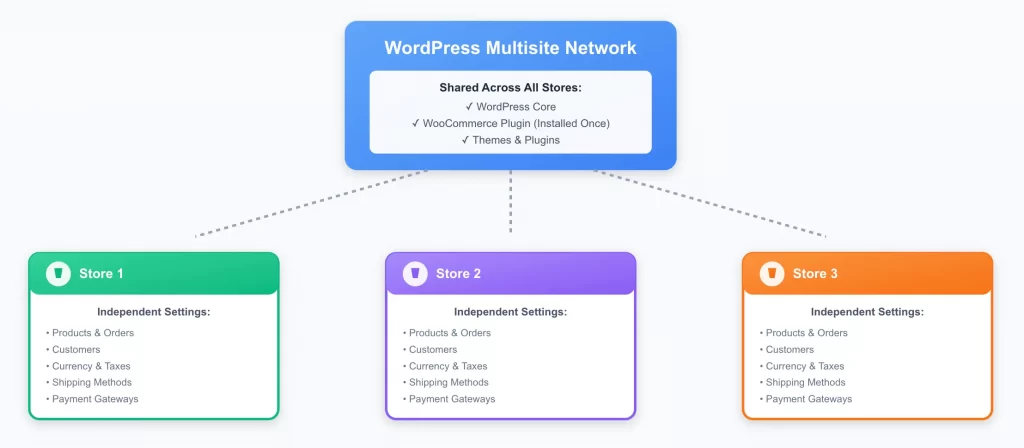
Every store can use a subdomain, a subdirectory, or its own custom domain, depending on how the multisite network is configured.

WordPress multisite WooCommerce is typically used when a business needs multiple stores that operate independently but benefit from centralized management, such as regional stores, brand specific shops, or client stores managed by an agency.
Benefits and Challenges of WooCommerce Multisite
WooCommerce multisite offers clear advantages when managing multiple stores, but it also introduces technical and operational challenges that should be understood before setup.
| Aspect | Benefits | Challenges |
| Store management | Centralized control over WordPress, WooCommerce, themes, and plugins across all stores | Network level issues can affect every store |
| Maintenance | Updates and fixes are applied once instead of repeated on multiple sites | Troubleshooting requires multisite specific knowledge |
| Branding and consistency | Shared themes and plugins help maintain consistent design and core functionality | Store level customization may require additional configuration |
| Hosting and infrastructure | Lower overall hosting and infrastructure costs compared to multiple standalone installs | All stores share server and database resources |
| Performance | Efficient for managing multiple similar stores | High traffic on one store can impact others without proper optimization |
| Plugins and extensions | Easier to manage shared plugins across stores | Some WooCommerce plugins are not fully compatible with multisite |
| Security and backups | Centralized security and backup strategies | Security or backup failures can affect the entire network |
By weighing the benefits against the challenges, you can determine if WooCommerce multisite is the right approach for managing multiple stores. This evaluation sets a solid foundation before moving into the setup process.
How to Set Up WooCommerce Multisite
Before enabling WordPress multisite WooCommerce, confirm the following requirements:
- Your hosting environment supports WordPress multisite and multiple websites
- You are the administrator of the existing WordPress installation
- You have access to the server file system using FTP or a file manager
- You have decided whether to use subdomains or subdirectories for your stores
- You understand that all sites share one database, with separate tables and media folders
- Plugins and themes are installed once at the network level, but can be activated per site
Proper planning at this stage prevents structural changes later. Now, let’s get in the full WooCommerce multisite tutorial.
Step 1: Back up your current WordPress site
Enabling multisite modifies your existing WordPress installation.
- Back up all files and the database
- Deactivate all active plugins
- Confirm that Pretty Permalinks are enabled and working
This ensures you can restore your site if issues occur during setup.
Step 2: Enable WordPress multisite
Open the wp-config.php file and add the following line above the stop editing comment:
define( 'WP_ALLOW_MULTISITE', true );Save the file and refresh your WordPress admin dashboard. This enables the Network Setup option.
Step 3: Create the multisite network
- Go to Tools → Network Setup
- Choose subdomains or subdirectories based on your plan
- Enter the network title, admin email, and server address
- Click Install
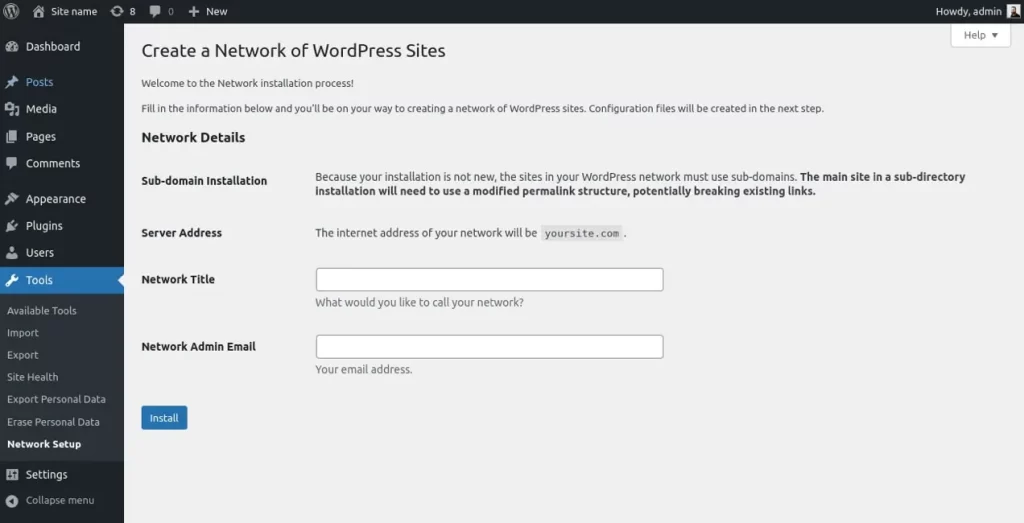
WordPress will generate custom configuration rules for wp-config.php and .htaccess. Add these lines exactly as shown, then clear cookies and log in again.
Step 4: Access and configure Network Admin
After installation, a My Sites menu appears in the admin toolbar.
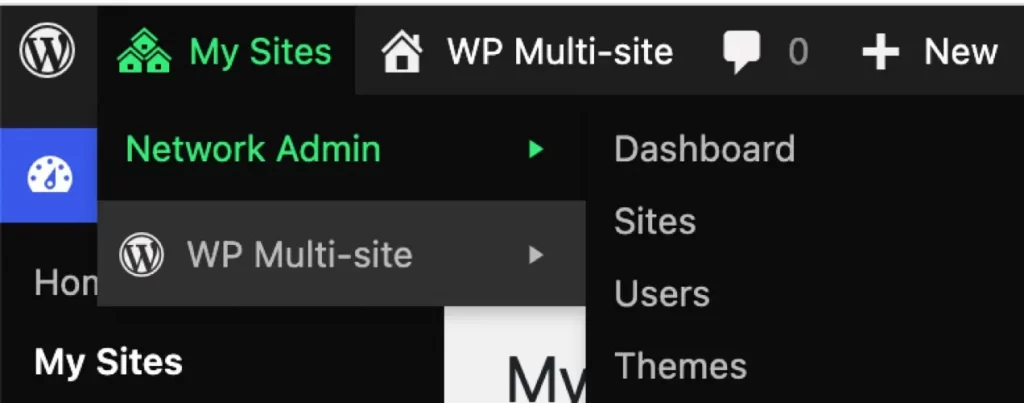
From Network Admin, you can:
- Manage network settings
- Add or remove sites
- Control themes, plugins, and users across the network
This dashboard controls the entire multisite WooCommerce environment.
Step 5: Install and configure WooCommerce (if not installed yet)
- Go to My Sites → Network Admin → Plugins → Add New
- Install WooCommerce. Activate WooCommerce on the sites where it is needed
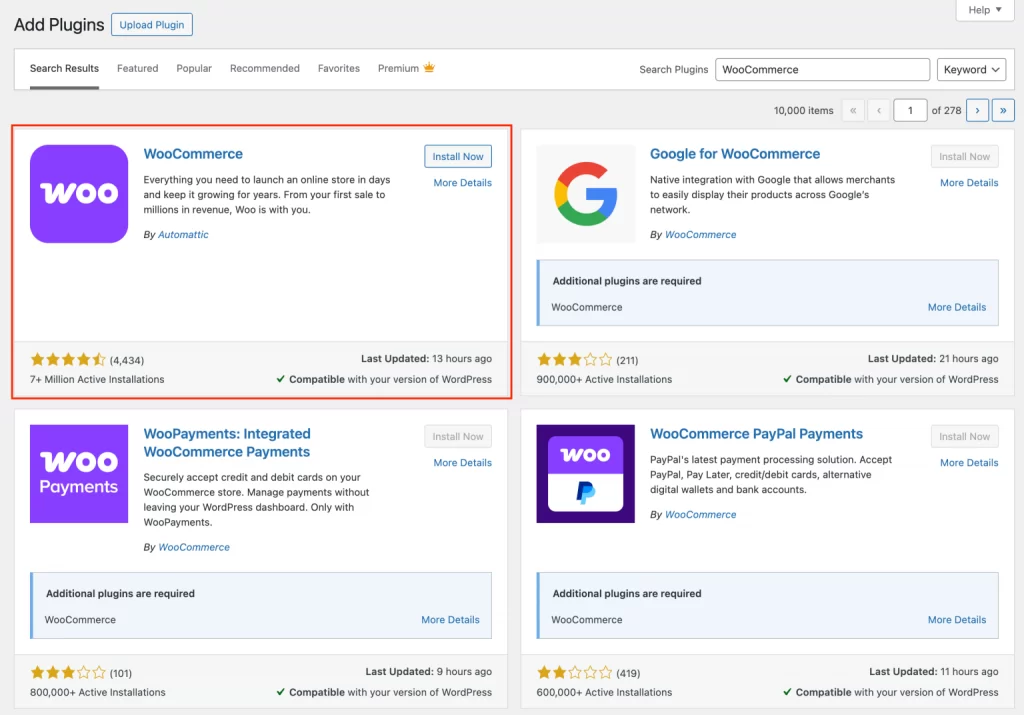
For each store:
- Open the site dashboard
- Go to WooCommerce → Settings
- Configure location, currency, taxes, shipping, and payments
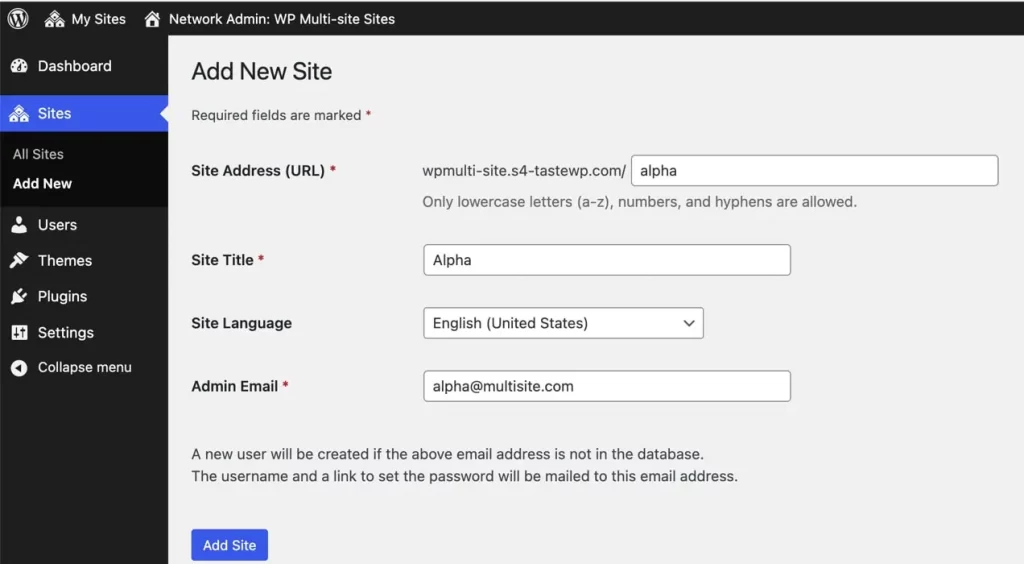
Each site functions as an independent WooCommerce store with its own settings.
Step 6: Manage sites, domains, and user access
- Add new stores from Network Admin → Sites → Add New
- Configure subdomains or custom domains using DNS and SSL
- Manage users from Network Admin → Users
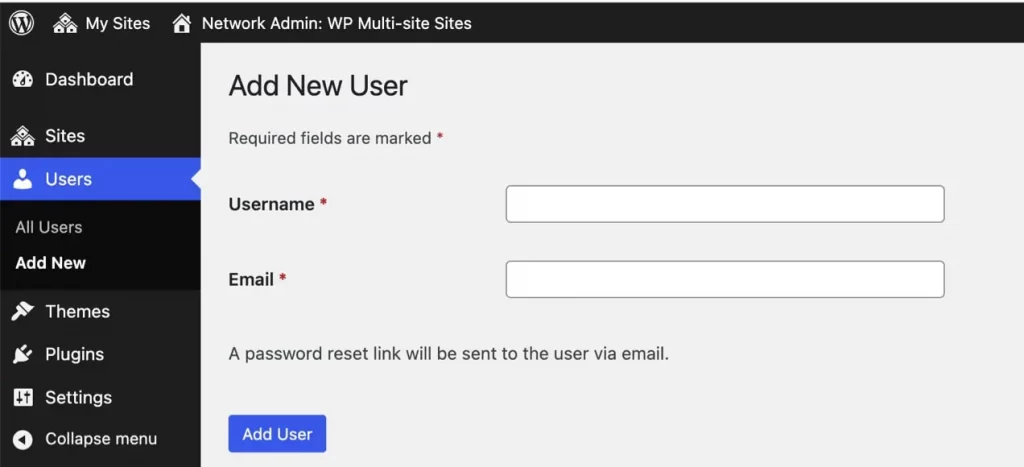
User accounts exist at the network level, while roles and permissions apply per site.
For shared checkout flows or centralized store operations, a dedicated WooCommerce multistore plugin is required.
Best Plugins for WooCommerce Multisite
WooCommerce multisite works best when you keep plugins to a minimum and choose tools that are tested in multisite environments. The plugins below focus on the most common needs when running multiple WooCommerce stores, including domains, products, users, and SEO.
| Use case | Plugin name | What it is used for | Notes for multisite |
| Domain mapping | WordPress Multisite Domain Mapping | Assign custom domains to individual stores | WordPress core supports domain mapping, but this helps on complex hosting setups |
| Product sync | Multisite Product Sync for WooCommerce | Sync products across multiple sites | Useful for shared catalogs, avoid large networks without performance tuning |
| WooMultistore | Share and sync products, inventory, and prices between stores | Popular for regional or brand-based stores | |
| User management | User Role Editor | Control user roles per site | Works well when staff manage multiple stores |
| WP Multisite User Sync | Sync users across sites in the network | Helpful for shared customer or staff access | |
| SEO | Rank Math SEO | Manage SEO settings per store | Full multisite support, separate metadata per site |
| Yoast SEO | Control SEO per store | Multisite is compatible with site-level configuration | |
| Caching and performance | WP Rocket | Improve performance across stores | Must be configured carefully for multisite environments |
| Backup and recovery | UpdraftPlus | Backup multisite networks | Supports network-wide and site-level backups |
You can choose the right WooCommerce multisite plugin based on your specific needs.
WooCommerce Multisite Troubleshooting Tips
Running multiple WooCommerce stores in a multisite network introduces issues that do not appear in single store setups. The tips below address the most common multiple WooCommerce store problems and explain how to identify and fix them without disrupting the entire network.
WooCommerce not working on subsites
This issue most often appears after Step 2: Enable WordPress multisite or Step 4: Install and network-activate WooCommerce.
You should check whether WooCommerce is activated at the correct scope and confirm that the affected subsite has completed its initial WooCommerce setup. Also, let’s review user permissions, as subsite administrators may lack access to required WooCommerce settings.
Plugin conflicts across the network
Plugin conflicts are common in WooCommerce multisite environments because plugins share the same codebase across all stores. Disable recently added plugins at the network level and reenable them one by one to identify the source of the conflict. When possible, activate plugins only on the sites that need them rather than network activating everything.
Products or users not syncing between sites
This issue is commonly linked to Step 5: Configure WooCommerce for each site or Step 6: Manage sites, domains, and user access.
WooCommerce multisite does not sync products or inventory by default. If syncing is expected, verify that the correct multistore or sync plugin is installed and configured properly. You should also confirm that background tasks and scheduled actions are running as required.
Checkout, payment, or currency issues
Checkout problems usually occur when payment gateways or currency settings are misconfigured at the site level. Confirm that each store has its own payment gateway credentials and correct currency settings. Avoid using shared gateway credentials unless all stores are meant to use the same merchant account.
Performance and caching problems
Performance issues often develop after Step 3: Create the multisite network or Step 6: Manage sites, domains, and user access.
All stores share server and database resources, so improper caching rules or insufficient hosting capacity can impact the entire network. Ensure that caching is applied per site and not across stores, and monitor database load as traffic grows.
WordPress WooCommerce Multisite FAQs
Can WooCommerce multisite share products?
By default, WooCommerce multisite does not share products between sites. Each store has its own product database. To share products or inventory across multiple stores, you need a dedicated product sync plugin that is designed for multisite environments.
Can customers use one account across WooCommerce stores?
Yes. In a WooCommerce multisite network, user accounts are shared at the network level. A customer can log in with one account across multiple stores, but orders, billing details, and permissions remain specific to each store.
Is WooCommerce multisite good for SEO?
WooCommerce multisite can work well for SEO when each store has its own domain or clear URL structure and unique content. SEO issues usually arise when stores share similar products and content without proper differentiation. Using a multisite compatible SEO plugin and managing metadata per site helps avoid duplicate content problems.
Is WooCommerce multisite suitable for large stores?
WooCommerce multisite is suitable for large stores only when hosting, caching, and database optimization are handled properly. High traffic or resource intensive stores often require dedicated hosting environments to prevent one store from affecting the performance of others in the network.
Final Thoughts: Is WooCommerce Multisite Right for You?
WooCommerce multisite is a practical solution for managing multiple WooCommerce stores from a single WordPress installation when centralized control is a priority. It works best for businesses or agencies running similar stores that benefit from shared plugins, themes, and infrastructure.
Before choosing this setup, consider your performance requirements, plugin compatibility, and long-term scalability to ensure WooCommerce multisite fits your operational needs.
And now, let’s build what’s next!
At LitOS, we help brands grow smarter on WooCommerce with better technology, practical strategy, and hands-on support that delivers real results. From migration to long-term growth, we make the process seamless and scalable.
Contact Us
